1
For safes with a
fingerprint swipe lock
First time use
Open unit first, then test
with door open!
To unlock safe with numeric codes:
NOTE: Press CLEAR to remove numeric inputs.
Enter the 5-digit factory code provided on the front of the
Owner’s Manual, a pre-programmed manager code, or a preprogrammed user code and press the PROG/ENTER key. (See
the following instructions for inputting manager and user
codes.) An asterisk will light each time a digit is entered. When
the unlocked padlock icon appears you have 4 seconds to turn
the handle downward and open the safe.
To delete:
WARNING: A manager code must be programmed to
add or delete users
1. Press PROG/ENTER.
2. Enter the 5-digit factory code.
3. Press PROG/ENTER.
4. Enter 0, 0, 0, 0, then the PROG/ENTER key.
Enrolling manager fingerprints
To unlock safe with a fingerprint:
Press any key except the PROG/ENTER key to wake the
electronic lock. Swipe your pre-programmed finger over the
sensor. When the unlocked padlock icon appears you have
4 seconds to turn the handle downward and open the safe.
IMPORTANT
To lock safe:
For some fingerprint locks
Close the door and return the handle to the horizontal position.
NOTE: If you are experiencing difficulty with the
operation of the locking mechanism, DO NOT
RETURN THIS PRODUCT TO THE STORE. PLEASE
CONTACT SENTRY GROUP CUSTOMER SERVICE
at 1-800-828-1438 for assistance. Most problems
can be quickly resolved over the telephone.
It is important that you keep this Owner’s Manual in a secure
place other than IN your safe; it is your reference for the
safe’s Serial Number and Factory Code.
Tips for fingerprint
programming and usage
To open your safe for the first time
Battery installation:
To power the lock, four alkaline AA batteries, equalling voltage:
6Vdc (not included), are required.
NOTE: Non-alkaline and rechargeable batteries
ARE NOT RECOMMENDED.
To install batteries:
1. Remove and discard the screw at the base of the lock case.
2. Turn the electric lock case to the right (clockwise) from
12 o’clock to 2 o’clock and remove. Insert four new batteries
as indicated, replace the electric lock case and turn to the left
to reassemble.
Best finger for programming
• Do not choose a finger with a cut or scar.
• Choose a finger with the tightest swirl pattern.
Swiping fingerprints
• When swiping, keep your finger flat against the
fingerprint sensor.
• Swipe in a downward motion using a consistent medium speed.
• Use a medium pressure on the sensor. Too firm or too light
will not read correctly.
• Also note where you are standing in relation to the safe.
Programming or usage at a different angle will not work well.
Skin condition
• If you have dirt on your hands, please wash them before using
the safe.
• Very dry skin will not program well. Use a skin moisturizer,
being sure to rub the moisturizer in well and remove any
excess before using the safe.
Environmental conditions
• The electronics may not work or may have a slow reaction time
in cold temperatures (50°F or less). Make sure that the safe is
at room temperature before programming and usage.
Cleaning the sensor
• For optimal accuracy and fingerprint-reading success, clean
the electronic case and fingerprint sensor periodically with a
dry, lint-free cloth.
Programming the manager code
NOTE: The fingerprint lock stores one (1) manager and
up to six (6) users. The manager and each user
are encouraged to program two fingers,
preferably one finger from each hand.
To add:
1. Press PROG/ENTER twice.
2. Enter the 5-digit factory code.
3. Press PROG/ENTER.
4. Swipe your first finger in a downward direction over the
fingerprint sensor. Three accurate reads of the fingerprint are
necessary for successful enrollment. After each successful
swipe a beep up will sound and an asterisk will light. An
unsuccessful swipe will result in an ERR signal and a low pitch
will sound.
5. The blinking finger icon indicates that the sensor is ready
to read a fingerprint swipe. After the sensor reads a finger
swipe, the finger icon stays lit while saving the fingerprint into
memory. Wait for the finger icon to blink before proceeding
with additional finger swipes.
To delete:
1. Press PROG/ENTER twice.
2. Enter the 5-digit factory code.
3. Press PROG/ENTER.
4. Press 0, 0, 0, 0, then the PROG/ENTER key.
Errors while enrolling fingerprints:
1. A single BEEP/ERROR signal means that the sensor did not
read the fingerprint.
2. A three BEEP/ERROR signal means that the sensor read the
fingerprint but data did not meet minimum requirements.
3. The electronic lock will automatically turn off after ten
consecutive errors.
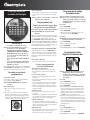
NOTE: See page 2 for icon identification.
Low battery notice
When the battery power gets low, the battery icon will blink with
each activation of the lock until batteries are replaced.
NOTE: No codes are erased when old batteries are
removed for replacement.
NOTE: All zeros is an invalid code. The pre-programmed
factory code is also an invalid manager code.
One (1) manager code is allowed.
To add:
1. Press PROG/ENTER.
2. Enter the 5-digit factory code.
3. Press PROG/ENTER.
4. Enter your new manager code consisting of 4-8 digits, and
then press PROG/ENTER.
3