1
BDP-904(A)_091204:BDP-904(A) 2009-12-07 오후 2:17 페이지 34
ENGLISH
SETTING THE NETWORK
• To access BD-LIVE contents from websites, you should connect this unit to the internet and set the communication settings.
(For details, “CONNECTING TO NETWORK” on page 8.)
• When you set the communication setting manually, the following information of the connected router or modem is required.
Confirm the information prior to the setting : IP address, Subnet mask, Gateway, Primary DNS and Secondary DNS.
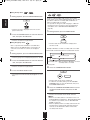
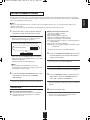
1.
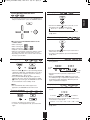
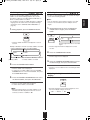
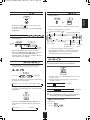
3. Press the CURSOR RIGHT button to display the
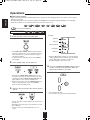
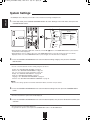
Perform the steps 1 and 2 in “System Settings”
procedure on page 28 to select the Network.
IP Mode.
• Then the network setting menu will be displayed.
Off:
Disables this unit’s LAN capabilities.
Manual :
Configures network settings manually.
Dynamic (default setting) :
Automatically configures the network settings by the DHCP
server function of the router or modem.
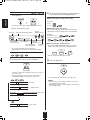
Wired :
Configures network settings depending on your internet
environment, etc. when connecting to the internet.
Network Test :
Detects the internet connection and automatically
configures the network settings by the DHCP server
function of the router or modem.
■Note :
• Select the Manual only when the DHCP server function of
the router or modem cannot be used for the automatic
configuration.
■Note :
• When IP Mode is set to Off, Network Test cannot be
selected.
4. Press the CURSOR UP/DOWN buttons to select
2. Press the CURSOR UP/DOWN buttons to select
the desired IP Mode, then press the OK button.
the network configuration mode, then press the
OK button.
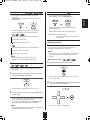
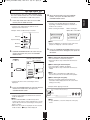
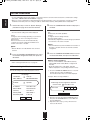
■When selecting the Manual
• You can select IP Address, Subnet Mask, Gateway,
Primary DNS and Secondary DNS to configure them
manually.
• On the IP Settings menu, “Link Status” and “Mac
Address” display the corresponding information merely.
• When selecting the Network Test, see page 35.
When selecting the Wired
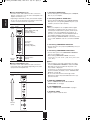
Then the IP Settings menu will be displayed as follows :
① Press the CURSOR UP/DOWN buttons to select the
desired option, then press the OK button.
Then the New Value entry screen will be displayed.
IP Settings
Link Status
MAC Address
Link Up
00:23:03:00:50:b4
IP Mode
Dynamic
IP Address
192.168.1.110
Subnet Mask
255.255.255.0
Gateway
192.168.1.1
Primary DNS
168.126.63.1
Secondary DNS
0. 0. 0. 0
Example : When selecting IP Address
Please enter a new IP Address.
Apply
Valid range of each segment is 0 to 255.
Current value
192.168.1.110
New Value
.
OK
.
.
Cancel
② Enter the new value pressing the NUMERIC buttons,
then press the CURSOR buttons to select “OK” and
press the OK button.
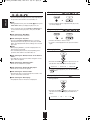
③ Repeat the above steps ① and ② until other new
values are all entered.
Cancel
34