1
56
People
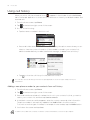
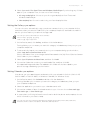
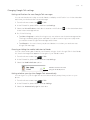
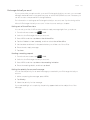
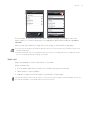
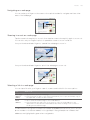
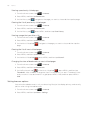
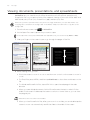
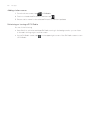
Breaking the contact information link between contacts
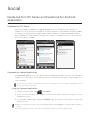
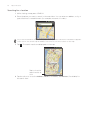
1. From the Home screen, tap
> People.
2. On the All tab, tap the name of the contact (not the icon or photo) whose contact
information link you want to break.
3. On the upper right corner of the screen, tap
4. On the Linked contacts section, tap
.
beside the name of the contact to break the link.
5. Tap Done.
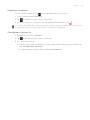
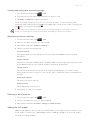
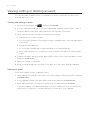
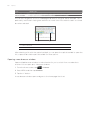
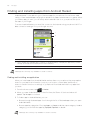
Editing a contact’s information
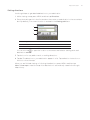
1. From the Home screen, tap
> People.
2. On the All tab, press and hold the contact, and then tap Edit contact.
3. Enter the new information for the contact.
4. Scroll to the bottom of the screen, and then tap Save.
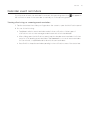
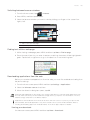
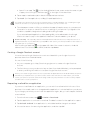
Searching for a contact
1. From the Home screen, tap
> People.
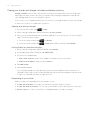
2. Press the SEARCH button on the phone.
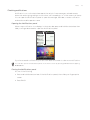
3. In the search bar, enter the first few letters of the first or last name of the contact you are
looking for. Matching contacts are displayed.
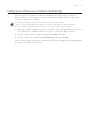
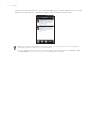
If the list of matching contacts is long, you can view more results by tapping
onscreen keyboard.
to hide the
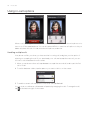
4. Tap the contact to open his or her contact details screen. See “Contact information and
conversations” in this chapter for details.
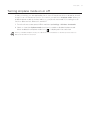
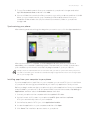
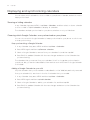
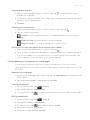
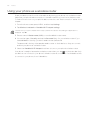
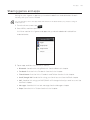
Backing up your contacts to the storage card
1. From the Home screen, tap
> People.
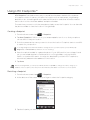
2. Press MENU, and then tap Import/Export > Export to SD card.
3. Select an account or type of contacts to export, then tap OK.
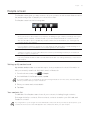
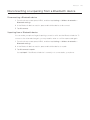
Importing contacts from the storage card
1. From the Home screen, tap
> People.
2. Press MENU, and then tap Import/Export > Import from SD card.
You can only import contacts that were exported to the storage card using the Export to SD card
feature on the phone. See “Backing up your contacts to the storage card”.
3. If you have Google or Exchange ActiveSync accounts set up on your phone, tap the type
for the imported contacts.
Press BACK to stop importing contacts from the storage card.