1
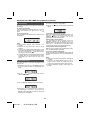
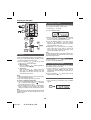
Setting the clock (Remote control
only)
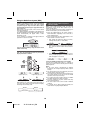
Listening to the iPod
Supported iPod models:
● iPod nano (software 1.2 above)
● iPod mini (software 1.2 above)
● iPod (5th generation) (software 1.3 above) (Dock
connector equipped Click Wheel model)
● iPod (4th generation) (software 3.0.2 above) (Dock
CD
USB
MUTE
●
●
●
●
●
●
CLOCK/TIMER
TUNING/
FOLDER
PTY
RDS
AUX
connector equipped Click Wheel model)
iPod nano (2nd generation) (software 1.0.0 above)
iPod nano (3rd generation) (software 1.0.3 above)
iPod nano (4th generation) (software 1.0.3 above)
iPod classic (software 1.0.3 above)
iPod touch (software 1.1 above)
iPod touch (2nd generation) (software 2.1 above)
Caution:
Please update your iPod unit to the latest software version
from Apple’s homepage before using it.
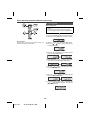
In this example, the clock is set for the 24-hour (00:00)
display.
Notes:
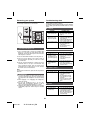
● Once the iPod is connected to the unit it will begin
charging.
● The iPod unit cannot be charged whilst the main unit is
in USB mode.
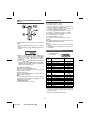
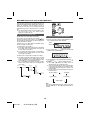
1 Press the ON/STAND-BY button to turn to stand-by
mode.
2 Press and hold the CLOCK/TIMER button until “00:00”
appear.
■
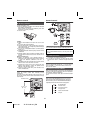
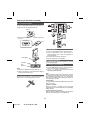
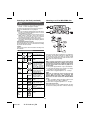
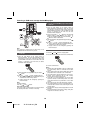
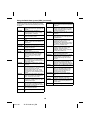
iPod adaptor connection
The marking shows
which iPod fits
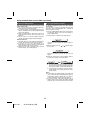
3 Within 10 seconds, press the
or
button to
adjust the hour and then press the CLOCK/TIMER
button. Press the
or
button once to advance
the time by 1 hour. Hold it down to advance
continuously.
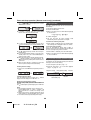
4 Press the
or
button to adjust the minutes and
then press the CLOCK/TIMER button. Press the
or
button once to advance the time by 1 minute. Hold
it down to advance continuously.
iPod
Adaptor
No.
A
A
A
A
A
A
A
A
A
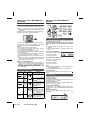
To confirm the time display:
[When the unit is in the stand-by mode]
Press the CLOCK/TIMER button. The time display will
appear for about 5 seconds.
[When the power is on]
Press the CLOCK/TIMER button. The time display will
appear for about 5 seconds.
B
B
B
B
C
D
D
E
E
Note:
The “00:00” will appear when the AC power supply is
restored after a power failure or unplugging the unit.
Readjust the clock as follows.
To readjust the clock:
Perform “Setting the clock” from step 1.
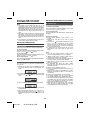
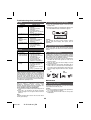
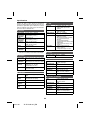
iPod Description
A
Capacity
5G iPod (with video)
U2 iPod with video
iPod classic
4G iPod & U2 iPod
4G iPod
iPod photo
iPod with colour display
iPod Touch
iPod Touch (2nd Gen.)
30GB
30GB
80GB & 120GB
20GB
40GB
40GB & 60GB
60GB
8GB & 16GB
8GB, 16GB &
32GB
iPod nano
2GB & 4GB
iPod nano (2nd Gen.)
2GB, 4GB & 8GB
iPod nano (3rd Gen.)
4GB & 8GB
iPod nano (4th Gen.)
8GB & 16GB
iPod mini
4GB & 6GB
iPod photo & colour U2 iPod 20GB & 30GB
iPod with colour display
20GB, 60GB
5G iPod with video
60GB & 80GB
iPod classic
160GB
Notes:
● If you have an iPod that does not have an iPod 30 Pin
connector, you can use an audio cable to connect it to
the AUX IN socket.
● iPhone is not supported by this system.
7
04/1/28
XL-DH10N 20H_EN
1
2
3
4
5
6
7
8
9