1
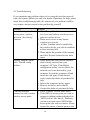
4-2 Troubleshooting
If you encounter any problem when you’re using this wireless network
card, don’t panic! Before you call your dealer of purchase for help, please
check this troubleshooting table, the solution of your problem could be
very simple, and you can solve the problem by yourself!
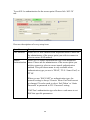
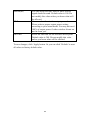
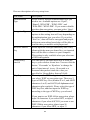
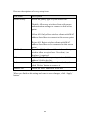
Scenario
I can’t find any wireless
access point / wireless
device in ‘Site Survey’
function.
Nothing happens when I
click ‘Launch config
utilities’
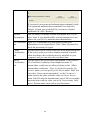
I can not establish
connection with a certain
wireless access point
Solution
1. Click ‘Rescan’ for few more times and
see if you can find any wireless access
point or wireless device.
2. Please move closer to any known
wireless access point.
3. ‘Ad hoc’ function must be enabled for
the wireless device you wish to establish
a direct wireless link.
4. Please adjust the position of the antenna
and click ‘Rescan’ button for few more
times.
1. Please make sure the wireless network
card is firmly inserted into your
computer’s PCI slot. If the Ralink
configuration utility’s icon is black, the
network card is not detected by your
computer. Switch the computer off and
insert the card again. If this doesn’t
work, contact the dealer of purchase for
help.
2. Reboot the computer and try again.
3. Remove the driver and re-install.
4. Contact the dealer of purchase for help.
1. Click ‘Connect’ for few more times.
2. If the SSID of access point you wish to
connect is hidden (nothing displayed in
‘SSID’ field in ‘Site Survey’ function),
you have to input correct SSID of the
access point you wish to connect. Please
contact the owner of access point to ask
72