1
Installing Support Software
1.Insert the support CD-ROM disc in the CD-ROM drive.
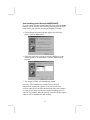
2.When you insert the CD-ROM disc in the system CD-ROM
drive, the CD automatically displays an Auto Setup screen.
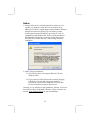
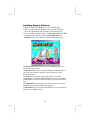
3.The screen displays three buttons of Setup, Browse CD and Exit
on the right side, and three others Setup, Application and
ReadMe at the bottom. Please see the following illustration.
The Setup button runs the software auto-installing program as
explained in next section.
The Browse CD button is a standard Windows command that you
can check the contents of the disc with the Windows 98 file
browsing interface.
The Exit button closes the Auto Setup window. To run the
program again, reinsert the CD-ROM disc in the drive; or click the
CD-ROM driver from the Windows Explorer, and click the Setup
icon.
The Application button brings up a software menu. It shows the
bundled software that this mainboard supports.
The ReadMe brings you to the Install Path where you can find out
path names of software driver.
32