1
Time Setting
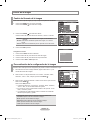
Setting the Clock
Setting the clock is necessary in order to use the various timer features of the TV.
Also, you can check the time while watching the TV. (Just press the INFO button.)
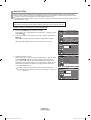
Option 1: Setting the Clock Manually
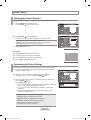
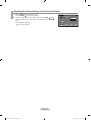
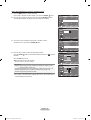
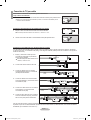
1. Press the MENU button to display the menu.
Press the ▲ or ▼ button to select "Setup", then press the ENTER
Press the ▲ or ▼ button to select "Time", then press the ENTER
button.
button.
TV
Setup
Plug & Play
►
Language
: English
►
Time
V-Chip
►
►
Caption
Melody
: Medium
►
►
Energy Saving
: Off ►
SW Upgrade ►
Move Enter
Return
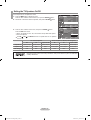
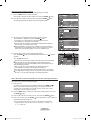
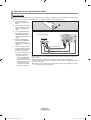
2. Press the ENTER
button to select "Clock".
TV
Time
--/--/----/--:-- -Clock
Sleep Timer
: Off
Timer 1
: Inactivated
Timer 2
: Inactivated
Timer 3
: Inactivated
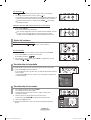
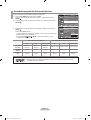
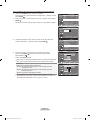
3. Press the ENTER
button to select “Clock Mode”.
Press the ▲ or ▼ button to select “Manual”, then press the ENTER
button.
Move TV
Clock
Move Enter
Return
Clock
Clock Mode
: Manual
Clock Set
Time Zone
DST
: Off
Move TV
Enter
►
►
►
►
Return
Clock Set
Enter the current date and time.
Month
▲
Day
Year
Minute
am/pm
▼
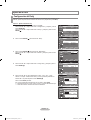
Press the EXIT button to exit.
: Off
TV
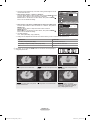
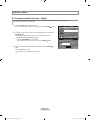
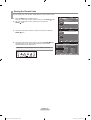
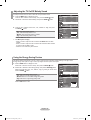
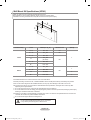
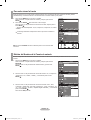
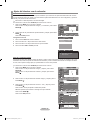
5. Press the ◄ or ► button to move to “Month”, “Day”, “Year”, “Hour”, “Minute”,
or “am/pm”. Set the date and time you want by pressing the ▲ or ▼ button,
then press the ENTER
button.
Return
Clock Mode
: Manual
►
Auto
Manual
Clock Set
►
Time Zone
DST
4. P
ress the ▲ or ▼ button to select “Clock Set”, then press the ENTER
button.
Enter
►
►
►
►
►
Hour
The current time will appear every time you press the INFO button.
You can set the month, day, year, hour and minute directly by pressing the
number buttons on the remote control.
Move TV
Adjust
Return
Clock Set
Enter the current date and time.
Month
Day
01
01
2008
Hour
Minute
am/pm
12
00
am
▲
▼
Move Adjust
Year
Return
English - 37
BN68-01514A-X0Eng-0202_2.indd 37
2008-02-02 ¿ÀÈÄ 9:46:10