1
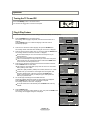
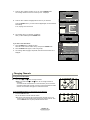
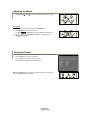
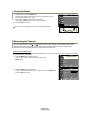
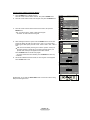
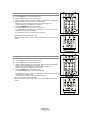
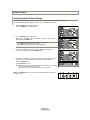
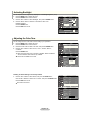
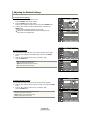
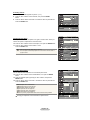
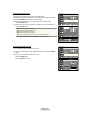
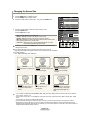
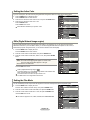
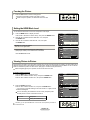
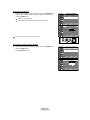
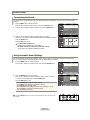
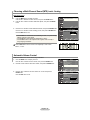
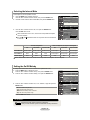
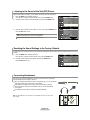
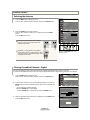
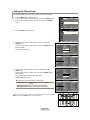
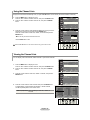
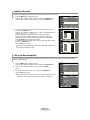
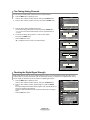
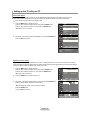
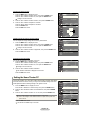
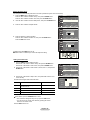
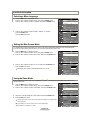
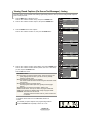
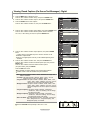
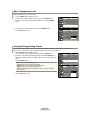
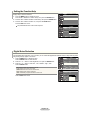
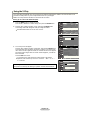
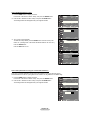
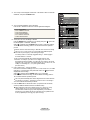
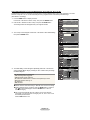
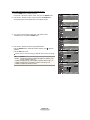
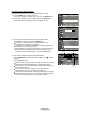
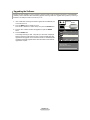
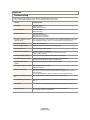
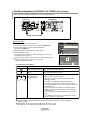
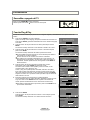
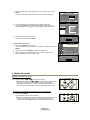
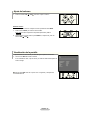
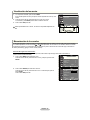
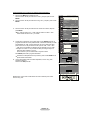
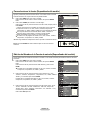
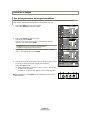
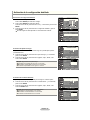
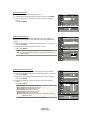
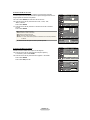
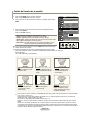
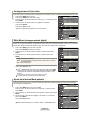
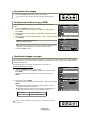
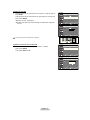
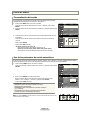
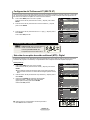
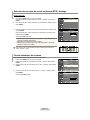
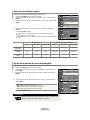
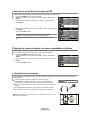
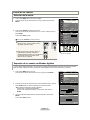
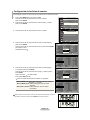
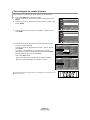
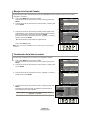
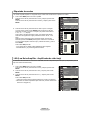
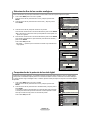
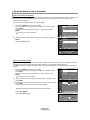
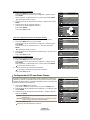
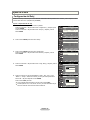
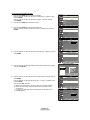
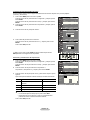
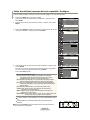
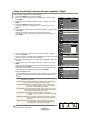
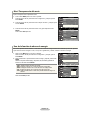
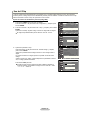
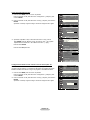
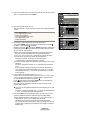
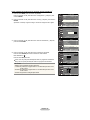
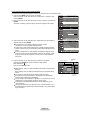
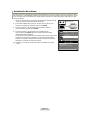
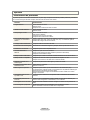
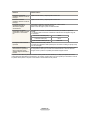
Viewing Closed Captions (On-Screen Text Messages) - Digital The Digital Captions function operates on digital channels. . Press the MENU button to display the menu. Press the ▲ or ▼ buttons to select “Setup”, then press the ENTER button. 2. Press the ▲ or ▼ buttons to select “Caption”, then press the ENTER button. Caption 3. Press the ENTER button to select “Caption”. Press the ▲ or ▼ buttons to select “On”, then press the ENTER button. Caption Options 4. Press the ▲ or ▼ buttons to select “Caption Mode”, then press the ENTER button. Press the ▲ or ▼ buttons to select submenu (Default, Service1~Service6, CC1~CC4, or Text1~Text4) you want, then press the ENTER button. TV Caption Caption Mode Move Enter TV Caption : On ► Caption Mode : Default ► Enter Press the ▲ or ▼ buttons to select “Caption Options”, then press the ENTER button. Press the ▲ or ▼ buttons to select “Size”, then press the ENTER button. Press the ▲ or ▼ buttons to select the desired Caption option, then press the ENTER button. Press the ▲ or ▼ button to select the desired sub-menu options (see options below), then press ENTER . Press the ExIT button to exit. The availability of captions depends on the program being broadcast. “Default” means to follow the standard set by the broadcaster. • Size: This option consists of “Default”, “Small”, “Standard”, and “Large”. The default is “Standard”. • Font Style: This option consists of “Default”, “Style0 ~ Style 7”. You can change the font you want. The default is “Style 0”. • Foreground Color: This option consists of “Default”, “White”, “Black”, “Red”, “Green”, “Blue”, “Yellow”, “Magenta”, and “Cyan”. You can change the color of the letter. The default is “White”. • Background Color: This option consists of “Default”, “White”, “Black”, “Red”, “Green”, “Blue”, “Yellow”, “Magenta”, and “Cyan”. You can change the background color of the caption. The default is “Black”. • Foreground Opacity: This option consists of “Default”, “Transparent”, “Translucent”, “Solid”, and “Flashing”. You can change the opacity of the letter. • Background Opacity: This option consists of “Default”, “Transparent”, “Translucent”, “Solid”,and “Flashing”. You can change the background opacity of the caption. • Return to Default: This option sets each of “Size”, “Font Style”, “Foreground Color”, “Bakcground color”, “Foreground Opacity”, and “Background Opacity” to its default. Return Caption Caption Caption Mode Caption Options 6. ► Caption Options TV “Caption Options” are available only when “Service1~Service6” can be selected in “Caption Mode”. Service1~6 in digital caption mode may not be available depending on the broadcast. Return Caption Move . Off : Off On : Default Move : On Default : Default Service : Off Service2 Service3 Service4 Service Service6 ▼ Enter TV Return Caption Caption Caption Mode Caption Options Move TV ► ► ► : On : Default Enter Return Caption Options Size : Default Font Style : Default Foreground Color : Default Background Color : Default Foreground Opacity : Default Background Opacity : Default Return to Default Move Enter ► ► ► ► ► ► Return Press the CAPTION button repeatedly to select “On” or “Off”. English - BN68-01167A-Eng-00-0329.indd 51 2007-03-29 7:53:36