1
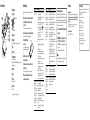
Parts and Controls BACK/HOME button 5-way button*1 (play/pause/confirm) button / buttons / buttons Headphone jack WM-PORT jack Connect the USB cable (supplied), or peripheral devices (not supplied). Display VOL +*1/– button OPTION/PWR OFF button Press to display the option menu. If you press and hold the OPTION/PWR OFF button, the screen turns off and the player enters standby mode. HOLD switch Strap hole Microphone Use to make voice recordings. RESET button Use a small pin, etc. *1 There are tactile dots. Use them to help with button operations. Troubleshooting If the player does not function as expected, try the following steps to resolve the issue. 1 Find the symptoms of the issue in “Troubleshooting” in the User Guide (HTML document), and try any corrective actions listed. For details on connecting to a computer, see the tables on the right. 2 Connect the player to your computer to charge the battery. You may be able to resolve some issues by charging the battery. 3 Press the RESET button with a small pin, etc. RESET button If you press the RESET button while operating the player, stored data and player settings may be lost. 4 Check information on the issue in the Help of each software. 5 Look up information on the issue on one of the customer support Web sites. About the customer support Web sites, see “For the latest information”. 6 If the approaches listed above fail to resolve the issue, consult your nearest Sony dealer. Symptom Cause/Remedy The player cannot charge The USB cable is not connected to a USB connector the battery. on your computer properly. Disconnect the USB cable, and then reconnect it. Use the supplied USB cable. The battery is charged in an ambient temperature out of the range of 5 °C (41 ºF) to 35 °C (95 ºF). icon You cannot charge the battery when appears. Charge the battery in an ambient temperature of 5 °C (41 ºF) to 35 °C (95 ºF). The computer is not on. Turn on the computer. Your computer has entered Sleep or Hibernation status. Release the computer from Sleep or Hibernation status. A USB hub is being used. Connecting the player via a USB hub may not work. Connect the player to your computer using the USB cable (supplied). The operating system installed on the computer is not supported by the player. To charge the player, connect the player to a computer with the operating system that is supported by the player. You have not used the player for more than a year. Depending on the conditions under which your player is used, the battery may have been deteriorated. Consult your nearest Sony dealer. [Connected USB. The The USB cable is not connected to a USB connector player cannot be on your computer properly. operated.] or [Connected Disconnect the USB cable, and then reconnect it. USB (MTP). The player Use the supplied USB cable. cannot be operated.] A USB hub is being used. does not appear when Connecting the player via a USB hub may not connected to the work. Connect the player directly to your computer computer with the USB using the USB cable (supplied). cable (supplied) (The The USB connector on your computer may have a problem. computer does not recognize the player). Connect the player to another USB connector on your computer. Symptom [Connected USB. The player cannot be operated.] or [Connected USB (MTP). The player cannot be operated.] does not appear when connected to the computer with the USB cable (supplied) (The computer does not recognize the player). (Continued) The player becomes unstable while it is connected to the computer. When double-clicking [Setup.exe] to install the bundled software, [Setup.exe] does not execute, and the Properties window opens. Cause/Remedy When you use the player for the first time, or when the battery is low, it may take the player about 30 seconds to display the message after connected to a computer. This is not a malfunction. The software authentication may be performed and it may take rather a long time. Wait for a while. The software installation has been failed. Reinstall the software by using the installer. The imported data will remain untouched. The computer is running another software other than the one used for transferring. Disconnect the USB cable, wait a few minutes, and reconnect it. If the problem persists, disconnect the USB cable, restart the computer, and then reconnect the USB cable. [Connected USB. The player cannot be operated.] or [Connected USB (MTP). The player cannot be operated.] may not appear on the player, depending on the software environment that is running on your computer. Activate Windows Media Player, or Windows Explorer. A USB hub or USB extension cable is being used. Connecting the player via a USB hub or extension cable may not work. Connect the player directly to your computer using the USB cable (supplied). Install the bundled software after installing Windows Media Player 11 or 12. For details on Windows Media Player, refer to the following web site: http://support.microsoft.com/ Precautions To initialize (format) the player You can format the built-in flash memory of the player. If the memory is formatted, all files including the User Guide (HTML document) will be erased and all setting values returned to their defaults. Be sure to verify the files stored in memory prior to formatting, and then export any necessary files to the hard disk of your computer or other device beforehand. 1 Press and hold the BACK/HOME button until the Home menu appears. 2 Select [Settings] – [Common Settings] – [Reset/ Format] – [Format] – [Yes] – [Yes] in this order. Press the /// button to select the item, and then press the button to confirm. When initialization finishes, [Memory formatted.] appears. Note Do not format the built-in flash memory using Windows Explorer. If you format the built-in flash memory, format it on the player. About the headphones Avoid playing the unit at so loud a volume that extended play might affect your hearing. At a high volume outside sounds may become inaudible. Avoid listening to the unit in situations where hearing must not be impaired, for example, while driving or cycling. As the supplied headphones are of open-air design, sounds go out through the headphones. Remember not to disturb those close to you. License and Trademark Notice Refer to the User Guide (HTML document). For the latest information If you have any questions or issues with this product, or would like information on compatible items with this product, visit the following web sites. For customers in the USA: http://www.sony.com/walkmansupport For customers in Canada: http://www.sony.ca/ElectronicsSupport/ For customers in Europe: http://support.sony-europe.com/DNA For customers in Latin America: http://www.sony-latin.com/index.crp For customers in other countries/regions: http://www.sony-asia.com/support For customers who purchased the overseas models: http://www.sony.co.jp/overseas/support/