1
InstantPDF.book Page 1 Wednesday, June 9, 2010 4:04 PM
User guide
InstantPDF.book Page 2 Wednesday, June 9, 2010 4:04 PM
© 2010 Enfocus NV all rights reserved.
Enfocus is an EskoArtwork company.
Certified PDF is a registered trademark of Enfocus
NV; patent pending.
Enfocus PitStop Pro, Enfocus PitStop Server, Enfocus
PitStop Connect, Enfocus Instant PDF, Enfocus StatusCheck, Enfocus CertifiedPDF.net, Enfocus Instant
Barcode, Enfocus PitStop Extreme, Enfocus PDF
Workflow Suite, Enfocus LightSwitch, Enfocus
FullSwitch, Enfocus PowerSwitch, Enfocus SwitchClient, Enfocus SwitchScripter and Enfocus Browser are
product names of Enfocus NV.
Acrobat, Distiller, InDesign, Illustrator, Photoshop,
FrameMaker, PDFWriter, PageMaker, the Adobe logo,
the Acrobat logo and PostScript are trademarks of
Adobe Systems Incorporated.
Macintosh, Mac, Mac OS and ColorSync are trademarks of Apple Computer, Inc., registered in the
U.S. and other countries.
Windows, Windows 2000, Windows XP and Windows Vista are registered trademarks of Microsoft
Corporation.
PANTONE® Colors displayed here may not match
PANTONE-identified standards. Consult current PANTONE Color Publications for accurate color.
PANTONE® and other Pantone, Inc. trademarks are
the property of Pantone, Inc. ©Pantone, Inc.,
2006.
OPI is a trademark of Aldus Corporation.
Quark, QuarkXPress, QuarkXTensions, XTensions and
the XTensions logo among others, are trademarks of
Quark, Inc. and all applicable affiliated companies,
Reg. U.S. Pat. & Tm. Off. and in many other countries.
This product and use of this product is under
license from Markzware under U.S.Patent No.
5,963,641.
Other brand and product names may be trademarks
or registered trademarks of their respective holders.
All specifications, terms and descriptions of products and services are subject to change without
notice or recourse.
InstantPDF.book Page 3 Wednesday, June 9, 2010 4:04 PM
Enfocus Instant PDF User Guide
3
Contents
Chapter 1:
Getting Started ...................................................................................11
The Instant PDF Documentation Set .............................................................. 12
Using the Instant PDF Help Set .................................................................... 12
System Requirements................................................................................ 14
Installing Instant PDF................................................................................ 15
Starting and Configuring Instant PDF ............................................................ 15
Installing Predefined PDF Queues................................................................. 16
Buying and Registering Enfocus Instant PDF ................................................... 17
Getting Support ....................................................................................... 17
Setting the Instant PDF Preferences .............................................................. 18
Preferences > Personal Information ............................................................. 19
Preferences > Language............................................................................. 19
Preferences > Messages .............................................................................20
Preferences > Updates...............................................................................20
Preferences > Units .................................................................................. 21
Preferences > CertifiedPDF.net Membership ................................................... 21
Preferences > CertifiedPDF.net Synchronize.................................................... 22
Preferences > Jobs Location........................................................................ 22
Preferences > Jobs Processing ..................................................................... 23
Preferences > Jobs Color Management ..........................................................24
Preferences > Jobs History..........................................................................25
Preferences > Help Location .......................................................................25
Preferences > Applications .........................................................................26
Preferences > E-mail Server .......................................................................26
InstantPDF.book Page 4 Wednesday, June 9, 2010 4:04 PM
4
Chapter 2:
Creating Certified PDF Documents ........................................................... 29
Understanding the PDF Creation Process........................................................30
Creating PDF Documents the Conventional Way: Trial and Error...........................30
Creating PDF Documents the Enfocus Way: the One-Step Process to an Output-Ready
PDF File.................................................................................................. 32
What Is an Enfocus PDF Queue? ................................................................... 33
Viewing PDF Queues.................................................................................. 33
Creating a Certified PDF Document in QuarkXPress 7 or 8 ...................................35
Creating a Certified PDF Document in Adobe InDesign CS3, CS4 or CS5 ...................36
Creating a Certified PDF Document in Adobe Illustrator CS3, CS4 or CS5.................. 37
Creating a Certified PDF Document in Adobe Acrobat 8 or 9 ...............................38
Creating a Certified PDF Document in Mac OS X................................................39
Creating a Certified PDF Document from PostScript or PDF Files .......................... 40
Creating a Certified PDF Document by Printing to a Virtual Printer ...................... 40
Chapter 3:
Preflighting PDF documents ..................................................................45
Preflighting ........................................................................................... 46
Preflight Profiles ..................................................................................... 46
Preflight Report ....................................................................................... 47
Chapter 4:
Using Action Lists ............................................................................... 51
Definition and Purpose of an Action List........................................................52
Action Types............................................................................................53
Action Lists in Practice...............................................................................55
Further Automation .................................................................................. 57
InstantPDF.book Page 5 Wednesday, June 9, 2010 4:04 PM
Enfocus Instant PDF User Guide
Chapter 5:
5
Working with Certified PDF documents..................................................... 61
About Certified PDF...................................................................................62
Guaranteed Preflighting ............................................................................62
Document Consistency.............................................................................. 64
Responsibility ........................................................................................ 65
The Certified PDF Workflow Explained .......................................................... 66
What Is an Enfocus Certified PDF Document? ..................................................67
Certified PDF User Identification ..................................................................67
Certified PDF Document Status ................................................................... 68
Starting a Certified PDF Workflow for a PDF document ..................................... 68
Checking the Certified PDF Status of a PDF Document........................................70
Viewing the Preflight Report of a Certified PDF Document.................................. 71
Viewing the Edit Log File............................................................................ 71
Viewing the Editing Sessions....................................................................... 72
Chapter 6:
Managing Jobs .................................................................................. 75
What is a Job? .........................................................................................76
Viewing Jobs ...........................................................................................76
Job Processing Explained ...........................................................................78
Creating a New Job ...................................................................................78
Canceling a Job........................................................................................79
Pausing and Resuming a Job ..................................................................... 80
Deleting a Job ........................................................................................ 80
Saving PDF Files and/or Jobs ....................................................................... 81
Reviewing a PDF Document ........................................................................82
InstantPDF.book Page 6 Wednesday, June 9, 2010 4:04 PM
6
Chapter 7:
Creating and Editing PDF Queues ............................................................85
Creating a New Enfocus PDF Queue.............................................................. 86
Editing an Enfocus PDF Queue .....................................................................87
Using Variables When Configuring PDF Queues ............................................... 89
PDF Queue Properties ............................................................................... 90
Information ............................................................................................ 91
Author ...................................................................................................92
Color Management ...................................................................................92
Locking ..................................................................................................93
File Name.............................................................................................. 95
PostScript to PDF ..................................................................................... 96
Output Options ........................................................................................97
QuarkXPress 7 or 8 ................................................................................... 98
Adobe InDesign CS3, CS4 or CS5 .................................................................. 100
Adobe Illustrator CS3, CS4 or CS5 .................................................................102
Virtual Printer ........................................................................................103
Mac OS X .............................................................................................. 105
Existing File .......................................................................................... 105
Correction............................................................................................. 106
Preflight............................................................................................... 108
Review ................................................................................................ 109
Save..................................................................................................... 110
E-mail.................................................................................................. 112
FTP....................................................................................................... 113
Enfocus PowerSwitch ............................................................................... 114
Summary............................................................................................... 115
Chapter 8:
Managing PDF Queues......................................................................... 119
Importing a PDF Queue.............................................................................120
Exporting a PDF Queue ............................................................................. 121
Duplicating a PDF Queue ........................................................................... 122
Deleting a PDF Queue ............................................................................... 123
Sorting PDF Queues in the PDF Queues List .................................................... 123
InstantPDF.book Page 7 Wednesday, June 9, 2010 4:04 PM
Enfocus Instant PDF User Guide
Chapter 9:
7
Using and Managing CertifiedPDF.net PDF Queues...................................... 127
What is CertifiedPDF.net? ..........................................................................128
Checking the CertifiedPDF.net Status of Your PDF Queue in Instant PDF................129
Synchronizing a PDF Queue with CertifiedPDF.net ...........................................130
Uploading and Publishing a PDF Queue on CertifiedPDF.net.............................. 133
Subscribing to a PDF Queue-based Specification on CertifiedPDF.net ..................136
Index.............................................................................................................................139
InstantPDF.book Page 8 Wednesday, June 9, 2010 4:04 PM
8
InstantPDF.book Page 9 Wednesday, June 9, 2010 4:04 PM
Chapter 1
InstantPDF.book Page 10 Wednesday, June 9, 2010 4:04 PM
InstantPDF.book Page 11 Wednesday, June 9, 2010 4:04 PM
Enfocus Instant PDF User Guide
Chapter 1:
Getting Started
About This Chapter
Topics
This chapter puts you on the right track after you
have purchased Instant PDF. It describes how to
install Instant PDF and predefined PDF Queues and
how to set the preferences. You also find an overview of the various components of the Instant PDF
documentation set and brief instructions on how to
use the Instant PDF Help.
In this chapter:
•
The Instant PDF Documentation Set 12
•
Using the Instant PDF Help Set 12
•
System Requirements 14
•
Installing Instant PDF 15
•
Starting and Configuring Instant PDF 15
•
Installing Predefined PDF Queues 16
•
Buying and Registering Enfocus Instant
PDF 17
•
Getting Support 17
•
Setting the Instant PDF Preferences 18
•
Preferences > Personal Information 19
•
Preferences > Language 19
•
Preferences > Messages 20
•
Preferences > Updates 20
•
Preferences > Units 21
•
Preferences > CertifiedPDF.net
Membership 21
•
Preferences > CertifiedPDF.net
Synchronize 22
•
Preferences > Jobs Location 22
•
Preferences > Jobs Processing 23
•
Preferences > Jobs Color Management 24
•
Preferences > Jobs History 25
•
Preferences > Help Location 25
•
Preferences > Applications 26
•
Preferences > E-mail Server 26
11
InstantPDF.book Page 12 Wednesday, June 9, 2010 4:04 PM
Chapter 1: Getting Started
12
The Instant PDF Documentation
Set
Using the Instant PDF Help Set
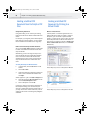
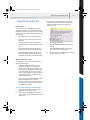
Accessing the Instant PDF Help
The Instant PDF User Guide
The Instant PDF User Guide explains the main
Instant PDF concepts and provides you with
step-by-step instructions on how to work with
Instant PDF. Moreover, you learn about other Enfocus core technologies that are integrated into
Instant PDF, such as Preflight Profiles, Action Lists
and Certified PDF.
All the information in the Instant PDF User Guide is
also available as online Help.
You can access the Instant PDF Help in the following
ways:
•
From within Instant PDF
•
From the preflight report
To access the Instant PDF Help from within Instant
PDF:
Do one of the following:
•
In the main window of Instant PDF, choose
Help > Documentation > Instant PDF Help
(HTML).
•
Click the Help button (
) in the Help area
one of the Instant PDF windows.
To access the Instant PDF User Guide:
In the main window of Instant PDF, choose Help >
Documentation > User Guide (PDF).
The User Guide will be opened in Adobe Acrobat or
Adobe Reader. In Mac OS X, it can also be opened in
Preview or any other application that is associated
with PDF.
To access the Instant PDF Help from the preflight
report:
See also:
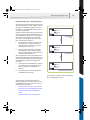
The corresponding Help topic appears in your
browser window, displaying the cause and possible
solutions for the error message which appeared in
the preflight report.
•
“Preferences > Help Location” on page 25
•
Click the question mark (
) preceding the
error or warning entry in the preflight report.
Related Documentation
You can find related documentation in the
Resources section on CertifiedPDF.net:
1
Go to www.certifiedPDF.net
2
Click Resources > Help.
Finding the Right Help Topic
In the main window of Instant PDF, choose Help >
Documentation > Instant PDF Help (HTML). You will
see that the Help window consist of two frames:
•
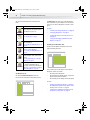
The Navigation frame on the left. This is
where you see the Contents, Index and
Search tabs and the titles of the Help
volumes: Quick-Start Help, Enfocus Instant
PDF Help and Preflight Report Help.
•
The Topic frame on the right. This is where
you will see the actual text of the topic.
You can quickly find the relevant Help topic in several ways:
•
Finding a Help topic by title (Contents)
•
Finding a Help topic by keyword (Index)
InstantPDF.book Page 13 Wednesday, June 9, 2010 4:04 PM
Enfocus Instant PDF User Guide
•
Finding a Help topic by searching for keywords
(Search)
Finding a Help topic by title
•
Avoid special characters and punctuation
marks. For example, do not type “synchronize”+”queue”, but just synchronize queue.
•
The result of your search will always be topics
which contain the words exactly as you typed
them in the Search box. So if you can’t see
the relevant topic in the list of found topics,
try again and use an alternative spelling or
the singular or plural form. Examples:
Finding a Help topic by title is like you would use
the table of contents in a printed User Guide.
Proceed as follows:
1
Click the Contents tab at the top of the Navigation frame.
2
Click a title in the Navigation frame.
The corresponding topic appears in the Topic frame.
Finding a Help topic by keyword
Finding a Help topic by keyword is like you would
use the index in a printed User Guide. The index is
a list of keywords arranged in alphabetical order.
Click the Index tab at the top of the Navigation frame.
2
Click the first letter of the keyword you are
searching for.
The corresponding keywords appear in the Navigation frame.
3
Click the index entry of your choice to view
the corresponding Help topic.
Click the Search tab at the top of the Navigation frame.
2
In the Search box, type the word(s) you expect
to see in the Help topics you are looking for.
Observe the following tips:
•
You can search for multiple words. Just type
them in the Search box, separated by spaces.
For example, if you want to find information
about synchronizing a PDF Queue, just type
synchronize and queue.
synchronise
e-mail
email
QuarkXPress
Quark Xpress
4
Click the Search button.
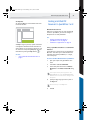
The topics found are listed in the Navigation frame:
•
The topics will be sorted by relevance: the
most relevant topic will appear on top of the
list.
•
The topic titles will be preceded by a figure.
This is a ranking score which the topic gets,
depending on where and how often the
words you searched for appeared in the topic.
If the words you searched for appear in the
main title of the topic, this topic will most
likely get a ranking score of 100 and be on top
of the list.
•
If you searched for words in All Available
Books, the topic titles will be followed by the
title of the corresponding Help volume in
which they were found.
5
Click the topic title of your choice to view the
corresponding Help topic.
You can use the Search function of the Instant PDF
Help to find all topics that contain specific words.
This is like you would use a search engine to find a
Web page on the Internet.
1
not...
synchronize
Select the Help volume in which you want to
search for these words. If you are not sure
where you will find the relevant topic, select
All Available Books.
Finding a Help topic by searching for keywords
Proceed as follows:
Search for...
3
Proceed as follows:
1
13
Navigating in Help Topics
You can use the following navigation aids at the top
of the Topic frame when viewing Help topics:
InstantPDF.book Page 14 Wednesday, June 9, 2010 4:04 PM
14
•
Chapter 1: Getting Started
Click the Show in Contents button (
) to
see the chapter and volume in the Instant PDF
Help where this topic is described. The corresponding chapter and volume in the Contents
tab will be expanded. You may wish to do this
to find related topics in the same chapter.
•
Click the Previous Topic (
) and Next Topic
(
) buttons to browse through the topics in
the order as they appear in the Contents tab.
This is like paging through a printed book.
•
Just above the main title of each topic, you
will see a hyperlink to the topic “above”.
These hyperlinks are called “breadcrumbs”
because they show you where you are in the
hierarchy of the Instant PDF Help. Clicking the
breadcrumb will take you back to the chapter
title.
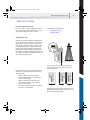
“Breadcrumbs” above the title of the topic show you
where you are in the hierarchy of the Instant PDF Help.
System Requirements
See the Enfocus Web site
The system requirements are listed on the Product
Info pages on the Enfocus Web site (www.enfocus.com).
InstantPDF.book Page 15 Wednesday, June 9, 2010 4:04 PM
Enfocus Instant PDF User Guide
Installing Instant PDF
15
Starting and Configuring Instant
PDF
To install Instant PDF:
1
Insert the Enfocus Software DVD into your DVD
drive.
A window displays the contents of the DVD.
In Microsoft Windows, the Installer will start
automatically.
2
Alternatively, download Instant PDF from the
Enfocus Web site (www.enfocus.com).
3
Double-click the appropriate installer icon in
the Installers folder.
4
Follow the installation instructions on your
screen.
Configuring Instant PDF
When you have installed Instant PDF and you start
it for the first time, you will be prompted to configure Instant PDF. This basically means filling in your
personal contact information and your CertifiedPDF.net account information, if available.
To start and configure Instant PDF:
1
Do one of the following:
•
In Microsoft Windows, choose Start > All
Programs > Enfocus Instant PDF 09.
•
In the Mac OS, choose Applications > Enfocus
> Enfocus Instant PDF 09 > Instant PDF.
The Enfocus Instant PDF Configuration wizard
appears.
2
Do one of the following:
•
Leave the Show again next time check box
selected if you wish to check and, if necessary, change your personal or CertifiedPDF.net
information the next time you start Instant
PDF.
•
Click to clear the Show again next time check
box if you don’t wish to see the Enfocus
Instant PDF Configuration wizard the next
time you start Instant PDF.
3
Click Next and fill in your personal contact
information.
The information which you provide here will be
used later in Instant PDF and in the Certified PDF
workflow. For example, your name and e-mail
address will automatically be filled in when your
create a new PDF Queue. Some of the information
will be used in the preflight report.
4
Click Next and do one of the following:
5
If you already are a member of the CertifiedPDF.net community, fill in your CertifiedPDF.net account information, i.e the e-mail
address and password which you use to log
on to CertifiedPDF.net.
•
If you wish to become a member of CertifiedPDF.net, click the Become a Member
button.
InstantPDF.book Page 16 Wednesday, June 9, 2010 4:04 PM
Chapter 1: Getting Started
16
•
If you do not wish to become a member of
CertifiedPDF.net (yet), you can leave this
dialog box blank.
6
Click Done.
Installing Predefined PDF
Queues
See also:
PDF Queues Created by Enfocus
•
“Setting the Instant PDF Preferences” on
page 18
•
“Using and Managing CertifiedPDF.net PDF
Queues” on page 127
A number of predefined PDF Queues will be
installed automatically along with Instant PDF. You
can use these PDF Queues as soon as you start
Instant PDF.
PDF Queues Created by Third Parties
Not only Enfocus, but also third parties may have
created PDF Queues. The Ghent PDF Workgroup, for
example, may have created ready-to-use PDF
Queues and published these on CertifiedPDF.net.
You can install predefined PDF Queues in Instant
PDF to get started right away. You can do this:
•
By Importing a PDF Queue, see page 120.
•
By Subscribing to a PDF Queue-based Specification on CertifiedPDF.net, see page 136.
See also:
•
www.ghentpdfworkgroup.org
•
www.certifiedPDF.net
InstantPDF.book Page 17 Wednesday, June 9, 2010 4:04 PM
Enfocus Instant PDF User Guide
Buying and Registering Enfocus
Instant PDF
17
Getting Support
Providing Support Information
Try and Buy
You may have installed and tested a 30-day trial
version of Instant PDF and you now want to purchase a Product Key. If so, you can access the
respective purchase order page on our Web site
from within your trial version of Instant PDF.
To buy an Instant PDF Product Key:
1
Start Instant PDF.
2
Choose Help > Buy Now!
3
Follow the instructions on our Web site.
When you work with registered Enfocus products,
you are entitled to free technical support. When
contacting the Enfocus Customer Support Department, it is important that you can provide our support engineers with the necessary information
about the configuration of your computer system
and the Enfocus product(s) you are using. To this
end, we have included this support information in
the dialog box about Instant PDF which you find in
the Help menu. You can easily copy this information and paste it in a text file or an e-mail message
which you can then send to our Customer Support
Department.
Registering Instant PDF
Consulting the Enfocus Knowledge Base
Registering Instant PDF means that you provide us
at Enfocus Software with user and product information to indicate that you have purchased Instant
PDF.
The Enfocus knowledge base provides a wealth of
information on more specialized topics or recent
issues. The knowledge base articles are arranged by
Enfocus product and you can use keywords to
quickly find the relevant article in the knowledge
base.
To register Instant PDF, you need a Product Key. You
receive this Product Key when you purchase Instant
PDF. To qualify for product upgrades and free technical support, you must register Instant PDF. You
can register online.
To consult the Enfocus Knowledge Base:
•
To register Instant PDF online:
1
Start Instant PDF.
or
2
Choose Help > Support > Register Online.
•
3
Fill out the online registration form.
4
Click Register now.
See also:
•
“Getting Support” on page 17.
In Instant PDF, choose Help > Support >
Search Knowledge Base on Windows, or
Help > Search Knowledge Base on Mac OS X.
Go to the Enfocus Web site
(www.enfocus.com) and choose Support >
Knowledge base.
Reporting a Problem
Although our Software Development and Quality
Control teams do their utmost to ensure that our
software products and their documentation are up
to quality standards, there may be an occasion
where you experience a problem in using Instant
PDF. If so, you can report this problem to our Customer Support Department. Our support engineers
will give your problem immediate attention and
will try to help you with accurate, to-the-point
information or hands-on assistance.
InstantPDF.book Page 18 Wednesday, June 9, 2010 4:04 PM
18
Chapter 1: Getting Started
Setting the Instant PDF
Preferences
To report a problem:
1
Choose Help > Support > Report a Problem
on Windows, or Help > Report a Problem on
Mac OS X.
2
Fill out the online form and click Submit.
Categories of Preferences
Proceed as follows to access the Instant PDF Preferences:
1
In the Instant PDF window, choose File >
Preferences on Windows, or Instant PDF >
Preferences on Mac OS X.
2
Click the categories of your choice and fill in
the respective preferences:
•
Preferences > Personal Information
•
Preferences > Language
•
Preferences > Messages
•
Preferences > Updates
•
Preferences > Units
•
Preferences > CertifiedPDF.net Membership
•
Preferences > CertifiedPDF.net Synchronize
•
Preferences > Jobs Location
•
Preferences > Jobs Processing
•
Preferences > Jobs Color Management
•
Preferences > Jobs History
•
Preferences > Help Location
•
Preferences > Applications
•
Preferences > E-mail Server
InstantPDF.book Page 19 Wednesday, June 9, 2010 4:04 PM
Enfocus Instant PDF User Guide
Preferences > Personal
Information
19
Preferences > Language
Language of the Instant PDF User Interface
Name and Contact Details
The personal information includes your name and
company contact details, together with a message,
if any. It is important that you provide as much
personal information as possible, because this
information will also be stored in the Certified PDF
documents which you will be creating. Thus, the
recipients of your PDF documents will be able to
contact you if they have any questions.
To specify your personal information in the preferences:
Choose File > Preferences > Personal Information
on Windows, or Instant PDF > Preferences > Personal Information on Mac OS X, and fill out the
form.
You can select the language in which you wish to
see the user interface of Instant PDF.
To set the language of the Instant PDF user interface:
Choose File > Preferences > Language on Windows,
or Instant PDF > Preferences > Language on Mac OS
X, and select the language of your choice.
InstantPDF.book Page 20 Wednesday, June 9, 2010 4:04 PM
20
Chapter 1: Getting Started
Preferences > Messages
Preferences > Updates
Enabling and Disabling All Messages
Updating Instant PDF
When using Instant PDF, you will receive messages.
For example, if you select a PDF Queue and click the
Delete button, a message will appear, asking for
your confirmation. You can disable some of these
messages by clicking the option Don’t show this
message again in the respective dialog box.
Instant PDF can automatically check at regular
intervals whether updates of the program are available. You can determine how often this check has
to be done.
Some messages can be disabled by clicking the corresponding
option in the dialog box.
You can specify the behavior of all messages in the
Instant PDF preferences: enable them all or disable
them all.
To enable or disable all messages:
Choose File > Preferences > Messages on Windows,
or Instant PDF > Preferences > Messages on Mac OS
X, and follow the on-screen instructions in the
Help area.
To set the frequency of checking for updates:
1
Choose File > Preferences > Updates on Windows, or Instant PDF > Preferences > Updates
on Mac OS X.
2
Select how often you want Instant PDF to
check for updates:
•
If you select every so often, you'll only receive
a message when Instant PDF is out of date.
•
If you select Manually, you'll receive a
message at all times, so if Instant PDF is
up-to-date or out-of-date.
You can always check for updates of Instant PDF at a
convenient time by choosing Help > Check for
Updates.
InstantPDF.book Page 21 Wednesday, June 9, 2010 4:04 PM
Enfocus Instant PDF User Guide
Preferences > Units
21
Preferences > CertifiedPDF.net
Membership
Units in Instant PDF and in the preflight report
You can select a default unit of measurement. You
will use this unit in the Enfocus PDF Queue Editor,
for example when specifying bleed size as an output option, but it will also be used in the preflight
report.
CertifiedPDF.net User Information
You can visit the CertifiedPDF.net Web site from
within Instant PDF. You may wish to do this for different reasons:
•
Choose File > Preferences > Units on Windows, or Instant PDF > Preferences > Units on
Mac OS X.
To keep your local PDF Queues synchronized
with corresponding PDF Queues on CertifiedPDF.net
•
To upload your PDF Queues to CertifiedPDF.net
and publish them in a PDF Specification.
Select a unit of measurement.
•
To become a member of CertifiedPDF.net.
To specify the default unit of measurement:
1
2
See also:
•
“Output Options” on page 97
To be able to do this, you have to fill in your CertifiedPDF.net user information (your e-mail address
and a password) in the preferences.
To set the preferences for your CertifiedPDF.net
account
1
Choose File > Preferences > CertifiedPDF.net
Membership on Windows, or Instant PDF >
Preferences > CertifiedPDF.net on Mac OS X.
2
Do one of the following:
•
If you wish to become a member of CertifiedPDF.net, click Become a Member.
•
If you wish to check out CertifiedPDF.net first,
click Visit CertifiedPDF.net.
•
If you already are a member of CertifiedPDF.net, type the e-mail address and
password of your CertifiedPDF.net account
click OK.
See also:
•
www.certifiedPDF.net
•
“Working with Certified PDF documents” on
page 61
•
“Using and Managing CertifiedPDF.net PDF
Queues” on page 127
•
“Subscribing to a PDF Queue-based Specification on CertifiedPDF.net” on page 136
InstantPDF.book Page 22 Wednesday, June 9, 2010 4:04 PM
Chapter 1: Getting Started
22
Preferences > CertifiedPDF.net
Synchronize
Preferences > Jobs Location
Storing Jobs
Frequency of Synchronizing
If you are a member of the CertifiedPDF.net community and you are using a PDF Queue which originates from a Specification on CertifiedPDF.net, you
can easily synchronize this PDF Queue. Synchronizing a PDF Queue always means that the PDF Queue
from the Specification on CertifiedPDF.net is downloaded and its settings are applied to the corresponding local PDF Queue, although this will
mainly occur in the background.
You can specify how frequently you want Instant
PDF to check the CertifiedPDF.net Web site for
updates of PDF Queues in Specifications to which
you have subscribed.
To set the preferences for synchronizing PDF
Queues with CertifiedPDF.net:
1
Choose File > Preferences > Synchronize on
Windows, or Instant PDF > Preferences > Synchronize on Mac OS X.
2
Select how often you want Instant PDF to
check for updates of the PDF Queue.
If you do not want Instant PDF to check for updates
of PDF Queues automatically at regular intervals,
you can choose to check manually. You can then
synchronize this PDF Queue at a convenient
moment, simply by selecting the PDF Queue and
clicking the Synchronize button or choosing PDF
Queue > Synchronize.
See also:
•
Using and Managing CertifiedPDF.net PDF
Queues > “Synchronizing a PDF Queue with
CertifiedPDF.net” on page 130
You can specify the folder where jobs have to be
stored. The following subfolders will be created
automatically:
•
An Active folder for jobs in progress
•
A Failed folder
•
A Successful folder
To specify the folder to store jobs:
1
Choose File > Preferences > Jobs Location on
Windows, or Instant PDF > Preferences > Job
Location on Mac OS X.
2
Do one of the following:
•
Click Use Default to store jobs in the default
folder.
•
Click Browse to select a folder of your choice.
Make sure that you have sufficient disk space
available on the drive where you store the
jobs.
See also:
•
“Preferences > Jobs History” on page 25
InstantPDF.book Page 23 Wednesday, June 9, 2010 4:04 PM
Enfocus Instant PDF User Guide
Preferences > Jobs Processing
Instant PDF Interacting with Other Applications
Although Instant PDF is a stand-alone software
program, it can, and in most cases will, interact
with other applications as jobs are being processed:
•
You can use Acrobat Distiller in the PDF
creation stage of your workflow.
•
You can use Instant PDF as a plug-in for
Adobe InDesign, Adobe Illustrator, QuarkXPress or Adobe Acrobat, which allows you to
save your documents as Certified PDF using an
Enfocus PDF Queue. Or you can print to a PDF
Queue in the form of a virtual printer.
•
The PDF document can automatically be
opened for review in Adobe Acrobat, Adobe
Reader or any other PDF viewer.
For all of the above cases, you can specify what
should happen with the respective interacting
applications at the corresponding stage in the
workflow.
To set the job processing preferences:
Choose File > Preferences > Jobs Processing on
Windows, or Instant PDF > Preferences > Jobs Processing on Mac OS X, and follow the on-screen
instructions.
See also:
•
Creating and Editing PDF Queues
> “QuarkXPress 7 or 8” on page 98
> “Adobe InDesign CS3, CS4 or CS5” on
page 100
> “Adobe Illustrator CS3, CS4 or CS5” on
page 102
> “Virtual Printer” on page 103
> “PostScript to PDF” on page 96
> “Existing File” on page 105
•
Creating Certified PDF Documents
> “Creating a Certified PDF Document in
QuarkXPress 7 or 8” on page 35
> “Creating a Certified PDF Document in Adobe
InDesign CS3, CS4 or CS5” on page 36
> “Creating a Certified PDF Document in Adobe
Illustrator CS3, CS4 or CS5” on page 37
> “Creating a Certified PDF Document in Adobe
Acrobat 8 or 9” on page 38
> “Creating a Certified PDF Document from
PostScript or PDF Files” on page 40
> “Creating a Certified PDF Document by
Printing to a Virtual Printer” on page 40
23
InstantPDF.book Page 24 Wednesday, June 9, 2010 4:04 PM
24
Chapter 1: Getting Started
2
If you want to make separate settings for
Images and other objects, select the “Use
other settings for images than for objects. The
pane underneath will then show two tabs,
one for images and one for other objects
Color Management in a Nutshell
3
Click the Enable Color Management check box.
A color management system (CMS) is designed to
reconcile the different color capabilities of input
devices, e.g. a scanner or digital camera, and output devices, e.g. a printer or press, to ensure consistent color throughout the creation, display, and
print process. Ideally, this means that the colors
displayed on your monitor accurately represent the
colors of the final output. It also means that different applications, monitors, and operating systems
will display colors consistently.
4
Select Source ICC profiles for the color models
of your choice.
5
If you want to use different ICC profiles for
Target, enable the check box and select the
Target icc profiles for the color models of your
choice.
6
Select the CMM Engine you want to use.
Preferences > Jobs Color
Management
Using ICC Profiles for Color Conversion
To eliminate, or at least minimize, color differences
between devices, you can use ICC (International
Color Consortium) profiles whenever color conversions are made during preflight and correction.
An ICC profile is a mathematical description of the
color space used by a specific device. All objects in
your PDF documents, i.e. text, graphics and images,
can be associated, or “tagged”, with an ICC profile
for a given color space (Grayscale, RGB or CMYK).
You can select an ICC profile for each color space in
the Instant PDF preferences. If you want to make
separate settings for Images and other objects,
select the “Use other settings for images than for
objects. The pane underneath will then show two
tabs, one for images and one for other objects.
However, you may also be using Preflight Profiles or
Action Lists in which ICC profiles have been specified too. In that case, the ICC profiles in the respective Preflight Profiles or Action Lists will take precedence over those which you selected in the Instant
PDF preferences.
To set the color management preferences:
1
Choose File > Preferences > Jobs Color Management on Windows, or Instant PDF > Preferences > Jobs Color Management on Mac OS
X
See also:
•
The ICC’s Web site: www.color.org
•
“Color Management” on page 92
InstantPDF.book Page 25 Wednesday, June 9, 2010 4:04 PM
Enfocus Instant PDF User Guide
Preferences > Jobs History
25
Preferences > Help Location
Limiting the Number of Jobs in the History List
Multivolume Help Set
You can limit the number of jobs that will be kept
in the History list. You can specify:
The Instant PDF Help Set consists of the Enfocus
Instant PDF Help, presenting all the information in
the User Guide as online Help topics.
•
•
The maximum number of jobs that should be
kept in the list
The maximum number of days a job should
be kept in the list
To set the preferences for jobs in the History list:
You can select which version of the Help to use:
•
The Help on your computer
•
The Help on CertifiedPDF.net
•
Choose automatically
Choose File > Preferences > Jobs History on Windows, or Instant PDF > Preferences > Jobs History
on Mac OS X, and follow the on-screen instructions.
See also:
•
Managing Jobs > “Viewing Jobs” on page 76
•
“Preferences > Jobs Location” on page 22
The Preflight Report Help on CertifiedPDF.net
will be updated regularly, so it might be
recommended to select this option.
To set the preferences for the Preflight Report
Help:
Choose File > Preferences > Help Location on Windows, or Instant PDF > Preferences > Help Location
on Mac OS X, and follow the on-screen instructions.
See also:
•
“Using the Instant PDF Help Set” on page 12
InstantPDF.book Page 26 Wednesday, June 9, 2010 4:04 PM
Chapter 1: Getting Started
26
Preferences > Applications
Using Applications in Combination with Instant
PDF
Instant PDF provides a plug-in or XTension for the
following applications:
•
QuarkXPress 7 and 8
•
Adobe InDesign CS3, CS4 and CS5
•
Adobe Illustrator CS3, CS4 and CS5
•
Adobe Reader 8 or 9
•
Adobe Acrobat 8 or 9
Preferences > E-mail Server
SMTP Server Settings
You can configure a PDF Queue to deliver Certified
PDF documents automatically by e-mail. If you do
this, you must set the preferences correspondingly,
i.e. fill in the host name, the port number, user
name and password of the SMTP server for your
outgoing e-mail. If no username and password is
required, leave the fields empty.
For example:
It uses the following versions of Acrobat Distiller for
PDF creation:
•
Outgoing SMTP server: mail-out.server.com
•
Port number: 25
•
Acrobat Distiller 9
•
Acrobat Distiller 8
You can find this information in your e-mail program. When in doubt, contact your system administrator.
For each of these applications, you can specify the
location of their respective program files.
To set the preferences for applications:
Choose File > Preferences > Applications on Windows, or Instant PDF > Preferences > Applications
on Mac OS X, and follow the on-screen instructions.
See also:
•
Creating Certified PDF Documents
> “Creating a Certified PDF Document in
QuarkXPress 7 or 8” on page 35
> “Creating a Certified PDF Document in Adobe
InDesign CS3, CS4 or CS5” on page 36
> “Creating a Certified PDF Document in Adobe
Illustrator CS3, CS4 or CS5” on page 37
> “Creating a Certified PDF Document in Adobe
Acrobat 8 or 9” on page 38
To set the e-mail preferences:
Choose File > Preferences > E-mail Server on Windows, or Instant PDF > Preferences > E-mail Server
on Mac OS X, and follow the on-screen instructions.
See also:
•
Creating and Editing PDF Queues > “E-mail”
on page 112
InstantPDF.book Page 27 Wednesday, June 9, 2010 4:04 PM
Chapter 2
InstantPDF.book Page 28 Wednesday, June 9, 2010 4:04 PM
InstantPDF.book Page 29 Wednesday, June 9, 2010 4:04 PM
Enfocus Instant PDF User Guide
29
Chapter 2:
Creating Certified PDF Documents
About This Chapter
Topics
This chapter deals with the main task which you
will be doing in Instant PDF: creating Certified PDF
documents by using an Enfocus PDF Queue. It also
gives you an insight into the PDF creation process
with or without Instant PDF and explains what PDF
Queues are.
In this chapter:
•
Understanding the PDF Creation Process 30
•
Creating PDF Documents the Conventional
Way: Trial and Error 30
•
Creating PDF Documents the Enfocus Way: the
One-Step Process to an Output-Ready PDF
File 32
•
What Is an Enfocus PDF Queue? 33
•
Viewing PDF Queues 33
•
Creating a Certified PDF Document in Adobe
InDesign CS3, CS4 or CS5 36
•
Creating a Certified PDF Document in Adobe
Illustrator CS3, CS4 or CS5 37
•
Creating a Certified PDF Document in QuarkXPress 7 or 8 35
•
Creating a Certified PDF Document in Adobe
Acrobat 8 or 9 38
•
Creating a Certified PDF Document in
Mac OS X 39
•
Creating a Certified PDF Document from PostScript or PDF Files 40
•
Creating a Certified PDF Document by Printing
to a Virtual Printer 40
InstantPDF.book Page 30 Wednesday, June 9, 2010 4:04 PM
30
Chapter 2: Creating Certified PDF Documents
Understanding the PDF Creation
Process
Different approaches towards the same ultimate
goal
No matter how you create a PDF document, your
ultimate goal will always be the same: you want to
have an output-ready PDF document in the most
efficient way.
“Output-ready” meaning that you, or the recipient
of your PDF document, will be able to publish the
PDF document, for example on the Web, in print,
on CD-ROM or on whatever medium.
“The most efficient way” meaning that the PDF
creation process is smooth, quick and easy. You
want to spend (or waste) as little time as possible
on:
•
Specifying settings in various programs which
ultimately define the quality of your PDF
document
•
Checking, reviewing, editing or even
re-creating your PDF document to get it ready
for output
You can achieve this goal by using Instant PDF to
create your PDF documents. In order to use Instant
PDF in the most efficient way, it is important that
you have a good understanding of how PDF documents can be created and what happens “behind
the scenes” in this process.
This section describes the two different PDF creation
workflows:
•
Creating PDF Documents the Conventional
Way: Trial and Error
•
Creating PDF Documents the Enfocus Way: the
One-Step Process to an Output-Ready PDF File
Creating PDF Documents the
Conventional Way: Trial and
Error
Save as PDF
Let’s consider the conventional way of creating PDF
documents. Most applications today, for example
word processors, desktop publishing programs, or
graphic design software, have a Save as PDF function with which you can simply convert your source
file to a PDF document.
Convert to Adobe PDF button
Some programs may even have a dedicated Convert
to Adobe PDF button to do this. This button may
look like this:
. Thus, it may seem that creating
PDF documents is a one-step process: you click the
button or save your file as PDF. However, this is not
always the case. What actually happens is that you
print your document to a (temporary) PostScript
file. This file is then taken to Acrobat Distiller and
converted to a PDF file.
Creating PDF documents step by step
Some people do not use the Convert to Adobe PDF
button or Save as PDF function and prefer the
step-by-step approach:
1
Print the source file to a PostScript file.
2
They open this file in Acrobat Distiller and
convert it to a PDF file.
This way of creating PDF documents is a multi-stage
process with pitfalls rather than pitstops at every
stage.
Conventional PDF workflow
When you create a PDF document, you do more
than just creating it:
•
You want to make sure that the PDF document
is okay. Therefore, you also review your PDF
document and try to correct any errors, if
possible.
•
When the PDF document looks okay, you
“deliver” it, which can mean that you save it
on a specific location or you send it to
someone else.
InstantPDF.book Page 31 Wednesday, June 9, 2010 4:04 PM
Enfocus Instant PDF User Guide
31
A typical conventional PDF creation workflow goes
as follows:
1
2
You create your source file in a native application, for example a word processor, a desktop
publishing program or graphic design software.
You print your source file to a PostScript file.
4
In Acrobat Distiller, you check and set Job
Options or Adobe PDF Settings such as:
graphics resolution and compression, PDF file
compatibility, font embedding or subsetting,
color settings. You select the PostScript file
you have just created and convert it to a PDF
file.
6
1
In your native application, you select a PostScript printer from your list of printers and
check its Print Setup properties (for example
paper size and orientation, graphics resolution, scaling etc.). Acrobat Distiller using the
AdobePS driver is an example of such a PostScript printer.
3
5
Conventional PDF creation workflow
2
3
4
5
6
7
In Adobe Acrobat, you open and review the
PDF document. You can check the PDF document visually to see if the document is ready
for output. You may be able to detect some
problems at a glance. For example, a font may
look wrong in your PDF document or originally
colored graphics may be converted to black
and white. Some problems, however, cannot
be detected visually, so there is no guarantee
that your PDF document really is ready for
output.
If you noticed given problems in your PDF
document, you discard the PDF file and try to
locate the cause of the problems first before
you re-create the PDF document. Resolving
problems may not be that straightforward,
because they may sometimes be caused by a
combination of incorrect settings at various
instances or in various software programs.
•
You may have to check your source file(s).
•
You may have to change the Print Setup properties of your PostScript printer.
•
You may have to select a different printer
driver to create a PostScript file with.
•
You may have to change the Adobe PDF
Settings in Acrobat Distiller 8 or 9.
8
PDF
You may have to repeat steps 2 through 6 a number
of times until you arrive at a PDF document that
looks okay.
7
If your PDF document looks fine on screen,
you publish it, e.g. on the Web, in print, or on
CD-ROM.
8
But even when published, your PDF document
may still not meet your quality standards,
even though it seemed okay on screen. For
example, the PDF document may contain RGB
colors while it was intended for offset color
printing. The published copies may have to
disappear into the trash and the whole process may have to be redone.
InstantPDF.book Page 32 Wednesday, June 9, 2010 4:04 PM
32
Chapter 2: Creating Certified PDF Documents
Creating PDF Documents the Enfocus Way: the One-Step Process to an
Output-Ready PDF File
Creating a Certified PDF Document in One Step
Once you have installed Instant PDF and created or
imported the Enfocus PDF Queues of your choice,
creating output-ready PDF documents literally
becomes a one-step process. Moreover, your PDF
document will be a Certified PDF document, so you
can be confident that potential output-related
problems, if any, are checked and fixed in the same
run.
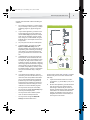
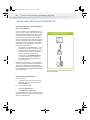
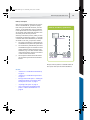
Creating a Certified PDF document using a PDF Queue
Original document
PDF Queue
Using Instant PDF, you create a Certified PDF document as follows:
1
You simply “send” your source file to an Enfocus PDF Queue.
Certified PDF
document
PDF
You can do this in a variety of ways:
•
Using a virtual printer, print your source file to
an Enfocus PDF Queue
•
Using the QuarkXPress XTension or plug-in for
Adobe InDesign CS3, Adobe InDesign CS4,
Adobe InDesign CS5, Adobe Illustrator CS3,
Adobe Illustrator CS4, Adobe Illustrator CS5 or
Adobe Acrobat, select an Enfocus PDF Queue
and save your source file as a Certified PDF file
•
PDF
FTP
Importing an existing PDF or PostScript file
into Instant PDF
Processing steps
Creating a Certified PDF document by using an Enfocus PDF Queue means that you start a Certified PDF
workflow, a complete process which occurs in the
following steps:
1
General > Author: A Certified PDF workflow is
started for the PDF document. Metadata is
added to the PDF document: your name,
company and contact details.
2
PDF Creation: The PDF document is generated.
3
Processing > Correction: The PDF document
can be corrected using one or more Action
Lists.
4
Processing > Preflight: The PDF document is
preflighted using a Preflight Profile: various
properties of the PDF document are checked
and some of them can be fixed if they are
incorrect.
5
Processing > Review: If necessary, you can
review the PDF document in Adobe Acrobat or
Adobe Reader.
6
Delivery: The PDF document is saved on a
specific location and can automatically be
sent to a recipient by e-mail or FTP.
InstantPDF.book Page 33 Wednesday, June 9, 2010 4:04 PM
Enfocus Instant PDF User Guide
What Is an Enfocus PDF Queue?
The Enfocus PDF Queue: a Complete Certified PDF
Creation and Quality Assurance Workflow
An Enfocus PDF Queue is a complete Certified PDF
creation and quality assurance workflow. You create
an Enfocus PDF Queue in Instant PDF to convert your
source documents to output-ready Certified PDF
documents in a single step. “Output-ready” meaning according to predefined parameters provided by
the PDF document receiver. The PDF Queue carries
out all the intermediate steps of the PDF creation
and quality assurance process automatically:
33
Viewing PDF Queues
About the PDF Queue List
The PDF Queue List is one of the two views of the
main Instant PDF window. You see the PDF Queue
list when:
•
You start Instant PDF
•
You choose PDF Queue > Show PDF Queue List
•
You click the PDF Queues button
1
Add information about the PDF document in
the PDF document itself
2
Create not just a regular PDF document but a
Certified PDF document.
3
Correct the PDF document using Enfocus
Action Lists.
4
Preflight the PDF document using a Preflight
Profile.
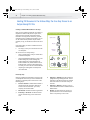
Components of the PDF Queue List
5
Allow you to review the PDF document
•
The PDF Queue Control Buttons
6
Deliver the Certified PDF document by saving it
on a specific location or sending it to a recipient by e-mail or FTP.
•
The PDF Queues List
•
The PDF Queue Information Area
•
The Help Area
You can use the PDF Queue List to see information
about the PDF Queues that are installed on your
computer and to manage them.
The PDF Queue List consists of:
See also:
•
“Creating and Editing PDF Queues” on page 85
•
“Using and Managing CertifiedPDF.net PDF
Queues” on page 127
The PDF Queue Control Buttons
You find the PDF Queue control buttons on the toolbar when you are viewing the PDF Queue list.
Enfocus Instant PDF
InstantPDF.book Page 34 Wednesday, June 9, 2010 4:04 PM
Chapter 2: Creating Certified PDF Documents
34
You can use these buttons for commonly used
tasks:
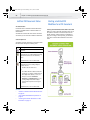
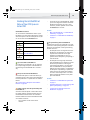
Button
Usage
Click the PDF Queues button to see the
list of PDF Queues and information about
the PDF Queue of your choice.
PDF Queues
Click the Jobs button to see the Job lists.
See: “Viewing Jobs” on page 76
Jobs
New
Click the New button to create a new
Enfocus PDF Queue.
See: “Creating and Editing PDF Queues” on
page 85
Edit
Click the Edit button to change the properties of a selected PDF Queue.
See: “Creating and Editing PDF Queues” on
page 85
Delete
The PDF Queues list shows you all the PDF Queues
that are present on your computer. You can sort this
list or you can select a PDF Queue and edit or manage it.
See also:
•
“Creating and Editing PDF Queues” on page 85
•
“Managing PDF Queues” on page 119
•
“Sorting PDF Queues in the PDF Queues List”
on page 123
•
“Using and Managing CertifiedPDF.net PDF
Queues” on page 127
The PDF Queue Information Area
You find the PDF Queue information area to the
right of the PDF Queue List.
Enfocus Instant PDF
Click the Delete button if you no longer
use the PDF Queue and to remove it from
the list.
See: Managing PDF Queues > “Deleting a
PDF Queue” on page 123
Click the Synchronize button if you wish
to apply the CertifiedPDF.net Queue.
See: Using and Managing CertifiedPDF.net
Synchronize PDF Queues > “Synchronizing a PDF Queue
with CertifiedPDF.net” on page 130
This is where you can see details on the selected
PDF Queue. These can include:
The PDF Queues List
•
The status of the PDF Queue
You find the Enfocus PDF Queues list at the
left-hand side of the main Instant PDF window.
•
The description of the PDF Queue, as provided
by the author of the PDF Queue
•
The summary of the settings in the PDF Queue
Enfocus Instant PDF
See also:
•
Creating and Editing PDF Queues > “Checking
the Configuration Status of a PDF Queue: Valid,
Partially Valid or Invalid” on page 87
•
“Checking the CertifiedPDF.net Status of Your
PDF Queue in Instant PDF” on page 129
InstantPDF.book Page 35 Wednesday, June 9, 2010 4:04 PM
Enfocus Instant PDF User Guide
35
Creating a Certified PDF
Document in QuarkXPress 7 or 8
The Help Area
You find the Help area at the bottom of the main
Instant PDF window.
Enfocus Instant PDF
What You Need to Do First
Before you can begin using one-step Certified PDF
creation in QuarkXPress, you need to configure a
PDF Queue for use with QuarkXPress.
See:
The Help area gives you brief, specific instructions
or background information about the buttons or
options where you rest the mouse pointer on. You
can access the corresponding Help topic for more
information by clicking the Help button (
).
See also:
•
“The Instant PDF Documentation Set” on
page 12
•
Creating and Editing PDF Queues >
“QuarkXPress 7 or 8” on page 98
•
“Preferences > Applications” on page 26
Saving a QuarkXPress Document as a Certified PDF
Document
Instant PDF adds a menu item to your QuarkXPress
File menu. This allows you to create Certified PDF
documents from within QuarkXPress, in a single,
user-friendly step.
To create a Certified PDF document in QuarkXPress:
1
Open your output-ready QuarkXPress document.
2
Choose File > Save as Certified PDF.
3
Select a PDF Queue from the list of Enfocus
PDF Queues in the Enfocus Instant PDF dialog
box.
A description of the Queue appears in the
Print Settings tab. Click the PDF Queue Overview tab for an overview of the settings in the
PDF Queue.
4
Specify the page range you want to print in
the Pages box.
Observe the tips in the Help area.
5
Click OK.
InstantPDF.book Page 36 Wednesday, June 9, 2010 4:04 PM
36
Chapter 2: Creating Certified PDF Documents
A new job is started in Instant PDF for your QuarkXPress document. Depending on the PDF Queue settings, the document may be saved as a Certified PDF
document straight away, or you may need to take
certain actions first, such as entering a file name or
reviewing the preflighted document.
Creating a Certified PDF
Document in Adobe InDesign
CS3, CS4 or CS5
What You Need to Do First
Before you can begin using one-step Certified PDF
creation in Adobe InDesign, you need to configure a
PDF Queue for use with Adobe InDesign.
See:
•
Creating and Editing PDF Queues > “Adobe
InDesign CS3, CS4 or CS5” on page 100
•
“Preferences > Applications” on page 26
Saving an Adobe InDesign Document as a Certified
PDF Document
Instant PDF adds a menu item to your Adobe InDesign File menu. This allows you to create Certified
PDF documents from within Adobe InDesign, in a
single, user-friendly step.
To create a Certified PDF document in Adobe InDesign:
1
Open your output-ready Adobe InDesign document.
2
Choose File > Save as Certified PDF.
3
Select a PDF Queue from the list of Enfocus
PDF Queues in the Enfocus Instant PDF dialog
box.
A description of the PDF Queue appears in the
Print Settings tab. Click the PDF Queue Overview tab for an overview of the settings in the
PDF Queue.
4
Specify the page range you want to print in
the Pages box.
Observe the tips in the Help area.
5
Click OK.
InstantPDF.book Page 37 Wednesday, June 9, 2010 4:04 PM
Enfocus Instant PDF User Guide
A new job is started in Instant PDF for your Adobe
InDesign document. Depending on the PDF Queue
settings, the document may be saved as a Certified
PDF document straight away, or you may need to
take certain actions first, such as entering a file
name or reviewing the preflighted document.
37
Creating a Certified PDF
Document in Adobe
Illustrator CS3, CS4 or CS5
What You Need to Do First
Before you can begin using one-step Certified PDF
creation in Adobe Illustrator, you need to configure
a PDF Queue for use with Adobe Illustrator.
See:
•
Creating and Editing PDF Queues > “Adobe
Illustrator CS3, CS4 or CS5” on page 102
•
“Preferences > Applications” on page 26
Saving an Adobe Illustrator Document as a Certified PDF Document
Instant PDF adds a menu item to your Adobe Illustrator File menu. This allows you to create Certified
PDF documents from within Adobe Illustrator, in a
single, user-friendly step.
To create a Certified PDF document in Adobe Illustrator:
1
Open your output-ready Adobe Illustrator
document.
2
Choose File > Save as Certified PDF.
3
Select a PDF Queue from the list of Enfocus
PDF Queues in the Enfocus Instant PDF dialog
box.
A description of the PDF Queue appears in the
Print Settings tab. Click the PDF Queue Overview tab for an overview of the settings in the
PDF Queue.
4
Specify the page range you want to print in
the Pages box.
Observe the tips in the Help area.
5
Click OK.
InstantPDF.book Page 38 Wednesday, June 9, 2010 4:04 PM
38
Chapter 2: Creating Certified PDF Documents
A new job is started in Instant PDF for your Adobe
Illustrator document. Depending on the PDF Queue
settings, the document may be saved as a Certified
PDF document straight away, or you may need to
take certain actions first, such as entering a file
name or reviewing the preflighted document.
Creating a Certified PDF
Document in Adobe Acrobat 8 or
9
Bringing Non-Certified PDF Documents into the
Fold
Instant PDF also allows you to convert regular PDF
files documents to more reliable Certified PDF documents, even if you do not have access to the
source files.
The advantages of doing this are numerous. Let’s
take the example of a printer who receives a
non-certified document from a designer. It’s a
good idea for him to make the document a Certified
PDF document, because:
•
The document is automatically preflighted
with the appropriate Preflight Profile.
•
All edits performed in the document after it is
certified can be traced, which means that the
printer eliminates the risk of being held
responsible for faulty output.
Saving an existing PDF document as Certified PDF
Instant PDF adds the option Save as Certified PDF to
your Adobe Acrobat File menu.
To create a Certified PDF document in Adobe Acrobat:
1
Open the document for which you want to
start the Certified PDF workflow in Adobe
Acrobat.
2
Choose File > Save as Certified PDF.
3
Select a PDF Queue from the list of Enfocus
PDF Queues in the Enfocus Instant PDF dialog
box.
A description of the Queue appears in the
Print Settings tab. Click the Summary tab for
an overview of the settings in the PDF Queue.
InstantPDF.book Page 39 Wednesday, June 9, 2010 4:04 PM
Enfocus Instant PDF User Guide
A new job is started in Instant PDF. Depending on
the PDF Queue settings, the document may be
saved as a Certified PDF document straight away, or
you may need to take certain actions first, such as
supplying a file name or reviewing the preflighted
document.
See also:
•
“Preferences > Applications” on page 26
•
Creating and Editing PDF Queues
> “Virtual Printer” on page 103
> “PostScript to PDF” on page 96
39
Creating a Certified PDF
Document in Mac OS X
Printing to a Virtual Printer
You create a Certified PDF document in Mac OS X by
printing to a PDF Queue. This PDF Queue is presented as a virtual printer, so creating a Certified
PDF document is like printing to a regular printer.
The difference is, however, that your file will go
through a complete PDF creation and quality assurance workflow, resulting in a Certified PDF document.
You may want to use a different method, however,
in applications where you can use Instant PDF as a
plug-in: Adobe InDesign, Adobe Illustrator, QuarkXPress and Adobe Acrobat.
See also:
•
“Creating a Certified PDF Document in QuarkXPress 7 or 8” on page 35
•
“Creating a Certified PDF Document in Adobe
InDesign CS3, CS4 or CS5” on page 36
•
“Creating a Certified PDF Document in Adobe
Illustrator CS3, CS4 or CS5” on page 37
•
“Creating a Certified PDF Document in Adobe
Acrobat 8 or 9” on page 38
•
“Creating a Certified PDF Document by Printing
to a Virtual Printer” on page 40
InstantPDF.book Page 40 Wednesday, June 9, 2010 4:04 PM
40
Chapter 2: Creating Certified PDF Documents
Creating a Certified PDF
Document from PostScript or PDF
Files
Creating a Certified PDF
Document by Printing to a
Virtual Printer
Certify Existing Documents
What Is a Virtual Printer?
Using Instant PDF, you can convert your existing
PostScript or PDF files to reliable Certified PDF documents.
A virtual printer is one of the appearances of an
Enfocus PDF Queue. When you create or change a
PDF Queue, you can choose to present the PDF
Queue as a virtual printer. If you do this, the name
of the PDF Queue will also be the name of the virtual printer as it appears in the list of Printers and
Faxes in Control Panel (Windows) or in the Printer
List (Mac OS).
For example, if you regularly receive PostScript files
from designers or other suppliers, you can convert
them to Certified PDF documents in a single step.
How to convert PostScript and PDF documents
You can use the Job > New command in Instant PDF
to create new Certified PDF documents from PostScript or PDF files.
Alternatively, you can also drag and drop a PostScript or PDF file onto the Instant PDF application
icon or its shortcut. Instant PDF will then start
automatically and start a job to convert the PostScript or PDF document to a Certified PDF document.
To certify PostScript and PDF documents:
1
In Instant PDF, click the Jobs button on the
toolbar.
2
Choose Job > New.
3
Locate the PostScript or PDF file for which you
want to start a Certified PDF workflow and
click Open.
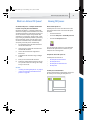
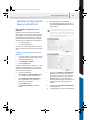
Enfocus PDF Queue presented as a virtual printer in Windows
The file appears as a job in the Jobs in Progress list.
4
Select the job in the Jobs in Progress list and
click the Select PDF Queue button.
5
Select a PDF Queue and click OK.
A new job is started in Instant PDF. Depending on
the PDF Queue settings, the document may be
saved as a Certified PDF document straight away, or
you may need to take certain actions first, such as
supplying a file name or reviewing the preflighted
document.
Enfocus PDF Queue presented as a virtual printer in Mac OS X
InstantPDF.book Page 41 Wednesday, June 9, 2010 4:04 PM
Enfocus Instant PDF User Guide
Printing to a Virtual Printer
You can print to a virtual printer to create a Certified
PDF document. You can do this from any application in Windows or in the Mac OS, just as you would
print to a regular printer. The difference is, however, that your file will go through a complete PDF
creation and quality assurance workflow, resulting
in a Certified PDF document.
You may want to use a different method, however,
in applications where you can use Instant PDF as a
plug-in: Adobe InDesign CS3, CS4 and CS5, Adobe
Illustrator CS3, CS4 and CS5, QuarkXPress 7 and 8,
and Adobe Acrobat 8 and 9.
To create a Certified PDF document by printing to a
virtual printer:
1
Open your original document in its native
application.
2
Choose File > Print.
3
Select a PDF Queue, presented as a virtual
printer, from your list of printers.
4
Check the print settings which are specific to
your native application, change them, if necessary, and click Print.
See also:
•
“Creating a Certified PDF Document in QuarkXPress 7 or 8” on page 35
•
“Creating a Certified PDF Document in Adobe
InDesign CS3, CS4 or CS5” on page 36
•
“Creating a Certified PDF Document in Adobe
Illustrator CS3, CS4 or CS5” on page 37
•
“Creating a Certified PDF Document in Adobe
Acrobat 8 or 9” on page 38
•
Creating and Editing PDF Queues > “Virtual
Printer” on page 103
41
InstantPDF.book Page 42 Wednesday, June 9, 2010 4:04 PM
42
Chapter 2: Creating Certified PDF Documents
InstantPDF.book Page 43 Wednesday, June 9, 2010 4:04 PM
Chapter 3
InstantPDF.book Page 44 Wednesday, June 9, 2010 4:04 PM
InstantPDF.book Page 45 Wednesday, June 9, 2010 4:04 PM
Enfocus Instant PDF User Guide
Chapter 3:
Preflighting PDF documents
About This Chapter
Topics
A Preflight Profile is a vital component of an Enfocus PDF Queue. The PDF Queue uses a Preflight Profile to “preflight” your PDF documents: check and
correct errors, if any. The result of this check is presented in a preflight report.
In this chapter:
This chapter explains these key concepts of preflighting and illustrates what happens in the preflight stage of your Certified PDF workflow.
•
Preflighting 46
•
Preflight Profiles 46
•
Preflight Report 47
45
InstantPDF.book Page 46 Wednesday, June 9, 2010 4:04 PM
Chapter 3: Preflighting PDF documents
46
Preflighting
Preflight Profiles
Preflighting Defined
Preflight Profile: Key Component of a PDF Queue
Preflighting is a term derived from the airline
industry. The pilot has the responsibility to determine the airworthiness of the aircraft before
take-off. This means that he or she has to perform
a number of checks prior to each flight.
A Preflight Profile is a key component of a PDF
Queue: the PDF Queue needs a Preflight Profile to
preflight PDF documents. A Preflight Profile is a collection of criteria which a PDF document should
meet to be outputworthy. Each criterion corresponds to a given property of the PDF document.
Preflighting PDF documents basically means the
same thing: the “pilot in command”, i.e. the person who creates or processes a PDF document, has
to make sure that the document is “airworthy”, or
rather, “outputworthy”, before delivering it.
An example of such a property is RGB colors. The
fact whether a PDF document can contain objects in
RGB colors or not can be one of the criteria of the
Preflight Profile.
“Outputworthy” means that the PDF document is
“fit for use”, for example:
For each criterion in the Preflight Profile, it can be
specified:
•
That a PDF document to be printed on a
four-color offset press contains only CMYK
colors and that all the necessary fonts are
included
•
Whether it should be checked or not
•
How a deviating property in the PDF document should be listed in the preflight report:
as Information or as Error
That a PDF document intended for online
viewing contains only RGB colors
Moreover, some criteria also offer the option to fix
deviating properties. For example, the Preflight
Profile can automatically convert all RGB colors in
the PDF document to CMYK.
•
Moreover, any property of a PDF document which
does not meet the requirements of the Preflight
Profile can be reported as a “problem” and some of
them can be fixed in the same process.
Using Preflight Profiles
Preflighting Mechanism
How exactly does preflighting work in an Enfocus
PDF Queue? The preflight stage in the Certified PDF
workflow typically goes like this:
1
The PDF document is submitted to a preflight
check against a Preflight Profile.
2
A number of problems may be detected and
some of those may be fixed automatically.
3
The detected and fixed problems are listed in
a preflight report.
The next step in the workflow is the review stage.
This is where you may take a look at the preflight
report and visually inspect the PDF document.
See also:
•
“Preflight Profiles” on page 46
•
Creating and Editing PDF Queues
> “Preflight” on page 108
> “Review” on page 109
Using Preflight Profiles in Instant PDF simply means
that you find an existing Preflight Profile and assign
it to a PDF Queue. A PDF Queue always needs a Preflight Profile. Without a Preflight Profile, a PDF
Queue can never be valid.
You cannot create or edit Preflight Profiles in
Instant PDF. To do this, you need Enfocus PitStop
Pro or Enfocus PitStop Server. Alternatively, you can
download Preflight Profiles from our Web site.
See also:
•
Creating and Editing PDF Queues > “Preflight”
on page 108
•
www.enfocus.com for information about
Enfocus PitStop Pro or Enfocus PitStop Server
•
www.enfocus.com/support/pdfprofileslist.php to download Preflight Profiles from
our Web site
InstantPDF.book Page 47 Wednesday, June 9, 2010 4:04 PM
Enfocus Instant PDF User Guide
•
Preflight Report
The result of a preflight check is presented to you in
a preflight report. The preflight report is a PDF document which lists all the properties in the checked
PDF document which did not comply with the settings as specified in the Preflight Profile. These
deviating properties are not just reported, they also
get labeled in the preflight report. The label indicates their respective severity levels.
In Preflight
Profile:
Severity label
in preflight report:
Meaning
Report as
Information
Caution
The deviating property
may not be a real
problem in the strict
sense of the word, but
just something you
should be informed
about.
Fix this
problem
Error
Fixed
A PDF Queue with a Preflight Profile for the
color press, which reports RGB colors as Error
See also:
Problem Severity Levels Defined
Report as
Error
•
“Duplicating a PDF Queue” on page 122
Viewing a Preflight Report
You can view the preflight report in the review
stage of the Certified PDF workflow. If the checked
PDF document has deviations from the Preflight
Profile, the preflight report can be displayed automatically on top of the PDF document itself.
See also:
The property really
has to be as specified
in the Preflight Profile.
A PDF document with
errors is not
output-ready.
The problem has been
resolved in the way
specified in the
Preflight Profile
•
Managing Jobs > “Reviewing a PDF Document” on page 82
•
Creating and Editing PDF Queues > “Review”
on page 109
Interpreting Preflight Reports
Report Chapters
The preflight report generated by Instant PDF is a
PDF document that consists of the following chapters:
Chapter
Contents
Errors & Warnings
(potential) problems according to the
selected Preflight Profile
General File Information
information about the current PDF
document, such as title, author,
profile used, data format, etc.
Certified PDF Workflow Information
information about when the Certified
PDF workflow was started, the
Preflight Profile that was used to
preflight the PDF document and
whether the Preflight Profile of the
PDF Queue was identical to the
Preflight Profile of the Certified PDF
document, if any
Font Information
all fonts used in the PDF document,
along with their attributes (type of
font, embedded or subset, etc.)
Color Information
all color spaces (RGB, CMYK, etc.)
used in the PDF document, with
additional information where
required
Problem Severity Levels: Example
Suppose that some of your documents contain RGB
colors. First, you want to create PDF documents
using a PDF queue for proofing purposes, for example printing on a laser printer. This PDF Queue may
use a specific PPD and a Preflight Profile for that
particular output device. In that case, RGB colors
are not really a problem. However, you would like
to know which PDF documents contain objects or
text in RGB color, because at a later stage, you
might want to print these documents on an offset
press. You could then use two distinctive Enfocus
PDF Queues with different Preflight Profiles to create
and preflight these PDF documents:
•
47
A PDF Queue with a Preflight Profile for the
laser printer, which reports RGB colors as
Information
InstantPDF.book Page 48 Wednesday, June 9, 2010 4:04 PM
Chapter 3: Preflighting PDF documents
48
Chapter
Contents
Image Information
all images in the PDF document,
along with additional information
(e.g. physical and effective resolution, page, angle, custom color functions, etc.)
OPI Information
OPI usage in the PDF document
Using the Preflight Report: Hyperlinked Symbols
The preflight report lists all the properties in the
checked PDF document that deviate from the settings in the Preflight Profile. Of course, it’s nice to
be informed about (potential) problems, but you
can do more with the preflight report: you can
actually use it for troubleshooting purposes.
The entries in the preflight report are not only preceded by a severity label (Error, Caution or Fixed),
but also by the following hyperlinked symbols:
Symbol
Meaning and usage
Click this symbol to view the online help topic
about this particular problem. You will find a
detailed description of the cause of the problem
and instructions how to resolve it or prevent it in
the future.
Click this symbol to view the first object or text in
the PDF document which has this deviating property.
See also:
•
Managing Jobs > “Reviewing a PDF Document” on page 82
•
“Working with Certified PDF documents” on
page 61
InstantPDF.book Page 49 Wednesday, June 9, 2010 4:04 PM
Chapter 4
InstantPDF.book Page 50 Wednesday, June 9, 2010 4:04 PM
InstantPDF.book Page 51 Wednesday, June 9, 2010 4:04 PM
Enfocus Instant PDF User Guide
51
Chapter 4:
Using Action Lists
About This Chapter
Topics
You can add Action Lists to your PDF Queues to
automate corrections or changes in PDF documents.
This chapter explains what Action Lists are and how
and why you use them. It also gives you an idea of
how Action List can work in practice.
In this chapter:
•
Definition and Purpose of an Action List 52
•
Action Types 53
•
Action Lists in Practice 55
•
Further Automation 57
InstantPDF.book Page 52 Wednesday, June 9, 2010 4:04 PM
Chapter 4: Using Action Lists
52
Definition and Purpose of an
Action List
What Is an Action List?
An Action List is a series of Enfocus actions grouped
together as a single command to carry out tasks
automatically in a PDF document. It is similar to a
“macro” in other applications.
The Enfocus actions include:
•
Selecting objects (for example color, fonts,
images etc.)
•
Changing, adding or removing objects
•
Checking properties in a PDF document
•
Gathering information in a PDF document
To create Action Lists, you need Enfocus PitStop Pro
but you can include one or more existing Action
Lists in your Enfocus PDF Queue. Alternatively, you
can also download Action Lists from our Web site.
See also:
•
“Action Types” on page 53
•
Creating and Editing PDF Queues
> “Correction” on page 106
•
www.enfocus.com for information about
Enfocus PitStop Pro
•
www.enfocus.com/support/actionlistlib/
actionlist-index.php to download Action Lists
Why Would I Use Action Lists?
The main reasons why you would use Action Lists in
an Enfocus PDF Queue are:
•
You do not use Enfocus PitStop Pro to edit
your PDF documents.
•
You want to prevent repetitious PDF editing
tasks.
•
You want to integrate the correction of PDF
documents in your PDF creation workflow.
Indeed, creating a PDF document usually isn’t
enough. You will most likely review the result and
you may have to make some corrections to make
the PDF document ready for output. But you may
not have the required software at your disposal to
edit PDF documents.
Or maybe you do have PDF editing tools, but there
may be sequences of tasks which you have to do a
number of times, either within a single PDF document or in multiple PDF documents. To prevent
these repetitious tasks, you can use one or more
Action Lists. Moreover, you can integrate these
Action Lists into your Enfocus PDF Queues to make
sure that corrections are done in your PDF documents automatically before these documents are
submitted to a preflight check.
See also:
•
Creating and Editing PDF Queues
> “Correction” on page 106.
InstantPDF.book Page 53 Wednesday, June 9, 2010 4:04 PM
Enfocus Instant PDF User Guide
Action Types
Why Do I Have to Know What Action Types Are?
In Instant PDF, you can just use one or more Action
Lists by integrating them into your PDF Queues, but
you cannot create or change them. To do this, you
need Enfocus PitStop Pro.
Still, it is important that you understand:
•
What an Action List can do
•
What types of actions can be included in an
Action List
•
Which action types can be used in Action Lists
for PDF Queues and which cannot
53
Selections
Before you can change something in a PDF document, you evidently have to select it. Anything
which can be selected in a PDF document is listed
in the Selections category, together with the logical
operators “AND”, “NOT, “OR”.
Changes
The list of changes includes almost anything which
professional PDF editing tools like Enfocus PitStop
Pro can do, including:
•
Adding objects, or page numbers
•
Changing a wide variety of properties,
including page boxes
•
Color conversions
•
Removing objects
What Are Action Types?
•
Rotating and scaling page contents
Typically, you use an Action List to select something
in the PDF document and to change it into something else.
•
Font- and color-related changes
For example, you select the spot color “Company
Green” and change it into “Company Gray”. You do
this throughout the complete PDF document but
you also want to do this in other PDF documents.
Action Lists do not necessarily change PDF documents. They can also be created to check various
properties in PDF documents or detect specific
objects or elements. For example, an Action List can
check font-related properties or detect empty pages
in a PDF document.
However, an Action List can do a lot more. It can
include the following types of actions:
•
Selections: Selecting objects (for example
color, fonts, images etc.)
•
Changes: Changing, adding or removing
objects
•
Checks: Checking properties in a PDF document
•
Informs: Gathering information in a PDF
document
A Look Inside an Action List in Enfocus PitStop Pro
An Action List consists of a series of actions. to see
how actions are presented, arranged by type.
When creating or editing an Action List in Enfocus
PitStop Pro, all actions will be arranged by type, so
they can easily be found.
Checks
Checks, however, are not allowed in Action Lists
which you wish to integrate into PDF Queues
because PDF documents which are processed
through an Enfocus PDF Queue are always submitted to a preflight check by a Preflight Profile. In
other words, the following principles are applied in
a PDF Queue:
•
An Action List in a PDF Queue can only select
and change properties in a PDF document.
•
It is the Preflight Profile that checks the properties of a PDF document and fixes problems,
if any.
If an Action List in a PDF Queue contains checks,
they will be ignored and you will see a corresponding message appearing when the PDF document
reaches the correction stage in the Certified PDF
creation workflow.
InstantPDF.book Page 54 Wednesday, June 9, 2010 4:04 PM
Chapter 4: Using Action Lists
54
Informs
Action Lists can also gather information in PDF documents. This can be information about fonts, colors, OPI, etc. The corresponding chapters will be
included in the preflight report.
See also:
•
“Definition and Purpose of an Action List” on
page 52
InstantPDF.book Page 55 Wednesday, June 9, 2010 4:04 PM
Enfocus Instant PDF User Guide
55
Action Lists in Practice
Practical examples of Action Lists
Let’s take a look at a couple of examples of Action
Lists. The purpose of these examples is to give you
an idea of how Action List work in practice.
The examples are the following:
•
Compensate for Creep
•
Add Printer Marks
Compensate for Creep
Suppose you have PDF documents of booklets that
are almost press-ready. The page are to be printed
double-sided, folded and trimmed. You want to
make sure that the page numbers, which are close
to the edge of the page, do not get trimmed off.
Indeed, when pages are folded for saddle-stitch
binding, the printed area slightly moves outward.
This is known as creep in the publishing world. The
more pages in a booklet, the larger the shift of the
area of the inner pages will be.
Creep moves the printed area of the inner pages outwards,
which may cause page numbers near the outer edges of the
pages to be trimmed off.
To compensate for this creep, you can integrate an
Action List in your PDF Queue. This Action List can
do the following:
•
Shift the printed area of the left-hand
(even-numbered) pages 5 mm to the right
(closer to the binding).
•
Shift the printed area of the right-hand
(odd-numbered) pages 5 mm to the left
(closer to the binding).
•
Leave the first page unchanged (e.g. because
this page is not numbered).
A
B
C
Changing the page layout: move the printed area of the inner
pages (B and C) towards the binding to compensate for creep,
but leave the first page (A) unchanged.
InstantPDF.book Page 56 Wednesday, June 9, 2010 4:04 PM
56
Chapter 4: Using Action Lists
Add Printer Marks
Suppose you want to create PDF documents which
have printer marks, such as:
•
Trim marks
•
Registration marks
•
Color control strips
Some professional authoring, DTP or publishing
software programs enable you to print your documents with printer marks. Others, however, don’t.
Or sometimes, you receive PDF documents which
have been generated without any trim marks, registration marks or color control strips.
In situations like these, you can simply add printer
marks automatically to your PDF documents by
integrating an Action List in your PDF Queue.
B
A
Airborne
C
Airborne
Enfocus Software - Customer Support
1
2
1. Original (PDF) document without any printer marks.
2. PDF document in which an Action List has been run to add
trim marks (A), registration marks (B) and color control strips (C).
InstantPDF.book Page 57 Wednesday, June 9, 2010 4:04 PM
Enfocus Instant PDF User Guide
Further Automation
As explained in “Definition and Purpose of an
Action List” on page 52, you can use Action Lists to
automate repetitious tasks. You can integrate these
Action Lists into your PDF Queue so that all the PDF
documents which are created through this PDF
Queue are automatically corrected.
But, if you have a large number of existing PDF
documents to which you want to apply the same
Action List(s), you may feel the need for further
automation. Indeed, you would repeatedly have to:
•
Open each individual PDF document
•
Execute one or more Action Lists
•
Close and save the PDF document
Consequently, the task of running Action Lists in
itself may become repetitious and may thus be eligible for automation.
Enfocus PitStop Server offers further automation of
PDF processing tasks. It is a stand-alone application
which you can use to create so-called Hot Folders.
In these Hot Folders, you can include one or more
Action Lists and a Preflight Profile. The Preflight
Profile and Action List(s) will be executed automatically as soon as PDF documents arrive in an input
folder which you have selected.
Enfocus LightSwitch, Enfocus FullSwitch and Enfocus
PowerSwitch offer even further automation. All the
functionality is driven by a visual flow editor and
supported by the robust automation tools that are
at the core of all Switch products.
More information about Enfocus PitStop Server and
the Enfocus Switch products is available on our Web
site at www.enfocus.com.
57
InstantPDF.book Page 58 Wednesday, June 9, 2010 4:04 PM
58
Chapter 4: Using Action Lists
InstantPDF.book Page 59 Wednesday, June 9, 2010 4:04 PM
Chapter 5
InstantPDF.book Page 60 Wednesday, June 9, 2010 4:04 PM
InstantPDF.book Page 61 Wednesday, June 9, 2010 4:04 PM
Enfocus Instant PDF User Guide
61
Chapter 5:
Working with Certified PDF documents
About This Chapter
Topics
This chapter covers all aspects of Certified PDF in
Instant PDF, ranging from a detailed explanation on
the advantages of a Certified PDF workflow to how
you can create new Certified PDF documents using
Instant PDF.
In this chapter:
•
About Certified PDF 62
•
Guaranteed Preflighting 62
•
Document Consistency 64
•
Responsibility 65
•
The Certified PDF Workflow Explained 66
•
What Is an Enfocus Certified PDF
Document? 67
•
Certified PDF User Identification 67
•
Certified PDF Document Status 68
•
Starting a Certified PDF Workflow for a PDF
document 68
•
Checking the Certified PDF Status of a PDF
Document 70
•
Viewing the Preflight Report of a Certified PDF
Document 71
•
Viewing the Edit Log File 71
•
Viewing the Editing Sessions 72
InstantPDF.book Page 62 Wednesday, June 9, 2010 4:04 PM
Chapter 5: Working with Certified PDF documents
62
About Certified PDF
Guaranteed Preflighting
What is Certified PDF?
Preflighting Issues
Certified PDF is a PDF workflow concept developed
by Enfocus based on customer requests and feedback from industry experts.
“Preflighting” is the process of checking a PDF document against various criteria to ensure that the
PDF document meets all the requirements for output or publication. Typically, the criteria vary
depending on the output or publishing process. A
set of criteria matching the requirements of a particular process is called a Preflight Profile.
Three vital issues solved
The Certified PDF concept has been designed to
address three fundamental issues faced by the
majority of users implementing a PDF workflow:
•
How to guarantee that a PDF document was
successfully preflighted with a specific
Preflight Profile.
•
How to maintain consistency between the
source document(s) and the PDF document
when (minor) changes can be applied to the
PDF document throughout the workflow.
•
How to minimize risk and have certainty
about responsibility when changing a
customer’s PDF document before final output.
See also:
•
“Guaranteed Preflighting” on page 62
•
“Document Consistency” on page 64
•
“Responsibility” on page 65
Using Preflight Profiles
Enfocus PitStop Pro and Enfocus PitStop Server, for
example, allow you to create a Preflight Profile that
checks your PDF document against various criteria,
such as color and font usage. Moreover, you can use
the Preflight Profile to actually fix detected problems in your PDF documents.
Preflighting and Your Workflow
Ideally, a PDF document should be preflighted at an
early stage in a workflow, i.e. as soon as it has
been created. This is particularly true if the PDF
document will move from the PDF document provider, who created the PDF document, to the PDF
document recipient, e.g. a publishing or printing
department. Detecting problems in the PDF document before the file leaves the PDF document provider saves time (and money). Even more so, when
the PDF file is sent to a different physical location.
Preflighting in a Certified PDF workflow
A Certified PDF workflow supports the preflight process by:
•
Offering the PDF document provider a simple
and streamlined way to preflight a PDF document with a Preflight Profile supplied by the
PDF document recipient.
•
Including the Preflight Profile and the corresponding preflight report in the PDF document. This way there can be no doubt about
the preflight status of the PDF document.
InstantPDF.book Page 63 Wednesday, June 9, 2010 4:04 PM
Enfocus Instant PDF User Guide
•
Offering a straightforward user interface that
enables the recipient of the PDF document to
verify that the document has been preflighted
successfully with a Preflight Profile he or she
provided.
The above-mentioned features help to:
•
Motivate the PDF document provider to actually preflight his or her PDF documents
•
Dramatically reduce the number of problems
in files received from PDF document providers
See also:
•
“Document Consistency” on page 64
•
“Responsibility” on page 65
•
“The Certified PDF Workflow Explained” on
page 66
63
InstantPDF.book Page 64 Wednesday, June 9, 2010 4:04 PM
64
Chapter 5: Working with Certified PDF documents
Document Consistency
PDF editing Issues
PDF editing tools, such as Enfocus PitStop Pro, are
very convenient for making intermediate or
last-minute corrections in PDF documents. This
saves you both time and money because you do not
have to go back to the original application program
to re-create the PDF document. Sometimes, it may
even be more efficient to make the changes directly
in your PDF document. Enfocus PitStop Pro, for
example, allows you to make global color changes
throughout your PDF document.
PDF editing in a
non-Certified workflow
PDF version 1
Source document
PDF editing
Risks Involved in PDF Editing
PDF editing also involves a risk: as soon as you edit
and save a PDF document, you create a version of a
document that is different from the original document you made using a word processor or a desktop publishing software. These inconsistencies are
hard to manage, and may introduce problems in
archiving or when the document is republished at a
later date.
PDF version 2
PDF editing
Conventional PDF editing
In a conventional PDF workflow, the PDF document
goes through the hands of different parties who
can each edit it, if necessary. The original PDF document is replaced by the edited one, and there is
no efficient means of tracing which changes were
made between the different versions of the file, or
by whom.
PDF version 3
PDF Editing in a Certified PDF Workflow
Introducing the Edit Log
To help reduce document consistency problems, the
Certified PDF workflow features a mechanism that:
Based on the logged information, an edit log —a
human readable preflight report— is generated.
•
Logs all the changes that are made to a
Certified PDF document
•
Stores these changes inside the Certified PDF
document
If consistency between the PDF document and the
source file(s) is very important, you can use the edit
log to change the source file(s) accordingly.
•
Makes sure a new preflight check is run after
editing to guarantee that the PDF document is
still output-ready
InstantPDF.book Page 65 Wednesday, June 9, 2010 4:04 PM
Enfocus Instant PDF User Guide
Responsibility
Source file references
To assist in this process, a Certified PDF document
can also keep a reference to the source file(s) from
which the PDF document was created. You can use
this reference to make sure that the source file has
not been edited since the PDF document was created.
See also:
•
“Guaranteed Preflighting” on page 62
•
“Responsibility” on page 65
•
“Viewing the Edit Log File” on page 71
65
Responsibility Issues
In addition to causing inconsistencies, changing a
PDF document that was created by someone else
can create ambiguity about who is ultimately
responsible for the final result.
Many printers, service providers, etc. are extremely
reluctant to make any changes to their customer’s
documents for fear of having to assume responsibility if anything goes wrong. This includes issues
that can be totally unrelated to the small correction
applied.
Responsibility in a Certified PDF workflow
The Certified PDF workflow settles responsibility
issues by:
•
Providing a detailed log file of all the changes
made to a PDF document
•
Keeping track of the PDF editing process, i.e.
who applied which change and when
•
Implementing a robust roll-back mechanism
which, if you wish, allows you to easily return
to a previously saved state —a “snapshot”— of
your PDF document
•
Offering the possibility to compare any two of
these snapshots visually to detect and
examine the differences.
You need Enfocus PitStop Pro to use the
roll-back mechanism and the visual compare
functions. However, even if you cannot use
these functions, other persons who view or
edit the Certified PDF document later on in the
workflow can still make use of them to review
the changes made.
See also:
•
“Guaranteed Preflighting” on page 62
•
“Document Consistency” on page 64
•
“Viewing the Edit Log File” on page 71
InstantPDF.book Page 66 Wednesday, June 9, 2010 4:04 PM
Chapter 5: Working with Certified PDF documents
66
The Certified PDF Workflow
Explained
Principles of a Certified PDF Workflow
The Certified PDF workflow is based on the following principles:
•
Guaranteed preflighting
•
The Incremental save principle
•
A robust Roll-back mechanism
The illustration shows how a PDF document is preflighted and becomes a Certified PDF document
after each editing session.
Incremental save
In the Certified PDF workflow, all the modifications
done in a Certified PDF document are logged per
session and saved in an edit log file. Also, the
edited Certified PDF documents can be saved incrementally. This means that the changes done in
version 3, for example, are saved “on top of” the
changes done in version 2 but you keep one physical PDF file.
PDF editing in a
Certified PDF workflow
Source document
PDF version 1
PDF editing
& preflighting
Preflight
report
PDF
Thanks to the incremental save principle, the file
size of your Certified PDF document does not
increase drastically as it is edited further on in the
workflow. Adobe Acrobat only saves the changes
made during the different sessions.
PDF version 2
PDF editing
& preflighting
Roll-back mechanism
The Certified PDF workflow also offers you a robust
roll-back mechanism. Each time someone edits
your Certified PDF document at a later stage, for
example using Enfocus PitStop Pro, a “snapshot”
will be included in the file. You may think of a
snapshot as an “image” of the state of the PDF
document at the time it was saved. This allows the
user to any previous stage in the Certified PDF
workflow and to compare different versions of your
PDF document, even though he or she maintains
one physical PDF file.
See also:
•
“What Is an Enfocus Certified PDF Document?”
on page 67
•
“Starting a Certified PDF Workflow for a PDF
document” on page 68
Preflight
report
PDF
PDF version 3
InstantPDF.book Page 67 Wednesday, June 9, 2010 4:04 PM
Enfocus Instant PDF User Guide
What Is an Enfocus Certified PDF
Document?
67
Certified PDF User Identification
An Enfocus Certified PDF document can contain two
types of user identification:
Introducing Metadata
•
Personal Information
Any regular PDF document contains metadata, i.e.
information about the document itself. The Document Summary dialog box of Adobe Acrobat, for
example, contains metadata such as:
•
System Information
•
Title, subject and author of the PDF document
•
Creator: The native application in which the
original document was created
•
Producer: the printer driver with which the
PDF document was generated
•
PDF version
•
Page size
Certified PDF Metadata
An Enfocus Certified PDF document can be enriched
with the following metadata:
•
A reference to one or more source documents
on which the PDF document was based
•
A Preflight Profile
•
A preflight report
•
User and system identification
•
An edit log, listing all the changes done in the
PDF document per editing session (the time in
which the PDF document was opened, edited
and saved)
•
A session comment
Each of these serves its own purpose.
Personal Information
The personal information includes your name and
company contact details, together with a message,
if any.
This information allows people to reach you if they
should have any questions about your edit or preflight actions done in the PDF document.
System Information
The system information consists of the details of
the person who registered Instant PDF and information taken from your operating system, network
and computer.
This information cannot be changed and is therefore a reliable source to pinpoint responsibility, for
example. If people claim or disclaim responsibility
for a given change made in the PDF document, the
system information will provide incontestable
proof. This information will be used in the edit log
to show who made which changes in a given session.
To change or view your personal information:
1
In the Instant PDF main window, choose
File > Preferences > Personal Information.
2
If required, fill in your personal information
and click OK to save the changes.
See also:
•
“About Certified PDF” on page 62
•
“The Certified PDF Workflow Explained” on
page 66
See also:
•
“Viewing the Edit Log File” on page 71
InstantPDF.book Page 68 Wednesday, June 9, 2010 4:04 PM
Chapter 5: Working with Certified PDF documents
68
Certified PDF Document Status
Starting a Certified PDF
Workflow for a PDF document
The Status Button
Instant PDF adds a dedicated Certified PDF status
button to the File toolbar in Adobe Acrobat and
Adobe Reader.
This buttons indicates the status of the document
and allows you to view more detailed information.
Statuses Explained
This button changes depending on the status of the
PDF document that you are working with:
Button
Meaning
The current PDF document is not a Certified PDF
document.
The current PDF document is a Certified PDF document which was successfully preflighted, meaning
that the PDF document does not contain any
errors.
Click this button to see the document status.
The current PDF document is a Certified PDF document which was not successfully preflighted.
Possible causes are:
• The PDF document contains errors.
or
• The Certified PDF Profile embedded in the PDF
document does not match a Preflight Profile in
the Preflight Profiles database, i.e. the ones
which you see listed in the Enfocus
Processing - Preflight panel. The corresponding Preflight Profile in the Preflight
Profiles database may have been changed or
removed.
Click this button to see the document status.
See also:
•
“What Is an Enfocus Certified PDF Document?”
on page 67
•
“The Certified PDF Workflow Explained” on
page 66
•
“Checking the Certified PDF Status of a PDF
Document” on page 70
Creating Certified PDF Documents with Instant PDF
When you create a new PDF document using one of
the options available in Instant PDF (such as the
Adobe InDesign, Adobe Illustrator or QuarkXPress
plug-ins or using a virtual printer), you automatically start a Certified PDF workflow for that document.
InstantPDF.book Page 69 Wednesday, June 9, 2010 4:04 PM
Enfocus Instant PDF User Guide
69
Select a PDF Queue and click OK.
Existing PDF Documents
3
You can also bring existing PDF documents into a
Certified PDF workflow.
The document is submitted to Instant PDF as a new
job. Carry out the required actions (if any) that
appear in the Job Information area (e.g. file naming or reviewing).
Starting a Certified PDF workflow for a PDF document means that you ‘stamp’ the document: You
provide it with the information necessary to enjoy
the benefits of the Certified PDF workflow for that
particular PDF document.
As soon as you have started a Certified PDF workflow for a document, any change made to the document will be “recorded” per editing session and
can be traced in the edit log. See also “Viewing the
Edit Log File” on page 71.
To start a Certified PDF workflow for an existing
document if you do not have Adobe Acrobat:
1
In the Instant PDF main window, click the
Jobs button on the toolbar.
2
Choose Job > New.
you can also drag and drop a PostScript or PDF
file onto the Instant PDF application icon or its
shortcut. Instant PDF will then start automatically and start a job to convert the PostScript
or PDF document to a Certified PDF document
3
Browse to the PDF document that you want to
make Certified, select it and click OK.
The file appears as a job in the Jobs in Progress list.
4
Select the job in the Jobs in Progress list and
click the Select PDF Queue button.
5
Select a PDF Queue and click OK.
The job is processed and you can follow the
progress in the Job Information area.
6
If required, complete any additional actions
prompted by the PDF Queue in the Job Information area (e.g. specifying an output file
name, or reviewing the document).
Once the job finishes successfully, the output file is
a Certified PDF document.
To start a Certified PDF workflow for an existing
document from Adobe Acrobat:
1
Open the document in Adobe Acrobat.
2
Choose File > Save as Certified PDF.
See also:
•
“About Certified PDF” on page 62
•
“The Certified PDF Workflow Explained” on
page 66
•
“Job Processing Explained” on page 78
•
“Creating a New Job” on page 78
•
“Reviewing a PDF Document” on page 82
InstantPDF.book Page 70 Wednesday, June 9, 2010 4:04 PM
70
Chapter 5: Working with Certified PDF documents
Checking the Certified PDF Status
of a PDF Document
Viewing the Status
Instant PDF enables you to check the Certified PDF
status of a document and its associated Preflight
Profile.
The overall Certified PDF status of your documents is
dependent on the Preflight Profile status.
•
The Certified Preflight Profile can have either one of
the following statuses:
•
It matches a Preflight Profile in the Preflight
Profile database.
•
It does not match any of the Preflight Profiles
in the Preflight Profile database. The reason
can be, for example, that there is simply no
Preflight Profile with the same name in the
Preflight Profile database or that the settings
of the Preflight Profile are different.
To check the status of a document:
1
Open the PDF document in Adobe Acrobat.
2
Click the Status button (
or
depending
on the status of the document) on the File
toolbar.
Preflight Profiles created with the current
version of Enfocus PitStop Pro must have the
same settings for Problems to detect and
Report as. Different settings for fixes are not
taken into account.
The Preflight Profile database consists of all
the Preflight Profiles used in PDF Queues on
your system. If you also have Enfocus StatusCheck installed, any Preflight Profiles in the
StatusCheck folder are also taken into account.
The Enfocus Certified PDF Status dialog box appears.
Status information
The Status tab of the Enfocus Certified PDF Status
dialog box gives you the following information:
•
The name, author and date of the Certified
Preflight Profile
•
The status of the Certified Preflight Profile
•
The status of the Certified PDF document
Certified PDF Document Statuses Explained
The status of your Certified PDF document can be
one of the following:
•
Your PDF document is not a Certified PDF
document because no Preflight Profile is
attached to it.
•
Your PDF document has an attached Preflight
Profile but has not been preflighted yet, or it
was changed since the time it was last
preflighted.
•
Your PDF document has been preflighted but
the Preflight Report contains errors.
•
Your PDF document has been successfully
preflighted.
Certified Preflight Profile Statuses
Instant PDF determines the status of the Preflight
Profile that is embedded in the PDF document by
comparing it to the Preflight Profiles in your Preflight Profile database, which are the ones which
you see listed in the Enfocus Processing - Preflight
panel.
The embedded Certified Preflight Profile can either
match one of the Preflight Profiles in the Preflight
Profiles database, or not.
See also:
•
“Certified PDF Document Status” on page 68
The Preflight Profiles match when the following
conditions are met:
•
“Viewing the Preflight Report of a Certified
PDF Document” on page 71
•
•
“Viewing the Edit Log File” on page 71
Preflight Profiles created with earlier versions
of Enfocus PitStop Pro must have the same
settings, except for differences between Do
and Do & Log.
InstantPDF.book Page 71 Wednesday, June 9, 2010 4:04 PM
Enfocus Instant PDF User Guide
Viewing the Preflight Report of a
Certified PDF Document
71
Viewing the Edit Log File
All Edits Are Logged
Text Version
All Certified PDF documents contain information
about the last time the document was preflighted.
This information is stored as a text-only version of
the Preflight Report, listing all the Error, Warning
and Fixed messages that were generated during the
preflight.
This allows you to check the contents of a document after it was created and preflighted, without
having to run the Preflight Profile again.
When you create a PDF document using
Instant PDF, you have access to the PDF
version of the Preflight Report, which contains
far more information and links to the Preflight
Report Help. It is recommended to use this
version if you have the ability to view the
report as a PDF document.
The Certified PDF mechanism in Instant PDF keeps a
record of every editing session of a Certified PDF
document. Thus, all the changes made to the PDF
document are logged chronologically in the PDF
document.
Logging Methods
The changes can be logged in two different ways,
depending on the tool they were made with:
•
If you edit your PDF document with any of the
Enfocus Certified PDF compliant plug-ins,
such as Enfocus PitStop Pro, the changes are
immediately saved in the Edit Log. The Edit
Log will contain a detailed entry for each of
the changes.
•
If you edit your PDF document with
non-compliant third-party PDF editing tools,
Instant PDF will intercept and log them.
However, the Edit Log file will contain no
details on the changes nor on the product
with which the changes were made.
You can use the text version if you only have
StatusCheck installed.
Viewing the Preflight Report
To view the text version of the Preflight Report for
a Certified PDF document:
1
2
Open the Certified PDF document in Adobe
Acrobat.
To view the Edit Log for a Certified PDF document:
1
Open the PDF document in Adobe Acrobat.
Click the Status button (
or
depending
on the status of the document) on the File
toolbar.
2
Click the Status button (
or
depending
on the status of the document) on the File
toolbar.
The Enfocus Certified PDF Status dialog box appears.
3
Viewing the Edit Log
Click the Preflight Report tab.
See also:
•
“Guaranteed Preflighting” on page 62
•
“Preflight Report” on page 47
The Enfocus Certified PDF Status dialog box appears.
3
Click the Edit Log tab.
The Edit Log appears, displaying a list of the edits
that were performed in the document.
InstantPDF.book Page 72 Wednesday, June 9, 2010 4:04 PM
72
Chapter 5: Working with Certified PDF documents
Viewing the Editing Sessions
Interpreting the Edit Log
Depending on the product that was used to perform the edits on the Certified PDF document, the
edit log will display more or less information. Typically, the edits are recorded in the following format:
“Product abbreviation: Edit Description (Page #)”
About Sessions
For example, if somebody deleted an image using
Enfocus PitStop Pro, the following message might
appear in the Edit Log:
“PP: Remove Selection (Page 5)”
This means that you can view a chronological list of
all the editing sessions that your Certified PDF document has run through. A session comprises all the
changes that were made between two saves of the
document.
The following abbreviations are used to identify the
Enfocus products in the Edit Log:
The Certified PDF mechanism in Instant PDF allows
you to consult the history of your PDF document.
•
IP: Instant PDF
The Sessions List
•
PP: PitStop Pro
•
CW: Enfocus Certified PDF
The chronological list of sessions contains the following information:
•
PS: PitStop Server
•
PEX: PitStop Extreme
•
PCO: PitStop Connector
•
The Certified PDF product that “stamped” the
session.
•
The person or company responsible for the
session.
•
The end date and time of the session.
To view the list of editing sessions:
1
Open the PDF document in Adobe Acrobat.
2
Click the Status button (
or
depending on the status of the document) on the File
toolbar.
The Enfocus Certified PDF Status dialog box appears.
3
Click the Sessions tab.
The Sessions list appears, displaying the document
history.
InstantPDF.book Page 73 Wednesday, June 9, 2010 4:04 PM
Chapter 6
InstantPDF.book Page 74 Wednesday, June 9, 2010 4:04 PM
InstantPDF.book Page 75 Wednesday, June 9, 2010 4:04 PM
Enfocus Instant PDF User Guide
Chapter 6:
Managing Jobs
About This Chapter
Topics
This chapter explains how you can control the PDF
creation process in Instant PDF, using the jobs.
In this chapter:
•
What is a Job? 76
Instant PDF organizes the documents you submit to
it in a Job List, and it is by managing the jobs in
this list that you can exert even more control over
the creation process.
•
Viewing Jobs 76
•
Job Processing Explained 78
•
Creating a New Job 78
•
Canceling a Job 79
•
Pausing and Resuming a Job 80
•
Deleting a Job 80
•
Saving PDF Files and/or Jobs 81
•
Reviewing a PDF Document 82
75
InstantPDF.book Page 76 Wednesday, June 9, 2010 4:04 PM
Chapter 6: Managing Jobs
76
What is a Job?
Viewing Jobs
Visualizing the PDF Creation Process
About the Job List
Whenever you create a PDF document using Instant
PDF, a new Job is created.
The Job List is one of the two views of the main
Instant PDF window. You see the Job list when:
A Job represents the entire set of actions that occur
when you use Instant PDF to generate a Certified
PDF document. It is your primary means of managing the PDF creation process.
•
You start a new Job
•
You choose Job > Show Job List
•
You click the Jobs button in the toolbar
Working with Jobs
The Jobs you submitted to a PDF Queue are displayed in the Job List View. Jobs give you more control over the PDF creation process:
•
You use them to follow the progress of the
different steps in the PDF creation process.
•
You use them to pause or cancel the PDF
creation process if required.
You can use the Job List to see information about
the Jobs that are in progress or jobs that have been
processed recently.
Components of the Job List
The Job list consists of the following components:
See also:
•
“Viewing Jobs” on page 76
•
“Creating a New Job” on page 78
•
“Canceling a Job” on page 79
•
“Pausing and Resuming a Job” on page 80
•
The Job Control Buttons
•
The Job List
•
The Job Information Area
•
The Help Area
The Job Control Buttons
You find the Job control buttons on the toolbar
when you are viewing the Job list.
Enfocus Instant PDF
InstantPDF.book Page 77 Wednesday, June 9, 2010 4:04 PM
Enfocus Instant PDF User Guide
You can use these buttons for commonly used
tasks:
Button
Usage
77
The Job Information Area
You find the Job information area to the right of the
Job list.
Click the PDF Queues button to see the PDF
Queue list.
See: “Viewing PDF Queues” on page 33
Enfocus Instant PDF
PDF
Queues
Click the Jobs button to see the Jobs lists.
Jobs
Click the Pause button to interrupt the
processing of a job temporarily.
See: “Pausing and Resuming a Job” on page 80
Pause
Click the Resume button to resume the
processing of a paused job.
See: “Pausing and Resuming a Job” on page 80
Resume
Cancel
Click the Cancel button to stop processing the
job permanently. The canceled job will move to
the History list.
See: “Canceling a Job” on page 79
This is where you can see details on the selected
Job. These can include:
•
Basic information about the job, such as its
name
•
The job’s current step in the workflow
•
Any actions you need to take
See also:
•
“Reviewing a PDF Document” on page 82
The Job List
You find the Job list at the left-hand side of the
main Instant PDF window.
The Help Area
You find the Help area at the bottom of the main
Instant PDF window.
Enfocus Instant PDF
Enfocus Instant PDF
The Job list is split into two separate lists:
•
The Jobs in Progress list contains the jobs
which are currently being processed and jobs
which have been paused. You can click a job
in this list to see its progress.
•
The History list contains the finished jobs and
jobs which have been canceled. You can click
a job in this list to see whether it has been
completed successfully or not (failed).
The Help area gives you brief, specific instructions
or background information about the buttons or
options where you rest the mouse pointer on. You
can access the corresponding Help topic for more
information by clicking the Help button (
).
See also:
•
“The Instant PDF Documentation Set” on
page 12
InstantPDF.book Page 78 Wednesday, June 9, 2010 4:04 PM
78
Chapter 6: Managing Jobs
Job Processing Explained
Creating a New Job
Processing Steps
Different Job Creation Methods
A processing step indicates the current stage of the
PDF creation process.
You can create new jobs:
When a job is being processed, you can see its
progress in the Job Information area. If the PDF
Queue for that particular job is known, you can also
see the job’s current processing step and the total
number of steps.
For example, the Job Information area might display: “Step 2 of 4: Preflighting”.
The settings in the PDF Queue determine
which steps are included in the PDF creation
process.
•
Directly from within the Instant PDF window,
using the New command in the Job List view.
See Creating Jobs from the Job List view.
•
Directly by dragging a PostScript or PDF file
onto the Instant PDF application icon or its
shortcut.
•
Indirectly by printing to a virtual printer, or
using the QuarkXPress XTension or the plug-in
for Adobe InDesign, Adobe Illustrator or Adobe
Acrobat.
See also:
•
Steps Requiring an Action
Most jobs do not require any further actions on
your part — jobs you submit are automatically processed by Instant PDF.
However, certain PDF Queues may require you to
perform one or more actions before the job can finish. For example, you may have to specify a file
name for the resulting PDF document, indicate
which PDF Queue needs to be used, or review the
PDF document.
In this case the Job Information area displays the
instructions you need for completing the action.
Creating Certified PDF Documents
> “Creating a Certified PDF Document in
QuarkXPress 7 or 8” on page 35
> “Creating a Certified PDF Document in Adobe
InDesign CS3, CS4 or CS5” on page 36
“Creating a Certified PDF Document in Adobe
Illustrator CS3, CS4 or CS5” on page 37
> “Creating a Certified PDF Document in Adobe
Acrobat 8 or 9” on page 38
> “Creating a Certified PDF Document in
Mac OS X” on page 39
> “Creating a Certified PDF Document by
Printing to a Virtual Printer” on page 40
Creating Jobs from the Job List view
You can create a Certified PDF document from
within the Instant PDF window.
To create a new job:
1
Do one of the following:
•
Choose Job > New, select a PostScript or PDF
file and click Open.
•
Drag a PostScript or PDF file onto the Instant
PDF application icon or its shortcut.
InstantPDF.book Page 79 Wednesday, June 9, 2010 4:04 PM
Enfocus Instant PDF User Guide
2
Select a PDF Queue to process the current job
with.
3
Follow the instructions in the Job Information
area to complete the job processing, if
required:
•
Save to folder
•
Confirmation messages if file already exists
•
Send e-mail attachment too large
•
Review (see Reviewing a PDF Document).
See also:
•
“Canceling a Job” on page 79
•
“Pausing and Resuming a Job” on page 80
•
“Reviewing a PDF Document” on page 82
79
Canceling a Job
Why Cancel a Job?
You may want to cancel the processing of a job
when you think its results will be unacceptable.
For example, if during the review stage of the PDF
creation process you find that the document contains errors that cannot be fixed in the PDF, you can
cancel the job and fix the problem in the source
documents.
Also, if a serious error occurred in a job, you may
need to cancel it.
To cancel a job:
1
In the main Instant PDF window, click the
Jobs button.
The Job List appears.
2
Select the job in the Jobs In Progress list
which you want to cancel.
3
Click the Cancel button on the Instant PDF
toolbar.
4
Click OK to confirm.
The canceled job will move to the History list.
See also:
•
“Pausing and Resuming a Job” on page 80
•
“Deleting a Job” on page 80
InstantPDF.book Page 80 Wednesday, June 9, 2010 4:04 PM
Chapter 6: Managing Jobs
80
Pausing and Resuming a Job
Deleting a Job
Pausing Jobs
Deleting Jobs from the History List
In some cases, you may want to pause a job.
Jobs which have been completed or canceled are
kept in the History list. You can select the jobs in
this list to view information about them:
For example, if you have submitted multiple jobs at
the same time and you want to finish a specific job
first, you will need to pause the jobs at the top of
the Jobs In Progress list before jobs lower down in
the list are processed.
•
Has the job been completed successfully or
did it fail?
•
If the job failed, at which stage in the Certified PDF creation process did something go
wrong?
To pause a job:
1
In the main Instant PDF window, click the
Jobs button.
The Job List appears.
2
Select the job in the Jobs In Progress list
which you want to pause.
3
Click the Pause button on the Instant PDF
toolbar.
This list can be cleaned up automatically at regular
intervals: in the Instant PDF Preferences, you can
choose to limit the number of jobs. You can also
remove a job from this list by deleting it.
To delete a job from the History list:
1
In the main Instant PDF window, click the
Jobs button.
The Job List appears.
Resuming Jobs
Once a job has been paused, you can resume its
processing.
To resume a job:
1
In the main Instant PDF window, click the
Jobs button.
The Job List appears.
2
Select the paused job you want to resume
from the Jobs in Progress list.
3
Click the Resume button on the Instant PDF
toolbar.
See also:
•
“Canceling a Job” on page 79
2
Select the job which you want to remove from
the History list.
3
Choose History > Remove Job.
The job is removed from the History list.
See also:
•
“Preferences > Jobs History” on page 25
•
“Viewing Jobs” on page 76
InstantPDF.book Page 81 Wednesday, June 9, 2010 4:04 PM
Enfocus Instant PDF User Guide
Saving PDF Files and/or Jobs
What Is Saved?
81
You can see the name of the PDF file in the Job
information area. The PDF file will have the same
name (or number) as the job, followed by the
extension “.pdf”.
You can select a job in the History list and save
either the entire job or just the PDF file in a separate folder. If you save a job, you will actually create
a folder, which contains all the files relevant to this
job, including:
•
The Preflight Profile used in the PDF Queue
•
Action Lists, if any, which were used in the
PDF Queue
•
The Certified PDF file which was generated
3
Do one of the following:
•
The preflight report of the Certified PDF document
•
Click the Save PDF As button to save the PDF
file only.
•
The PostScript Printer Description (PPD) file
which was used to create the PDF document
•
Click the Save Job As button to save all the
files of the job in a separate folder.
•
Any PDF settings files which were used, e.g.
Adobe PDF Settings, Adobe InDesign presets,
QuarkXPress print styles or PDF export options
4
Specify a name and location for the job or the
PDF file, and then click Save.
Why Save a PDF File or a Job?
You may wish to save a job or just the PDF file in
the following situations:
•
The job failed because there were errors
detected in the PDF document which you
cannot resolve. Although the job failed, you
will still have a Certified PDF document, but it
will not be output-ready. You may want to
send this PDF document to someone who can
resolve the errors, e.g. using PitStop Professional or PitStop Server.
•
You may wish to contact the Enfocus Customer
Support Department with a particular
problem. In this case, our support engineers
will require all the relevant files to be able to
investigate your problem.
To save a job or a PDF file in a specified folder:
1
In the main Instant PDF window, click the
Jobs button to see the list of jobs.
2
Select the job in the History list which you
wish to save or the job which contains the PDF
file you need.
InstantPDF.book Page 82 Wednesday, June 9, 2010 4:04 PM
82
Chapter 6: Managing Jobs
Reviewing a PDF Document
Introducing the Review Step
PDF Queues can be configured to include a review
step in every job that is submitted to them.
The review step allows you to review the document
before it is saved, e-mailed or published to an FTP
site. You can use this review opportunity to trace
problems in the document before Instant PDF automatically dispatches it to the output location.
How to Review a PDF Document
If the PDF Queue includes a review stage, the job
automatically pauses after the document is preflighted and waits until you either accept or reject
the document.
To review a document:
1
In the Instant PDF Jobs in Progress list, select
the job that is waiting to be reviewed.
The Job Information area informs you that the job
is waiting to be reviewed.
2
Click the Review button in the Job Information area.
In practice, a job that was submitted to a PDF
Queue that includes a review step will be paused
until you review the document and either accept or
reject it. The following information is displayed in
the Job Information area for a job that needs to be
reviewed:
Adobe Acrobat or any other PDF viewer opens, displaying both the created PDF document and its preflight report (In Adobe Acrobat the latter is only displayed if a preflight error was found).
•
The current step is Reviewing the created PDF
File, and the status is Waiting for your input.
3
•
The results of the preflight check are listed,
and three buttons are available: Review,
Reject PDF and Cancel Job, and Accept PDF
and Continue.
Check the preflight report, as well as the document itself, for problems.
Click the Help
button in the preflight
report for more information on a specific
report message.
4
Do one of the following:
Reviewing, Accepting and Rejecting Documents
•
The review mechanism in Instant PDF works in two
steps:
If you are satisfied with the quality of the
document, click Accept PDF and Continue.
•
If the document contains errors, you can click
Decide Later first and check the errors and
warnings listed in the preflight report first. If
you cannot resolve the errors in the PDF document, click Reject PDF and Cancel Job.
1
You review the PDF document that was created by Instant PDF. If the PDF document contains errors or warnings, the preflight report
will automatically be displayed, so you can
confidently trace any problems.
2
Based on your findings and the messages in
the preflight report, you either accept or
reject the document.
If you accept the document, job processing resumes
normally, and the document will be saved or dispatched according to the PDF Queue settings.
If you reject the document, the job is automatically
canceled and the PDF document is not saved.
When reviewing n Adobe Acrobat 8 or 9 you
can also choose to accept, reject or decide
later using the Instant PDF Review
button
on the Adobe Acrobat File toolbar.
See also:
•
“Preflighting PDF documents” on page 45
•
Creating and Editing PDF Queues > Editing an
Enfocus PDF Queue > “Review” on page 109
InstantPDF.book Page 83 Wednesday, June 9, 2010 4:04 PM
Chapter 7
InstantPDF.book Page 84 Wednesday, June 9, 2010 4:04 PM
InstantPDF.book Page 85 Wednesday, June 9, 2010 4:04 PM
Enfocus Instant PDF User Guide
Chapter 7:
Creating and Editing PDF Queues
About This Chapter
Topics
An Enfocus PDF Queue is the core of Instant PDF. You
always “send” your documents to a PDF Queue to
turn them into Certified PDF documents. This chapter describes in detail how you can set up a PDF
Queue and configure each of its properties,
arranged in categories, correctly.
In this chapter:
•
Creating a New Enfocus PDF Queue 86
•
Editing an Enfocus PDF Queue 87
•
Using Variables When Configuring PDF
Queues 89
•
PDF Queue Properties 90
•
Information 91
•
Author 92
•
Color Management 92
•
Locking 93
•
File Name 95
•
PostScript to PDF 96
•
Output Options 97
•
QuarkXPress 7 or 8 98
•
Adobe InDesign CS3, CS4 or CS5 100
•
Adobe Illustrator CS3, CS4 or CS5 102
•
Virtual Printer 103
•
Mac OS X 105
•
Existing File 105
•
Correction 106
•
Preflight 108
•
Review 109
•
Save 110
•
E-mail 112
•
FTP 113
•
Enfocus PowerSwitch 114
•
Summary 115
85
InstantPDF.book Page 86 Wednesday, June 9, 2010 4:04 PM
86
Chapter 7: Creating and Editing PDF Queues
Creating a New Enfocus PDF
Queue
Ways to Create an Enfocus PDF Queue
You can create an Enfocus PDF Queue in various
ways:
•
Creating a New PDF Queue Yourself
•
“Importing a PDF Queue” on page 120
•
“Duplicating a PDF Queue” on page 122
•
“Subscribing to a PDF Queue-based Specification on CertifiedPDF.net” on page 136
Creating a New PDF Queue Yourself
Creating a new PDF Queue implies that you configure each and every property of the PDF Queue. You
may wish to do this, for example, if you want to
create a completely new PDF Queue and publish
this PDF Queue on CertifiedPDF.net.
To create a new PDF Queue yourself:
1
In the main Instant PDF window, click the PDF
Queues button to see the list of PDF Queues.
2
Click the New button or choose PDF Queue >
New.
3
Select Create your own PDF Queue and click
OK.
You have now accessed the Enfocus PDF Queue Editor.
4
Do one of the following:
•
To check or change the main properties of the
PDF Queue, click the Standard button.
•
To check or change any of the properties of
the PDF Queue, click the Advanced button.
5
Select and change the properties of your
choice.
Follow the instructions in the Help area and
the corresponding Help topics, which you can
access by clicking the Help button (
). They
will help you to configure the PDF Queue
correctly.
6
Click OK when done.
See also:
•
“Editing an Enfocus PDF Queue” on page 87
•
“PDF Queue Properties” on page 90
•
“Checking the Configuration Status of a PDF
Queue: Valid, Partially Valid or Invalid” on
page 87
InstantPDF.book Page 87 Wednesday, June 9, 2010 4:04 PM
Enfocus Instant PDF User Guide
Editing an Enfocus PDF Queue
87
To check the configuration status of a PDF Queue:
1
In the main Instant PDF window, click the PDF
Queues button.
Checking the Configuration Status of a PDF Queue:
Valid, Partially Valid or Invalid
2
Select a PDF Queue in the list.
The configuration status of an Enfocus PDF Queue
indicates whether or not all the properties of a PDF
Queue have been configured correctly. The configuration status of a PDF Queue can be:
3
Check the PDF Queue’s status in the information area.
4
If the PDF Queue is invalid, click the Edit PDF
Queue button.
5
In the Enfocus PDF Queue Editor, click the
Advanced button.
6
Check the lower-left corner of the Enfocus PDF
Queue Editor. You will find instructions here
how to correct configuration errors, if any.
7
Check the configuration status of the categories of properties and correct them.
•
Valid PDF Queue
•
Partially Valid PDF Queue
•
Invalid PDF Queue
Valid PDF Queue
An Enfocus PDF Queue is valid if at least the following key properties have been configured correctly or
specified:
•
The PDF Queue should have a name.
•
At least one PDF creation method has to be
selected.
•
A Preflight Profile has to be assigned to the
PDF Queue.
•
At least one delivery method has to be configured correctly.
Partially Valid PDF Queue
An Enfocus PDF Queue is partially valid if one of the
non-key properties has been configured incorrectly.
You will be able to create and deliver Certified PDF
documents if you use one PDF creation method, but
not if you use another.
Symbol
Meaning and usage
minus sign (-)
The category has not been enabled.
plus sign (+)
The category has been enabled and
configured correctly.
exclamation
points (!!!)
The category has not been configured
correctly. Click this category and resolve the
problem.
Using the Enfocus PDF Queue Editor: Advanced and
Standard Editing Modes
Editing an Enfocus PDF Queue implies that you
select one or more properties of the PDF Queue and
change them. To do this, you use the Enfocus PDF
Queue Editor.
For example, you may have configured the properties for Adobe InDesign integration and selected the
option to use PDF presets, but you may have omitted to specify a PDF presets file (*.pdfs or
*.joboptions). The PDF Queue can then be partially
valid if other PDF creation methods have been configured correctly, for example QuarkXPress or Virtual
Printer.
The Enfocus PDF Queue Editor has two editing
modes:
•
A standard editing mode. You can use this
mode if you just want to see or change the
main properties of a PDF Queue. These main
properties include the following categories:
Information, Preflight, Review, Save and
Send.
Invalid PDF Queue
•
An advanced editing mode. You can use this
mode if you want to see all the properties of a
PDF Queue.
An Enfocus PDF Queue is invalid if at least one key
property of the PDF Queue has not been selected or
has been configured incorrectly. For example, a
Preflight Profile may not have been selected.
InstantPDF.book Page 88 Wednesday, June 9, 2010 4:04 PM
Chapter 7: Creating and Editing PDF Queues
88
To access the Enfocus PDF Queue Editor:
1
In the main Instant PDF window, click the PDF
Queues button to see the list of PDF Queues.
2
Select a PDF Queue in the list and click the
Edit button.
3
Do one of the following:
•
To check or change the main properties of the
PDF Queue, click the Standard button.
•
To check or change any of the properties of
the PDF Queue, click the Advanced button.
See also:
•
“PDF Queue Properties” on page 90
•
“Creating a New PDF Queue Yourself” on
page 86
InstantPDF.book Page 89 Wednesday, June 9, 2010 4:04 PM
Enfocus Instant PDF User Guide
89
Using Variables When Configuring PDF Queues
Using Variables: Why and Where?
Instead of typing this information in a given text
box, you can use variables to provide the required
information. The text of the variable will then be
filled in automatically at the appropriate time, e.g.
when the PDF file is created or saved.
When you set up or configure a PDF Queue, there
will be instances where you will have to enter data.
This data may:
•
vary, e.g. the date and/or time when the PDF
document is created
•
already be available and known in Instant
PDF, e.g. your user name or company name.
You can use the following variables in the following
situations:
Variable
Meaning
Example
Usage
%User Company%
The name of the registered
company of Instant PDF. Equals
“<Trial>” if Instant PDF is not
registered and “<Empty>” if the
company has not been filled in
in the registration information.
Enfocus
To compose the file name of the
generated PDF document.
See: PDF Queue Properties
> “File Name” on page 95
%Current Document Name%
The name of the original source
document.
Document1
%User Name%
The name of the registered user
of Instant PDF. Equals “<Trial>”
if Instant PDF is not registered.
John Doe
%Time%
The current time.
09_50_29 (meaning 9.50 a.m.,
29 seconds)
%Unique ID%
A sequential number to make
the (file) name unique.
123
%Date%
The current date in a format
acceptable for the current
language.
May 6, 2004
%Temp%
The full path to the temporary
files folder for the current user.
C:\Documents and Settings\jdoe\
Local Settings\Temp
%Program Files%
The full path to the programs
folder for the current user.
C:\Program Files
%System Disk
The full name of the System Disk
C:\
%My Documents%
The full path to the documents
folder for the current user.
C:\Documents and Settings\jdoe\
My Documents
%Desktop%
The full path to the desktop for
the current user.
C:\Documents and Settings\jdoe\
Desktop
• To specify the folder where
the PDF files have to be
saved.
• To specify the application in
which the PDF files have to
be opened when ready.
See: PDF Queue Properties
> “Save” on page 110
InstantPDF.book Page 90 Wednesday, June 9, 2010 4:04 PM
90
Chapter 7: Creating and Editing PDF Queues
Structure of a Variable
A variable consists of a name and a value:
•
•
The variable name is what you see in the list
when you want to select a variable.
The variable value is how the variable has
been filled in. It appears below the variable
name to give you an idea about its usage.
PDF Queue Properties
Overview of PDF Queue Properties
The table below gives an overview of all the properties of a PDF Queue which you can specify or
change using the Enfocus PDF Queue Editor. You
will be able to edit all of them in advanced mode,
but only some of them in standard mode. The
properties which you can edit in standard mode are
indicated separately.
Category
Property
General
Information
Editable in
standard mode
x
Author
Color Management
Locking
Job Info
File Name
PDF Creation
PostScript to PDF
x
Output Options
QuarkXPress 7 or 8
Adobe InDesign CS3,
CS4 or CS5
Adobe Illustrator CS3,
CS4 or CS5
Virtual Printer
Mac OS X
Existing File
Processing
Delivery
Summary
Correction
Preflight
x
Review
x
Save
x
E-mail
x
FTP
x
Enfocus Switch
x
InstantPDF.book Page 91 Wednesday, June 9, 2010 4:04 PM
Enfocus Instant PDF User Guide
Information
Filling in or Changing the Name and Description of
a PDF Queue
Proceed as follows:
1
In the main Instant PDF window, click the PDF
Queues button to see the list of PDF Queues.
2
Select a PDF Queue in the list and click the
Edit button.
3
Click the Information category.
4
Fill in or change the Name and Description of
the PDF Queue, following the on-screen
instructions in the Help area.
If one or more properties in this category is
locked, see “Locking” on page 93.
Name
The name as it appears in this text field is identical
to the name of the PDF Queue as you will see it
elsewhere in Instant PDF:
•
In the list of PDF Queues in the main Instant
PDF window
•
In the list of PDF Queues which you see when
you print or save your original document from
within an application to one of the PDF
Queues
•
The name of the virtual printer which has
been created for the PDF Queue
If you wish, you can give the PDF Queue a name
which is more meaningful for you and/or the people who will be using the PDF Queue.
If you use a PDF Queue from CertifiedPDF.net,
you may not want to change the name of the
PDF Queue. If you do wish to change the name
of this PDF Queue, make sure that you, and
the people who will be using this PDF Queue,
can still know that this is a PDF Queue from
CertifiedPDF.net. It may be an idea to mention
the original name of the CertifiedPDF.net
Queue in the description of the PDF Queue.
91
Description
The description of the PDF Queue can be any information which you want to share with those who
will be using the PDF Queue. You will also see this
description when you select the PDF Queue in the
list in the main Instant PDF window.
Minimum Instant PDF version to use this queue in
With this option you can set the minimum version
number of Instant PDF in which this PDF Queue may
be used. If the PDF Queue contains settings that are
not supported by that version (because it was created in a newer version), the PDF Queue cannot be
read regardless of this setting.
For version 08, this should be entered as “08” or
“08, update 1”.
You can find the build number on the Support
Info tab of the Enfocus Instant PDF About
panel.
InstantPDF.book Page 92 Wednesday, June 9, 2010 4:04 PM
92
Chapter 7: Creating and Editing PDF Queues
Author
Filling in or Changing the Author’s Details of a PDF
Queue
Proceed as follows:
1
In the main Instant PDF window, click the PDF
Queues button to see the list of PDF Queues.
2
Select a PDF Queue in the list and click the
Edit button.
3
Make sure you are in the Advanced Enfocus
PDF Queue Editor: You should see the Standard button. If not, click the Advanced button.
4
Click the Author category.
5
Fill in your name, company and contact
details, following the on-screen instructions
in the Help area.
If one or more properties in this category is
locked, see “Locking” on page 93.
Author = PDF Queue Creator
The author of a PDF Queue is the person who creates and configures the PDF Queue. You can enter
your name, company name and contact details
here, so that the users of the PDF Queue will know
how to reach you if they have any questions of
problems.
If you are using a Specification with a PDF Queue
from CertifiedPDF.net, you will find extensive contact information in the Specification itself.
Color Management
Disable Color Management
If the Disable Color Management option is selected,
no ICC profiles will be used for color conversion. In
this case, the default PostScript color conversion
rules will be used. If Color Management is enabled
in the Preflight Profile, it will take priority over this
option.
Use general Instant PDF preferences
If this option is selected, the ICC profiles from the
general Instant PDF preferences for color conversion
will be used. However, if Color Management is
enabled in the Preflight Profile, it will take priority
over this option.
See also:
•
“Preferences > Jobs Color Management” on
page 24
InstantPDF.book Page 93 Wednesday, June 9, 2010 4:04 PM
Enfocus Instant PDF User Guide
Locking
5
Click the padlock next to the property which
you wish to lock or unlock.
If you lock or unlock the property for the first
time, you will be prompted to enter a name
and password and click OK.
Ways to Lock Properties of a PDF Queue
You can lock one or more properties of a PDF Queue
to prevent the users of the PDF Queue from changing these properties accidentally or incorrectly.
There are various ways to lock properties of a PDF
Queue:
6
Lock or unlock the properties of your choice.
7
If necessary, click other categories and lock or
unlock the respective properties.
Click OK when done.
•
Locking Individual Properties of a PDF Queue
•
Locking Properties “on Top of” Other Properties
8
•
Locking Collections of Properties
Locking Properties “on Top of” Other Properties
Locking Individual Properties of a PDF Queue
If you lock properties of a PDF Queue, you will be
promped to enter a password. You, or the users of
the PDF Queue, will need to enter this password to
unlock these properties again.
Padlock icons next to the properties indicate
whether the respective property is locked or
unlocked:
Icon
93
There may be situations where you have a PDF
Queue in which a number of properties have been
locked already. You may then wish to:
•
Unlock some of these properties
•
Lock some additional properties “on top of”
the ones which are already locked.
You can do this in the same way as you would lock
or unlock individual properties of a PDF Queue,
provided that you know the password of the properties which have already been locked.
Meaning
The property is unlocked.
The property is locked.
To lock or unlock individual properties of a PDF
Queue:
1
In the main Instant PDF window, click the PDF
Queues button to see the list of PDF Queues.
2
Select a PDF Queue in the list and click the
Edit button.
3
Make sure you are in the Advanced Enfocus
PDF Queue Editor: You should see the Standard button. If not, click the Advanced button.
4
Select the appropriate category of properties.
Locking Collections of Properties
Instead of locking or unlocking individual properties of a PDF Queue, you can also lock or unlock a
collection of properties:
•
All properties
•
No properties
•
Properties which are relevant to you if you are
a member of an industry association, printer
or publisher
Be careful, however, if you apply a collection of
locked properties in a PDF Queue which has already
a number of locked properties. The settings of the
collection of locked properties will override the
properties which were already locked in the PDF
Queue. Suppose you have a PDF Queue, named
InstantPDF.book Page 94 Wednesday, June 9, 2010 4:04 PM
Chapter 7: Creating and Editing PDF Queues
94
“CMYK Ads” in which a number of properties have
been locked and you apply a collection of locks to
this PDF Queue. The following can happen:
Property
PDF Queue
“CMYK Ads”
Collection
of locked
properties
Result
A
Unlocked
Locked
Locked
B
Locked
Unlocked
Unlocked
C
Locked
Locked
Locked
D
Unlocked
Not specified
Unlocked
E
Locked
Not specified
Locked
To lock or unlock a collection of properties:
1
In the main Instant PDF window, click the PDF
Queues button to see the list of PDF Queues.
2
Select a PDF Queue in the list and click the
Edit button.
3
Make sure you are in the Advanced Enfocus
PDF Queue Editor: You should see the Standard button. If not, click the Advanced button.
4
Click the Locking category.
5
Select a Lock Collection and read the text in
the Description box to see which categories of
properties will be locked.
6
Click Set Locks.
7
Click OK.
InstantPDF.book Page 95 Wednesday, June 9, 2010 4:04 PM
Enfocus Instant PDF User Guide
File Name
Naming PDF Documents
You can specify how the names should be of the
PDF documents which are generated through the
PDF Queue:
•
Use Specified Name
•
Ask Every Time
To configure PDF file naming in a PDF Queue:
1
In the main Instant PDF window, click the PDF
Queues button to see the list of PDF Queues.
2
Select a PDF Queue in the list and click the
Edit button.
3
Make sure you are in the Advanced Enfocus
PDF Queue Editor: You should see the Standard button. If not, click the Advanced button.
4
Click the File Name category.
5
Select the appropriate option, following the
on-screen instructions in the Help area:
•
Use Specified Name, and use variables to
compose the file name of generated documents
•
To the name of the Preflight Profile with
which the PDF document was prelighted.
Naming your PDF documents this way may be particularly convenient if you are using a PDF Queue or
Preflight Profile from a Specification on CertifiedPDF.net.
Example
An example of a file name could be:
CMYK_brochure14042004.PDF
where we can distinguish the following building
blocks:
File name CMYK_ brochure
Syntax
14042004 PDF
CMYK_ %File_name% %Date% PDF
Prefix
Variable
Variable
Extension
Ask Every Time
Select the option Ask every time if you wish to
enter a file name for each PDF document that is
generated by the PDF Queue. You may not want to
do this if you will be creating a large volume of PDF
documents.
See also:
Ask Every Time
•
“Using Variables When Configuring PDF
Queues” on page 89
If this property is locked, see “Locking” on
page 93.
•
“Save” on page 110
Use Specified Name
Select the option Use specified name if you wish to
generate file names for your PDF documents automatically as these PDF documents are created by
the PDF Queue. You can specify the file name syntax, i.e. the building blocks which make up the
name of your PDF document. If you do this, you can
use:
•
A prefix
•
A suffix
•
One or more variables
The prefix or suffix can be any text which you wish
to include in the file name of the PDF document.
You may want to include a reference:
•
•
95
To the name of of the PDF Queue with which
the PDF document was created
InstantPDF.book Page 96 Wednesday, June 9, 2010 4:04 PM
96
Chapter 7: Creating and Editing PDF Queues
PostScript to PDF
Converting PostScript Files to Certified PDF Documents Using an Enfocus PDF Queue
You can use a PDF Queue to convert your PostScript
files to Certified PDF documents. This method is
similar to the traditional way of creating PDF document using Acrobat Distiller:
Using an Adobe PDF Settings File (*.joboptions)
Adobe PDF Settings are commonly known as Acrobat Distiller Job Options. Both are the same: the
collection of settings which Acrobat Distiller is using
to convert PostScript files to PDF. They are now
called Adobe PDF Settings in Acrobat Distiller 8 and
9 but were called Job Options in previous versions.
1
You create a PostScript file of your original
document. You use a printer driver, for example Adobe PDF, in this process.
Using an Adobe PDF Settings File (*.joboptions) in
your PDF Queue is like you would use Acrobat Distiller. It is important to check these settings carefully, because they will ultimately define the quality of your PDF documents. You can check Adobe
PDF Settings in Acrobat Distiller.
2
Acrobat Distiller converts the PostScript file to
a PDF file using specific conversion settings
(called “Adobe PDF Settings” in Acrobat
Distiller 8 and 9).
Deriving the Acrobat Distiller PDF Settings from the
Preflight Profile
If you enable the PDF Queue to convert PostScript
files to PDF files, you can also specify the conversion
settings:
•
Using an Adobe PDF Settings File (*.joboptions)
•
Deriving the Acrobat Distiller PDF Settings from
the Preflight Profile
To configure a PDF Queue for PostScript to PDF
conversion:
1
In the main Instant PDF window, click the PDF
Queues button to see the list of PDF Queues.
2
Select a PDF Queue in the list and click the
Edit button.
3
Make sure you are in the Advanced Enfocus
PDF Queue Editor: You should see the Standard button. If not, click the Advanced button.
4
Click the PostScript to PDF category.
5
Select the option Allow PostScript to PDF conversion.
6
Configure the PDF Queue for PostScript to PDF
conversion, following the on-screen instructions in the Help area.
If one or more properties in this category is
locked, see “Locking” on page 93.
Your PDF Queue will always use a Preflight Profile to
preflight the PDF documents: check a number of
properties in the PDF document and fix (potential)
problems, if any. As such, the Preflight Profile is the
key determinant of the quality of your PDF document. Therefore, you may want to derive the Acrobat Distiller PDF settings from the Preflight Profile.
This means that certain checked properties in the
Preflight Profile will be detected and will be set
correspondingly in the Acrobat Distiller PDF settings.
Example: Deriving the Downsampling Settings
from a Preflight Profile
Suppose you want the maximum resolution of the
images in your PDF document to be 300 dots per
inch (dpi). You can then use a Preflight Profile in
your PDF Queue which will do the following:
1
Check the resolution of the images in your PDF
documents.
2
Downsample the images to 300 dpi if their
original resolution was higher.
InstantPDF.book Page 97 Wednesday, June 9, 2010 4:04 PM
Enfocus Instant PDF User Guide
This setting can automatically be derived from the
Preflight Profile and specified accordingly in the
Acrobat Distiller PDF settings.
97
Output Options
Deriving PDF settings from a Preflight Profile
Checked property in a Preflight Profile
You can set up a PDF Queue for Adobe InDesign CS3,
CS4 or CS5, Adobe Illustrator CS3, CS4 or CS5, or
QuarkXPress 7 or 8, and select the option to let the
PDF Queue derive the PDF settings from its associated Preflight Profile. These PDF settings can be:
•
PDF Output Styles or Print Output Styles of
QuarkXPress 7 or 8
•
PDF presets of Adobe InDesign CS3, CS4 or CS5
•
PDF presets of Adobe Illustrator CS3, CS4 or CS5
Derived corresponding setting in Acrobat Distiller
See also:
•
Creating Certified PDF Documents > “Understanding the PDF Creation Process” on page 30
•
“QuarkXPress 7 or 8” on page 98
•
“Adobe InDesign CS3, CS4 or CS5” on page 100
•
“Adobe Illustrator CS3, CS4 or CS5” on page 102
•
“Virtual Printer” on page 103
If you do this, you can also select and specify the
following output options:
•
Spreads
•
Printer marks
•
Bleed
See the Adobe InDesign, Adobe Illustrator or
QuarkXPress documentation or Help for more
information about spreads, printer marks or
bleed.
To specify Adobe InDesign, Adobe Illustrator and
QuarkXPress output options:
1
In the main Instant PDF window, click the PDF
Queues button to see the list of PDF Queues.
2
Select a PDF Queue in the list and click the
Edit button.
3
Make sure you are in the Advanced Enfocus
PDF Queue Editor: You should see the Standard button. If not, click the Advanced button.
4
Click the Output Options category.
5
Select output options of your choice and, if
necessary, specify the bleed size.
If one or more properties in this category is
locked, see “Locking” on page 93.
6
Click OK.
See also:
•
“Preferences > Units” on page 21
InstantPDF.book Page 98 Wednesday, June 9, 2010 4:04 PM
98
Chapter 7: Creating and Editing PDF Queues
•
“QuarkXPress 7 or 8” on page 98
•
“Adobe InDesign CS3, CS4 or CS5” on page 100
•
“Adobe Illustrator CS3, CS4 or CS5” on page 102
QuarkXPress 7 or 8
Where to Start?
You can use Instant PDF as a plug-in for QuarkXPress 7 or 8, which implies that you configure your
PDF Queue to be integrated into QuarkXPress. You
will then be able to save your QuarkXPress file as a
Certified PDF document using that PDF Queue.
If you set up a PDF Queue for use with QuarkXPress,
you will have the choice:
•
You can use QuarkXPress Print Output Styles or
PDF Output Styles in your Enfocus PDF Queue.
You may want to do this if you use very
specific settings in your PDF workflow. Of
course, creating QuarkXPress Print Output
Styles or PDF Output Styles requires a certain
level of technical expertise because you have
to understand the meaning and impact of all
the options you select. Therefore, it will typically be the PDF document receiver, e.g. a
printer or publisher, who will create Print
Output Styles or PDF Output Styles and
distribute them to the PDF document creators.
•
You can automatically derive the PDF settings
from the Preflight Profile which you use in
your PDF Queue, in which case you just need
to Set Up a PDF Queue for QuarkXPress 7 or 8.
If you wish to use QuarkXPress Print Output Styles or
PDF Output Styles, you need to proceed as follows:
1
Export QuarkXPress PDF Output Styles to a File
or
2
Export QuarkXPress Print Output Styles to a File
Export QuarkXPress PDF Output Styles to a File
You can use QuarkXPress PDF Output Styles in an
Enfocus PDF Queue if you select Direct PDF Export as
your preferred PDF creation method. You configure
these PDF Output Styles in QuarkXPress, export them
to a (*.XML) file and link this file to your PDF Queue.
To export QuarkXPress PDF Output Styles to a file:
1
In QuarkXPress, choose Edit > Output Styles.
New > PDF
InstantPDF.book Page 99 Wednesday, June 9, 2010 4:04 PM
Enfocus Instant PDF User Guide
2
Enter a name and specify the appropriate settings for your PDF output, and click OK.
3
Select that PDF Output Style and choose
Export to save it in a folder of your choice.
The file type will be “.XML”.
3
Make sure you are in the Advanced Enfocus
PDF Queue Editor: You should see the Standard button. If not, click the Advanced button.
4
Click the QuarkXPress 7 category.
5
Select the option Allow QuarkXPress 7 integration or Allow QuarkXPress 8 integration.
6
Follow the on-screen instructions in the Help
area to specify the way in which you will be
creating PDF documents from QuarkXPress in
order of priority:
•
Direct PDF Export
•
PS (PostScript) Export
Export QuarkXPress Print Output Styles to a File
You can use QuarkXPress Print Output Styles in an
Enfocus PDF Queue if you select PS (PostScript)
Export as your preferred PDF creation method. You
configure these Print Output Styles in QuarkXPress,
export them to a (*.XML) file and link this file to
your PDF Queue.
If one or more properties in this category is
locked, see “Locking” on page 93.
To export QuarkXPress Print Output Styles to a file:
1
In QuarkXPress, choose Edit > Output Styles.
New > Print
2
Enter a name and specify the appropriate settings for your PS output, and click OK.
3
Select that Print Output Style and choose
Export to save it in a folder of your choice.
The file type will be “.XML”.
Set Up a PDF Queue for QuarkXPress 7 or 8
Before you can successfully use the Save As Certified
PDF command from the QuarkXPress File menu, you
must set up a PDF Queue that contains the appropriate settings for QuarkXPress.
There are two mechanisms that you can use when
creating a Certified PDF document from QuarkXPress:
•
Direct PDF export: QuarkXPress saves the
document directly to PDF.
•
PostScript to PDF export: behind the scenes,
QuarkXPress creates a PostScript file first. This
PostScript file is automatically passed on to
Instant PDF.
To configure a PDF Queue for use with
QuarkXPress 7 or 8:
1
In the main Instant PDF window, click the PDF
Queues button to see the list of PDF Queues.
2
Select a PDF Queue in the list and click the
Edit button.
99
Direct PDF Export
If you selected Direct PDF Export as the preferred
method of creating PDF documents, you can also
specify which PDF export options you will use when
you save your QuarkXPress as a Certified PDF document:
•
The settings derived from the Preflight Profile
of the PDF Queue.
•
The settings from a QuarkXPress PDF Output
Styles file (*.XML).
PS (PostScript) Export
If you selected PS (PostScript) Export as the preferred PDF creation method, a PostScript file will be
created first using a virtual printer.
You can use:
•
The settings derived from the Preflight Profile
of the PDF Queue.
•
The settings from a QuarkXPress Print Output
Styles file (*.XML).
Check the categories Virtual Printer and PostScript to PDF and make sure that these properties have been correctly configured too.
InstantPDF.book Page 100 Wednesday, June 9, 2010 4:04 PM
Chapter 7: Creating and Editing PDF Queues
100
Adobe InDesign CS3, CS4 or CS5
See also:
•
Creating and Editing PDF Queues
> “PostScript to PDF” on page 96
> “Output Options” on page 97
> “Virtual Printer” on page 103
•
“Creating a Certified PDF Document in
QuarkXPress 7 or 8” on page 35
•
“Preferences > Applications” on page 26
Where to Start?
You can use Instant PDF as a plug-in for Adobe
InDesign CS3, CS4 or CS5, which implies that you
configure your PDF Queue to be integrated into
Adobe InDesign CS3, CS4 or CS5. You will then be
able to save your Adobe InDesign file as a Certified
PDF document using that PDF Queue.
If you set up a PDF Queue for use with Adobe
InDesign CS3, CS4 or CS5, you will have the choice:
•
You can use Adobe InDesign PDF presets in
your Enfocus PDF Queue, in which case you
need to Create and Save an Adobe InDesign
PDF Preset in a Separate File first. You may
want to do this if you use very specific
settings in your PDF workflow. Of course,
creating presets requires a certain level of
technical expertise because you have to
understand the meaning and impact of all the
options you select. Therefore, it will typically
be the PDF document receiver, e.g. a printer
or publisher, who will create presets and
distribute them to the PDF document creators.
•
You can automatically derive the PDF settings
from the Preflight Profile which you use in
your PDF Queue, in which case you just need
to Set Up a PDF Queue for Adobe InDesign CS3,
CS4 or CS5.
Create and Save an Adobe InDesign PDF Preset in a
Separate File
When you print your original source documents or
create a PDF file, you always use a number of
PDF-related settings to get the desired output. You
can save or export these settings as a file for future
use. You may want to do this to make them available to your service providers, clients or PDF document creators, but also to use them in your Enfocus
PDF Queue.
The PDF-related settings are called presets in Adobe
InDesign:
•
PDF presets, which you use when you export
your Adobe InDesign documents to PDF
(File > Export).
InstantPDF.book Page 101 Wednesday, June 9, 2010 4:04 PM
Enfocus Instant PDF User Guide
To create and save an Adobe InDesign PDF preset
in a separate file:
1
In Adobe InDesign CS3, CS4 or CS5, Choose File
> Adobe PDF Presets > Define.
2
If necessary, create a new preset or edit an
existing one.
3
Save the preset file in a folder of your choice:
•
Save the PDF preset in a *.joboptions file.
For more information about creating PDF
presets, see the Adobe InDesign documentation or Help.
Set Up a PDF Queue for Adobe InDesign CS3, CS4 or
CS5
Before you can successfully use the Save As Certified
PDF command from the Adobe InDesign File menu,
you must set up a PDF Queue that contains the
appropriate settings for Adobe InDesign.
To configure a PDF Queue for use with Adobe
InDesign CS3, CS4 or CS5:
1
In the main Instant PDF window, click the PDF
Queues button to see the list of PDF Queues.
2
Select a PDF Queue in the list and click the
Edit button.
3
Make sure you are in the Advanced Enfocus
PDF Queue Editor: You should see the Standard button. If not, click the Advanced button.
4
Click the Adobe InDesign CS3, Adobe InDesign
CS4 or Adobe InDesign CS5 category.
5
Select the option Allow Adobe InDesign CS3
integration, Allow Adobe InDesign CS4 integration or Allow Adobe InDesign CS5 integration.
If one or more properties in this category is
locked, see “Locking” on page 93.
Check the categories Virtual Printer and PostScript to PDF and make sure that these properties have been correctly configured too.
101
See also:
•
Creating and Editing PDF Queues
> “PostScript to PDF” on page 96
> “Output Options” on page 97
> “Virtual Printer” on page 103
•
“Creating a Certified PDF Document in Adobe
InDesign CS3, CS4 or CS5” on page 36
•
“Preferences > Applications” on page 26
InstantPDF.book Page 102 Wednesday, June 9, 2010 4:04 PM
102
Chapter 7: Creating and Editing PDF Queues
Adobe Illustrator CS3, CS4 or CS5
To create and save an Adobe Illustrator print preset or PDF preset in a separate file:
1
In Adobe Illustrator, Choose Edit > Adobe PDF
Presets on Windows, or File > Adobe PDF Presets > Define on Mac OS X.
•
If necessary, create a new preset or edit an
existing one.
Where to Start?
You can use Instant PDF as a plug-in for Adobe
Illustrator CS3, CS4 or CS5 which implies that you
configure your PDF Queue to be integrated into
Adobe Illustrator. You will then be able to save your
Adobe Illustrator file as a Certified PDF document
using that PDF Queue.
2
Save the preset file in a folder of your choice:
•
Save the PDF preset in a *.joboptions file.
If you set up a PDF Queue for use with Adobe Illustrator CS3, CS4 or CS5, you will have the choice:
•
•
You can use Adobe Illustrator PDF presets in
your Enfocus PDF Queue, in which case you
need to Create and Save an Adobe Illustrator
PDF Preset in a Separate File first. You may
want to do this if you use very specific
settings in your PDF workflow. Of course,
creating presets requires a certain level of
technical expertise because you have to
understand the meaning and impact of all the
options you select. Therefore, it will typically
be the PDF document receiver, e.g. a printer
or publisher, who will create presets and
distribute them to the PDF document creators.
You can automatically derive the PDF settings
from the Preflight Profile which you use in
your PDF Queue, in which case you just need
to Set Up a PDF Queue for Adobe Illustrator
CS3, CS4 or CS5.
Create and Save an Adobe Illustrator PDF Preset in
a Separate File
When you print your original source documents or
create a PDF file, you always use a number of printor PDF-related settings to get the desired output.
You can save or export these settings as a file for
future use. You may want to do this to make them
available to your service providers, clients or PDF
document creators, but also to use them in your
Enfocus PDF Queue.
The PDF-related settings are called presets in Adobe
Illustrator:
•
PDF presets, which you use when you export
your Adobe Illustrator documents to PDF
(File > Export).
For more information about creating PDF
presets, see the Adobe Illustrator documentation or Help.
3
Set Up a PDF Queue for Adobe Illustrator CS3,
CS4 or CS5 and link the preset file to the PDF
Queue.
Set Up a PDF Queue for Adobe Illustrator CS3, CS4
or CS5
Before you can successfully use the Save As Certified
PDF command from the Adobe Illustrator File menu,
you must set up a PDF Queue that contains the
appropriate settings for Adobe Illustrator.
To configure a PDF Queue for use with Adobe Illustrator CS3, CS4 or CS5:
1
In the main Instant PDF window, click the PDF
Queues button to see the list of PDF Queues.
2
Select a PDF Queue in the list and click the
Edit button.
3
Make sure you are in the Advanced Enfocus
PDF Queue Editor: You should see the Standard button. If not, click the Advanced button.
4
Click the Adobe Illustrator CS3, Adobe Illustrator CS4 or Adobe Illustrator CS5 category.
InstantPDF.book Page 103 Wednesday, June 9, 2010 4:04 PM
Enfocus Instant PDF User Guide
5
Select the option Allow Adobe Illustrator CS3
integration, Allow Adobe Illustrator CS4 integration or Allow Adobe Illustrator CS5 integration.
If one or more properties in this category is
locked, see “Locking” on page 93.
Check the categories Virtual Printer and PostScript to PDF and make sure that these properties have been correctly configured too.
See also:
•
Creating and Editing PDF Queues
> “PostScript to PDF” on page 96
> “Output Options” on page 97
> “Virtual Printer” on page 103
103
Virtual Printer
Presenting a PDF Queue As a Virtual Printer
You can allow Instant PDF to present the PDF Queue
as a virtual printer. This means that the PDF Queue
will appear as a “printer” in the list of Printers and
Faxes (Windows) or on the desktop (Mac OS). You
can then create Certified PDF documents simply by
printing to this virtual printer from within any
application in Windows or in the Mac OS.
You may want to use a different method, however,
in Mac OS X or in applications where you can use
Instant PDF as a plug-in. See:
•
“Creating a Certified PDF Document in QuarkXPress 7 or 8” on page 35
•
“Creating a Certified PDF Document in Adobe
Illustrator CS3, CS4 or CS5” on page 37
•
“Creating a Certified PDF Document in Adobe
InDesign CS3, CS4 or CS5” on page 36
•
“Preferences > Applications” on page 26
•
“Creating a Certified PDF Document in Adobe
Illustrator CS3, CS4 or CS5” on page 37
•
“Creating a Certified PDF Document in Adobe
Acrobat 8 or 9” on page 38
To configure a PDF Queue for use with a virtual
printer:
1
In the main Instant PDF window, click the PDF
Queues button to see the list of PDF Queues.
2
Select a PDF Queue in the list and click the
Edit button.
3
Make sure you are in the Advanced Enfocus
PDF Queue Editor: You should see the Standard button. If not, click the Advanced button.
4
Click the Virtual Printer category.
5
Select the option Allow Virtual Printer.
6
Select a PostScript Printer Description (PPD)
file, following the on-screen instructions in
the Help area.
If one or more properties in this category is
locked, see “Locking” on page 93.
InstantPDF.book Page 104 Wednesday, June 9, 2010 4:04 PM
104
Chapter 7: Creating and Editing PDF Queues
Name of the Virtual Printer
The name of the virtual printer as it appears in the
list of Printers and Faxes (Windows) or on the desktop (Mac OS) will be the same as the name of the
PDF Queue which the virtual printer represents.
Do not change this name outside Instant PDF
because the PDF Queue may become invalid
and may no longer work properly.
Printer Drivers, PPDs and Instant PDF queues
When you create and set up an Enfocus PDF Queue,
you may want to present your PDF Queue as a virtual printer and use a specific PPD for the PostScript
to PDF conversion.
It is important that you have a good understanding
of what printer drivers and PPDs are and can do,
because they will very much contribute to the
quality and look of your PDF document.
Printer Drivers
Every printer which you install on your computer
system has a printer driver. A printer driver is a utility that enables your applications, e.g. authoring or
(graphic) design programs, to control the printer.
Basically, a printer driver is necessary to transfer the
data from your applications to the printer correctly.
AdobePS is an example of a PostScript printer
driver.
PostScript Printer Description (PPD) Files
A PostScript printer does not only have a printer
driver, but also a PostScript Printer Description file,
abbreviated as PPD. A PPD describes the features
which are specific to your PostScript printer and
makes these features accessible in your native
application. Examples of these features are fonts,
paper sizes, resolution, color and finishing options,
such as stapling and sorting.
For example, if you have a high-volume laser
printer which can print pages double-sided to a
mailbox and staple these sets, you will be able to
select these options when you print a file. The PPD
will present these options in a graphical user interface.
PostScript printers use PPD files to determine how
to print your document. If you do not use the correct PPD file when you print, your document might
not print correctly or not all of the printer’s features
will be available when you print.
In Microsoft Windows, a PostScript printer driver is
always linked to a PPD. On the Macintosh, you can
use different PPDs with the same printer driver.
Acrobat Distiller (Adist5.ppd) is an example of a
PPD. You can find this PPD on the Adobe Web site.
See also:
•
Creating and Editing PDF Queues
> “PostScript to PDF” on page 96
> “Creating a Certified PDF Document by
Printing to a Virtual Printer” on page 40
InstantPDF.book Page 105 Wednesday, June 9, 2010 4:04 PM
Enfocus Instant PDF User Guide
Mac OS X
105
Existing File
Save As Certified PDF in Mac OS X
Importing Existing PDF or PostScript Files
You can allow Mac OS X PDF creation in your PDF
Queue. The users of the PDF Queue will then be able
to save their original documents as Certified PDF
documents from within any application in Mac
OS X.
You can configure the PDF Queue in such a way that
you can import existing PostScript or PDF files into
the PDF Queue.
To configure a PDF Queue for use with Mac OS X:
Proceed as follows:
To configure a PDF Queue for importing existing
PDF or PostScript files:
1
In the main Instant PDF window, click the PDF
Queues button to see the list of PDF Queues.
1
In the main Instant PDF window, click the PDF
Queues button to see the list of PDF Queues.
2
Select a PDF Queue in the list and click the
Edit button.
2
Select a PDF Queue in the list and click the
Edit button.
3
Make sure you are in the Advanced Enfocus
PDF Queue Editor: You should see the Standard button. If not, click the Advanced button.
3
Make sure you are in the Advanced Enfocus
PDF Queue Editor: You should see the Standard button. If not, click the Advanced button.
4
Click the Mac OS X category.
4
Click the Existing File category.
5
Select Allow Mac OS X PDF Creation.
5
Select the required options, following the
on-screen instructions in the Help area.
If the option in this category is locked, see
“Locking” on page 93.
If one or more properties in this category is
locked, see “Locking” on page 93.
See also:
•
“Creating a Certified PDF Document in
Mac OS X” on page 39
Importing Existing PDF Files
Maybe you already have PDF files or you receive PDF
files from elsewhere which you have to “convert” to
output-ready Certified PDF files. And you cannot, or
don’t want to, open the source files of these PDF
documents and re-create them using a PDF Queue.
In cases like these, you can allow existing PDF files
to be imported into a PDF Queue. The PDF Queue
will at least perform a preflight check of the PDF
document using a Preflight Profile and fix errors, if
any. The PDF Queue may also:
1
Correct any errors in the PDF document using
one or more Action Lists or active fixes in the
Preflight Profile
2
Present the PDF document for review before
delivering it as a Certified PDF document
InstantPDF.book Page 106 Wednesday, June 9, 2010 4:04 PM
Chapter 7: Creating and Editing PDF Queues
106
Correction
Importing Existing PostScript Files
If you allow importing existing PostScript files into a
PDF Queue, you will be using Instant PDF in a similar way as Acrobat Distiller:
1
You import (or open) a PostScript file in
Instant PDF.
2
You convert the PostScript file to a Certified
PDF file.
The main difference is, however, that you will not
have a regular PDF document, but a preflighted and
output-ready Certified PDF document.
Correcting PDF Documents Using Action Lists
When the PDF document has been created using a
PDF Queue, its technical quality can be assured in
the following stages of the process:
1
Correction
2
Preflighting
3
Review: visually inspecting the PDF document
in Adobe Acrobat, Adobe Reader or in any
application of your choice.
See also:
•
“PostScript to PDF” on page 96
•
“Understanding the PDF Creation Process” on
page 30
The first of these quality assurance stages, correction, can be done automatically by one or more
Enfocus Action Lists. An Action List is a series of
Enfocus actions grouped together as a single command to carry out (corrective) tasks automatically in
a PDF document. This stage is optional: you can
assign one or more Action Lists to a PDF Queue if
you wish but you are not obliged to do so.
You cannot create Action Lists in Instant PDF —you
need Enfocus PitStop Pro to do this— but you can
include them in your workflow by assigning them
to a PDF Queue.
To add one or more Action Lists to a PDF Queue:
1
In the main Instant PDF window, click the PDF
Queues button to see the list of PDF Queues.
2
Select a PDF Queue in the list and click the
Edit button.
3
Make sure you are in the Advanced Enfocus
PDF Queue Editor: You should see the Standard button. If not, click the Advanced button.
4
Click the Correction category.
5
Click the + button to open the Select Action
List dialog.
6
Select one or more Action Lists you want to
add, either From Database or From file
7
Click OK. The Action Lists of your choice are
added to the bottom of the list of Action Lists
to run on the PDF file. The Action Lists appear
in this list in the order in which they will be
run on the PDF documents: the Action List on
top of the list will start first.
InstantPDF.book Page 107 Wednesday, June 9, 2010 4:04 PM
Enfocus Instant PDF User Guide
8
If necessary, change the order of the Action
Lists: select an Action List and click the Move
Up (
) or Move Down (
) button.
See also:
If one or more properties in this category is
locked, see “Locking” on page 93.
•
“Preflight” on page 108
•
www.enfocus.com > Products > Enfocus
PitStop Pro
Where Can I Find Action Lists?
If you want to add Action Lists to your PDF Queue,
this is where you can find them:
From Database
The Database contains predefined Action Lists and
Action Lists which are already available in the Enfocus Action List Database. Both are installed on your
computer’s hard disk along with Instant PDF. The
Enfocus Action List Database can also be used and
updated by other Enfocus products, such as Enfocus
PitStop Pro (7.0 or higher) and Enfocus PitStop Server
(4.0 or higher). This means that, if you create an
Action List with PitStop Pro, it will also appear in
the From Database list in the Select Action List dialog.
The Global list contains Action Lists available to all
users on the computer. The Local list is only available to the current user.
From file
You can use Action Lists from elsewhere on your
computer’s hard disk or on a network drive, for
example, if someone has sent you an Action List by
e-mail. The default extension of an Action List’s file
name is *.eal.
The Browse button allows to select the Action List
you want to use.
Enfocus Action List Library
You can also find Action Lists on the Enfocus Action
List Library page on the Enfocus Web site:
www.enfocus.com > Support > Download > Action
Lists.
You can also access this page from within Instant
PDF: choose Help > Online Resources > Action List
Library, or by clicking the More Action Lists available in the Action List library hyperlink in the
Select Action List window.
Select an Action List or the complete Enfocus Action
List Library and download the archive file. Extract or
expand the Action Lists in the archive file to a
folder, then click the + button again in the Enfocus
PDF Queue Editor to add the Action Lists to your PDF
Queue
•
“Using Action Lists” on page 51
•
“Preflighting PDF documents” on page 45
107
InstantPDF.book Page 108 Wednesday, June 9, 2010 4:04 PM
108
Chapter 7: Creating and Editing PDF Queues
Preflight
Preflighting PDF Documents Using Preflight
Profiles
A PDF document can be corrected or changed automatically using one or more Action Lists. The next
stage in assuring the technical quality of your PDF
documents is preflighting.
To preflight PDF documents, you assign a Preflight
Profile to your PDF Queue. A Preflight Profile is a
collection of criteria which a PDF document must
meet to be outputworthy. For each criterion, the
Preflight Profile specifies:
•
If it should be checked or not
•
How deviating properties in the PDF document should be listed in the preflight report,
i.e. as Information or as Error
Moreover, a Preflight Profile can automatically fix
some of the detected (potential) problems in the
PDF document.
The preflighting stage is mandatory: a PDF
Queue without a Preflight Profile cannot be a
valid PDF Queue.
6
Click OK. The name of the Preflight Profile, and
its description will be shown.
If one or more properties in this category is
locked, see “Locking” on page 93.
Where Can I Find Preflight Profiles?
If you want to add a Preflight Profile to your PDF
Queue, this is where you can find them:
From Database
The Database contains predefined Preflight Profiles
and Preflight Profiles which are already available in
the Enfocus Preflight Profiles Database. Both are
installed on your computer’s hard disk along with
Instant PDF. The Enfocus Preflight Profile Database
can also be used and updated by other Enfocus
products, such as Enfocus PitStop Pro (7.0 or higher)
and Enfocus PitStop Server (4.0 or higher). This
means that, if you create a Preflight Profile with
PitStop Pro, it will also appear in the From Database list in the Select Preflight Profile dialog.
The Global list contains Preflight Profiles available
to all users on the computer. The Local list is only
available to the current user.
You cannot create a Preflight Profile in Instant PDF
—you need Enfocus PitStop Pro, Enfocus PitStop
Server or Enfocus PitStop Automate to do this— but
you need to include it in your workflow by assigning it to a PDF Queue.
From file
To add a Preflight Profile to a PDF Queue:
The Browse button allows to select the Preflight
Profile you want to use.
1
In the main Instant PDF window, click the PDF
Queues button to see the list of PDF Queues.
2
Select a PDF Queue in the list and click the
Edit button.
3
Click the Preflight category.
4
Click the + button to open the Select Preflight
Profile dialog.
5
Select the Profile you want to use, either From
Database or From file.
You can use Preflight Profiles from elsewhere on
your computer’s hard disk or on a network drive,
for example, if someone has sent you a Preflight
Profile by e-mail. The default extension of a Preflight Profile’s file name is *.ppp.
Enfocus Preflight Profiles Library
You can also find Preflight Profiles on the Enfocus
Preflight Profiles Library page on the Enfocus Web
site: www.enfocus.com > Support > Download >
Preflight Profiles. You can also access this page from
within Instant PDF: choose Help > Online Resources
> Preflight Profiles Library, or by clicking the More
Preflight Profiles available in the Preflight Profiles
Library hyperlink in the Select Preflight Profiles
window.
InstantPDF.book Page 109 Wednesday, June 9, 2010 4:04 PM
Enfocus Instant PDF User Guide
1
Select a Preflight Profile or the complete Enfocus Preflight Profile Library and download the
archive file. Extract or expand the Preflight
Profiles to a folder, then click the + button
again in the Enfocus PDF Queue Editor to add
the Preflight Profile to your PDF Queue
109
Review
Review before Delivery
Reviewing the PDF document is the final stage in
the PDF quality assurance process:
•
“Using Action Lists” on page 51
•
“Preflighting PDF documents” on page 45
1
•
www.enfocus.com > Products > Enfocus
PitStop Pro
The PDF document may have been corrected
using one or more Action Lists
2
The PDF document has been submitted to a
preflight check using a Preflight Profile
3
You may wish to review the Certified PDF document before you deliver it.
Reviewing a PDF document can mean, for example,
that you open the PDF document in Adobe Acrobat
or Adobe Reader and inspect it visually. However,
some (potential) problems in the PDF document
may not be immediately visible on screen. Therefore, you may be using a PDF editing tool like Enfocus PitStop Pro to take a look “inside” the PDF document.
To configure a PDF Queue for review:
1
In the main Instant PDF window, click the PDF
Queues button to see the list of PDF Queues.
2
Select a PDF Queue in the list and click the
Edit button.
3
Click the Review category.
4
Select the option Review the PDF file before
delivery and specify what should happen
with a job that needs reviewing:
•
Pause
•
Open Automatically
If one or more properties in this category is
locked, see “Locking” on page 93.
Pause
You can choose to pause a PDF document if you, or
any other users of the PDF Queue, wish to review
the PDF document at a moment which you find
convenient. This may be a good option if you will
be creating a large number of PDF documents. You
can then review a collection of PDF documents at
regular intervals.
InstantPDF.book Page 110 Wednesday, June 9, 2010 4:04 PM
110
Chapter 7: Creating and Editing PDF Queues
As soon as the PDF documents have been preflighted, they will remain in the Jobs in Progress
list in the main Instant PDF window and their processing status will be Paused. You can then review
these PDF documents. Depending on the outcome
of the review, you can:
•
Approve the PDF documents and resume
processing
•
Disapprove the PDF documents and cancel
them
•
Choose to review the PDF document later
Save
Standard vs. Advanced Enfocus PDF Queue Editor
You can specify where and how to save the Certified
PDF file when it is ready. The options which you
have to save the Certified PDF document differ,
depending on whether you are:
•
Specifying the Save Options Using the Standard Enfocus PDF Queue Editor
•
Specifying the Save Options Using the
Advanced Enfocus PDF Queue Editor
Open Automatically
You can choose to open the PDF document automatically as soon as it has been preflighted. You
can select the option Open Automatically if you will
be creating time-critical PDF documents which
need reviewing immediately. The preflighted PDF
document will then be opened in the application
which you specified in the Instant PDF Preferences,
e.g. Adobe Acrobat or Adobe Reader.
Specifying the Save Options Using the Standard
Enfocus PDF Queue Editor
Proceed as follows:
1
In the main Instant PDF window, click the PDF
Queues button to see the list of PDF Queues.
2
Select a PDF Queue in the list and click the
Edit button.
3
Make sure you are in the Standard Enfocus
PDF Queue Editor: You should see the
Advanced button. If not, click the Standard
button.
If one or more properties in this category is
locked, see “Locking” on page 93.
4
Click the Save button.
5
Specify:
•
What the File Name of the PDF documents
should look like
•
The Folder in which the PDF documents
should be saved
InstantPDF.book Page 111 Wednesday, June 9, 2010 4:04 PM
Enfocus Instant PDF User Guide
File Name
See “File Name” on page 95
Folder
You can specify where PDF documents generated
through this PDF Queue should be saved. You have
the following options:
•
•
Use specified folder. Select this option if you
wish to save all the PDF documents generated
through this PDF Queue in the same folder.
Click Browse to select the output folder of the
PDF Queue. You may also want to use variables to specify the path to this folder. If so,
click Variables and use the appropriate variables.
Ask every time. Select this option if you wish
to select a folder for each PDF document that
is generated by the PDF Queue. You obviously
do not want to do this if you will be creating a
large number of PDF documents.
Specifying the Save Options Using the Advanced
Enfocus PDF Queue Editor
Proceed as follows:
1
In the main Instant PDF window, click the PDF
Queues button to see the list of PDF Queues.
2
Select a PDF Queue in the list and click the
Edit button.
3
Make sure you are in the Advanced Enfocus
PDF Queue Editor: You should see the Standard button. If not, click the Advanced button.
If one or more properties in this category is
locked, see “Locking” on page 93.
4
Click the Save category.
5
Specify where PDF documents generated
through this PDF Queue should be saved. You
have the following options:
•
Use Specified Folder
•
Ask Every Time
•
111
Open in Application
Use Specified Folder
Select the option Use specified folder if you wish to
save all the PDF documents generated through this
PDF Queue in the same folder. Click Browse to select
the output folder of the PDF Queue. You may also
want to use variables to specify the path to this
folder. If so, click Variables and use the appropriate
variables.
Ask Every Time
Select the option Ask every time if you wish to
select a folder for each PDF document that is generated by the PDF Queue. You obviously do not want
to do this if you will be creating a large volume of
PDF documents.
Open in Application
Maybe you do not only want to save your Certified
PDF document and send it to a recipient using
e-mail or FTP, you also want to do something else
with it. For example, you may want to print the PDF
document automatically as soon as it has been
saved. If so, proceed as follows:
1
Select Open in application.
2
Click the Browse button and select the program file of the application in which you wish
to open the Certified PDF document. You may
also want to use variables to specify the path
to this folder. If so, click Variables and use the
appropriate variables.
See also:
•
“Using Variables When Configuring PDF
Queues” on page 89
•
“Using the Enfocus PDF Queue Editor:
Advanced and Standard Editing Modes” on
page 87
•
“File Name” on page 95
InstantPDF.book Page 112 Wednesday, June 9, 2010 4:04 PM
112
Chapter 7: Creating and Editing PDF Queues
E-mail
Delivering Certified PDF Documents by E-mail
You can configure the PDF Queue to send the Certified PDF documents by e-mail to one or more
recipients.
Configure e-mail message
You can configure how your e-mail messages
should look like by default. Click the Configure
e-mail message button and specify the following:
•
Subject. This can always be the same, fixed
text or variable text. If you want to use variable text, click the Variable button and select
the appropriate variables to compose your
subject text with.
Proceed as follows:
1
In the main Instant PDF window, click the PDF
Queues button to see the list of PDF Queues.
•
Message. You can type standard message
body text here or use variables.
2
Select a PDF Queue in the list and click the
Edit button.
•
3
Make sure you are in the Advanced Enfocus
PDF Queue Editor: You should see the Standard button. If not, click the Advanced button.
Whether or not to attach the Certified PDF
document and the preflight report to the
e-mail message.
•
The maximum file size of attachments and
what should happen if this maximum is
exceeded.
4
Click the E-mail category.
If one or more properties in this category is
locked, see “Locking” on page 93.
5
Select the option Deliver by e-mail.
6
Type the e-mail address of the message recipient:
•
You can include multiple message recipients.
Separate their e-mail addresses by a comma.
For example: [email protected],
[email protected], [email protected]
•
You can specify the e-mail address directly,
e.g. [email protected] or a qualified
address, e.g. “John Doe <[email protected]>”
7
Following the on-screen instructions in the
Help area, configure the PDF Queue to deliver
the Certified PDF documents by e-mail. You
have the following options:
•
Configure e-mail message
•
Edit e-mail preferences
Edit e-mail preferences
Make sure that the host name and port of the SMTP
server for your outgoing mail have been specified
correctly in the Instant PDF E-mail Server Preferences.
Also check and make sure that the Instant PDF
Personal Information Preferences, and
particularly your name and e-mail address,
are filled in correctly. This information will be
used in the From field of your e-mail
message.
See also:
•
“Preferences > E-mail Server” on page 26
•
“Preferences > Personal Information” on
page 19
•
“Using Variables When Configuring PDF
Queues” on page 89
•
“FTP” on page 113
InstantPDF.book Page 113 Wednesday, June 9, 2010 4:04 PM
Enfocus Instant PDF User Guide
FTP
Delivering Certified PDF Documents by FTP
Instead of delivering Certified PDF documents by
e-mail, you can also send them by FTP. FTP stands
for File Transfer Protocol. Sending files by FTP is
similar to copying files to a folder on a different
network drive. You transfer files from one server to
another. The difference is that the server of the
recipient is not a regular file server, but an FTP
server. This means the following:
•
An FTP server has a typical name which can be
an Internet Protocol (IP) address or a Uniform
Resource Locator (URL), for example 168.192.2.1
or ftp.enfocus.com, respectively.
•
You may need a user name and password to
access the FTP server.
The main benefit of using FTP instead of e-mail is
that you do not burden your e-mail server. Therefore, using FTP is a better option if the file size of
your PDF documents can be large or if you, or the
PDF creators, will be sending many PDF documents.
To configure a PDF Queue to deliver Certified PDF
documents by FTP:
1
In the main Instant PDF window, click the PDF
Queues button to see the list of PDF Queues.
2
Select a PDF Queue in the list and click the
Edit button.
3
Make sure you are in the Advanced Enfocus
PDF Queue Editor: You should see the Standard button. If not, click the Advanced button.
4
Click the FTP category.
If one or more properties in this category is
locked, see “Locking” on page 93.
5
Select the option Deliver by FTP and specify at
least the Server Name. This can be an IP
address or a URL, for example 168.192.2.1 or
ftp.enfocus.com.
You may also want to specify:
•
The Server Port, if required
•
Choose between Active or Passive FTP.
113
Refer to the on-screen instructions for more details.
Providing a User Name and Password
You can enter a User Name and Password in the
queue editor if you require authentication of those
who will access the FTP server.
If the server requires a User Name and Password,
and it wasn’t entered in the Queue Editor, you will
be prompted for a User Name and Password in the
Jobs view when the job reaches the delivery state.
You then also get the option to remember the user
name and password.
However, if the User Name and Password setting is
locked, the delivery will fail.
See also:
•
“Preferences > E-mail Server” on page 26
InstantPDF.book Page 114 Wednesday, June 9, 2010 4:04 PM
114
Chapter 7: Creating and Editing PDF Queues
Enfocus PowerSwitch
Delivering Certified PDF Documents to Enfocus
PowerSwitch
Instead of delivering Certified PDF documents by
e-mail or FTP, you can also send them to Enfocus
PowerSwitch. Enfocus PowerSwitch is the workhorse
of the Enfocus Switch product family. Using its comprehensive scripting and metadata tools you can
build a smarter and more advanced workflow that
integrates seamlessly with third-party technology.
The workgroup client bundled with Enfocus PowerSwitch allows your team members to submit and
track jobs from their own workstation.
To configure a PDF Queue to deliver Certified PDF
documents to Enfocus PowerSwitch:
1
In the main Instant PDF window, click the PDF
Queues button to see the list of PDF Queues.
2
Select a PDF Queue in the list and click the
Edit button.
3
Make sure you are in the Advanced Enfocus
PDF Queue Editor: You should see the Standard button. If not, click the Advanced button.
4
Click the Enfocus PowerSwitch category.
If one or more properties in this category is
locked, see “Locking” on page 93.
5
Select the option Deliver to an Enfocus PowerSwitch and specify at least the Server
Name. This can be an IP address or a URL, for
example 168.192.2.1 or powerswitch.enfocus.com.
6
You may also want to specify:
•
the Server Port. If no Port is entered, the
default port (51008) is used
•
Username and Password
•
The Submit Point
Refer to the on-screen instructions for more details.
Providing a User Name and Password
You can enter a User Name and Password in the
queue editor.
If no User Name and Password is entered in the
Queue Editor, you will be prompted for a User Name
and Password in the Jobs view when the job
reaches the delivery state. You then also get the
option to remember the user name and password.
However, if the User Name and Password setting is
locked, the delivery will fail.
The Submit Point
The Flow and Submit Point defines where the Certified PDF enters PowerSwitch. You can choose
between “Ask every time” and setting a specified
Submit Point.
When set to “Ask every time”, the user will be
asked to browse to and select a Submit Point in the
Enfocus PowerSwitch.
Setting a specified Submit Point is done by using
the Browse button. This will connect to the Enfocus
PowerSwitch, using the defined Server Name, Port,
User Name and Password.
When selecting a Submit Point, only the
Submit Points accessible for the active user
will be shown. Therefore, a correct User Name
and Password must be entered to select a
Flow and a Submit Point
Submit Points that require entering metadata,
can not be used, and thus will not be visible
when browsing.
InstantPDF.book Page 115 Wednesday, June 9, 2010 4:04 PM
Enfocus Instant PDF User Guide
Summary
PDF Queue Configuration at a Glance
The PDF Queue Summary gives you a brief overview
of how the PDF Queue has been configured. It consist of the following sections:
•
The Overview section explains what the PDF
Queue will do, i.e. which PDF creation and
delivery methods will be used.
•
The Settings section lists all the properties of
the PDF Queue and indicates how these properties have been set.
You can scroll through the summary to quickly
check the settings, or you can also use this information for troubleshooting purposes or when contacting Enfocus Customer Support.
115
InstantPDF.book Page 116 Wednesday, June 9, 2010 4:04 PM
116
Chapter 7: Creating and Editing PDF Queues
InstantPDF.book Page 117 Wednesday, June 9, 2010 4:04 PM
Chapter 8
InstantPDF.book Page 118 Wednesday, June 9, 2010 4:04 PM
InstantPDF.book Page 119 Wednesday, June 9, 2010 4:04 PM
Enfocus Instant PDF User Guide
Chapter 8:
Managing PDF Queues
About This Chapter
Topics
Using a PDF Queue in Instant PDF will hardly ever be
a self-contained process: you may not be using just
one, but several PDF Queues and you can exchange
these with colleagues, PDF creators and PDF receivers. This chapter shows you how you can manage
multiple PDF Queues.
In this chapter:
•
Importing a PDF Queue 120
•
Exporting a PDF Queue 121
•
Duplicating a PDF Queue 122
•
Deleting a PDF Queue 123
•
Sorting PDF Queues in the PDF Queues
List 123
119
InstantPDF.book Page 120 Wednesday, June 9, 2010 4:04 PM
120
Chapter 8: Managing PDF Queues
Importing a PDF Queue
Using an Externally Supplied PDF Queue
There may be situations in which you receive a PDF
Queue from someone to whom you have to deliver
Certified PDF documents. This can be a colleague, a
customer or a supplier, for example, a printer. They
may have created a PDF Queue, sent it to you and
asked you to create your PDF documents using that
particular PDF Queue. In this case, you can import
the PDF Queue into Instant PDF.
The imported PDF Queue is added to the list of
PDF Queues in the main Instant PDF window.
•
If necessary, the name of the PDF Queue will
be made unique and you will get a corresponding warning.
•
If you imported a PDF Queue which originated
from CertifiedPDF.net, the PDF Queue’s CertifiedPDF.net status will be verified.
•
If the imported PDF Queue is invalid, you will
receive a warning and the Enfocus PDF Queue
Editor will open, allowing you to correct
configuration errors.
Existing PDF
Queue
Imported
PDF Queue
Result after
update
1
Specified as A
Specified as B
B
2
Not specified
Specified as A
A
3
Specified as A
Not specified
A
For example, suppose the review properties of the
PDF Queues have different settings:
The following will happen when you import a PDF
Queue into Instant PDF:
•
Property
PDF Queue
Review property
Existing PDF Queue
Pause PDF file before delivery
Imported PDF Queue
Open PDF file automatically in Adobe
Acrobat or Adobe Reader
If the existing PDF Queue is synchronized, it will be
the settings of the imported PDF Queue that will be
retained: Open PDF file automatically in Adobe
Acrobat or Adobe Reader.
You do not need to reimport a CertifiedPDF.net
PDF Queue to synchronize it. The status of a
CertifiedPDF.net is checked automatically and
you can simply synchronize your PDF Queue
with CertifiedPDF.net at a click of a button.
See “Synchronizing a PDF Queue with CertifiedPDF.net” on page 130.
To import a PDF Queue into Instant PDF:
Synchronizing a PDF Queue by Reimporting
You can also reimport a PDF Queue, i.e. import a
PDF Queue which already existed in your PDF
Queues List. If you do this, you will have the following options:
•
•
You can install the imported PDF Queue as a
new PDF Queue. Its name will then be made
unique.
You can synchronize the existing PDF Queue
with the imported PDF Queue. You will then
have to select the PDF Queue in the list which
you wish to synchronize. This PDF Queue will
be “merged” with the imported PDF Queue. If
some of the properties of both PDF Queues
have been configured differently, it will be
the settings of the imported PDF Queue that
will be maintained. The following scenarios
are possible:
1
In the main Instant PDF window, click the PDF
Queues button to see the list of PDF Queues.
2
Choose PDF Queue > Import.
3
Select the PDF Queue to import.
The file name of a PDF Queue has the extension
*.epq.
4
Click Open.
5
Select one of the following options and click
OK.
•
Install as a new PDF Queue
•
Synchronize an installed PDF Queue, and
select the PDF Queue to synchronize. Both PDF
Queues will be merged.
InstantPDF.book Page 121 Wednesday, June 9, 2010 4:04 PM
Enfocus Instant PDF User Guide
The PDF Queue is imported and added to the list of
PDF Queues.
You can also import a PDF Queue by
double-clicking the PDF Queue file (*.EPQ) in
Windows Explorer or the Finder in Mac OS.
6
If you installed the imported PDF Queue as a
new PDF Queue, you can check and, if necessary, change the properties of the PDF Queue.
If so, click Yes to open the Enfocus PDF Queue
Editor.
Exporting a PDF Queue
Saving a PDF Queue As a Separate *.EPQ File
Exporting a PDF Queue means that you save the PDF
Queue as a separate file. The file name of a PDF
Queue will get the extension *.EPQ. You may wish
to do this for a number of different reasons. For
example:
•
To create a backup copy of the PDF Queue
•
To share the PDF Queue with other users, for
example a service provider or any other
supplier of PDF documents
See also:
•
“Editing an Enfocus PDF Queue” on page 87
•
“Exporting a PDF Queue” on page 121
•
“Sorting PDF Queues in the PDF Queues List”
on page 123
•
“Checking the CertifiedPDF.net Status of Your
PDF Queue in Instant PDF” on page 129
121
The EPQ file of the exported PDF Queue will also
contain all relevant files which are used by the PDF
Queue, such as a Preflight Profile and Action Lists, if
any.
If you export the PDF Queue to be used by other
people, it may be recommended to secure some of
the properties of the PDF Queue with a password.
You can also distribute your PDF Queue and
make it available to other Instant PDF users by
publishing it to a Specification on CertifiedPDF.net.
To export a PDF Queue:
1
In the main Instant PDF window, click the PDF
Queues button to see the list of PDF Queues.
2
Select the PDF Queue in the list which you
want to export.
3
Choose PDF Queue > Export.
4
Specify the PDF Queue’s file name and the
folder where you want to save the PDF Queue.
5
Click Save.
See also:
•
Creating and Editing PDF Queues > “Locking”
on page 93.
•
“Importing a PDF Queue” on page 120
•
“Uploading and Publishing a PDF Queue on
CertifiedPDF.net” on page 133
InstantPDF.book Page 122 Wednesday, June 9, 2010 4:04 PM
122
Chapter 8: Managing PDF Queues
Duplicating a PDF Queue
A new PDF Queue will be created. This PDF Queue
will have the same properties as the original. The
following properties may require your attention:
Creating a New PDF Queue Based on an Existing
One
You can duplicate an Enfocus PDF Queue if you
quickly want to create a new queue based on an
existing one. You can thus create multiple, similar
PDF Queues.
This may be handy, for example, if you want to
publish the same source document across various
media, such as the Web, CD-ROM and an offset
press. You could create dedicated PDF Queues for
each of these media. Each of these PDF Queues
could use the same user information and delivery
methods, but have different names and Preflight
Profiles. You could also have a prefix added automatically to the file name of the PDF documents,
depending on the media for which they are
intended. For example:
Documents you print to:
could get the file name:
the Web PDF Queue
www*.pdf
the CD-ROM PDF Queue
cd*.pdf
the offset press PDF Queue
press*.pdf
In the above example, the approach would be as
follows:
1
You create an original Enfocus PDF Queue,
either from scratch or from CertifiedPDF.net.
2
You duplicate this original PDF Queue.
3
You change the name, Preflight Profile and
PDF file naming (prefix) of the second PDF
Queue.
4
You repeat steps 2 and 3 for the third queue.
To duplicate an Enfocus PDF Queue:
1
In the main Instant PDF window, click the PDF
Queues button.
2
Select the PDF Queue which you want to
duplicate.
3
Choose PDF Queue > Duplicate.
Original PDF Queue
Duplicated PDF Queue
Name
Same as original, preceded
by “Copy of”.
Synchronizes with a PDF
Queue on CertifiedPDF.net
Synchronizes with the same
PDF Queue on CertifiedPDF.net
Published on CertifiedPDF.net
Publishes to the same Specification on CertifiedPDF.net
You may wish to change some of the properties of
the duplicated PDF Queue. If so, select the PDF
Queue and click the Edit button.
See also:
•
“Editing an Enfocus PDF Queue” on page 87
•
“Creating a New Enfocus PDF Queue” on
page 86
InstantPDF.book Page 123 Wednesday, June 9, 2010 4:04 PM
Enfocus Instant PDF User Guide
Deleting a PDF Queue
123
Sorting PDF Queues in the PDF
Queues List
Removing a PDF Queue from the List of PDF Queues
If you delete a PDF Queue, you will remove it from
your list of PDF Queues which you can see in the
main Instant PDF window. It will also be physically
removed from your computer’s hard disk.
If you delete a PDF Queue which originates from
CertifiedPDF.net, you will be asked whether you
want to unsubscribe from the corresponding Specification on CertifiedPDF.net.
Ways to Sort PDF Queues in the PDF Queues List
You can sort the PDF Queues which you see in the
list of PDF Queue in the main Instant PDF window.
You can do this in either one of the following ways:
•
Keep the PDF Queues sorted automatically.
The list of PDF Queues will always be sorted
alphabetically by the PDF Queue names.
•
Manually, i.e. selecting PDF Queues and
moving them up or down in the list.
To delete a PDF Queue:
1
In the main Instant PDF window, click the PDF
Queues button to see the list of PDF Queues.
2
Select the PDF Queue in the list which you
want to delete.
1
In the main Instant PDF window, click the PDF
Queues button to see the list of PDF Queues.
3
Choose PDF Queue > Delete.
2
Do one of the following:
•
To keep the PDF Queues sorted alphabetically
by their names, choose PDF Queue > Sort
Alphabetically.
•
To sort the PDF Queues in the order of your
choice, choose PDF Queue > Sort Manually.
Select a PDF Queue in the list and choose PDF
Queue > Move PDF Queue Up or Move PDF
Queue Down.
You will be prompted to confirm whether you want
to delete the PDF Queue. If you delete a PDF Queue
which originates from a Specification on CertifiedPDF.net to which you have subscribed, you will also
be asked whether you want to unsubscribe from
that Specification.
4
If necessary, select the option to unsubscribe
from the corresponding Specification on CertifiedPDF.net. You will no longer be notified of
updates to the Specification.
5
Click Yes to confirm.
See also:
•
“Using and Managing CertifiedPDF.net PDF
Queues” on page 127
To sort PDF Queue in the PDF Queues list:
InstantPDF.book Page 124 Wednesday, June 9, 2010 4:04 PM
124
Chapter 8: Managing PDF Queues
InstantPDF.book Page 125 Wednesday, June 9, 2010 4:04 PM
Chapter 9
InstantPDF.book Page 126 Wednesday, June 9, 2010 4:04 PM
InstantPDF.book Page 127 Wednesday, June 9, 2010 4:04 PM
Enfocus Instant PDF User Guide
127
Chapter 9:
Using and Managing CertifiedPDF.net PDF Queues
About This Chapter
Topics
CertifiedPDF.net is a Web site for professional PDF
users. You can find Enfocus PDF Queues on this site,
published in PDF Specifications. This chapter gives
you a brief introduction in to CertifiedPDF.net and
describes how Instant PDF and CertifiedPDF.net can
interact.
In this chapter:
•
What is CertifiedPDF.net? 128
•
Checking the CertifiedPDF.net Status of Your
PDF Queue in Instant PDF 129
•
Synchronizing a PDF Queue with
CertifiedPDF.net 130
•
Uploading and Publishing a PDF Queue on
CertifiedPDF.net 133
•
Subscribing to a PDF Queue-based Specification on CertifiedPDF.net 136
InstantPDF.book Page 128 Wednesday, June 9, 2010 4:04 PM
128
Chapter 9: Using and Managing CertifiedPDF.net PDF Queues
What is CertifiedPDF.net?
CertifiedPDF.net: An Online Resource for PDF Specifications
CertifiedPDF.net is an online resource for PDF Specifications.
Online resource
CertifiedPDF.net is a Web site for professional PDF
users. The primary goal of CertifiedPDF.net is to
provide graphic arts professionals with a centralized hub to exchange PDF Specifications. Through
integration with Enfocus' desktop products you stay
up-to-date with changes that happen to these
Specifications.
CertifiedPDF.net also provides a wealth of supporting resources such as white papers, tips and tricks
and a database of explanations and solutions on
the feedback you get from your preflight report.
PDF Specifications
A PDF Specification is a collection of files which the
document creator can use to deliver PDF documents
which are up to the document receiver’s expectations. A Specification can include:
CertifiedPDF.net Community
CertifiedPDF.net is a public Web site and is accessible to anyone. You can freely visit the Web site and
browse through the list of Specifications. You can
also see who is a contributing member of CertifiedPDF.net or take a look at the available resources.
However, if you wish to use CertifiedPDF.net effectively, you can become a registered member of the
CertifiedPDF.net community. You can register:
•
As a Subscribing Member
•
As a Contributing Member
Subscribing Member
Subscribing members, or “subscribers”, are typically people who create and deliver PDF documents.
Once registered as a subscribing member, you can
download and subscribe to PDF Specifications. You
can manage your Specifications on CertifiedPDF.net
and you will also be notified automatically if one of
these Specifications is updated.
Subscribing members can use CertifiedPDF.net free
of charge.
Contributing Member
•
A PDF Queue
Contributing members, or “contributors”, are those
who create Specifications and publish them on CertifiedPDF.net. These are typically:
•
A Preflight Profile
•
•
Action Lists
People who receive PDF documents such as
printers and publishers
•
PostScript Printer Description (PPD) Files
•
Industry associations
•
QuarkXPress 7 or 8 Print Output Styles or PDF
Output Styles
Contributing members pay a yearly fee for the right
to publish their Specifications on CertifiedPDF.net.
•
Adobe InDesign CS3, CS4 or CS5 PDF Presets
•
Adobe Illustrator CS3, CS4 or CS5 PDF Presets
•
Adobe PDF Settings (*.joboptions)
•
ICC Profiles
•
Documentation
The PDF document receiver creates and publishes
Specifications on CertifiedPDF.net. The PDF document creator uses Specifications from CertifiedPDF.net.
See also:
•
www.CertifiedPDF.net
•
“Preferences > CertifiedPDF.net Membership”
on page 21
•
“Preferences > CertifiedPDF.net Synchronize”
on page 22
•
“Checking the CertifiedPDF.net Status of Your
PDF Queue in Instant PDF” on page 129
•
“Synchronizing a PDF Queue with CertifiedPDF.net” on page 130
•
“Uploading and Publishing a PDF Queue on
CertifiedPDF.net” on page 133
InstantPDF.book Page 129 Wednesday, June 9, 2010 4:04 PM
Enfocus Instant PDF User Guide
Checking the CertifiedPDF.net
Status of Your PDF Queue in
Instant PDF
•
129
You cannot log on to CertifiedPDF.net. Maybe
you are not a registered member of the CertifiedPDF.net community yet or the e-mail
address or password specified in the Instant
PDF Preferences is incorrect.
See also:
CertifiedPDF.net Statuses
You can check the CertifiedPDF.net status of your
PDF Queue in the main Instant PDF window. Simply
select a PDF Queue in the list of PDF Queues and you
can see its status in the Information area:
Symbol
What is CertifiedPDF.net? > “CertifiedPDF.net
Community” on page 128
•
“Preferences > CertifiedPDF.net Membership”
on page 21
CertifiedPDF.net Status
Up-to-date with CertifiedPDF.net
Green light
Not up-to-date with CertifiedPDF.net
Red light
Yellow light
•
Unable to verify status for synchronizing
with CertifiedPDF.net
Not synchronizing with CertifiedPDF.net
The PDF Queue you have in Instant PDF is not compared with a corresponding PDF Queue on CertifiedPDF.net to check whether it needs synchronizing.
Possible causes are:
•
The PDF Queue does not originate from CertifiedPDF.net. The PDF Queue may have been
imported into Instant PDF but not (yet)
published on CertifiedPDF.net. You can
synchronize this PDF Queue by reimporting it
into Instant PDF.
•
The PDF Queue was originally downloaded
from CertifiedPDF.net and installed in Instant
PDF but the Specification containing the
corresponding PDF Queue is no longer available on CertifiedPDF.net. The Specification
Publisher may have deleted or “unpublished”
the PDF Queue. Unpublishing a Specification
means that only the Specification Publisher
can view it and modify it but it is not available for Subscribing Members on the public
part of the Web site.
Not synchronizing with CertifiedPDF.net
Gray light
Up-to-date with CertifiedPDF.net
Your PDF Queue in Instant PDF is up-to-date with
the corresponding PDF Queue on CertifiedPDF.net.
Synchronizing with CertifiedPDF.net is not necessary.
Not up-to-date with CertifiedPDF.net
The selected PDF Queue in Instant PDF needs synchronizing because a new version of this PDF Queue
has been published in a Specification on CertifiedPDF.net.
See “Synchronizing a PDF Queue with CertifiedPDF.net” on page 130.
Unable to verify status for synchronizing with
CertifiedPDF.net
The status of the PDF Queue in Instant PDF cannot
be verified with the corresponding PDF Queue on
CertifiedPDF.net because there is no connection
between Instant PDF and the CertifiedPDF.net Web
site. Possible causes are:
•
Your computer cannot connect to the
Internet.
See also:
•
“Preferences > CertifiedPDF.net Synchronize”
on page 22
•
Importing a PDF Queue > “Synchronizing a PDF
Queue by Reimporting” on page 120
•
“Synchronizing a PDF Queue with CertifiedPDF.net” on page 130
InstantPDF.book Page 130 Wednesday, June 9, 2010 4:04 PM
130
Chapter 9: Using and Managing CertifiedPDF.net PDF Queues
Synchronizing a PDF Queue with CertifiedPDF.net
Synchronizing PDF Queues: from CertifiedPDF.net
Queue to Local PDF Queue
If you are a member of the CertifiedPDF.net community and you are using a PDF Queue which originates from CertifiedPDF.net, you can easily synchronize this PDF Queue. Synchronizing a PDF Queue
always means that the PDF Queue from CertifiedPDF.net is downloaded and its settings are applied
to the corresponding local PDF Queue, although this
will mainly occur in the background. The CertifiedPDF.net status of two PDF Queues is compared in
the synchronization process:
•
The status of your “local PDF Queue”, i.e. the
PDF Queue you are using in Instant PDF and
which originates from CertifiedPDF.net. This is
the status as it was when you last synchronized or downloaded this PDF Queue.
•
The status of the “CertifiedPDF.net Queue”,
i.e. the PDF Queue which is published on
CertifiedPDF.net and which corresponds to
your local PDF Queue.
Your local PDF Queue needs synchronizing if its status when you last synchronized or downloaded it
differs from the PDF Queue on CertifiedPDF.net.
Consequently, synchronizing PDF Queue always goes
in one direction: from the CertifiedPDF.net Queue to
your local PDF Queue.
How to Synchronize Your PDF Queues?
Proceed as follows:
1
In the main Instant PDF window, select the
PDF Queue which you want to synchronize
with CertifiedPDF.net.
2
Do one of the following:
•
Click the Synchronize button.
•
Choose PDF Queue > Synchronize.
The CertifiedPDF.net site will be contacted and your
local PDF Queue will be synchronized with the latest
version on CertifiedPDF.net.
Synchronizing a PDF Queue
CertifiedPDF.net
PDF Queue
Instant PDF
Synchronizing a PDF Queue: from CertifiedPDF.net to your local
PDF Queue in Instant PDF
InstantPDF.book Page 131 Wednesday, June 9, 2010 4:04 PM
Enfocus Instant PDF User Guide
131
Synchronizing PDF Queues = Merging PDF Queues
Synchronizing your local PDF Queue implies that the
settings of its properties will be “merged” with the
settings of the CertifiedPDF.net Queue. Your local
PDF Queue and the CertifiedPDF.net Queue will be,
as it were, superimposed.
The general rule that applies when you synchronize
your local PDF Queue with CertifiedPDF.net is that
“the CertifiedPDF.net Queue wins”: The settings of
the PDF Queue on CertifiedPDF.net will override
those of your local PDF Queue, with a few exceptions. The following can happen:
1
2
You download and install a PDF Queue from
CertifiedPDF.net on Monday. It becomes a
local PDF Queue in Instant PDF. Let’s call it
local PDF Queue version 1 (v1).
You edit your local PDF Queue on Tuesday.
Nothing happens to the corresponding PDF
Queue on CertifiedPDF.net. The version of your
local PDF Queue changes to v2.
Your local PDF Queue is then more recent than the
corresponding PDF Queue on CertifiedPDF.net. Yet, it
will not need synchronizing because the PDF Queue
on CertifiedPDF.net (v1) has not changed in the
mean time.
3
4
The PDF Queue on CertifiedPDF.net is updated
and a new version of the PDF Queue is published on Wednesday: CertifiedPDF.net
Queue v2.
You synchronize your local PDF Queue with
CertifiedPDF.net on Thursday.
Property 1
Option A
Option B
Property 2
CertifiedPDF.net
Queue
Property 1
Option A
Option B
Property 2
Local PDF Queue
Property 1
Option A
Option B
Property 2
Synchronized local PDF Queue
Synchronizing your local PDF Queue with the CertifiedPDF.net
Queue: superimposing their properties.
The result of the synchronization depends on
whether properties of your local PDF Queue or the
CertifiedPDF.net Queue were locked or not. The following scenarios are possible:
•
Properties not locked: not in your local PDF
Queue and not in the CertifiedPDF.net Queue
•
Properties locked in the CertifiedPDF.net
Queue
•
Properties locked in the local PDF Queue
InstantPDF.book Page 132 Wednesday, June 9, 2010 4:04 PM
132
Chapter 9: Using and Managing CertifiedPDF.net PDF Queues
Properties not locked: not in your local PDF Queue
and not in the CertifiedPDF.net Queue
All properties which were changed from A to B in
the new version (v2) of the CertifiedPDF.net Queue
will be set to B accordingly in your local PDF Queue.
So:
•
•
If you changed properties in your local PDF
Queue to C before the synchronization (and
did not lock them), they will be set to B again
after the synchronization.
Properties which you changed to C in your
local PDF Queue but which were not changed
in the CertifiedPDF.net Queue v2 will be
retained: they will still be C after the synchronization.
Properties locked in the CertifiedPDF.net Queue
Properties which were locked in the CertifiedPDF.net Queue always win. This means that it does
not matter whether the properties of your local PDF
Queue were changed or had been locked with a
local password. If you synchronize your local PDF
Queue, the properties will always be overridden
with the corresponding locked properties of the
CertifiedPDF.net Queue.
Properties locked in the local PDF Queue
You may download and install a CertifiedPDF.net
Queue in Instant PDF and then change and lock a
number of properties in this local PDF Queue. For
example, you may wish to change and lock the FTP
or e-mail properties. If you synchronize this local
PDF Queue, the following will happen:
•
If the corresponding property in the CertifiedPDF.net Queue was not locked, the
settings of the (locked) property of your local
PDF Queue will be retained.
•
If the corresponding property in the CertifiedPDF.net Queue was locked, the settings of
the (locked) property of your local PDF Queue
will be overridden.
See also:
•
“Preferences > CertifiedPDF.net Membership”
on page 21
•
“Preferences > CertifiedPDF.net Synchronize”
on page 22
•
Creating and Editing PDF Queues > “Checking
the Configuration Status of a PDF Queue: Valid,
Partially Valid or Invalid” on page 87
•
Using and Managing CertifiedPDF.net PDF
Queues > “What is CertifiedPDF.net?” on
page 128
•
“Checking the CertifiedPDF.net Status of Your
PDF Queue in Instant PDF” on page 129
InstantPDF.book Page 133 Wednesday, June 9, 2010 4:04 PM
Enfocus Instant PDF User Guide
Uploading and Publishing a PDF
Queue on CertifiedPDF.net
6
On CertifiedPDF.net, do the following:
•
Fill in the Specification data. Make sure you
click the Save specification data button when
you’re finished.
It is important that you provide as much
specific information about your Specification
as possible. You, your fellow Contributors and
(potential) Subscribers will then be able to use
this information as search criteria to quickly
find the required Specifications.
What Is Uploading and Publishing on CertifiedPDF.net?
Publishing an Enfocus PDF Queue on CertifiedPDF.net means that you make your PDF Queue publicly available in a Specification. Other members of
CertifiedPDF.net can then subscribe to this Specification. From within Instant PDF, you can upload
your PDF Queue to CertifiedPDF.net and publish it:
•
In a new Specification
•
In an existing Specification
133
You have to be a Contributing Member of CertifiedPDF.net to be able to upload and publish Specifications.
To upload and publish your PDF Queue on CertifiedPDF.net:
1
In the main window of Instant PDF, select the
PDF Queue which you want to upload to and
publish on CertifiedPDF.net.
2
Choose PDF Queue > Upload.
3
Click the Upload button.
In this step, the PDF Queue is “wrapped” in a Specification on CertifiedPDF.net but it is not publicly
available yet: other members cannot yet see and
subscribe to this Specification.
4
Do one of the following:
•
Select Upload as a new specification and fill
in or change a name for the Specification.
•
Select Upload to an existing specification,
select a Specification and, if necessary,
change its version number.
•
Click the Upload button.
5
Click Edit the specification on CertifiedPDF.net.
•
You can click the Add file or Add documentation button, browse for the file to add and
include a brief description. If you add a Specification file, make sure you also select the
file type before you click the Save button.
Other users will later be able to search for this
Specification, based on the type of files it
contains.
7
In Instant PDF, click Publish the specification
on CertifiedPDF.net.
8
On CertifiedPDF.net, you can do the following:
InstantPDF.book Page 134 Wednesday, June 9, 2010 4:04 PM
Chapter 9: Using and Managing CertifiedPDF.net PDF Queues
134
•
Type a Publication message in the text box.
New, but also existing Subscribers will be able
to view this publication message.
If you are publishing a Specification which
you previously unpublished to change it, you
might want to add a brief note about these
changes here.
•
Select the option to send an invitation in
e-mail to potential Subscribers.
9
Click the Publish button.
10
If you selected the option to send an invitation in e-mail, click the hyperlink to edit and
send the invitation. A new message will be
created in your default e-mail program. This
message will have a hyperlink to your published Specification. Fill in the recipients, edit
the message body, if necessary, and send the
invitation.
Notice that the status of your Specification on CertifiedPDF.net is now public: other members of CertifiedPDF.net can now subscribe to this Specification
and download and install the PDF Queue in their
versions of Instant PDF.
11
In Instant PDF, click OK to close the Upload
Enfocus PDF Queue dialog box.
See also:
•
“Using and Managing CertifiedPDF.net PDF
Queues” on page 127
•
www.certifiedpdf.net > Resources > Help
InstantPDF.book Page 135 Wednesday, June 9, 2010 4:04 PM
Enfocus Instant PDF User Guide
135
Publish, Then Export
Once you have published a PDF Queue in a Specification on CertifiedPDF.net, you refer the people
from whom you receive PDF documents, the “PDF
creators”, to this Specification. They can subscribe
to this Specification and use the PDF Queue to create and deliver their Certified PDF documents. This
will usually be the standard procedure.
Publish, distribute, synchronize
There may be situations, however, where you wish
to distribute your PDF Queue “offline”, i.e. through
a medium other than CertifiedPDF.net, for example
on CD-ROM. In this case, you proceed as follows:
1
You upload a PDF Queue to a Specification on
CertifiedPDF.net and publish the Specification.
2
You download this published PDF Queue from
CertifiedPDF.net again and distribute it to PDF
creators through a medium other than CertifiedPDF.net, e.g. on CD-ROM. The PDF creators
receive this PDF Queue, import it and install it
in their versions of Instant PDF.
3
The PDF Queues installed at the PDF creators’
site will remain synchronized with CertifiedPDF.net.
CertifiedPDF.net
1
2
3
2
Local PDF Queue 1
Local PDF Queue 2
PDF Queues which are published on CertifiedPDF.net first and
then exported remain synchronized with CertifiedPDF.net.
See also:
•
“Preferences > CertifiedPDF.net Membership”
on page 21
•
“Preferences > CertifiedPDF.net Synchronize”
on page 22
•
Editing an Enfocus PDF Queue > “Checking the
Configuration Status of a PDF Queue: Valid,
Partially Valid or Invalid” on page 87
•
“Exporting a PDF Queue” on page 121
•
Using and Managing CertifiedPDF.net PDF
Queues > “What is CertifiedPDF.net?” on
page 128
InstantPDF.book Page 136 Wednesday, June 9, 2010 4:04 PM
136
Chapter 9: Using and Managing CertifiedPDF.net PDF Queues
Subscribing to a PDF
Queue-based Specification on
CertifiedPDF.net
You can only subscribe to Specifications that
contain a PDF Queue. If you select a Specification that does not contain a PDF Queue, the
Subscribe button will appear dimmed and will
thus be unavailable. You can, of course,
always subscribe to these Specifications the
regular way, i.e. go to www.certifiedpdf.net,
subscribe to a Specification which does not
contain a PDF Queue and download and
install various components of this Specification, e.g. a Preflight Profile and one or more
Action Lists. You can then use these components when you create and configure a new
PDF Queue yourself. Refer to the CertifiedPDF.net User Guide for more information.
Creating a New PDF Queue by Subscribing to a
Specification
You can create a new PDF Queue by subscribing to a
Specification containing a PDF Queue on CertifiedPDF.net. You can do this from within Instant PDF,
provided that you are a member of the CertifiedPDF.net community. The PDF Queue of the Specification will then be installed locally in your version
of Instant PDF, but you will be notified of changes,
if any, to the corresponding PDF Queue in the Specification on CertifiedPDF.net. Furthermore, your
local PDF Queue will be kept synchronized with its
CertifiedPDF.net counterpart.
To create a new PDF Queue by subscribing to a PDF
Queue-based Specification on CertifiedPDF.net:
1
Choose File > Preferences > CertifiedPDF.net >
Membership and make sure that your e-mail
address and password are filled in correctly.
This is the e-mail address and password which you
use to log on to CertifiedPDF.net.
If you are not a member of CertifiedPDF.net
yet, you can click the Become a Member
button. Subscriber membership of CertifiedPDF.net is a free-of-charge service.
2
In the main Instant PDF window, click the PDF
Queues button to see list of PDF Queues.
3
Click the New button or choose PDF Queue >
New.
4
Select Subscribe to a specification from CertifiedPDF.net and click OK.
5
Select the Specification which contains the
PDF Queue of your choice and click Subscribe.
The PDF Queue will be installed and will appear in
your list of Enfocus PDF Queues in the main Instant
PDF window. Its status will be Up-to-date with
CertifiedPDF.net.
You will be asked whether you want to check and,
if necessary, change the properties of the PDF
Queue. If so, click Yes to open the Enfocus PDF
Queue Editor.
See also:
•
Creating a New Enfocus PDF Queue > “Creating
a New PDF Queue Yourself” on page 86
•
“Using and Managing CertifiedPDF.net PDF
Queues” on page 127
InstantPDF.book Page 137 Wednesday, June 9, 2010 4:04 PM
Chapter 10
InstantPDF.book Page 138 Wednesday, June 9, 2010 4:04 PM
InstantPDF.book Page 139 Wednesday, June 9, 2010 4:04 PM
Enfocus Instant PDF User Guide
Index
Signs and Symbols
action types (in Action Lists)
!!! (exclamation points) next to a category in the
Advanced PDF Queue Editor 87
Adobe Acrobat 8 and 9
defined 53
creating Certified PDF documents 38
+ (plus sign) next to a category in the Advanced PDF
Queue Editor 87
- (minus sign) next to a category in the Advanced
PDF Queue Editor 87
Adobe Illustrator CS3, CS4 or CS5
configuring a PDF Queue for use with ~ 102
creating a Certified PDF 37
PDF style, see preset
prerequisites for creating Certified PDF
documents 37
A
save and link PDF Style 102
using Instant PDF as a plug-in for ~ 102
aborting a job 79
Adobe InDesign CS3, CS4 or CS5
accessing
Enfocus PDF Queue Editor 88
Help from the preflight report 12
Help from within Instant PDF 12
User Guide (PDF) 12
Acrobat Distiller PDF Settings (*.joboptions)
deriving from the Preflight Profile 96
deriving from the Preflight Profile, example 96
Action Lists
adding to a PDF Queue 106
defined 52
examples 55
in practice 55
reasons for using ~ 52
taking a look inside 53
where to find them 107, 108
configuring a PDF Queue for use with ~ 100
creating a Certified PDF 36
creating Certified PDF documents 36
PDF style, see preset
prerequisites for creating Certified PDF
documents 36
save and link PDF Style 100
using Instant PDF as a plug-in for ~ 100
Adobe PDF Settings File (*.joboptions)
using ~ in a PDF Queue 96
advanced Enfocus PDF Queue Editor 110
applications
using in combination with Instant PDF 26
author of a PDF Queue
editing 92
139
InstantPDF.book Page 140 Wednesday, June 9, 2010 4:04 PM
140
Index
automating tasks
Certified PDF workflow
running Action Lists automatically 57
defined 62
using hot folders 57
document consistency 64
explained 66
incremental saves 66
PDF editing 64
B
preflighting in a ~ 62
buying Instant PDF 17
principles 66
responsibility in a ~ 65
starting a ~ for a document 68
Certified PDF
C
checking the ~ status of a document 70
canceling jobs 79
categories
preferences 18
properties in the PDF Queue Editor 90
Certified PDF
converting non-Certified PDF documents 38
creating by printing to a virtual printer 40, 41
creating from PostScript and PDF files 40
creating from PostScript or PDF files 40
creating in Adobe Acrobat 8 or 9 38
defined 62
document status 68, 70
user identification 67
CertifiedPDF.net
becoming member of the ~ community 128
checking the ~ status of a PDF Queue 129
defined 128
preferences, becoming member 21
specification, defined 128
certifying
creating in Adobe Illustrator CS3, CS4 or CS5 37
existing PDF documents 40
creating in Adobe InDesign CS3, CS4 or CS5 36
PostScript and PDF documents 40
creating in QuarkXPress 7 or 8 35
defined 62, 67
changes
action type in Action List 53
metadata 67
Preflight Profile status 70
profile statuses 70
checking
Certified PDF status of a document 70
configuration status of a PDF Queue 87
checks
action type in Action List 53
collection of PDF Queue properties
locking and unlocking 94
InstantPDF.book Page 141 Wednesday, June 9, 2010 4:04 PM
Enfocus Instant PDF User Guide
Color Management 92
141
creating PDF documents
the conventional way 30
configuration status of a PDF Queue
the Enfocus way 32
checking 87
configuring a PDF Queue 87
consistency of documents
in a Certified PDF workflow 64
consulting 17
Enfocus Knowledge Base 17
Contributing Member of CertifiedPDF.net
who 128
converting PostScript and PDF files
to Certified PDF documents 40
copying
PDF Queues 122
correcting PDF documents
adding Action Lists to a PDF Queue 106
creating a new PDF Queue 86
based on an existing one 122
D
deleting
jobs from the History list 80
PDF Queues 123
delivering Certified PDF documents
by e-mail 112
by FTP 113
to PowerSwitch 114
description of a PDF Queue
changing 91
direct PDF export
configuring a PDF Queue for ~ from QuarkXPress 7
or 8 99
Distiller PDF Settings (*.joboptions)
from CertifiedPDF.net 136
deriving from the Preflight Profile 96
yourself 86
deriving from the Preflight Profile, example 96
creating Certified PDF documents
from PostScript or PDF Files 40
in Adobe Acrobat 8 or 9 38
in Adobe Illustrator CS3, CS4 or CS5 37
document consistency
in a Certified PDF workflow 64
document history
viewing 72
in Adobe InDesign CS3, CS4 or CS5 36
in Mac OS X 39
in QuarkXPress 7 or 8 35
printing to a virtual printer 40
creating new jobs 78
document status
of Certified PDF documents 68, 70
documentation set of Instant PDF
overview 12
duplicating a PDF Queue 122
InstantPDF.book Page 142 Wednesday, June 9, 2010 4:04 PM
142
Index
existing PDF files
E
configuring a PDF Queue to import ~ 105
e-mail
converting ~ to Certified PDF documents 40
configuring a PDF Queue for delivering PDF
documents by ~ 112
importing to convert them to Certified PDF
documents 78
preferences 112
starting a Certified PDF workflow for ~ 69
eal: Enfocus Action List
existing PostScript files
see Action Lists
configuring a PDF Queue to import ~ 106
importing ~ to convert them to Certified PDF
documents 78
Edit Log
in a Certified PDF document 64
interpreting 72
export
configuring a PDF Queue for direct PDF ~ from
QuarkXPress 7 or 8 99
editing
PDF documents, conventional approach 64
PDF Queues 87
exporting
PDF Queues 121
Enfocus Knowledge Base
consulting 17
Enfocus PDF Queue Editor
F
accessing 88
standard vs. advanced 110
Enfocus PitStop Server, Enfocus PowerSwitch 57
EPQ file
saving a PDF Queue as a separate ~ 121
error reporting 47
error severity levels
defined 47
example 47
errors and warnings
explained in Help topics 25
exclamation points (!!!) next to a category in the
Advanced PDF Queue Editor 87
file naming
configuring the ~ of generated PDF documents in
a PDF Queue 95
finding
Help topic, by keyword 13
Help topic, by title 13
folder
to save generated PDF documents, configuring in
PDF Queue 111
FTP
configuring a PDF Queue to deliver PDF
documents by FTP 113
InstantPDF.book Page 143 Wednesday, June 9, 2010 4:04 PM
Enfocus Instant PDF User Guide
InDesign CS3, CS4 or CS5
G
see Adobe InDesign CS3, CS4 or CS5
guaranteed preflighting
in a Certified PDF workflow 62
informs
action type in Action List 54
installing
Enfocus Instant PDF 15
H
predefined PDF Queues 16
Help
Instant PDF
accessing from the preflight report 12
buying 17
accessing from within Instant PDF 12
registering 17
finding a ~ topic by keyword 13
finding a ~ topic by title 13
Help area
in the main Instant PDF window 35, 77
Instant PDF Help Set
accessing 12
interpreting
Edit Log 72
History list
removing jobs 80
preflight report 47
invalid PDF Queue
history of the document
checking the configuration status of a PDF
Queue 87
viewing 72
defined 87
hot folders
using 57
J
I
job list in the main Instant PDF window
viewing 76
Illustrator
see Adobe Illustrator CS3, CS4 or CS5
job options
deriving from the Preflight Profile 96
importing
configuring a PDF Queue for ~ existing PDF
files 105
configuring a PDF Queue for ~ existing PostScript
files 106
existing PostScript or PDF files 78
PDF Queues 120
incremental save mechanism
in a Certified PDF workflow 66
see also Adobe PDF Settings File
using ~ in PDF Queue 96
job processing
explained 78
143
InstantPDF.book Page 144 Wednesday, June 9, 2010 4:04 PM
144
Index
jobs
list of PDF Queues 34
canceling 79
in the main Instant PDF window, explained 33
control buttons 76
sorting 123
creating new ~ 78
viewing 33
defined 76
deleting 80
History list in the main Instant PDF window 80
information area 77
list 77
methods to create a new ~ 78
pausing 80
locking
collection of PDF Queue properties 94
individual properties of a PDF Queue 93
properties “on top of” other properties 93
logging methods
in a Certified PDF workflow 71
reasons for canceling 79
resuming 80
saving in a specified folder 81
saving just the PDF file 81
stopping 79
M
Mac OS X
configuring a PDF Queue for use with ~ 105
creating a Certified PDF 39
K
Manual
see User Guide
knowledge base
consulting 17
merging PDF Queues
synchronizing 131
messages
enabling and disabling 20
L
metadata
language
changing the ~ of the Instant PDF user
interface 19
limiting
number of jobs in the History list 25
list of history jobs
deleting a job 80
list of jobs in the main Instant PDF window
viewing 76
of Certified PDF documents 67
of regular PDF documents 67
minus sign (-) next to a category in the Advanced
PDF Queue Editor 87
InstantPDF.book Page 145 Wednesday, June 9, 2010 4:04 PM
Enfocus Instant PDF User Guide
145
output options
N
bleed 97
name
printer marks 97
changing the ~ of a PDF Queue 91
spreads 97
configuring PDF file naming in a PDF Queue 95
filling in the user information in the
preferences 19
of the virtual printer 104
navigating
in Help topics 13
new jobs
P
partially valid PDF Queue 87
pausing
jobs 80
creating 78
PDF documents for review 109
new PDF Queue
PDF creation process, explained 30
creating a ~ yourself 86
creating based on an existing one 122
creating from CertifiedPDF.net 136
non-Certified PDF documents
converting to Certified PDF documents 38
not synchronizing with CertifiedPDF.net
CertifiedPDF.net status of a PDF Queue 129
PDF documents
creating ~ by printing to a virtual printer 40
creating ~ from PostScript files 40
creating ~ in Adobe Illustrator CS3, CS4 or CS5 37
creating ~ in Adobe InDesign CS3, CS4 or CS5 36
creating ~ in Mac OS X 39
creating ~ the conventional way 30
creating ~ the Enfocus way 32
not up-to-date with CertifiedPDF.net
creating~ in QuarkXPress 7 or 8 35
CertifiedPDF.net status of a PDF Queue 129
PDF editing
conventional approach 64
in a Certified PDF workflow 64
O
issues 64
opening PDF documents
automatically for review, configuring a PDF
Queue 110
in an application, configuring a PDF Queue 111
out-of-date with CertifiedPDF.net
CertifiedPDF.net status of a PDF Queue 129
PDF export
configuring a PDF Queue for ~ from QuarkXPress 7
or 8 99
InstantPDF.book Page 146 Wednesday, June 9, 2010 4:04 PM
146
Index
PDF export settings
for direct PDF export: deriving from a QuarkXPress
7 or 8 PDF Output Styles file (*.XML) 99
for PostScript (PS) export: deriving from a
QuarkXPress 7 or 8 Print Output Styles file
(*.XML) 99
PDF file
saving just the ~ of a job 81
PDF Output Styles
save and link in QuarkXPress 7 or 8 98
PDF Queue
adding Action Lists 106
changing the name or description 91
configuring for direct PDF export from
QuarkXPress 7 or 8 99
control buttons 33
created by Enfocus 16
created by third parties 16
creating a new ~ 86
creating a new ~ based on an existing one 122
creating a new ~ from CertifiedPDF.net 136
pdf profiles
see Preflight Profiles
creating a new ~ yourself 86
defined 33
deleting 123
duplicating 122
editing 87
exporting 121
importing 120
information area 34
invalid 87
locking and unlocking properties 93, 94
overview of properties 90
partially valid 87
presenting as virtual printer 103
properties 90
publishing on CertifiedPDF.net 133
sorting the PDF Queues list 123
using Adobe PDF Settings File (*.joboptions) 96
using Job Options 96
valid 87
viewing the list of PDF Queues 33
PDF Queue Editor
standard vs. advanced 110
PDF Queues list 34
PDF Queues list in the main Instant PDF window
explained 33
InstantPDF.book Page 147 Wednesday, June 9, 2010 4:04 PM
Enfocus Instant PDF User Guide
PDF Settings File (*.joboptions)
using ~ in PDF Queue 96
PDF style (Adobe Illustrator CS3, CS4 or CS5 ~)
see preset
PDF style (Adobe InDesign CS3, CS4 or CS5 ~)
see preset
PDF workflow
conventional 30
personal information in a Certified PDF document
preferences
Applications 26
becoming member of the CertifiedPDF.net
community 21
categories 18
CertifiedPDF.net Account 21
changing e-mail ~ 112
checking for updates 20
Job Processing 23
Jobs History 25
Language 19
changing 67
Preflight Report Help 25
viewing 67
Sending E-Mail 26
plus sign (+) next to a category in the Advanced PDF
Queue Editor 87
PostScript files
converting to Certified PDF documents using a
PDF Queue 96
importing to convert them to Certified PDF
documents 78
PostScript Printer Description (PPD) file
selecting when configuring the virtual printer
properties of a PDF Queue 104
147
Synchronize 22
units 21
User Information 19
Preflight Profile
adding to a PDF Queue 108
definition 46
error level options 47
predefined 46
Preflight Profile status
of Certified PDF documents 70
PostScript to PDF
configuring a PDF Queue for PostScript to PDF
conversion 96
PowerSwitch
configuring a PDF Queue to deliver PDF
documents to PowerSwitch 114
PPD
see PostScript Printer Description file
ppp
see Preflight Profile: adding to a PDF Queue
preflight report
errors and warning explained in Help topics 25
hyperlinked symbols 48
interpreting 47
problem severity levels 47
viewing 47
InstantPDF.book Page 148 Wednesday, June 9, 2010 4:04 PM
148
Index
preflighting
properties of a PDF Queue 93
adding a Preflight Profile to a PDF Queue 108
locked in the CertifiedPDF.net Queue,
synchronizing PDF Queues 132
defined 46
locked in the local PDF Queue, synchronizing PDF
Queues 132
guaranteed 62
in a Certified PDF workflow 62
locking and unlocking 93
issues 62
mechanism explained 46
not in your local PDF Queue and not in the
CertifiedPDF.net Queue 132
using Preflight Profiles 108
overview 90
prerequisites
PS
for creating a Certified PDF in Adobe Illustrator
CS3, CS4 or CS5 37
for creating a Certified PDF in Adobe InDesign CS3,
CS4 or CS5 36
see PostScript files
PS (PostScript) export
configuring a PDF Queue for ~ from QuarkXPress 7
or 8 99
for creating a Certified PDF in QuarkXPress 7 or
8 35
preset
using an Illustrator print ~ or PDF ~ in a PDF
Queue 102
Q
using an InDesignprint ~ or PDF ~ in a PDF
Queue 100
qpj: QuarkXPress 7 or 8 Print Output Styles file
printer 103
printer drivers
defined 104
printing to a virtual printer to create a Certified PDF
document 41
problem reporting 47
problem severity levels
defined 47
see QuarkXPress 7 or 8: deriving PDF export
settings from a Print Output Styles file
qpo: QuarkXPress 7 or 8 PDF Output Styles file
see QuarkXPress 7 or 8: deriving settings from a
PDF Output Styles file
QuarkXPress
creating a Certified PDF 35
QuarkXPress 7 or 8
creating a Certified PDF 35
example 47
deriving PDF export settings from a PDF Output
Styles file (*.XML) 99
processing steps
deriving settings from a Print Output Styles file
(*.XML) 99
defined 32, 78
prerequisites for creating Certified PDF
documents 35
using Instant PDF as a plug-in for ~ 98
InstantPDF.book Page 149 Wednesday, June 9, 2010 4:04 PM
Enfocus Instant PDF User Guide
QuarkXPress 7or 8
149
reviewing
save and link PDF Output Styles 98
accepting or rejecting PDF documents 82
save and link Print Output Styles 99
configuring a PDF Queue for ~ 109
opening PDF documents automatically for
review 110
Queue
see PDF Queue
pausing PDF documents 109
PDF document 82
QXP
step in job processing 82
see QuarkXPress
roll-back mechanism
in Certified PDF documents 66
R
references to source files
in a Certified PDF document 65
registering Instant PDF
online 17
reimporting
PDF Queue 120
removing
jobs from the list of jobs 80
PDF Queues from the list of PDF Queues 123
renaming a PDF Queue 91
report
interpreting 47
reporting
problems with Instant PDF 18
responsibility
in a Certified PDF workflow 65
resuming
paused jobs 80
S
save and link
Adobe Illustrator CS3, CS4 or CS5 PDF Preset 102
Adobe InDesign CS3, CS4 or CS5 PDF Preset 100
QuarkXPress 7 or 8 PDF Output Styles 98
saving
a document as Certified PDF in Adobe Acrobat 8
or 9 38
a document as Certified PDF in Adobe Illustrator
CS3, CS4 or CS5 37
a document as Certified PDF in Adobe InDesign
CS3, CS4 or CS5 36
a document as Certified PDF in Mac OS X 105
a document as Certified PDF in QuarkXPress 7 or
8 35
a PDF Queue as a separate *.EPQ file 121
saving jobs
in a specified folder 81
saving just the PDF file 81
selections
action type in Action List 53
sessions
editing ~ in a Certified PDF 72
InstantPDF.book Page 150 Wednesday, June 9, 2010 4:04 PM
150
Index
severity levels
synchronizing
example 47
SMTP server settings
a PDF Queue by reimporting 120
synchronizing PDF Queues
preferences 26
from CertifiedPDF.net Queue to local PDF
Queue 130
sorting
properties locked in the CertifiedPDF.net
Queue 132
PDF Queues in the list 123
properties locked in the local PDF Queue 132
source file references
properties not locked 132
in a Certified PDF document 65
specification on CertifiedPDF.net
defined 128
standard Enfocus PDF Queue Editor 110
specifying the frequency 22
system information
in Certified PDF documents 67
system requirements 14
starting
a Certified PDF workflow 69
a Certified PDF workflow for a PDF document 68
Instant PDF 15
status
button in Adobe Acrobat 68
Certified PDF ~ of a document 70
CertifiedPDF.net ~ of a PDF Queue 129
configuration ~ of a PDF Queue 87
document ~ of Certified PDF files 68, 70
Preflight Profile ~ of Certified PDF documents 70
stopping
jobs 79
subscribing
becoming member of the CertifiedPDF.net
community 128
to a PDF Queue-based specification on
CertifiedPDF.net 136
U
unable to verify with CertifiedPDF.net
CertifiedPDF.net status of a PDF Queue 129
unit of measurement
selecting a default ~ 21
unlocking
collection of PDF Queue properties 94
properties of a PDF Queue 93
up-to-date with CertifiedPDF.net
CertifiedPDF.net status of a PDF Queue 129
updates
checking for ~ 20
use specified
summary of the PDF Queue properties 115
folder, configuring the Save options of a PDF
Queue 111
support
name, configuring PDF file naming of a PDF
Queue 95
getting Enfocus ~ 17
InstantPDF.book Page 151 Wednesday, June 9, 2010 4:04 PM
Enfocus Instant PDF User Guide
User Guide (PDF)
accessing 12
user identification
W
warnings
enabling and disabling 20
Certified PDF 67
using a Preflight Profile
workflow
starting a Certified PDF ~ for a document 68
in a Certified PDF document 62
in a PDF Queue 46
X
V
XPress
valid PDF Queue
checking the configuration status of a PDF
Queue 87
variables
structure 90
using ~ when configuring a PDF Queue 89
viewing
document history 72
edit log file 71
editing sessions 72
jobs 76
list of editing sessions of a Certified PDF
document 72
PDF Queues 33
preflight report 47, 71
text version of the preflight report of a Certified
PDF document 71
viewing your personal information in a Certified
PDF document 67
virtual printer
defined 40
presenting a PDF Queue as a ~ 103
printing to a ~ to create a Certified PDF 40
see QuarkXPress
151
InstantPDF.book Page 152 Wednesday, June 9, 2010 4:04 PM
152
Index
InstantPDF.book Page 153 Wednesday, June 9, 2010 4:04 PM
InstantPDF.book Page 154 Wednesday, June 9, 2010 4:04 PM
Enfocus
Kortrijksesteenweg 1095
9051 Gent
Belgium
T: +32 9 216 92 11
F: +32 9 216 92 12
[email protected]
www.enfocus.com
Enfocus Inc.
8535 Gander Creek Drive
Miamisburg, OH 45342
United States
T: +1 800 676 1775
F: +1 937 454 1702
[email protected]
www.enfocus.com