1
Printing in duplex mode with the multifunction
machine
The machine offers the possibility to print a document in
manual duplex mode from your PC.
Important
In manual duplex, the print
quality and paper transport are
not guaranteed.
CAUTION
The PC generates and prints a page
explaining how to reload the sheets
for a duplex job. Read this page
carefully and place it back with the
other sheets.
it is very important that you return
the explanation sheet to the paper
tray to continue printing correctly.
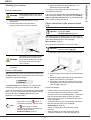
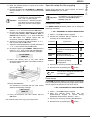
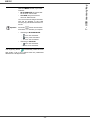
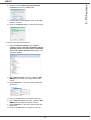
7 Place the sheets in the paper tray as indicated on
the explanation page and below.
The following illustrations describe the necessary
operations depending on the selected binding
mode:
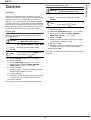
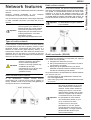
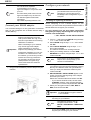
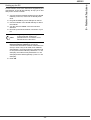
• Long sides
- If some trouble occurred to the
paper during the print of the first
side, such as wrinkle, dog ear or
staple, do not use the paper for
manual duplex.
- When you load paper, please
true up the end of paper on a flat
surface.
For best results, we recommend
that you use 80 g/m² A4 paper or
20 lbs/m² Letter paper.
To print a document in manual duplex mode:
Important
The duplex printing mode is
available only in a paper format
managed by the paper tray.
The manual tray cannot be used to
print in duplex mode.
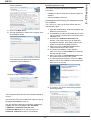
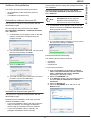
1 Use the PRINT command from the FILE menu of the
currently open application on the screen.
2 Select the OKI MB260 printer.
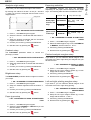
3 Check the Duplex box and choose among the two
binding modes:
Binding mode
•
Short sides
Printing
Long sides
Short sides
4 Click on the OK button to begin printing.
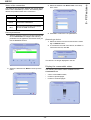
5 The machine prints the odd pages (from the higher
odd page to page 1) and the LCD screen displays:
** PRINTING **
** PC **
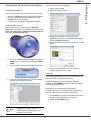
6 Once the odd pages are printed, the LCD screen
displays the message **PUT THE PRINTED SHEETS IN
THE PAPER TRAY WITH THE PRINTED SIDE VISIBLE...:
8 Press OK on the command panel to resume
printing.
9 Even pages are printed on the other side of the
sheets. Once all pages are printed, remove the
explanation sheet.
Important
** PUT THE PRIN
... AND PRESS <OK>
- 40 -
If a paper jam or a paper format
error occurs, the job is cancelled.
You must then resubmit the print job.
8 - PC Features
MB260