1
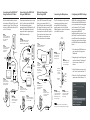
Connecting to the XBOX ���®
Using Standard A/V Cables
Connecting to the XBOX ���
Using an HDMI Cable
Alternate Connection
When Using HDMI
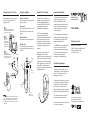
Use the included cables to connect
the headset, XBOX and TV (or sound
system) as shown. This will allow you
to hear the XBOX with either the TV
or the X�� headset.
These instructions show how to set up
the X�� with the optional XBOX HD
AV cable (must be purchased
separately) and an HDMI cable for HD
video. The standard AV cable with
composite video is replaced by the
HDMI video connection.
If your HD TV has stereo RCA output
jacks, you can connect the X�� to
these RCA jacks rather than the XBOX
RCA plugs. Note that on some TVs, the
TV volume control might also adjust
the output level to these RCA jacks. So
if you turn down the volume on the
TV speakers, you would also turn
down the volume on the headset.
Step �:
Connect the XBOX audio
cables (red/white) to the
X�� splitter cable
(red/white).
Step �:
Connect the HDMI cable from the
XBOX to your TV. Connect the
XBOX HD AV cable to the XBOX.
Step �:
Connect the X�� splitter
cable (red/white) to
TV audio input
(red/white).
Video
(yellow)
USB/Power
HDTV
XBOX HD
AV Cable
TV
Step �:
Connect the X��
green audio plug to
the green input on
the splitter cable.
Green
audio plug
XBOX LIVE is a subscription feature
offered with the XBOX ��� that lets
you communicate with other players
via the internet. The X�� headset
lets you communicate with other
players during XBOX LIVE
multiplayer gaming sessions. To use
this feature, connect the headset to
the XBOX controller as described in
the previous section, then configure
the XBOX LIVE feature as described
below.
XBOX
controller
Step �:
Pink
mic plug
(PC use only)
USB
/Power
Green
audio plug
Connect the X��
audio cable
(red/white) to the
stereo audio
outputs (red/white)
on your HD TV.
HDTV
HDMI Video
Step �:
Connect the X�� audio
cable (green) to the splitter
cable input (green).
Step �:
Insert the X��
USB/Power connector
to an open USB port
on the XBOX.
The X�� microphone may be used to
communicate with other players
during XBOX LIVE multi-player
gaming sessions. Use the included
talkback cable to connect the headset
to the XBOX controller.
Step �:
Insert the right angle
plug into the mic
input jack on the
XBOX controller.
HDMI
Audio
(red/white)
Pink
mic plug
(PC use
only)
Configuring the XBOX Settings
Step �:
Connect the HDMI cable from
the XBOX to the HD TV.
Splitter cable
(red/white)
Splitter cable
(red/white)
Connecting the Microphone
Step �:
Insert the X�� USB/Power
connector to an open USB
port on the XBOX.
Step �:
Connect the X��
audio cable (green)
to the splitter cable
input (green).
Splitter cable
(red/white)
Pink
mic plug
(PC use only)
Green
audio plug
USB
/Power
XBOX Jack
(Mic output
to XBOX
controller)
Mic Mute
Switch
�. Press the center XBOX button on
your controller to bring up the
Dashboard.
Step �:
Insert the straight plug
into the “XBOX jack”
on the X�� amplifier.
�. On the Preferences screen, select
the “Voice” option and Press “A”.
Game
Audio
Volume
Chat
Volume
Amplifier
LED
Step �:
Insert the X��
USB/Power connector
to an open USB port
on the XBOX.
Step �:
Use the Chat Volume
control on the amplifier
to adjust the level of
XBOX Live chat voices
from other players.
�. Navigate right to the Settings tab
and scroll down to “Preferences”
from the menu. Press the “A”
button.
Step �:
Use the Game Volume
control on the amplifier
to adjust the level of
game sounds.
NOTE:
Use the Mic Mute switch on the X�� amplifier to
prevent your voice from being heard by other players.
�. Select the “Play Through Headset”
option and set the Volume to ��.