1
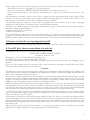
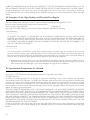
[Net TV User Location]
Select the location of the Philips server which
provides Net TV services. If your country location is
not in the list, select [International].
[Clear Net TV Memory]
Clear the cookies, history, data you input for Net
TV which are stored in the cache area of the web
browser.
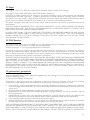
EasyLink
One Touch Play
Audio
devices before you can enjoy the EasyLink controls. See
the TV/devices manual for details.
• Philips does not guarantee 100% interoperability with all
HDMI CEC compliant devices.
1
2
3
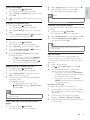
Press .
Select [Setup], and press OK.
Select [EasyLink], and press .
Video
• You must turn on the HDMI CEC operations on the TV/
Preference setup
EasyLink setup
1
2
3
Note
On
Video
On
Audio
One Touch Standby
On
Network
Network
EasyLink
EasyLink
Preference
Preference
Advanced
Advanced
4
5
Select an option, and press OK.
Select a setting, and press OK.
•
To return to the previous menu, press
BACK.
•
To exit the menu, press .
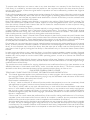
[EasyLink]
This product supports Philips Easylink which uses
the HDMI CEC (Consumer Electronics Control)
protocol. You can use one single remote control
to control all EasyLink-compliant devices that are
connected through HDMI connectors.
•
[On] - Turn on EasyLink features.
•
[Off] - Disable EasyLink features.
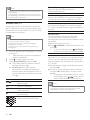
[One Touch Play]
When you press (standby) to turn on this
product, the TV (if the TV supports one-touch
play) automatically turns on and switches to the
video-in channel. Disc play starts if there is a disc in
this product.
•
[On] - Turn on one-touch play feature.
•
[Off] - Disable one-touch play feature.
[One Touch Standby]
When you press and hold (standby), all the
connected HDMI CEC devices (if the device
supports one-touch standby) switch to standby
mode simultaneously.
•
[On] - Turn on one-touch standby feature.
•
[Off] - Disable one-touch standby feature.
22
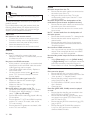
Press
.
Select [Setup], and press OK.
Select [Preference], and press
EN
.
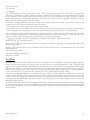
Menu Language
English
Audio
English
Subtitle
Off
Disc Menu
English
Parental Control
Off
Screen Saver
On
Auto Subtitle Shift
On
Change Password
4
5
Select an option, then press OK.
Select a setting, then press OK.
•
To return to the previous menu, press
BACK.
•
To exit the menu, press .
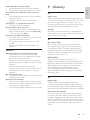
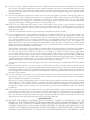
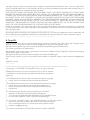
[Menu Language]
Select an on-screen menu language.
Note
• If this product is connected to an HDMI CEC compliant
TV using a HDMI cable, it switches automatically to the
same menu display language as per your TV setting (if the
language set on TV is supported by this product).
[Audio]
Select an audio language for disc play.
[Subtitle]
Select a subtitle language for disc play.
[Disc Menu]
Select a language for disc menu.
Note
• If the language you have set is not available on the disc,
the disc uses its own default language.
• For some discs, the subtitle/audio language can only be
changed from the disc menu.