1
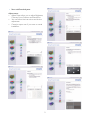
The OSD Menu
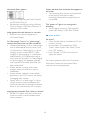
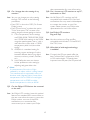
Below is an overall view of the structure of the
On-Screen Display. You can use this as a reference
when you want to work your way around the
different adjustments later on.
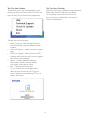
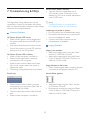
Front view product description
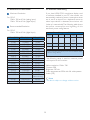
Main menu
Input
: To switch monitor’s power ON and OFF
: To access the OSD menu
: To adjust brightness of the display
:Auto picure control switching in wide
and 4:3 format
: Automatically adjust the horizontal
position, vertical position, phase and clock settings./
Return to previous OSD level.
Sub menu
VGA
DVI (available for selective models)
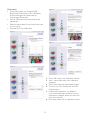
Picture
Picture Format - 4:3, Wide screen
Brightness
Contrast
SmartContrast - On, Off
Color
Gamma
- 1.8, 2.0, 2.2, 2.4, 2.6
Color Temp.
- 5000K, 6500K, 7500K, 8200K, 9300K, 11500K
sRGB
User Define
Red
Green
Blue
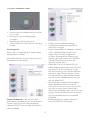
Language
Description of the On Screen Display
English, Español, Français, Deutsch, Italiano
Português, PycckИЙ, 簡體中文
What is On-Screen Display (OSD)?
OSD Settings
Horizontal
Vertical
Transparency - Off, 1, 2, 3, 4
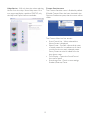
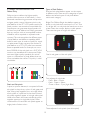
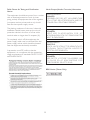
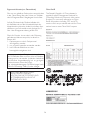
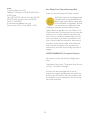
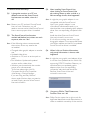
On-Screen Display (OSD) is a feature in all Philips
LCD monitors. It allows an end user to adjust
screen performance or select functions of the
monitors directly through an on-screen instruction
window. A user friendly on screen display interface
is shown as below:
OSD Time out - 5, 10, 20, 30, 60
Setup
Power LED
- 0, 1, 2, 3, 4
H. Position
- 0 ~ 100
V. Position
- 0 ~ 100
Phase
- 0 ~ 100
Clock
- 0 ~ 100
Resolution Notification - On, Off
Reset
- Yes, No
Information
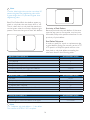
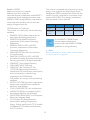
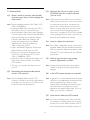
Resolution notification
This monitor is designed for optimal performance
at its native resolution, 1366×768@60Hz.
When the monitor is powered on at a different
resolution, an alert is displayed on screen: Use
1366×768@60Hz for best results.
Display of the native resolution alert can be switched off from Setup in the OSD (On Screen
Display) menu.
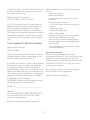
Basic and simple instruction on the control keys
In the OSD shown above users can press
buttons at the front bezel of the monitor to move
the cursor, OK to confirm the choice or change.
5