1
AXIS P1343/-E/AXIS P1344/-E - Accessing the Camera
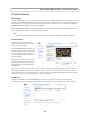
The Live View page
If your network camera has been customized to meet specific requirements the buttons and other items described below may
or may not be displayed on the Live View page. The following provides an overview of each available button:
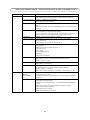
General controls
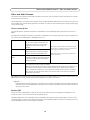
View size – Click to scale the image down to 800 pixels wide or to full scale. Only available in MJPEG.
The Stream Profile drop-down list allows you to select a customized or pre-programmed stream profile on
the Live View page. Stream profiles are configured under Video & Audio > Stream Profiles, see Stream
Profiles, on page 16 for more information.
Pulse – Click this button to activate the output for a defined period of time, such as switching a light on
for 20 seconds.
Active/Inactive – Click these buttons to manually start and stop a connected device - e.g. switch a light
on/off.
The Trigger buttons can trigger an event directly from the Live View page. The buttons are configured
under Setup > Live View Config > Layout.
The Snapshot button saves a snapshot of the video image on display. Right-click on the video image to
save it in JPEG format on your computer. This button is primarily intended for use when the AXIS Media
Control viewer toolbar is not available.
AXIS Media Control toolbar
The AXIS Media Control viewer toolbar is available in Internet Explorer only. See AXIS Media Control (AMC), on page 13 for
more information. The toolbar displays the following buttons:
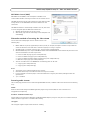
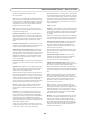
The Play button connects to the Axis product and starts playing a media stream.
The Stop button stops the video stream being played.
The Snapshot button takes a snapshot of the current image. The location where the image is saved can be specified in the AMC Control Panel.
Click the View Full Screen button and the video image will fill the entire screen. Press Esc (Escape) on the computer keyboard to cancel full screen view.
The Record button is used to record the current video stream. The location where the recording is saved can be
specified in the AMC Control Panel.
AMC Audio controls
AMC audio buttons control the speakers and microphone connected to the client computer. The buttons are only visible when
audio is enabled.
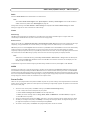
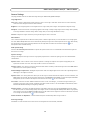
Speaker button – Click to switch the sound on or off.
Microphone button – Click to switch the sound on or off.
In Simplex - Network Camera speaker only mode, click this button to stop sending audio to the network camera.
Use the slider to control the volume of the speakers and the microphone.
10