1
Appendix A: Troubleshooting
Diagnosing RPS Indicators
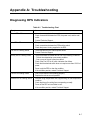
Table A-1. Troubleshooting Chart
Symptom
Action
Power LED is Off
• Internal power supply is disconnected.
• Check connections between the RPS, the power cord, and the wall
outlet.
• Contact Technical Support.
Link LED is Off
• The port does not have a valid connection to a switch.
• Check connections between the RPS and the switch.
• Check that power is being supplied to the RPS.
Link LED is Flashing Yellow
• There has been an RPS internal power failure.
• Contact Technical Support
Activity LED is Flashing Green
• The port has been shut down due to one of the following conditions:
- The unit has detected an over-current condition.
- One or more of the unit’s fans have failed.
• Check if the Fan LED is off, which indicates a fan failure.
• Check that the attached switch does not require more than 150 W of
power.
• Power cycle the RPS to clear the condition.
• If the condition persists, contact Technical Support.
Fan LED is Flashing Yellow
• One or more fans are not operating properly.
• Replace the unit as soon as possible.
Thermal LED is Flashing Yellow • Indicates a high temperature that is approaching an over-temperature
condition.
• Check that the unit's cooling fans are operating normally
• Power off the RPS unit and allow to cool.
• If the condition persists, contact Technical Support.
A-1