1
RocketRAID 230x Driver and Software Installation
Windows Driver Installation
Before installing the RocketRAID host adapter’s device driver, make sure the
RocketRAID host adapter and all required hard disks have been installed into the
system’s chassis/disk enclosure (refer to the Hardware Installation section).
Installing the RocketRAID driver for an existing Windows system
After the operating system has booted, Windows will automatically detect the
RocketRAID host adapter, and request that a device driver be installed. To install the
device driver, follow the steps outlined below:
1.
2.
3.
4.
5.
6.
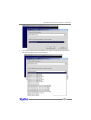
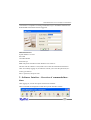
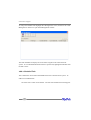
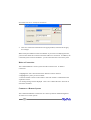
When the “Found New Hardware Wizard” window appears, select “Install from a
list or specific location (Advanced)”, and click Next to continue.
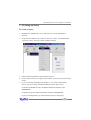
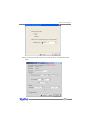
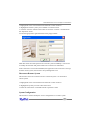
Click on the “Include this location in the search” option, and select the system’s
floppy drive (generally Disk A). Next, insert the Driver Installation diskette into
the system’s floppy drive.
At the Hardware Wizard screen, select the floppy drive as the source, then click
the Next button. Select the appropriate operating system folder, then click the
Next button.
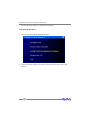
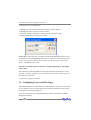
Windows will display a warning message that states the driver has “not been
signed”. Select “Continue Anyway”, then click Finish when prompted. When
windows asks to reboot the system, choose No.
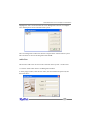
Windows will then display a second “Found New Hardware Wizard” window –
repeat steps 1 through 4.
Remove the Driver Installation diskette from the floppy drive, then Shut down
and restart the computer.
Installation Verification
After the driver has been installed, and the system has been restarted:
1.
2.
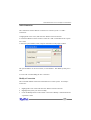
Click the Start button, then right-click My Computer icon. Select the Properties
item from the popup menu.
In the popup window, select Hardware tab and then click Device Manager
button.
4-4