1
Welcome
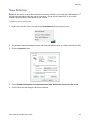
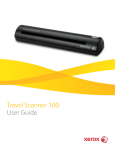
Congratulations on purchasing your Xerox Card Scanner 200. With this scanner you can quickly scan items,
such as business cards, receipts, photographs, and embossed plastic cards, and place their electronic
images on your computer. Powered through the USB port on your computer, this scanner is perfect for
taking on the road.
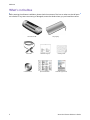
Xerox Card Scanner 200
1
2
3
4
6
5
1
USB port
4
Paper feed
2
Alignment
arrow
5
Power light
3
Paper sensor
6
Scanner
buttons
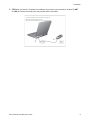
Universal Serial Bus (USB) port—On the left side, connects the scanner to the computer.
Alignment arrow—Shows where to align the top left corner of the item you are scanning.
Paper sensor—Recognizes when an item is inserted in the scanner.
Paper feed—Place an item face up in scanner paper feed slot, the item feeds through as it is being
scanned.
Power light—Green light indicates that the scanner is receiving power from the computer.
Scanner buttons—Pressing a button scans the item using the settings specified in the One Touch
Properties windows. Press, hold down for three seconds, then release a button to open the One Touch
Properties window.
Xerox Card Scanner 200 User’s Guide
1