1
VIVOTEK - A Leading Provider of Multimedia Communication Solutions
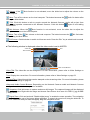
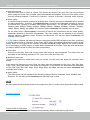
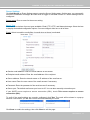
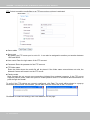
Volume: If the
local computer.
Mute function is not activated, move the slider bar to adjust the volume on the
Mute: Turn off the volume on the local computer. The button becomes the
clicking the Mute button.
Audio On button after
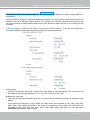
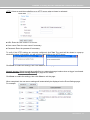
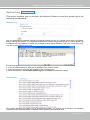
Talk: Click this button to talk to people around the Network Camera. Audio will project from
again to end talking
the external speaker connected to the Network Camera. Click this button
transmission.
Mic Volume: When the
Mute function is not activated, move the slider bar to adjust the
microphone volume on the local computer.
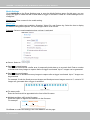
Mute: Turn off the
Mic volume on the local computer. The button becomes the
after clicking the Mute button.
Mic On button
Full Screen: Click this button to switch to full screen mode. Press the “Esc” key to switch back to normal
mode.
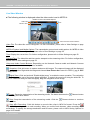
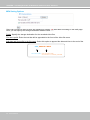
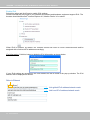
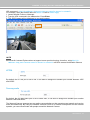
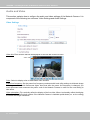
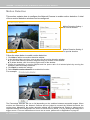
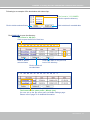
■ The following window is displayed when the video mode is set to MJPEG:
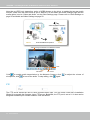
Video Title
Title and Time
Time
Video 10:11:50 2008/01/09
Video Control Buttons
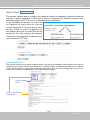
Video Title: The video title can be configured. For more information, please refer to Video Settings on
page 52.
Time: Display the current time. For more information, please refer to Video Settings on page 52.
Title and Time: Video title and time can be stamped on the streaming video. For more information, please
refer to Video Settings on page 52.
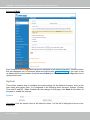
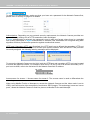
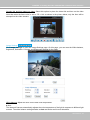
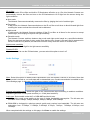
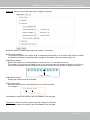
Video and Audio Control Buttons: Depending on the Network Camera model and Network Camera
configuration, some buttons may not be available.
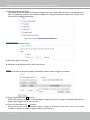
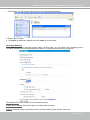
Snapshot: Click this button to capture and save still images. The captured images will be displayed
in a pop-up window. Right-click the image and choose Save Picture As to save it in JPEG (*.jpg) or BMP
(*.bmp) format.
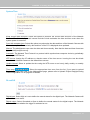
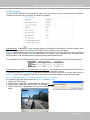
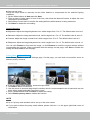
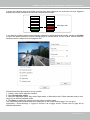
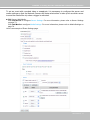
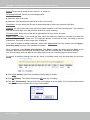
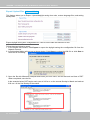
Digital Zoom: Click and uncheck “Disable digital zoom” to enable the zoom operation. The navigation
screen indicates the part of the image being magnified. To control the zoom level, drag the slider bar. To
move to a different area you want to magnify, drag the navigation screen.
User's Manual - 23