1
DVD Menu Options (continued)
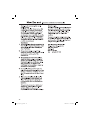
Using the Audio setup menu
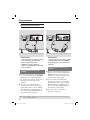
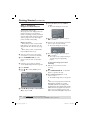
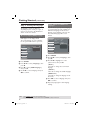
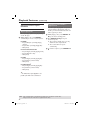
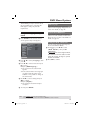
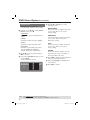
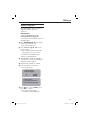
A Press SETUP on the remote control.
The system setup menu appears.
Language
Video
Audio
AspectOutput
Digital
Ratio
: :4:3
All
View Mode
Night
Mode
: Auto
:Off Fit
TV System
Down
Sampling
: NTSC
: On
Video Out
:Component
Smart Picture
: Personal
Rating
Misc
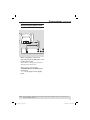
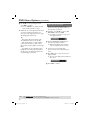
B Press S T to select { Audio }, then
press X.
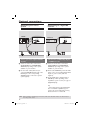
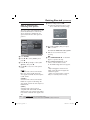
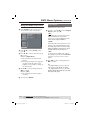
C Press S T to select an item, then press
X to access.
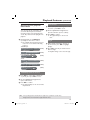
Example: { Night Mode }
The options for the selected item
appears.
If the selection in the menu is greyed
out, that means the feature is not
available or not possible to change at
the current state.
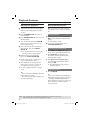
D Use S T to select a setting and press
OK to confirm.
Example: { On }
The setting is selected and setup is
complete.
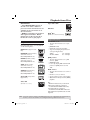
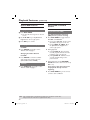
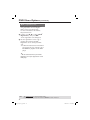
Digital Output
Select this if you connect to a
multichannel decoder/receiver.
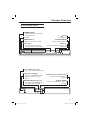
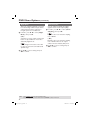
A In ‘Audio’, press S T to select { Digital
Output }, then press X.
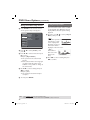
{ All }
Select this if the connected device has a
built-in multichannel decoder that
supports one of the multichannel audio
format (Dolby Digital, MPEG-2).
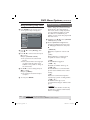
{ PCM }
Select this if the connected device is not
capable of decoding multichannel audio.
The DVD player will convert the Dolby
Digital and MPEG-2 multichannel signals
to PCM (Pulse Code Modulation).
{ Off }
To deactivate the digital audio output.
For example, if you use the AUDIO OUT
sockets to connect to a TV or stereo
system.
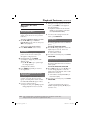
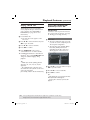
B Use S T to select a setting and press
OK to confirm.
Tips:
– If { Digital Output } is set to { All }, all
audio settings except MUTE are invalid.
– If { Digital Output } is set to { All } while
playback MPEG, MP3/WMA files, the player
will output PCM signals.
E To exit, press SETUP.
TIPS:
The underlined option is the factory default setting.
Press W to go back to previous menu item. Press SETUP to exit the menu item.
31
dvp3144_75_eng2.indd 31
2007-04-16 1:41:01 PM