1
Using the menu bar
Using the system setup menu
(user preference settings)
You can continue some operations directly via
the menu bar on the TV screen without
interrupting the disc playback. But when you
enter system menu, the playback will pause.
This DVD setup is carried out via your TV set,
enabling you to customize the DVD Mini Hi-Fi
System to suit your particular requirements.
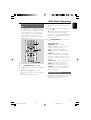
1
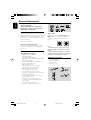
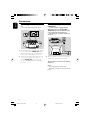
In disc mode, press SYSTEM MENU.
➜ The menu bar will appear across the top of
the TV screen.
2
Select SYSTEM SETUP and press 4 to enter
the setup menu. Then press 3 / 4 to select one
of the setup menu options and press B to enter
the menu.
➜ Playback will pause.
Press 5 / 4 / A / B on the remote control
to navigate in the menu.
3
4
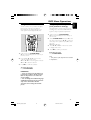
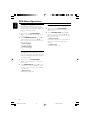
1
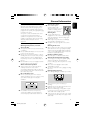
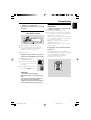
In disc mode, press SYSTEM MENU.
➜ The menu bar will appear across the top of
the TV set screen.
2
Press the 5 / 4 / A / B on the remote
control to navigate in the menu.
➜ Press A / B to move through the menu bar.
➜ Press 4 to enter the selection.
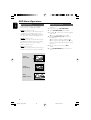
3
Press OK to confirm the selection.
Press OK to confirm your selection.
Removing the menu
Press SYSTEM MENU.
Note:
– Some features of the Setup Menu are described
in “Preparations”.
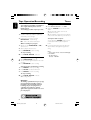
To remove the menu
Press SYSTEM MENU.
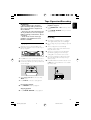
IMPORTANT!
– Some operations may be different or
restricted according to the disc format.
Refer to the jacket or care of the disc
you are playing.
– You can change the Subtitle Language
and Audio Language from the menu bar
only on the current disc. But this
operation cannot change the default
preset.
17
AZ5738_98_IFU_New
17
2009.4.30, 16:34
English
DVD Menu Operations