1
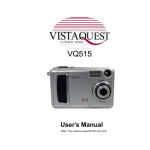
User's Manual
110707
For customers in North and South America
For customers in USA
This device complies with Part 15 of the FCC rules. Operation is subject to the following two
conditions:
(1) This device may not cause harmful interference.
(2) This device must accept any interference
received, including interference that may cause
undesired operation.
For customers in Canada
This Class B digital apparatus meets all requirements of the Canadian
Interference-Causing Equipment Regulations.
For customers in Europe
“CE” mark indicates that this product complies with the European
requirements for safety, health, environment and customer protection.
“CE” mark cameras are intended for sales in Europe.
Table of Contents
Page
1. System Requirements ---------------------------------------------------------------------2. Package Contents --------------------------------------------------------------------------3. Quick Start -------------------------------------------------------------------------------------4. Name of Parts ---------------------------------------------------------------------------------5. Display Information -------------------------------------------------------------------------6. Getting Started -------------------------------------------------------------------------------• Installing Camera Batteries -------------------------------------------------------------• Inserting SD Card (optional) ------------------------------------------------------------• Turning On the Camera ------------------------------------------------------------------• Setting the Date, Time and Date Stamp ---------------------------------------------• Power Saving -------------------------------------------------------------------------------7. Taking Pictures ------------------------------------------------------------------------------• Taking a Picture ----------------------------------------------------------------------------• Taking Continuous Pictures -------------------------------------------------------------• Using Digital Zoom ------------------------------------------------------------------------• Using Flash Light --------------------------------------------------------------------------• Setting Picture Quality --------------------------------------------------------------------• Putting Yourself in the Picture ----------------------------------------------------------8. Taking Videos ---------------------------------------------------------------------------------• Taking a Video ------------------------------------------------------------------------------9. Reviewing Pictures and Videos --------------------------------------------------------• Reviewing Pictures and Videos --------------------------------------------------------• Viewing Six Pictures ----------------------------------------------------------------------• Using Slide Show --------------------------------------------------------------------------• Magnifying Pictures -----------------------------------------------------------------------• Selecting Pictures for Printing (DPOF Print Settings) -----------------------------
1
1
2
4
6
8
8
8
9
9
9
10
10
10
11
11
12
13
13
13
14
14
14
15
15
16
Table of Contents
Page
10. Deleting Pictures and Videos ----------------------------------------------------------• Deleting Single Picture or Video -------------------------------------------------------• Deleting All Pictures and Videos -------------------------------------------------------• Formatting Internal Memory or SD Card ---------------------------------------------11. Customizing Your Camera Settings -------------------------------------------------* Capture Function Menu -----------------------------------------------------------------* Playback Function Menu ---------------------------------------------------------------12. Installing Your Camera Driver and Software --------------------------------------13. Uninstalling Software --------------------------------------------------------------------• Uninstalling Software ---------------------------------------------------------------------• Uninstall Camera's Driver ----------------------------------------------------------------14. Downing Images to Your Computer --------------------------------------------------15. ArcSoft PhotoImpression 5 ------------------------------------------------------------16. ArcSoft VideoImpression 2 -------------------------------------------------------------17. Using the Camera in PC Cam Mode -------------------------------------------------18. Checking the Connection of Your Camera ----------------------------------------19. Internet Video Conference --------------------------------------------------------------Appendix ------------------------------------------------------------------------------------------Specifications ----------------------------------------------------------------------------------
17
17
17
18
19
19
24
25
26
26
26
27
28
29
32
33
34
35
35
FAQ -----------------------------------------------------------------------------------------------
36
Troubleshooting -------------------------------------------------------------------------------
37
1. System Requirements
• Personal computer, laptop, desktop, or IBM compatible with Pentium 166 MHz minimum, and
with an active USB (Universal Serial Bus) port.
• Windows 98 SE / ME / 2000 / XP, CD ROM drive, colour monitor, mouse and keyboard.
• Colour printer for printing colour pictures.
• For transferring still images via the Internet, or for video conferencing, your computer must
have modem and communication software for Internet connection.
2. Package Contents
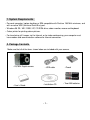
Make sure that all of the items shown below are included with your camera.
• VQ7024 Digital camera
• User’s Guide
• USB cable
• Installation CD
-1-
• Pouch
• Two AAA batteries
3. Quick Start
CAUTION
• Please install the camera driver before using your camera with a PC.
• Best way to transfer picture to PC is using the Mass Storage mode to copy all your
pictures.
• Getting Ready
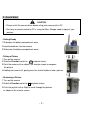
1.Slide open the battery compartment cover
2.Load the batteries into the camera.
3.Slide close the battery compartment cover.
• Taking a Picture
1.Turn on the camera.
2.Slide the Function switch to
(capture status).
3.Point the camera at the subject, use monitor screen to compose
the picture.
4.Holding the camera still, gently press the shutter button to take a picture.
• Reviewing a Picture
1.Turn on the camera.
2.Slide the Function switch to
(playback status).
3.Push the joystick Left or Right to scroll through the pictures
or videos on the monitor screen.
-2-
• Deleting a Picture
1.Turn on the camera.
2.Slide the Function switch to
(playback status).
3.Push the joystick Left or right to display the picture you want to delete.
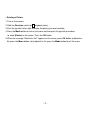
4.Press the Mode button to turn on the menu and then push the joystick up or down
to select [Delete] on the screen. Press the OK button.
5.When the message “Delete this file?” appears on the screen, press OK button to delete the
file; press the Menu button not to delete this file; press the Mode button to exit the menu.
-3-
4. Name of Parts
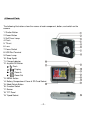
The following illustrations show the names of each component, button, and switch on the
camera.
1. Shutter Button
2. Power Button
3. Self Timer Lamp
4. Flash
5. TV out
6. Lens
7. Focus Switch
8. USB Port Terminal
9. Power Lamp
10. Strap Eyelet
11. Charge Indicator
12. Joystick/OK Button
/ : Flash
/
: Display
/
: Zoom In
/
: Zoom Out
13. MENU Button
14. Battery Compartment Cover & SD Card Socket
15. Mode/Delete Button
16. Function Switch
17. Buzzer
18. TFT Panel
19. Tripod Socket
-4-
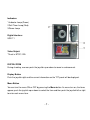
Indicators
1.Indicator Lamp (Green)
2.Self-Timer Lamp (Red)
3.Power Lamp
Digital Interface:
USB 1.1
Video Output:
TV out in NTSC / PAL
DIGITAL ZOOM
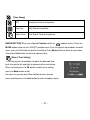
During shooting, user can push the joystick up or down to zoom in and zoom out.
Display Button
Push the joystick right and the current information on the TFT panel will be displayed.
Menu Button
You can turn the menu ON or OFF by pressing the Menu button. As menu turn on, the items
appear, push the joystick up or down to select the item and then push the joystick left or right
to enter each menu item.
-5-
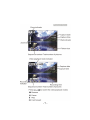
5. Display Information
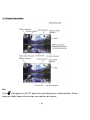
Note:
If the
icon appears on the TFT panel when you take pictures in dark conditions. Please
keep your hands steady, otherwise you may capture a blur picture.
-6-
-7-
6. Getting Started
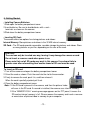
• Installing Camera Batteries:
1.Slide open the battery compartment cover.
2.Insert batteries. Be sure to load batteries with + and –
terminals as shown on the camera.
3.Slide close the battery compartment cover.
• Inserting SD Card:
The camera offers two options for storing pictures and videos:
Internal Memory: Store pictures and videos in the 32 MB internal memory.
SD Card – The SD cards provide removable, reusable storage for pictures and videos. Store
as many pictures as you like, depending on the size of the card.
CAUTION:
The card can only be inserted one way; forcing it may damage the camera or card.
Do not insert or remove a card when power is on.
Please note that not all SD cards may work in this camera. If one brand fails to
operate even after reformatting then another brand of SD card must be used.
To insert an SD card:
1. Turn off the camera and open the battery compartment cover.
2. Orient the card as shown. Push the card into the slot to the connector.
3. Firmly to remove the card, push it in, and then release it.
When the card is partially ejected, pull it out.
4. Close the battery compartment cover.
Note: 1.If the SD card is present in the camera, and then the picture/ video
will save in the SD card. If no card is installed, the camera uses internal memory.
2.If the “MEMORY FULL” warning message appears on the TFT panel, it means the
SD card or internal memory is full. Please remove the memory and insert a new one
or move/store all picture/video in memory to your computer.
-8-
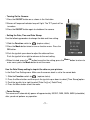
• Turning On the Camera:
1.Press the ON/OFF button on as shown in the illustration.
2.Buzzer will beep and indicator lamp will light. The TFT panel will be
turned on.
3.Press the ON/OFF button again to shutdown the camera.
• Setting the Date, Time and Date Stamp:
Use the following procedure to change the date and time setting.
1.Slide the Function switch to
(capture status).
2.Press the Mode button twice to turn on function menu. Press the
OK button.
3.Push the joystick up or down to adjust the date and time.
Push the joystick let or right to advance to the next setting.
4.When finished, press the OK button to confirm the setting; press the Menu button to return to
main menu, press the Mode button to exit the menu.
Use the Date Stamp setting to imprint the date on your pictures.
In the Date Time Setting menu. Make sure the camera clock is set to the correct date.
1. Slide the Function switch to
(capture status).
2. Press the Menu button and then push the joystick up or down to select [Time Stamp] option.
3. Push the joystick let or right to select [Date Only] or [ Date&Time]
4. Press the Menu button to exit the menu.
• Power Saving:
The camera will automatically power off approximately 30 SEC,1MIN, 3MIN, 5MIN (selectable)
after you do not perform any operation.
-9-
7. Taking Pictures
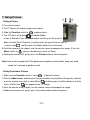
• Taking a Picture
1.Turn on the camera.
2.The TFT panel will display image and symbols.
3. Slide the Function switch to
4. The TFT panel will display
(capture status).
(Snapshot Mode).
If icon is different, Press the Menu button and then push the joystick
down to select [Burst Snapshot ], and then push the joystick left or right to
select [single]
and then press the Menu button to exit the menu.
5.Point the camera at the subject; use the monitor screen to compose the image. (If turn the
Macro switch to
, you can take picture as close as 20cm.)
6.Holding the camera still, gently press the Shutter button to take the picture.
Note: How to take a good shot? After gently pressing down shutter button, keep your hand
steady for 2 seconds to get best result.
• Taking Continuous Pictures
1.Make sure the Function switch is set to
. (Capture Function)
2.Press the Menu button and then push the joystick down to select [Burst Snapshot], and then
push the joystick let or right to select [Burst]
and then press the Menu button to exit the
menu. And the icon
will appear on the TFT panel.
3.Point the camera at the subject; use the monitor screen to compose the image.
4.Holding the camera still, gently press the shutter button to take the picture.
- 10 -
• Using Digital Zoom
The Digital Zoom provides up to 8X magnification of your pictures.
You may notice a decrease in printed image quality when using
Digital Zoom.
Note: Please note that the quality of the shot will reduce when Zoom is
used so only use it when normal shots are not available.
1. Make sure the Function switch is set to
. Use the TFT panel
to frame your subject.
2.
Button: The subject will be enlarged.
Button: The subject will be reduced.
Push the joystick up to zoom in. Push the joystick up or down repeatedly for continuous
magnification. The TFT panel displays the zoomed image and the magnification level.
3.Push the joystick down to zoom out.
4.Press the Shutter button to take the picture.
Note: 1.The image will appear grainier as the image is digitally zoomed.
2.Digital Zoom is automatically turned off when the camera is turned off.
3.You cannot view the zoomed subject through the viewfinder.
- 11 -
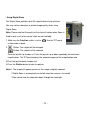
• Using Flash Light
When you take pictures at night, indoors, or outdoors in heavy
shadows, your use the flash. Push the joystick left repeatedly to
scroll through the flash options.
The flash icon that is displayed on the TFT panel is the active
option.
Off—flash never fires. (Default)
Auto Flash—flash fires when the lighting conditions require it.
Force Flash—flash fires every time you take a picture, regardless of the lighting
conditions.
• Setting Picture Quality
Use the Quality setting to select a picture resolution:
1.Make sure the Function switch is set to
, and then press the Menu button.
2.Push the joystick left or right:
7M (3024x2304) —for enlarged picture size; produces higher picture resolution and larger
file size.
5M (2560x1920) —for standard picture size; produces normal picture resolution and large
file size.
2M (1600x1200) — for small picture size; pictures are of lower resolution and file size is
smaller.
3.Press the Menu button to confirm to return to capture status and you will see the icon 7M/
5M /2M on the TFT panel.
Note: 1.This setting remains until you change it.
2.Movies can be shot with the CIF (320 x 240) or VGA (640 x 480) resolution.
- 12 -
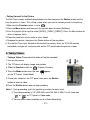
• Putting Yourself in the Picture
The Self Timer creates a default delay between the time you press the Shutter button and the
time the picture is taken. This setting is ideal when you want to include yourself in the picture.
1.Make sure the Function switch is set to
.
2.Press the Menu button and then push the joystick down to select [Selftimer].
3.Push the joystick left or right to select [10SEC], [15SEC], [20SEC]. Press the Menu button to
return to capture status.
3.Place the camera on a flat surface or use a tripod.
4.Compose the picture, then press the Shutter button all the way down.
5. The red Self Timer light, located on the front of the camera, blinks for 10,15,20 seconds
(selectable) and you will see the counter on the TFT panel before the picture is taken.
8. Taking Videos
• Taking a Video (Please note that audio will not be recorded)
1.Turn on the camera.
2. The TFT panel will display image and symbols.
3. Slide the Function switch to
(Capture Function).
4. Press the Mode button once, the icon
appears
on the TFT panel. (Video Mode)
5. Frame your subject on the TFT panel, then press the Shutter
button to take the video.
6.Press the Shutter button again to stop recording.
Note: 1. During recording, push the joystick up or down to zoom in/out.
2. The video resolution is CIF (320 x240) and VGA (640 X 480). It’s will show icon
“
” or “
” on TFT panel in Video mode.
3. You can select video resolution use the [Video Resolution] .
- 13 -
9. Reviewing Pictures and Videos
• Reviewing Pictures
1.Turn on the camera.
2.Slide the Function switch to
(playback status).
The last picture or video is displayed.
3.Push the joystick left or right to select the picture or video
(If the icon
appears on the TFT panel) you
want to review.
4.Push the joystick up or down to start playback of the video.
5.During the playback, push the joystick up or down to pause / resume/back/forward the video
playing.
Note: 1. You can push the joystick up or down to enlarge or reduce picture, and then press OK
button. Now you can push the joystick left or right and up or down to see different
parts of the picture. Press the OK button again to see the zoomed parts.
2. Video cannot be zoomed.
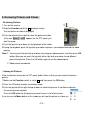
• Viewing six Pictures
View six pictures at once on the TFT panel (Index View) so that you can search the picture
quickly.
1.Make sure the Function switch is set to
, and then press the OK button.
2.Press the OK button to enter six pictures mode.
3.Push the joystick left or right and up or down to select the picture. A red-frame indicates
the current picture selected.
Press the OK button for the picture you want to see in the whole screen.
If you turn on the Menu button at this mode you will see the picture as shown on
- 14 -
the right side. Push the joystick up or down to select the item, then press the OK button to
confirm the setting. Press the Menu button and OK button to exit the menu.
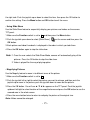
• Using Slide Show
Use the Slide Show feature to sequentially display your pictures and videos on the camera
TFT panel.
1.Make sure the Function switch is set to
, and then press the Menu button.
2.Push the joystick up or down to select [Slide Show]
on the screen and then press the
OK button.
3.Each picture and video thumbnails is displayed in the order in which you took them.
4.Press the OK button again to stop the slide show.
Note: 1. Once the user selects the Slide Show Mode, camera will automatically play all the
pictures. Press the OK button to stop the slide show.
2. Video is played like the way of playing option.
• Magnifying Pictures
Use the Magnify feature to zoom in to different areas of the picture.
1.Make sure the Function switch is set to
.
2.Push the joystick left or right to select the picture you want to enlarge, and then push the
joystick up to zoom in the picture; push the joystick down to zoom out the picture.
3.Press the OK button. You will see
appears on the TFT panel. Push the joystick
up/down/left/right to select location of the magnified area and press the OK button to see the
zoomed area in the whole screen.
4.Press the menu button twice to return to redisplay the picture at the original size.
Note: Videos cannot be enlarged.
- 15 -
• Selecting Pictures for Printing (DPOF Print Settings)
1.Make sure the Function switch is set to
.
2.Push the joystick left or right to select the picture you want to print, and then press the
Menu button.
3.Push the joystick up or down to select [Print] on the screen and push the joystick left or right
to select ON/OFF.
4.Press the Mode or Menu button to return to playback status. And you will see the icon
appears on the TFT panel if you choose ON.
Note: The DPOF printing feature support SD card only.
- 16 -
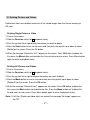
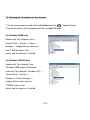
10. Deleting Pictures and Videos
Delete item allow user to delete current or all the stored images from the internal memory or
SD card.
• Deleting Single Picture or Video
1.Turn on the camera.
2.Slide the Function switch to
(playback status).
3.Push the joystick left or right display the picture you want to delete.
4.Press the Mode button to turn on the menu and then push the joystick up or down to select
[Delete] on the screen. Press the OK button.
5.When the message “Delete this fire?” appears on the screen. Press OK button to delete the
file; press the Menu button not to delete this file and return to main menu. Press Menu button
again to return to playback status.
• Deleting All Pictures and Videos
1.Turn on the camera.
2.Slide the Function switch to
(playback status).
3.Push the joystick left or right to display the picture you want to delete.
4.Press the Mode button to turn on the menu then push the joystick up or down to select
[Delete All] on the screen. Press the OK button.
5.When the message “Delete all files?” appears on the screen. Press OK button to delete the
files; press the Menu button not to delete the files. Press the Menu button not to delete this
file and return to main menu. Press Menu button again to return to playback status.
Note: 1.If all files (Photos and video clips) are erased, the message “No Image” appears on
the TFT.
- 17 -
2.Files that are erased cannot be recovered. Make sure you have selected the
images you want to erase.
3.Files that have been protected (see the following section) cannot be erased even if
“Delete All” is selected.
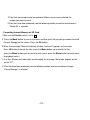
• Formatting Internal Memory or SD Card
1.Make sure the Function switch is set to
.
2. Press the Mode button to turn on the menu and then push the joystick up or down to select
[Format Storage] on the screen. Press the OK button.
3.When the message “Format will destroy all data. Continue?” appears on the screen.
Press OK button to format the files; press the Menu button not to format the files.
(press the Menu button once to return to main menu, press the Menu button twice to return
to playback status.)
4.If all files (Photos and video clips) are formatted, the message “No Image” appears on the
on the TFT.
5.Files that have been protected (see the following section) can be erased even though
“Format Storage” is selected.
- 18 -
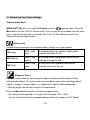
11. Customizing Your Camera Settings
* Capture Status Menu
[MENU BUTTON] When user slide the Function switch to
(capture status). Press the
Menu button can turn ON/OFF function menu. Push the joystick up and down to select items,
push the joystick left and right to enter each item. Press the Menu button to confirm the
setting and return to capture status.
[Picture Size]
You can change the picture size (excluding videos) settings to suit your purpose.
7M (Large)
3072 x 2304
pixels
for enlarged picture size; produces higher picture
resolution and larger file size.
5M (Medium)
2560 x 1920
pixels s
for standard picture size; produces normal picture
resolution and large file size.
2M (Small)
1600 x 1200
pixels
for small picture size; produces lower picture
resolution and smaller file size.
[Exposure Value]
Exposure compensation lets you change the exposure setting manually to adjust for the
lighting of your subject. This feature helps to achieve better results when recording a backlit
subject, a strongly lit subject indoors, or a subject that is against a dark background.
1. Push the joystick left and right to adjust the compensation.
2.Press the Menu button to confirm and return to capture status..
• The settings can be adjusted in 1/2 steps within the range –2EV ~ +2EV.
• You can check the result of the compensation by viewing the image on the TFT panel.
- 19 -
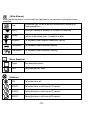
[White Balance]
When the white balance is set to match the light source, the camera can take picture more
accurately.
Auto
The camera sets the white balance automatically according to
shooting conditions.
Sunny
Use when shooting at outdoors in sunlight on a clear day.
Cloudy
Use when shooting at outdoors and the sunlight is not enough
such as under cloudy skies, in shade or at dusk.
Tungsten
For recording under tungsten fluorescent lighting.
Fluorescent1
For recording under fluorescent lighting.
Fluorescent2
For recording under fluorescent lighting.
[Burst Snapshot]
Single
Take one picture once.
Burst
Take three pictures once.
[Selftimer]
OFF
Setting the timer off.
10 SEC
Setting the timer in self-timer to 10 second.
15 SEC
Setting the timer in self-timer to 15 second.
20 SEC
Setting the timer in self-timer to 20 second.
- 20 -
[Time Stamp]
OFF
Do not print time on the picture.
Date Only
Print Date on the picture.
Date & Time
Print Date & Time on the picture.
[MODE BUTTON] When user slide the Function switch to
(capture status). Press the
MODE button twice can turn ON/OFF function menu. Push the joystick up and down to select
items, press the OK button to confirm the setting. Press Menu button to return to main menu.
Then press Mode button to return to capture status.
[Date & Time Setting]
Push the joystick up and down to adjust the date and time.
push the joystick left and right to advance to the next setting.
When finished, press the OK button to confirm the setting;
press the Mode button to exit
the menu, or you can press Menu button to return to main
menu and then press the Mode button to return to capture status.
- 21 -
[Language]
Push the joystick up and down to select the submenu and then press the OK button to
confirm. Press Menu button to return to main menu. Press the Mode button to return to capture
status.
English
Setting the language to English. (*)
Français
Setting the language to French.
Deutsch
Setting the language to German.
Italiano
Setting the language to Italian.
Español
Setting the language to Spanish.
Setting the language to Russian.
Setting the language to Simplify Chinease.
[Beeper]
Push the joystick left and right to set the beeper on/off .
ON
Setting the beep sound to on.
OFF
Setting the beep sound to off. (*)
[Format Storage]
Press OK to turn on the submenu and then follow the manual of page 18 to format the flash
memory or SD card.
- 22 -
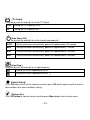
[TV Output]
Push the joystick left and right to set the TV Output .
NTSC
Setting the TV Output to NTSC.
PAl
Setting the TV Output to PAL.
[Auto Power Off]
Push the joystick left and right to set the time of auto power off .
30SEC
Setting the camera automatically powers off approximately 30 seconds.
1MIN
Setting the camera automatically powers off approximately 1 minute.
3MIN
Setting the camera automatically powers off approximately 3 minutes.
5MIN
Setting the camera automatically powers off approximately 5 minutes.
[Light Freq.]
Push the joystick left and right to set light frequency.
Setting the flicker frequency to 50 Hz.
Setting the flicker frequency to 60 Hz. (*)
[Default Setting]
Press OK button to turn on the submenu and then press OK button again to confirm or press
Menu button not to return to default setting.
[System Info.]
Press OK button to see the version and then press Menu button return to main menu.
- 23 -
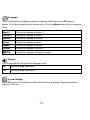
* Playback Status Menu
[Menu Button] When you slide the Function switch to
(Playback Status), pressing Menu
button can turn ON/OFF Playback status menu. Push the joystick up and down to select the
item.
Press the OK button to start/stop slide show.
Push the joystick left and right to set Protect and Print to On/OFF.
Slide Show
to Slide Show.
Protect
to protect picture. (on-lock/off-unlock)
print
to print picture. (on-print/off-not print)
[Mode Button] When you slide the Function switch to
(Playback Status), pressing Mode
button can turn ON/OFF Delete menu. Push the joystick up and down to select the item.
Press the OK button to turn on the submenu of delete/format and then press the OK or menu
button to delete/format or not to delete/format the pictures.
[Delete]:
Delete item allow user to delete current or all the stored images from the memory.
Delete One
to delete (erase) current picture or video.
Delete All
to delete (erase) all pictures or videos.
Format
to format the flash memory or SD card.
- 24 -
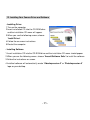
12. Installing Your Camera Driver and Software
• Installing Driver
1.Turn on the computer.
2.Insert installation CD into the CD-ROM drive
and the installation CD menu will appear.
3.When you see the following screen, choose
“Install Driver”.
4.Follow the on-screen instructions.
5.Restart the computer.
• Installing Software
1.Insert installation CD into the CD-ROM drive and the installation CD menu should appear.
2.When you see the following screen, choose “Arcsoft Software Suite” to install the software.
3.Follow the instructions on screen.
4.Installed software will automatically create “VideoImpression 2” or “PhotoImpression 5”
logo on your desktop.
- 25 -
13. Uninstalling Software
Following instruction will guide you to uninstall (remove) software from computer.
• Uninstalling Software
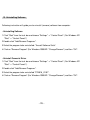
1.Click "Start" from the task bar and choose "Settings" -> "Control Panel". (For Windows XP:
"Start" -> "Control Panels")
2.Double click "Add/Remove Programs".
3.Select the program to be uninstalled: "Arcsoft Software Suite".
4.Click on "Remove Program" (For Windows 2000/XP: "Change/Remove") and then "OK".
• Uninstall Camera's Driver
1.Click "Start" from the task bar and choose "Settings" -> "Control Panel". (For Windows XP:
"Start" -> "Control Panels").
2.Double click "Add/Remove Programs".
3.Select the program to be uninstalled "STK018_V2.01".
4.Click on "Remove Program" (For Windows 2000/XP: "Change/Remove") and then "OK".
- 26 -
14. Downloading Images to You Computer
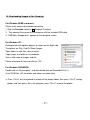
For Windows 98/ME customers:
Please install camera drive before connecting.
1. Slide the Function switch to
(Playback Function).
2. Then connect the camera to the computer with the included USB cable.
3. “USB Mass Storage drive” appears on the computer screen.
For Windows XP:
A dialogue box with options appears as shown on the Right side.
The options are Play, Find/Fix/Share Images.
Open folders to view files, take no action,
Copy images to a folder on my computer,
View a slide show of images, and etc.
Please select one of them and click on “OK”.
For Windows 2000/ME/98:
Double click on “My computer”, and then double click on Removable Disk (i:)
in the DCIM files. (All the photos and videos are stored here).
4. Press “Ctrl+A” on the keyboard to choose all the photos/videos, then press “Ctrl+C” to copy
photos, and then open a file in the computer, press “Ctrl+V” to paste the photos.
- 27 -
15. ArcSoft PhotoImpression 5
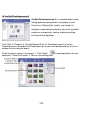
ArcSoft PhotoImpression 5 is a complete digital image
editing application designed with real people in mind.
Easy-to-use “Getting Start” guides, user-friendly UI,
complete image editing functionality, give users wonderful
experience to organizing, viewing, enhancing, editing,
printing and sharing photos.
Click “Start” “Program” “ArcSoft Software Suite“ “PhotoImpression 5” to launch
PhotoImpression 5 or double click PhotoImpression 5 icon on the desktop and you will see a
window as the screenshot above.
Select the picture source. For example: 1. Click “Folder”
for acquiring photos from your
computer 2. Select the file path. 3. You can start editing them.
- 28 -
1.
Get Photo – Choose how to view or acquire photos.
2.
Enhance – Crop, brighten, rotate, resize and modify photos.
3.
Create – Add clip art, special effects, frames and more.
4.
Project – Make calendars, photo books and greeting cards.
5.
6.
Print – Print multiple images per page and multiple pages at one time.
Send – Email photos or upload them to online photo sharing accounts.
Note
For more detailed information, please refer to the Help of the program.
16. ArcSoft VideoImpression 2
ArcSoft VideoImpression 2 creates home movies
and slide shows by combining existing videos, still
images, exciting scene transitions, and multiple
audio tracks. Though simple to use, the program
provides intense and broad video editing and export
options perfect for owners of digital still cameras,
desktop and digital video cameras, and camcorders.
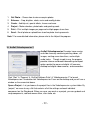
Click “Start” “Program” “ArcSoft Software Suite“ “VideoImpression 2” to launch
VideoImpression 2 or double click VideoImpression 2 icon on the desktop and you will see a
window as the screenshot above.
Open a Project – Let you browse the project files in the VideoImpression system folder. By
“project,” we mean to say a file that contains all of the settings and each individual
component on the Storyboard. When you save your work as a project, you can go back and
swap components, add and remove them, alter audio, etc.
- 29 -
Create a Video – Create a new video project. You can retrieve media materials from the
device connected or choose media files from system folder. You can choose video materials
from your photo album as well.
Create a Slide Show – Create a slide show project. You can retrieve media materials from
the device connected or choose media files from system folder. You can choose slide show
materials from your photo album as well.
If the box “Always show this wizard when VideoImpression starts.” at the bottom of the
wizard is checked, the wizard will appear each time you run the program. If you'd like to skip
the wizard the next time, uncheck the box.
Select the item you desire and the picture and videos you need then you will enter the
editing interface as below.
You can use the six steps in the Function Menu to create video clips and slide shows.
1. Media - Select the videos and images that will comprise your final movie or slide show.
2. Edit - Modify video and image colour and adjust the duration of each movie component.
Only available for video projects.
3. Effects - Add neat special effect transitions between each component, or apply a pre-made
- 30 -
theme.
4. Text - Place animated text on any movie component.
Only available for video projects.
5. Narrate - Record audio directly from the program and add it to your movie.
6. Produce - Combine all components to create your final video; save it in a variety of ways or
email it to friends.
The Storyboard - The backbone of the creation process, it's where you assemble your movie.
The Player - Preview and modify your movies in this area.
Working with Albums - Albums let you organize your media for easy access.
Note: For more detailed information, please refer to the [Help] of the program.
- 31 -
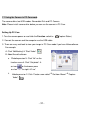
17. Using the Camera in PC-Cam mode
The camera offers two USB modes: Removable Disk and PC Camera.
Note: Please install camera drive before you can use the camera in PC-Cam.
Setting Up PC-Cam
1.Turn the camera power on and slide the Function switch to
(Capture Status).
2. Connect the camera and the computer use the USB cable.
3. There are many methods to view your image in PC-Cam mode if you have Video software.
For example:
A. Click “NetMeeting”
“Start Video”.
B. About Arcsoft software:
a. PhotoImpression 5: Click “file” on the
function menu
an icon
Click “Get photo”
on the browse pane
as shown on the right
b.
“Live”.
VideoImpression 2: Click “Create a new video” “Get from Album” “Capture
Video”.
- 32 -
18. Checking the Connection of Your Camera
*Turn the camera power on and slide the Function switch to
*Connect the camera to the computer with the included USB cable.
For Windows 98/ME only
Double click “My Computer” icon ->
Control Panel -> System -> Device ->
Manager -> Imaging Device; when you
See “STK018 Camera” that
means now the camera is installed.
For Windows 2000/XP only
Double click “My Computer” icon
(Windows 2000) or go to Start button
and select “My Computer” (Windows XP) ->
Control Panel -> System ->
Hardware -> Device Manager ->
Imaging Device; when you see
“STK018 Camera” that
means now the camera is installed.
- 33 -
(Capture Status).
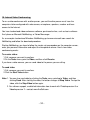
19. Internet Video Conferencing
To run a video conference with another person, you and the other person must have the
computer station configured with web camera, microphone, speakers, modem and have
access to the Internet.
You have to download video conference software, purchased or free, such as basic software
like I-phone or Microsoft NetMeeting, or Yahoo Messenger.
As an example: to download Windows NetMeeting, go to www.microsoft.com search for
NetMeeting and follow the download procedure.
Starting NetMeeting, you have to follow the simple set up procedure on the computer screen,
enter your personal information and adjust the microphone volume. Here's how video
conferencing works:
To receive video:
1.Call someone you want to see/hear.
2.On the Tools menu, point to Video, and then click Receive.
If you have a video camera, you can send video to the person you are calling.
To send video
1.Call someone you want to see/hear.
2.Click the Start Video button.
Note: 1. You can also send video by clicking the Tools menu, pointing to Video, and then
clicking Send. After starting the video, the button changes to Stop Video. To stop the
video, click the Stop Video button again.
2. For software support, or detailed information how to work with PhotoImpression 5 or
VideoImpression 2 – contact www.ArcSoft.com.
- 34 -
Appendix:
Specifications
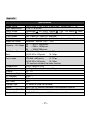
Image Sensor
Lens Specification
Focus Range
O/S
Flash Strobe
White Balance
Exposure Control
CMOS 2592 x 1944 Pixels (5.0M Pixels), Sensor Area 1 / 1.8"
F 3.0, f = 8.54 mm
Landscape:
2m~infinity, Normal:
1.5m ~ 2m, Macro:
20cm
Microsoft Windows 98 SE / 2000 / ME / XP
Yes, (Force On, Force Off, and Auto)
Automatic / Daylight / Cloudy / Fluorescent lamp / Tungsten lamp
Automatic / Manual (-2EV ~ 2EV)
7M --- 3072 x 2304 pixels
Capacity – Still Mode
5M --- 2560 x 1920 pixels
2M --- 1600X1200 pixels
PC Mode – Frame
VGA 640 x 480 pixels
8~12 fps
Rate
QVGA 320 x 240 pixels
15~18fps
Video:
Movie Mode
VGA 640 x 480 pixels
8~12 fps
QVGA 320 x 240 pixels
15~18fps
( SD card not included. No Audio function)
Compression
JPEG / MJPEG (AVI)
Digital zoom
8 x Digital Zoom for Preview & Playback
Display
2.4” TFT
Continuous Capture
3 Images
PC Interface
USB 1.1
Video Output
NO
Self Timer
YES
Storage Type
SD card slot (card not included)
Power
AAA 1.5V x 2 Alkaline (Included)/ Re-chargeable Batteries
Dimension (WxHxD) 89.5 x 58 x 20mm
Bundled Software
ArcSoft PhotoImpression 5 & VideoImpression 2
- 35 -
FAQ
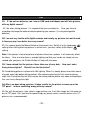
Q1: If I do not use batteries, can I use an USB cord and Adaptor and still take pictures
with my digital camera?
A1: No, when taking pictures, it is important that you use batteries. Also, you have to
remember to charge the batteries before operating your camera. (If using rechargeable
batteries)
Q2: I am not very familiar with digital cameras and usually my pictures turn out blurred.
Is there any way I can better focus my camera?
A2: Yes, please locate the Macro Switch on the camera lens. Switch it to the Landscape (
setting unless taking close-up pictures in which case, you must switch to the Macro ( )
setting.
)
Note: If the pointer is found anywhere in between these two symbols, it will adversely affect
the focus. Also, ensuring there is enough lighting and that your hands are steady for one
second after you press the Shutter Button will help with the focus.
Q3: I have noticed that the pictures I have taken are all very dark.
these pictures lighter? Should I use the flash often?
How can I make
A3: Avoid taking pictures in places with little lighting. When it is cloudy, please use other means
to create more light before taking pictures. We recommend using the flash function during
night time. During the day, the flash may be too strong and the picture may come out too bright,
thus use it only during the night.
Q4: After I am done taking a picture, it takes a while for the picture to come up on the
TFT panel. Is there something wrong with my camera?
A4: No, with the camera, if you select a larger picture size, it will take longer for it to come up
on the TFT panel. So if you want to speed things up, please select a smaller picture size. (S
picture size is recommended)
- 36 -
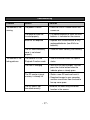
Troubleshooting
Problem
Source
Solution
The camera is not
running
The power is not on
• Press the ON/OFF button to turn the
camera on.
The batteries were not
inserted properly
• The correct direction to insert the AAA
batteries is indicated on the camera.
Batteries are depleted
• Replace with unused alkaline or fully
recharged batteries (two AAA-size
batteries).
The SD card slot/battery
cover is not closed
properly
• Close the cover correctly and securely.
The camera is in the
Playback Function mode
• Slide the function switch to Capture
status.
The flash is charging
• Wait until the flash charges. You can
press the shutter button when the
indicator glows a steady green.
The SD card or internal
memory is already full
• Obtain a new SD card and insert it.
The camera is not
taking pictures.
• Download images to your computer,
and then erase them from the card to
free up more space.
•Reformat the card using the format
The SD card is not
formatted correctly
function in the camers.
- 37 -
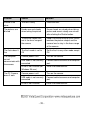
Problem
Source
Solution
Picture is not
clear
The lens is dirty
• Clean the lens.
The pictures are
blurred
Hands were not steady
when taking the picture
• Ensure hands are steady when taking
picture and remain steady one minute
after clicking the Shutter button.
The picture subject was
not in the focus range of
the camera
• Keep a minimum distance of 60 inches
between the picture subject and the
camera lens to stay in the focus range
of the camera.
The flash doesn't
fire
The flash mode is set to
Off
• Set the flash to any other mode except
Off.
The computer
cannot
communicate with
the camera
Camera power is off
• Turn on the camera.
USB cable is not securely
connected
• Connect cable to camera and computer
port.
Driver is not installed (for
Windows 98 user)
• Install the camera driver.
Camera power is off
• Turn on the camera.
USB cable is not securely
connected
• Connect cable to camera and computer
port.
Driver is not installed
• Install the camera driver.
The PC Camera
doesn't work
- 38 -