1
Changing Printer Settings
Printing
You can use advanced printing features when using your
printer.
NOTES:
• The Macintosh printer’s properties window that appears in
this User’s Guide may differ depending on the printer in use.
However the composition of the printer properties window is
similar.
• You can check your printer name in the supplied CDROM.
From your Macintosh application, select Print from the File
menu. The printer name which appears in the printer properties
window may differ depending on the printer in use. Except for
the name, the composition of the printer properties window is
similar.
NOTES: The setting options may differ depending on printers
and Macintosh OS version.
Layout
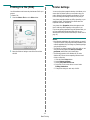
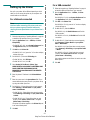
Printing a Document
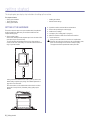
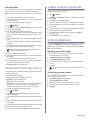
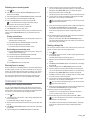
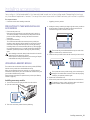
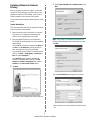
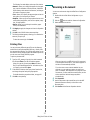
When you print with a Macintosh, you need to check the printer
software setting in each application you use. Follow these steps
to print from a Macintosh.
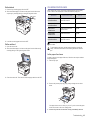
1 Open a Macintosh application and select the file you want
to print.
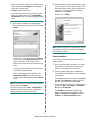
2 Open the File menu and click Page Setup (Document
Setup in some applications).
3 Choose your paper size, orientation, scaling, and other
options and click OK.
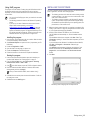
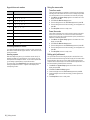
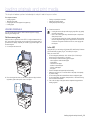
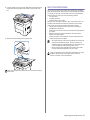
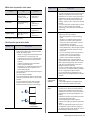
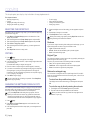
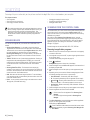
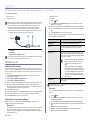
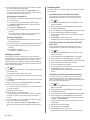
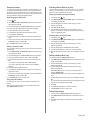
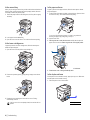
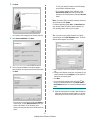
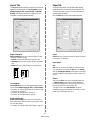
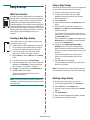
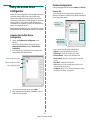
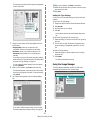
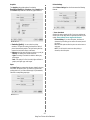
The Layout tab provides options to adjust how the document
appears on the printed page. You can print multiple pages on
one sheet of paper. Select Layout from the Presets drop-down
list to access the following features.
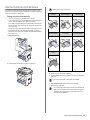
Make sure that your
printer is selected.
▲ Mac OS 10.4
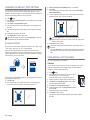
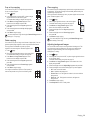
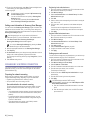
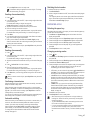
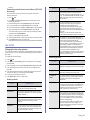
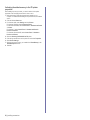
• Pages per Sheet: This feature determines how many pages
printed on one page. For details, see "Printing Multiple Pages
on One Sheet of Paper" on the next column.
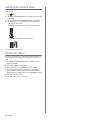
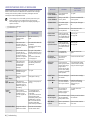
• Layout Direction: You can select the printing direction on a
page as like the examples on UI.
▲ Mac OS 10.4
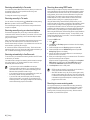
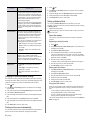
4
5
6
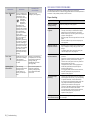
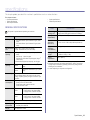
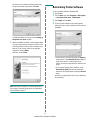
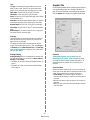
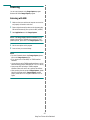
Open the File menu and click Print.
Choose the number of copies you want and indicate which
pages you want to print.
Click Print when you finish setting the options.
42
Using Your Printer with a Macintosh