1
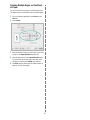
Using a Favorite Setting
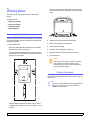
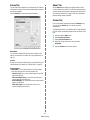
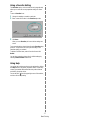
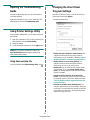
The Favorites option, which is visible on each properties tab,
allows you to save the current properties settings for future
use.
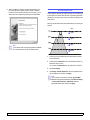
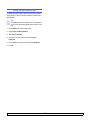
To save a Favorites item:
1
2
Change the settings as needed on each tab.
3
Click Save.
Enter a name for the item in the Favorites input box.
When you save Favorites, all current driver settings are
saved.
To use a saved setting, select the item from the Favorites drop
down list. The printer is now set to print according to the
Favorites setting you selected.
To delete a Favorites item, select it from the list and click
Delete.
You can also restore the printer driver’s default settings by
selecting Printer Default from the list.
Using Help
Your printer has a help screen that can be activated by clicking
the Help button in the printer properties window. These help
screens give detailed information about the printer features
provided by the printer driver.
You can also click
from the upper right corner of the window,
and then click on any setting.
17
Basic Printing