1
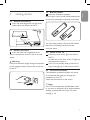
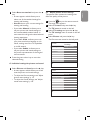
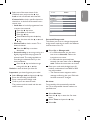
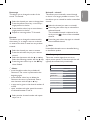
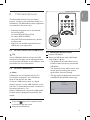
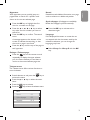
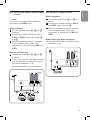
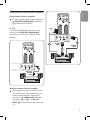
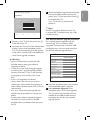
5.5 Press the o or œ key to select the Picture
menu items.
6 Press the π key to enter the selected
Picture menu item.
7 Press the o or œ or p or π key to adjust
the settings.
8 Press the p key to return to the Picture
menu.
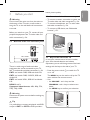
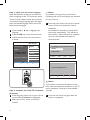
TV menu
TV settings
Settings assistant
Reset to standard
Picture
Sound
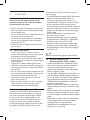
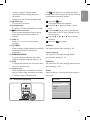
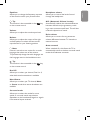
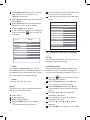
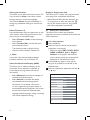
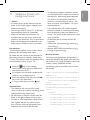
Contrast
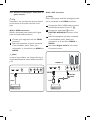
Adjusts the intensity of bright parts in the
picture but keep the dark parts unchanged.
Brightness
Adjusts the light output of the complete picture,
which will mainly affect the darker areas of the
picture.
Colour
Adjusts the saturation level of the colours to
suit your personal preference.
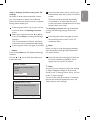
Info
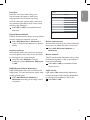
Custom tint (only when Tint is set to
Custom)
Fine tunes the white point (WP) and black level
(BL) of the picture.
1
2
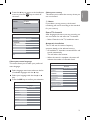
Hue
Compensates for the colour variations in NTSC
3.58 encoded transmissions.
Sharpness
Adjusts the sharpness of fine details in the
picture.
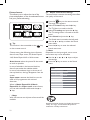
Tint
Increases or decreases Warm (red) and Cool
(blue) colours to suit personal preferences.
• Select
Cool to give the white colours a blue.
Normal to give the white colours a neutral.
Warm to give the white colours a red tint.
Custom to make a customised setting in the
Custom tint menu item.
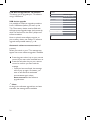
16
Picture
.............
Custom tint
Pixel Plus
Digital Natural Mo..
Dynamic contrast
DNR
.............
3
4
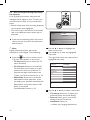
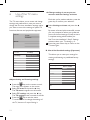
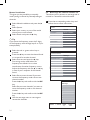
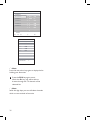
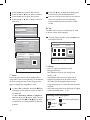
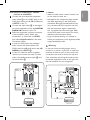
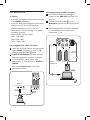
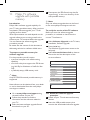
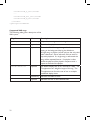
Select Custom tint and press the π key.
Use the o or œ, p or π keys to select
and adjust the settings of:
R-WP: allows you to customise the colour
tint by adjusting the red whitepoint of the
picture.
G-WP: allows you to customise the colour
tint by adjusting the green whitepoint of the
picture.
B-WP: allows you to customise the colour
tint by adjusting the blue whitepoint of the
picture.
R-BL: allows you to customise the colour
tint by adjusting the red blacklevel of the
picture.
G-BL: allows you to customise the colour
tint by adjusting the green blacklevel of the
picture.
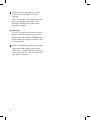
Press the colour keys to reset to the
predefined settings.
Press the p key to return to the Picture
menu.