1
Multimedia Browser
2 Remove the USB device.
ENGLISH
9
The Multimedia browser lets you display
pictures, movies or play audio files stored on a
USB device. The Multimedia browser application
is invoked from the main menu.
•
•
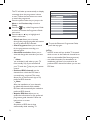
Following file formats can be reproduced:
for pictures: JPEG
for audio: MP3, MP3 Pro, LPCM
for video: MPEG1, MPEG2
Only FAT/DOS-formatted memory devices
are supported.
• Philips can not be held responsible if your
USB device is not supported.
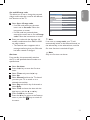
9.1 To view content from a USB device
Tip
If your USB device does not fit into the USB
connector at the side, use an USB extend cable
to connect the USB device to the USB port. Ask
your dealer for more information.
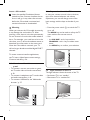
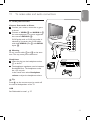
9.2 To insert a USB device
Note
USB devices are not supplied with this TV.
For the best connection, use a USB device
which is less than 25 mm wide.
In case of a USB-memory stick or a digital
camera, connect it to the USB connector
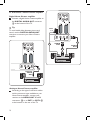
at the side. See 'To make video and audio
connections', Side panel overview, p. 43.
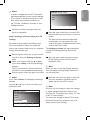
When a USB device is inserted, the Multimedia
browser menu is displayed automatically. See
further.
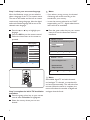
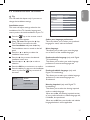
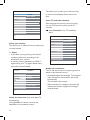
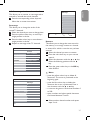
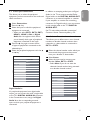
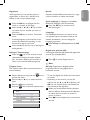
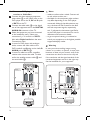
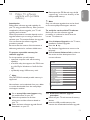
9.4 Multimedia Browser menu
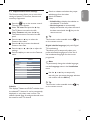
1 Insert a USB device.
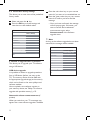
2 Select the USB device under Multimedia
with the o or œ key.
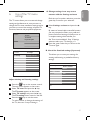
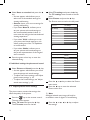
• The Multimedia browser allows you to
browse content stored on the inserted
USB device.
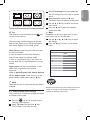
• The 2-panel browser will be shown with
the left panel containing the content
types (Music, Pictures, Movies).
• The right panel will display the content that
is available of the selected content type.
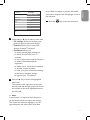
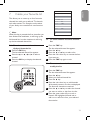
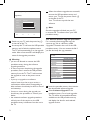
Television
TV menu
TV channels
Programme guide
Multimedia
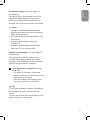
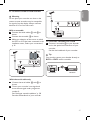
9.3 To remove the USB device
1 Press the
key on the remote control
to switch off the main menu.
37