1
Targus USB 2.0 CD-ROM Slim External Drive
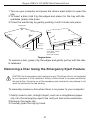
1 Turn on your computer and press the drive’s eject button to open the
tray.
2 To insert a disc, hold it by the edges and place it in the tray with the
readable (plain) side down.
3 Close the media tray by gently pushing it until it clicks into place.
Indicator light
Cable Lock
USB 2.0 cable port Slot
Emergency
eject hole
Media tray
Indicator light
Eject button
Lock slot for use with AC adapter jack
Targus locks - Models
nos. PA410 or
PA450 (not included)
Targus drive
To remove a disc, grasp it by the edges and gently pull up until the disc
is released.
Removing a Disc Using the Emergency Eject Feature
CAUTION: Use the emergency eject mechanism only if the Targus drive is not connected
to your computer or if the computer’s battery is flat and there is no power available for
the eject button. Excessive use of the emergency eject mechanism may damage it and
cause the mechanism to stop working.
To manually remove a disc when there is no power to your computer:
1 Gently insert a slim, straight object, such as a straightened paper
clip, into the emergency eject hole until you feel some resistance.
2 Remove the paper clip.
3 Carefully open the tray by hand.
4