1
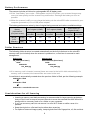
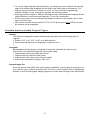
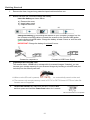
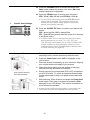
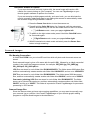
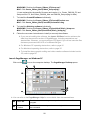
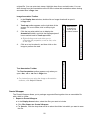
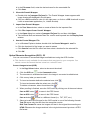
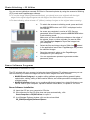
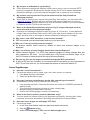
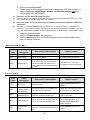
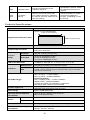
To use the image stitching feature effectively, you should scan your originals with the right edge of the original aligned against the left edge of the Stitch mark on the scanner. The originals need to overlap by 2” (45mm) or more. You will use Presto! PageManager software installed on your computer to complete the stitching process. Scanning the same original in different orientations may produce scanned images that look slightly different in color tones and brightness. This is not a malfunction. If the memory card is full, the indicator light begins to flash red. Use another card or clear space on the full card. The scanner accepts memory cards in FAT16 or FAT32 file system only. NTFS and other file systems are not supported. Su itab le an d Un su itab le Or ig in a l T yp es Suitable The Scanner is designed to obtain the best scanning results with the following types of originals: Photos: 3”x5”, 4”x6”, 5”x7”, 8x10” up to A4/Letter size Printed pictures (pictures on newspapers, magazines, etc.) Unsuitable Do not use the following types of originals for scanning, otherwise the scanner may malfunction or the scanned images will not be good quality. Originals with either side shorter than 55mm Originals with lots of black or dark colors Originals with dark colors surrounding the edges Soft and thin materials (thin paper, cloth, etc.) Scanned Image Size Since the scanner does NOT have auto-cropping capabilities, you may want to manually crop your scanned .jpg or .pdf files to desired size. You can use the included Presto! PageManager software or your favorite graphic editing program to crop the saved images to the desired size. 10