1
QSG(UK).fm Page 1 Thursday, April 22, 2004 11:08 AM
KV-28CS70U
KV-32CS70U
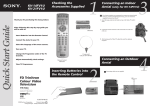
Checking the
Accessories Supplied
1
Connecting the Aerial and
VCR
Connecting cables are not supplied.
3
Thank you for purchasing this Sony product.
VCR
or
MANUFACTURED UNDER LICENCE
FROM DOLBY LABORATORIES
"DOLBY" AND THE DOUBLE - D
SYMBOL ARE TRADEMARKS OF
DOLBY LABORATORIES
Insert Batteries into the Remote Control.
Connect the Aerial and VCR to your TV.
The Scart lead is optional.
If you use this optional connection it can improve the picture and
sound quality when using a VCR.
2 Batteries (AA size)
Select the language of the menu screens.
If you do not use a SCART lead, after automatically tuning the TV
refer to the “Manual Programme Preset” option on page 13 step a)
of the instruction manual, to tune in the VCR channel to your TV.
Adjust the picture slant.
Tune your TV.
Switching on the TV
Remote Control
RM-932
Change the order in which channels are stored.
View TV Programmes.
Inserting Batteries into
the Remote Control
• Make sure you insert the supplied batteries using the
correct polarities.
•
Always remember to dispose of used batteries in an
environmentally friendly way.
2
4
Connect the TV plug to
the mains socket.
The first time the TV set is connected,
it is usually turned on. If the TV is off,
push in the On/Off switch on the
front of the TV.
2-149-362-01
4
N/
PA
JA
©2004 Sony Corporation
Printed in UK
N
IO
AT
OR
RP
CO
FD Trinitron
Colour Television
NY
SO
NY
SO
Quick Start Guide
After following this step by step guide you will be able
to:
N
IO
AT
OR
RP
CO
4
N/
PA
JA
QSG(UK).fm Page 2 Thursday, April 22, 2004 11:08 AM
Selecting the language of
the menu screens
This TV set works with menu screens. By following the
instructions below, you can select the desired language of the
menu screens.
5
The first time that you switch on your
TV, the Language menu appears
automatically.
Language
iv
Svenska
Norsk
English
Nederlands
Français
Italiano
iV
Select Language:
Automatically Tuning
the TV
You need to tune the TV to receive channels.
By following the instructions below, this TV automatically
searches and stores all available broadcast channels for you.
7
Press the OK button on the remote
control to select Yes.
Do you want to start
automatic tuning?
Yes
No
OK
Changing the Programme Order
of the broadcast channels
By following the instructions below, you can rearrange the
order in which broadcast channels appear on the screen.
a) If you wish to keep the broadcast channels in the tuned
order:
OK
• Press the MENU button on the
remote control to exit and
return to the normal TV screen.
Programme Sorting
Press the v or V button on the remote
control to select the language, then
press the OK button on the remote
control to confirm your selection.
Language
iv
Svenska
Norsk
English
Nederlands
Français
Italiano
iV
Select Language:
Programme:
01 BBC ONE
02 BBC 2
03 ITV 1
04 CH 4
05 Five
06 ITV 2
Select channel:
Exit: MENU
Auto Tuning
Programme:
System:
Channel:
OK
01
I
C21
The Picture Rotation menu appears
on the screen.
Not necessary
Adjust now
OK
No channel found
Please connect aerial
6
Confirm
Correcting the Picture Slant
OK
Because of the earth’s magnetism, the picture may slant.
By following the instructions below, you can correct the
picture slant if necessary.
If picture slants, please
adjust picture rotation
Not necessary
Adjust now
OK
Do you want to start
automatic tuning?
a) If it is not necessary, press the v or
V button on the remote control to
select Not necessary then press
OK.
b) If it is necessary, press the v or V
button to select Adjust now, then
press OK and correct any slant of
the picture between –5 and +5 by
pressing the v or V button. Finally
press OK to store.
Your TV is now ready for use.
If no channels were found during
the auto tuning process then a
new menu appears automatically
on the screen asking you to
connect the aerial. Please
connect the aerial (see step 3)
and press OK. The auto tuning
process will start again.
b) If you wish to store the TV broadcast channels in a
different order.
Programme Sorting
Programme:
01 BBC ONE
02 BBC 2
03 ITV 1
04 CH 4
05 Five
06 ITV 2
Select channel:
Exit: MENU
OK
Programme Sorting
Programme:
01 BBC ONE
02 BBC 2
03 ITV 1
04 CH 4
05 Five
06 ITV 2
Select new position:
Exit: MENU
OK
When the automatic tuning is finished,
the Programme Sorting menu
appears on the screen.
Programme Sorting
Programme:
01 BBC ONE
02 BBC 2
03 ITV 1
04 CH 4
05 Five
06 ITV 2
Select channel:
Exit: MENU
OK
The TV starts to automatically search
and store all available broadcast
channels for you.
This procedure could take a
number of minutes.
Please be patient and do not
press any buttons while the
automatic tuning is in progress.
Otherwise the automatic tuning
will not be completed.
Searching...
If picture slants, please
adjust picture rotation
OK
• Press the v or V button to select
the programme number that has
the channel (TV Broadcast) you
wish to rearrange, then press the
b button.
• Press the v or V button on the
remote control to select the new
programme number position for
your selected
channel, then
press the B button.
• Repeat all the above steps if you
wish to change the order of the
other broadcast channels on your
TV.
• Press the MENU button on the
remote control to exit and return
to the normal TV screen.
Your TV is now ready for
use.
The automatic tuning menu
appears on the TV screen.
Yes
No
8
OK
Your television stations are now stored in your television’s memory.