1
Photo and Music
Enjoying Photos through the USB Port
The TV offers easy access to JPEG photos
stored on a USB connected memory device.
Connecting USB Equipment
The USB port is located on the side TV panel.
Gently insert your USB memory device into
the USB port to display your picture and music
files on screen. For details on accessing photo
files check the online Reference Book.
USB Equipment Functionality
Sony cannot guarantee or assure the USB
functionality on this TV in the following cases:
• Use of audio clips processed on a
computer
• Use of files obtained from the Internet or
from a printed file processing center.
Sony recommends backing up all data stored
on USB equipment to avoid potential data
corruption. Sony cannot accept responsibility
for lost or damaged data recorded on USB
equipment.
The USB functionality on this TV is designed
to be compatible with mass storage devices.
Sony cannot guarantee or assure compatibility
with all formats or products.
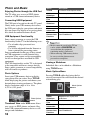
Photo Options
Insert your USB memory device to display
your picture files on screen. Press TOOLS
while displaying the picture and choose your
desired photo viewing preferences. The photo
display resolution range is 16 × 16 to
8,192 × 8,192 pixels.
Option
Description
TOOLS
To access Photo Options menu
Add to
Slideshow
To include picture on Slideshow
Select Photo
Files
To select photo files
Start
Slideshow
To start slideshow
Rotate
To rotate the picture
View
Information
Display picture information
Add or
Remove from
Favorites
To add or remove current picture
from Favorites list
• Media cannot be saved in the TV but
can be added to FAVORITES and
accessed when the equipment
containing media is connected.
• When removing USB memory device,
be sure to exit the photo menu to
prevent data corruption.
Viewing a Slideshow
Individual files can be added to a Slideshow
using TOOLS menu
Music Options Menu
Pressing TOOLS while displaying the list
view of your music files and choose the desired
action during play.
Add to Slideshow
Select Music Files
Start Slideshow
View Information
Add to Favorites
Music Options
menu
Track 01
04:14 (04:52)
File Name - Piano
Album - Samples
Add to Slideshow
Select Photo Files
Start Slideshow
Rotate
View Information
Add to Favorites
Photo Options
menu
Thumbnail View under USB menu allows
easy access to JPEG photos and music files
from USB connected memory device as still
images and slideshows.
18
Option
Add to
Slideshow
Select Music
Files
View
Information
Add or
Remove from
Favorites
Description
Register music to play with
slideshows
To select music files
Display music information
To add or remove current song
from Favorites list