1
Cingular SIM Card
UX Series - Replacement Instructions
IMPORTANT!
PLEASE READ BEFORE YOU START
These easy instructions are intended to guide you through the replacement process.
9 To avoid electric shock please make sure product is turned off and AC Adaptor is disconnected
from the power source. Remove jewelry before you begin work to avoid scratching the surface of
your notebook computer.*
9 Place your notebook computer on a clean, stable and covered surface to avoid damage to the
computer's case.*
9 Follow the ESD (Electrostatic Discharge) damage prevention instructions:
o Hold parts by the edges, away from exposed circuitry when possible.
o Do not walk around excessively as this promotes static build-up.
9 The appearance of the electronic components shown in the illustrations may be different from the
components shipped. This slight difference does not affect the accuracy of these instructions.
* Sony is not responsible for any loss of data associated with your computer or any damage caused by
incorrect handling of the computer under these procedures. The terms of your Sony Limited Warranty
continue to apply.
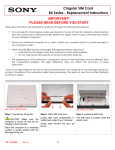
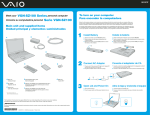
REMOVE
SCREW
LEFT EDGE
PLASTIC
COVER
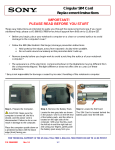
Step 1. Prepare the Computer.
Step 2. Locate the SIM Card.
CAUTION: Make sure the
computer is turned off, and the AC
Adapter is disconnected.
Place the computer on a protected
surface in upright position with the
left edge facing you.
P/N 994642900
Rev. B
The SIM Card is located behind the
plastic cover; left edge of your
computer.
With enclosed magnetic screwdriver
proceed to remove one (1) screw as
shown. Set screw aside.
1/2
Step 3. Remove Plastic Cover
Cingular SIM Card
UX Series - Replacement Instructions
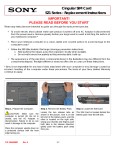
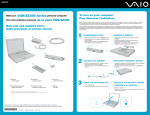
Step 4. Unseat the SIM Card.
Step 5. Remove the SIM Card.
Use your thumb or finger and gently
press the SIM Card in and release
the pressure.
The SIM Card will pop up out of the
slot; proceed to remove it.
Step 6. Punch the SIM Card out of
the card.
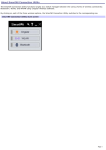
Step 9. Start the VAIO SmartWi
Connection Utility.*
1. Start your computer.
2. Click the SmartWi
Connection Utility icon in
the task bar.
Step 7. Insert the new SIM Card.
Step 8. Reinstall Plastic Cover.
Place the SIM Card in the slot as
shown and gently push down the
SIM card until you hear a click.
Release the pressure. The SIM Card
should remain fully in the slot.
Align plastic cover in place. Using
enclosed magnetic screwdriver,
reinstall one (1) previously removed
screw as shown.
3. From the SmartWi main
screen, click the Cingular
button, and then click in the
Cingular Connection
Manager launch area below
the button.
4. Call (888) 739-VAIO (8246)
to activate your account.
CAUTION: Make sure not to
over tighten the screw!
* Note: The VAIO SmartWi Connection Utility Guide provides detailed information on how to use the SmartWi
Connection Utility. To view the guide, click Start, point to All Programs, and click VAIO Control Center. Make
sure that the Categories tab page is active. Click the Documentation folder, and then click VAIO SmartWi
Connection Utility Guide.
P/N 994642900
Rev. B
2/2