1
Sony Notebook User Guide
Using your notebook
n N
25
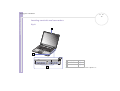
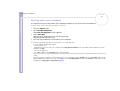
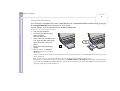
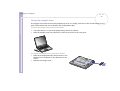
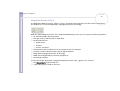
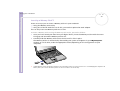
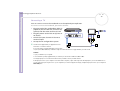
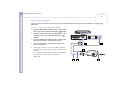
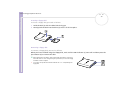
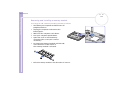
Inserting the second battery pack
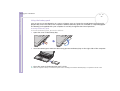
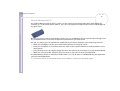
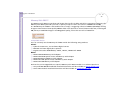
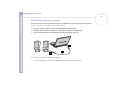
To insert a second battery pack, proceed as follows:
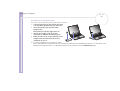
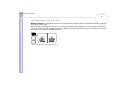
1 If the weight saver or the optical disc drive
is in the multi-purpose bay (1), remove it.
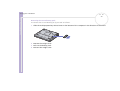
2 Insert the battery (2) into the multipurpose bay.
The battery 2 indicator light turns on.
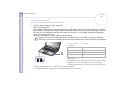
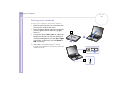
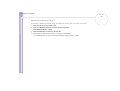
3 Attach the weight saver (3) to the
computer to stabilize the battery pack.
4 Slide the eject lever on the bottom of the
weight saver toward the front of the
computer to lock it.
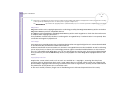
✍
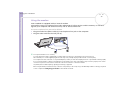
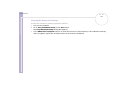
If you attach two batteries, you can remove one of them
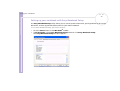
without shutting down the computer. When removing one battery pack, make sure that the other battery pack indicator is on. If the indicator of the
battery pack you are going to remove is on, right-click the battery icon in the system tray and click the Switch Battery option.