1
SoMo 650 Status Indicator LEDs
STEP 6: Set up the Synchronization Partnership
For computers running Windows Vista, the Windows Mobile
Device Center will appear instead.
1. When you connect the SoMo 650 to the host PC computer for the
first time, the New Partnership wizard will automatically appear.
LED
LED Behavior
Meaning
Wireless
Status
LED
Flashing blue
Bluetooth radio is on
Flashing green
Wi-Fi radio is on
Flashing blue and
green
Bluetooth and Wi-Fi radios
are on
Flight mode or device
powered off
If the wizard does not automatically appear, open ActiveSync
manually by clicking the Start | All Programs | Microsoft ActiveSync.
OFF
Battery
Status/
Alarm
LED
2. Follow the setup wizard to set up the partnership. Once completed,
the first synchronization will start automatically.
3. After the synchronization is complete, you will see that the
Calendar, Contacts and Tasks on your SoMo 650 have been updated,
depending on your settings.
The next time you wish to use ActiveSync, simply plug the SoMo 650
into the computer. ActiveSync will then open automatically and
update your device.
How Do I Turn on the Bluetooth or Wi-Fi Radio?
Flashing red
Alarm/Notification,
including Low Battery
Notification
OFF
Running on battery power
or device powered off
Solid red light
when connected
to charger
Charging
Solid green light
when connected
to charger
Fully charged
Note: There is no wireless status LED in the SoMo 650DX.
The SoMo 650DX does not include Bluetooth or Wi-Fi radios.
1. Open the radio manager by pressing the button on the right side of
the SoMo 650. Alternatively, tap the Wi-Fi and Bluetooth status line
in the Today screen (below the date).
2. In the Radio Manager, an “x” appears on the Bluetooth or Wi-Fi
button if the radio is off. Tap on the button to turn on the radio.
®
™
Socket Wi-Fi Companion software automatically launches after
Wi-Fi is turned on.
Stylus — You can use the stylus in three ways:
• Tap an item: Use to select an option, similar to left-clicking a mouse.
• Tap and hold an item: Reveals a submenu, if available. Similar to
right-clicking a mouse.
• Drag: Hold the stylus against the screen and drag to highlight
multiple items, or to move the position of an item. Similar to leftclicking and dragging a computer mouse.
For Windows Mobile 6 Service Pack 4 or later, refer to the User’s Guide
for instructions on how to install Enhanced Wi-Fi Companion.
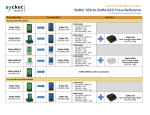
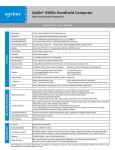
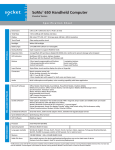
SoMo 650 Models
Configuration
Windows
Mobile
Version
5.0 for
Pocket PC
Region
Language
North
America
English
8560-00001
EMEA
North
America
Standard includes
Bluetooth
and Wi-Fi
6.0 Classic
8560-00002
English
8560-00003
Spanish
8560-00006
EB – standard
configuration
with extended
battery
North
America
8560-00005
English
8560-00004
Spanish
8560-00011
German
8560-00008
French
8560-00007
Technical Support
Italian
8560-00009
•
Iberian Portuguese
8560-00010
Online Knowledge Base: Search for articles, Frequently Asked
Questions or Hot Topics any time, day or night.
http://support.socketmobile.com/faq
•
Online Requests: Register your product and submit a question.
http://support.socketmobile.com/
•
By Phone: Contact our Tier 1 Technical Support by calling:
USA & Canada Toll-free: 800-279-1390
Direct: +1-510-933-3020
English
EMEA
6.0 Classic
North
America
English
Rx - for healthcare
applications
(made with
antimicrobial
plastics)
5.0 for
Pocket PC
6.0 Classic
8560-00019
8560-00020
English
8560-00012
English
8560-00013
North
America
English
8560-00014
EMEA
English
8560-00015
Not
country
specific
Online Help
To access general Help files, tap Start | Help | Contents for a list of
topics. To access Help for a program, open the program and tap Start |
Help.
8560-00017
8560-00018
EMEA
DX - for direct
exchange
applications
(Bluetooth &
Wi-Fi removed)
Additional Documentation
This Quick Start Guide covers basic setup for the SoMo 650. For more
information, please refer to the User’s Guide, in the installation CD and
at: http://www.socketmobile.com/support/downloads
Brazilian Portuguese
EMEA
5.0 for
Pocket PC
Part
Number
Product Registration
Socket highly recommends that all customers register their products.
Registered users benefit from access to technical support and special
offers. Register online at: http://support.socketmobile.com
Accessories
For information on accessories for the SoMo
650, please visit:
http://www.socketmobile.com/products/
6.0 Classic
8/2009
Printed in U.S.A.