Transcript
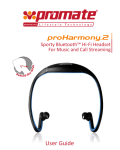
Promate proHarmony.l
Bluetooth™ Hi-fi Headset for Wireless and Call Streaming
User Guide
proHarmony.1
Bluetooth™ Hi-fi Headset for
Wireless and Call Streaming
Introduction
Promate’s proHarmony1 is a sleek over-the-head design Bluetooth™ stereo
headset with Hi-Fi output for full wireless music and call streaming. Multiple
profiles – headset, hands-free, A2DP and AVRCP – are included, allowing even
the most demanding Bluetooth™ usage. The proHarmony1 comes with a
build-in lithium-ion battery for complete portability and longevity. With its rich
sound and sophisticated wireless Bluetooth™, proHarmony1 is the ultimate in
audio and communication.
Specification
Bluetooth™ :
Version 2.1 Chipset CSR BC05
(plus EDR Enhanced Data Rate for USB adapter)
Headset, Hands free, A2DP, AVRCP
10m
10 hours
250 hours
3 hours
5V DC
2.402 ~ 2.480 Mhz
Class 2 (Max 2dBm)
Bluetooth™ profile:
Effective range:
Working time:
Standby time:
Charging time:
Input voltage:
Radio frequency:
Transmit power:
Specification
Operation Instructions:
Headset:
• Bluetooth™ Hifi headset for wireless music and call streaming
• Mobile and Bluetooth™ device full compatibility function
• 10 Hours working time
• Wireless connection for hands free communication
• Automatic music pause and resume during incoming and outgoing calls
• Automatic connection with last used device
• Built-in rechargeable lithium-ion battery feature
Packing Contents:
Note:
Choosing Travel charger or USB cable depends on different countries or
areas and actual demands
Note:
While connecting this Bluetooth™ headset to your notebook’s built-in
Bluetooth™ adaptor, make sure that your notebook’s Bluetooth™ adaptor
supports A2DP, AVRCP and VOIP protocols. If mentioned protocols are not
already available in your notebook Bluetooth™ adaptor, you need to use
an external USB Bluetooth™ adaptor which supports AD2P, AVRCP and
VOIP protocols.
Warning:
1. The battery is recycled.
2. Do not dispose of the battery in fire, as it may cause explosion.
First time charging:
Before you use this Bluetooth™ proHarmony.1+, please charge the
battery of fully.
proHarmony.1
USB charging cable
Warranty Card
User Manual
1 Switching on / off headset
Second time and more:
When you hear a warning tone of “beep” every 20 seconds, at the same
time, the red light will start blinking. It means the battery is low and need
to be charged. There are two ways to charge:
Getting Started
I:
2:
3:
4:
5:
6:
7:
8:
9:
Retractable string
< key :last song
> key :next song
LED Indicator
Multifunction button (MFB): Turn on/off
the headset, answer, end and reject call,
mute, voice dial and switch
conversation, redial last number, pause
and revert music.
+ key: volume up
-key: volume down
Charging port
Built-in microphone
Function
Switch on
Operation
Press the MFB for
3-5 seconds, the
blue light blinks.
Indicator light
The blue light
blinks quickly 4
a time.
Indication tune
A “DI” tone
Switch off
Press the MFB for
3-5 seconds, the
red light blinks.
The red light blinks
quickly 4
a time.
A “DI” tone
a) Please keep the headset and mobile phone in the range of 1 meter
when pairing.
b) Make the headset enter into pairing mode.(Please refer to “how to
enter into pairing mode”)
c) Start the Bluetooth™ function of mobile phone and search the
Bluetooth™ devices. After searched, select “proHarmony.1” in the
Bluetooth™ device list.
d) Enter password according to indicated PIN No:”1234”, and press the
key of” Yes” or “confirmed”.
e) After successful pairing, select “proHarmony.1”.in the Bluetooth™
device list and press “connect”.
f) After successful connecting, the blue light of the headset blinks twice
every 4 seconds.
Remark: proHarmony.1 will switch off automatically if no device is connected
after 5 minutes in order to save power.
A. Charging the battery with travel charger
Step1 Plug the travel charger into standard AC power outlet.
Step2 Connect the travel charger with the charging port of the headset.
When the red light is on, the headset is charging.
When the red light is off, the headset is charged full
Step3 It takes about 2.5 hours to charge the headset full.
2 Pairing with Bluetooth™ device
How to enter into pairing mode
Function
Enter into pairing
mode
B. Charging the battery with USB cable
Step1 Insert USB charging cable into USB outlet of PC.
Step2 Connect charging cable with the charging port of headset.
When the red light is on, the headset is charging.
When the red light is off, the headset is charged full.
Step3 Charging time of the USB charging cable: About 2.5Hrs.
Operation
Make sure the headset is
off. Or switch off the
headset firstly. Press and
hold the MFB for 5-7
seconds, and release the
key till the red and blue
light blink alternately’
Indicator light
The red and
blue lights blink
alternately.
• After successful pairing with several Bluetooth™ devices, the paired devices
will remember each other. Unless paired information is deleted because of
new pairing, otherwise make mobile phone and headset and set up hands
free connection and restart the Bluetooth™ transmitter, then the connection
of several devices can be performed.
• For the mobile phone which supports the HSP and A2DP at the same time.
It may set up connection with HSP and A2DP simultaneously. At this time,
start Bluetooth™ transmitter may not connect with the headset again.
6 Wearing headset
The string of this headset is retractable; please adjust according to the
actual use. Logo “L” of headset represents left ear, Logo “R” of headset
represents right ear. Please wear the headset according to the indication
of the Logo.
7 Making a call with the headset
Function
Voice dial
Status of headset
Standby mode
Redial last call
Standby mode
Turn up volume
Conversation mode
Turn down volume
Conversation mode
Answer calling
Ringing
Reject calling
Ringing
End calling
Conversation mode
Switch
conversation
between headset
and cell phone
Conversation mode
Microphone mute
Conversation mode
Cancel mute
Conversation mute
Operation
Indication
Press and hold A short tone “DU”
the MFB for 2s,
release the key till
you hear
indication sound
press the MFB A short tone “DU”
twice
Short press or Nothing
long press + key
Short press or Nothing
long press - key
Short press the A short tone “DU”
MFB
Press and hold A short tone “DU”
the MFB for 2s,
and release the
key till you hear
the indication
sound
Short press the A short tone “DI”
MFB
Press and hold A short tone “DU”
the MFB for 2s,
release the key till
you hear the
indication sound
Quickly press the
“Du”” Du” tone
MFB twice
every 5s
Quickly press the Nothing
MFB twice
Remark:
• Not all the mobile phones support all the function listed above. Please
refer to the instruction of your mobile phone.
• When the volume is adjusted to max or min, you will hear a indication
sound of “Ding-Dong”.
• For some mobile phones, when you press the key of accepting on the
phone, the conversation will be sent to mobile phone. At this time, you can
switch the call to headset by using the conversation switch button or
through operating on the mobile phone. Please refer to the instruction of
your mobile phone for further information.
8 Playing music
Care and maintenance
• When the volume of headset is adjusted to max or min, you will hear an
indication sound of “Ding-Dong”.
• Remote control the function of last song/next song/pause/revert, it needs
your mobile phone or Bluetooth™ transmitter supports AVRCP.
Please refer to the instruction of your mobile phone or Bluetooth™
transmitter for further information.
1. Charging
When the headset connects with the mobile phone or Bluetooth™
transmitter which supports A2DP, you can enjoy music through headset,
wirelessly.
Function
Volume up
Status of headset
Playing music
Volume down
Playing music
Pause
Playing music
Revert
Pause
Last song
Next song
Playing music
Playing music
Operation
Short press or
long press + key
Short press or
long press - key
Short press the
MFB
Short press the
MFB
Short press < key
Short press> key
Indication
nothing
nothing
A short tone “du”
A short tone “du”
A short tone “du”
A short tone “du”
Remark:
• For some of mobile phones, when they are playing music, the music will
transmit to the speaker of mobile phone, you have to choose “transmit the
sound through Bluetooth™ ” in the “setting” of music play interface, and
then choose “proHarmony.1” in the device list, the music will be
transmitted to the headset. Please refer to the instruction of your mobile
phone for further information.
LED indicator
Red light is on
Red light is off
Status of headset
Charging
Finish charging
2. Pairing with the Bluetooth™ devices
LED Indicator
Red and blue light blink alternately
Blue light (blue light will turn red if low
power) blinks twice every 2 seconds.
Blue light (blue light will turn red if low
power,) blinks twice every 4 seconds
Blue light blinks (blue light will turn red as
low power,) 3 times every 2 seconds
Red light (blue light will turn red if low
power) blinks 1 time every 2 seconds
Status of headset
Pairing mode
Standby mode (paired, but not connected
with the Bluetooth™ device)
Standby mode (connected with the
Bluetooth™ device)
Ringing
Status of headset
Conversation mode and microphone
mute
A tone “DU” every 20 seconds
Low power
The headset can connect with two devices at most. One is the mobile
phone with HFP profile; another is the devices with A2DP profiles. If you
want to finish the pairing of several Bluetooth™ devices, please refer to
the following steps.
Step1 Firstly, pair the headset with Bluetooth™ transmitter
(refer to “pairing headset with Bluetooth™ transmitter).
Step2 Switch off the Bluetooth™ transmitter.
Step3 Pair and connect the headset with the Bluetooth™ mobile phone
(refer to “pairing headset with Bluetooth™ mobile phone”).
Step4 Restart the Bluetooth™ transmitter, then it will connect with the
headset automatically.
4 Q: Why my cell phone cannot search and find the headset?
A: The mobile phone will not find the headset if headset and mobile phone
are not under the pairing mode, Make sure the headset is under the
pairing mode and in the effective working range, and then the headset
can be paired and connected.
FAQ’s
7 Q: Why can’t control the function of pause, revert, control last song and
next song when playing music?
A: This function needs your Bluetooth™ device supports AVRCP.
5 Q: Why I cannot hear the voice?
A: a) Make sure the headset has been switched on.
b) Make sure the volume is not too low or muted
c) Make sure the headset connects with the mobile phone correctly.
d) Make sure the distance between the headset and the cell phone is in
the normal working scope.
6 Q: Why is the voice not clear during conversation.
A: a) Make sure the mobile phone is in the strong signal area.
b) Make sure the headset is in the function range of this product.
2 Q: Why is not the red light bright when charging?
A: a) Please make sure the charging device connects with headset well.
b) You didn’t use the headset for a long time, the battery may dry up.
At this time, you have to charge the battery for 30 minutes, and
then the red light will be bright.
11 Tune Indications
Indication tune
Two tones every 5 seconds
• Keep dry and don’t put it in the dump place, in case of effecting the interior
circuit of product
• Don’t put the product under the sunlight or place hot areas. High
temperature will short the life of electronic device, destroy the battery, or
distort certain plastic.
• Don’t expose the product in the cold areas. This may damage the internal
circuit board.
• Don’t try to take apart the product. It may damage the product if you are
not professional.
• Don’t fall off on the floor or knock the hard substance, it may damage
interior circuit.
• Don’t use intensified chemical or detergent to clean the product.
• Don’t scrap the surface with sharp things
• If the product can’t work normally, please sent it to the regularly asserted
store, the staff will help you to solve problem warmly.
1 Q: What does it mean when red indicator light is on ?
A: Battery is low, need to be recharged
Conversation mode
5 Pairing with several Bluetooth™ devices
3 Q: How far is the effective range between the headset and mobile phone?
A: According to the Bluetooth™ standard, the max. controllable range of
Class2 headset is 10 meters. It varies under different environment.
Please read the following suggestions carefully, that will help you to fulfill any
warranty obligations and to enjoy this product for many years.
9 LED indications
Note:
1. The pairing password of proHarmony.1 is “1234”, so the headset can’t pair
with the Bluetooth™ transmitter which pairing password is not “1234”.
2. If the pairing is still not successful after trying several times, please refer to
the manual of your Bluetooth™ transmitter carefully.
Note:
• If the pairing is not successful, please switch off headset firstly, and then
re-pair according to the step 1-6 mentioned above.
• After pairing is successful, pairing devices will remember each other. Unless
pairing information is deleted because of new pairing, or no need to pair when
use next time.
• The headset will connect with the latest paired device. If you want to pair
with other Bluetooth™ devices, please switch off the Bluetooth™ function of
the current Bluetooth™ device, and then pair and connect it with the new
Bluetooth™ device according to steps a-f mentioned above.
Indication tone
Two tone
“Du
Du”
User Guide
Note:
You can enjoy music wirelessly through connecting headset with stereo
Bluetooth™ transmitter. Here, take iPod general Bluetooth™ transmitter for
example. Pairing steps as follows:
a) Keep the Bluetooth™ transmitter and headset in the range of 1 meter
when pairing.
b) Make the headset enter into pairing mode (refer to “How to enter into
pairing mode)
c) Turn on the Bluetooth™ transmitter and it will search Bluetooth™ device
automatically and start pairing.
d) When the headset request PIN No, the Bluetooth™ transmitter need to
respond “1234” automatically
e) After successful pairing and connecting, the blue (or red) light of
headset blinks twice every 4 seconds.
3 Pairing with Bluetooth™ mobile phone
Please make sure your mobile phone has Bluetooth™ function that can be
used. Special pairing procedures may vary with different mobile phone.
Please refer to the manual of your mobile phone for further information.
Steps as follows:
How to use
Charging
4 Pairing with Bluetooth™ transmitter
Note:
The pairing mode will last for 2 minutes. If the headset still can’t pair with any
Bluetooth™ devices after 2 minutes, it will switch into standby mode
automatically.
10
11
12
13