1
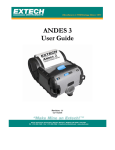
S3500T AND S3500THS USER GUIDE VERSION: 5.0 DATE: March 2004 Page 1 Table of Contents Getting Started: 1.1 1.2 1.3 1.4 Declaration of Conformity General Precautions Safety Note Unpacking the printer Installing and Charging the Battery Reading the LED Status Attaching Belt Loop System 3 4 4 5 5 7 8 Loading Supplies: 2.1 2.2 Adding Paper/Labels Tearing Paper Supply 8 9 Using the Printer: 3.1 3.2 3.3 3.4 3.5 3.6 3.7 Initial power up and self-test Connecting the Printer Communications: Serial RS232C Communications: IrDA Communications: Bluetooth Using the Magnetic Card Reader Programming information 10 11 13 14 14 14 15 Printer Maintenance 4.1 4.2 4.3 4.4 4.5 4.6 4.7 Cleaning Charging the Printer Battery Verifying Battery Charge State Battery and Safety Information Recycling your Batteries Trouble Shooting Printer Supplies 18 18 19 19 20 20 21 Specifications: 5.1 5.2 5.3 Printer Specifications Supply Specifications Regulatory Notes 22 22 23 Page 2 Declaration of Conformity Name: Manufacturer’s Address Extech Instruments Corporation 285 Bear Hill Road, Waltham, MA 02451, USA Telephone: +1 781 890 7440 Declares that the Product Product Name: Portable Receipt Printer Model Number: S3500THS; S3500T Bluetooth™ radio short range OEM module from Optionally Containing: connectBlue ab, cB-0701-01; FCC ID PVH 070101. Conforms to R&TTE Directives: 1999/5/EC (EN 300 3282), EMC Directive 89/336/EEC (EN 301 489-1 and -17); and Low Voltage Directive 73/23/EEC (EN 61131-2) Conforms to the following regulation and/or standards: Supplementary Information : Place: Date: Signature: FCC: Part 15 Subpart B, Class B CE: EN60950 CE: EN55022 Class B; CE: EN61000-3-2; CE: EN61000-3-3 ; CE: EN50024. • The product complies with EMC Directive 89/336/EEC and Low Voltage Directive 73/23/EEC • The product conforms to ANSI/UL STD 60950 & Certified to CAN/CSA STD C22.2 No. 60950-00 • CB Certified • ETL Listed, control # 3046813 • The product is IEC 68 certified Waltham, MA, USA August, 2003 Antony Revis Antony Revis, General Manager Page 3 General Precautions • • • • • • Before using this product be sure to read through this manual. After reading please keep the manual in a safe place for future reference. The information contained herein is subject to change without notice of any type. Extech is not responsible for any operational results regardless of missing information, errors or any misprinting in this manual. Extech is not responsible for problems created as a result of using options and consumables not approved by them. This product is designed for servicing at an Authorized Service Center. Other than routine maintenance described in this manual the user should not attempt to repair, service or disassemble this product. Incorrect operation, handling or improper operating environments may cause damage or otherwise affect the proper operation of this product. Such actions invalidate the product warranty. Safety In this manual and on the Printer and accessories we make use of internationally recognized safety symbols as follows: ! Caution! Refer to the explanation in this Manual Caution! Risk of electric shock Double Insulation or Reinforced insulation DC, Direct Current or Voltage AC+DC, Current or Voltage Page 4 1. Getting Started 1.1 Unpacking the Printer: The S3500THS and S3500T portable printers are full featured portable receipt printers designed for varied job environments including field service, field sales, hospitality and restaurants, ticketing and many others where point of service receipts are required. The package contains: printer: battery cartridge, AC input, DC output wall mounted charger (may be USA, European or UK style plug) for charging the battery inside the printer belt loop system and roll of paper supply (already loaded in the printer). Both cabled and wireless communication is possible. 1.2 Installing and Charging the Battery Cartridge: Note: One battery cartridge is included with the printer. Similar to a cordless phone battery, the printer’s battery must be charged before using it. ! Extech batteries must be cycled several times to achieve maximum capacity. To cycle a battery fully charge it and then allow full discharge through normal use in the printer. 1.2.1: Installing the battery Note: Refer to Figure 1 below to install the battery pack in the printer. Unlock the battery door by sliding down the battery door locking tabs Open the battery door Insert the battery as shown. The end with three contact terminals is inserted first Close the battery door Lock the battery door by sliding up the battery door locking tabs To remove the battery cartridge, open the battery door and tip the battery out of the printer. Page 5 Figure 1: Installing the Battery Cartridge 1.2.2 Charging the Battery Charge the battery by inserting the wall mounted charger line cord into the printer jack (Refer to Figure 3 for location of the jack on the printer). Then insert the charger plug into an appropriate wall socket. The Yellow/Amber charging LED will illuminate indicating that the battery is being charged The battery will be fast charged and after about 100 minutes the LED will go off To remove the battery cartridge, open the battery door and tip the battery out of the printer. Note: To ensure a full charge do not operate the printer while charging. Note: Different output rated wall mounted chargers are required for each ). printer as noted below. The adapters are Class II equipment ( Multiple plug configurations comply with most international standards. Input Voltage/Current Input Frequency S3500T 100-240 VAC/0.5A 47-63 Hz S3500THS 100-240 VAC/0.5A 47-63 Hz 13.6VDC/1A Output Voltage/Current 10VDC/1A ) ( Note: These wall mounted chargers are not supplied with plugs for use in Korea. Page 6 ! ! ! Do not use a charger not approved by Extech for use with the S3500ThS or S3500T series. Use of an unapproved charger could damage the battery pack or the printer and will void the warranty. The battery terminals are well recessed inside the printer. Do not allow them to contact conductive material since this may create a short circuit which could cause injury or start a fire. When using the wall mounted charger ensure the socket outlet is close to the printer and easily accessible during the battery recharging process. Either switch the socket off (if supplied with a socket switch) or pull out the charger from the socket or disconnect the plug from the printer in the event of any problems. 1.3 Reading the LED Status: This table explains the LED indicator status. Refer to Figure 1 for the locations described for ON/OFF and FEED pushbutton switches and AC adaptor socket. LED Indicator Green State ON Status Green --- Printer is on and ready to receive data. Pressing the <On/Off> switch will turn the printer on and illuminate the Green LED. After approximately 20 seconds, if no instructions are sent, the printer will automatically turn off to conserve battery life. In IrDA mode, the printer will stay on all the time. Pressing the <On/Off> switch again will turn the printer off. Yellow ON Green and Red ON Yellow --- The battery charger is charging the battery at a fast rate. If the battery is below 5V, the battery is being “trickle” charged until the battery voltage reaches 5V, and then the fast charge rate is started. The LED will turn off when the battery is fully charged. Green --- Indicates that MCR is ready to accept data. Red --- Indicates a fault condition or a printer error. The printer is not ready to accept data. Note: Refer to the troubleshooting guide to determine error or fault condition. Table 1 - Reading the LED Status Page 7 1.4 Attaching Belt Loop System: The belt loop system consists of two parts: A knob located on the back part of the printer just above the battery door A strap with click on connector To attach the strap to the knob insert the knob located at the bottom of the printer into the slot of the connector. Pull down until you hear a click. The printer is now secure. The loop is then placed over your belt. Allow the printer to hang down to either the left or right hip. To release the printer, press in on the two latches on the connector and pull the knob clear of the slot. Note: Do not force or pull the printer from the connector without pressing in on the two latches 2. Loading Supplies 2.1 Adding Paper/Labels: The printer can print text, bar codes and graphics on thermal receipt paper. See “Supply Specifications” for the width, thickness requirements and approved vendors. Follow these steps to load printer paper. Follow these steps to load printer paper: Open the paper supply cover by placing your fingers under the “T” pull lever and pulling up firmly on the supply cover until the lever stops moving. DO NOT pull too hard. Use enough force to allow the cover to unlock and lift freely DO NOT force the “T” pull lever too far back Place the paper supply roll into the paper supply well. Make sure the paper supply unwinds from the bottom as shown in Figure 3 Position the paper supply between the print head guides Make sure some supply (2-3 inches) extends beyond the top of the paper supply well Close the paper supply cover and press close. Page 8 Figure 3: Operator Controls and Paper Loading 2.2 Tearing Paper: The printer’s paper door acts as a tear bar. Pull one edge of the paper against the tear bar as indicated, then tear down and across against the tear bar to tear the paper. ! Caution: The tear bar may have sharp edges. Using the tear bar is the only way to tear the paper. Pulling up and pulling sideways without using the tear bar can cause a paper jam due to paper misalignment in the printhead mechanism. Figure 3A: Tearing Paper Page 9 3. Using the Printer 3.1 Initial power up and self-test Once the Battery is charged and the paper is loaded perform a self-test: Press the <On/Off> switch once. This turns printer on. The Green LED illuminates After approximately 20 seconds, if no instructions are sent to the printer, the printer automatically turns off to conserve battery life. If the printer is set for infrared communications (IrDA) mode the printer will stay on all the time. Pressing the <On/Off> switch again will turn the printer off. Press the <On/Off> switch to turn the printer off. The green LED turns off. To start the self-test, press and hold the <FEED> switch then press the <On/Off> switch The printer starts to print the self-test message. Release the <FEED> switch. Press the <On/Off> or <FEED> switch to cancel the self-test print. The first few lines of self-test show the printer firmware version, the current printer settings (for example IrDA or Serial mode) and a list of any optional or special features installed. Figure 5: Sample Self-Test Page 10 3.2 Connecting the Printer The S3500 printers support Serial RS232 and IrDA compatible infrared communication interfaces. Radio frequency (RF) communication is also available as an optional feature. Serial, IrDA and Bluetooth communication settings can be changed via a DIP switch located on the control card. The DIP switch is located inside the battery compartment as illustrated below indicating the location of this switch. Figure 2 shows the DIP switch selection. The functions assigned to these switches are shown in Table 2. If the Serial interface is selected, the communication Parameters, Baud rate, Data Bit and Parity, must be set. Note: Optional serial cable is available for Serial RS232 communication (part # 5892RJD9). Printer drivers for Windows 95/98/NT/2000 and XP are available from Extech. PrinterCE print Control utility is available from Extech for Windows CE devices. Printboy Print Utility from Bachmann Software or PalmPrint Utility, from StevensCreek, are recommended for Palm Pilot devices Figure 2: Dip Switch Location Page 11 Note: Be careful when changing dip switch settings. Carefully use a pointer on the dip switch you are going to change. DO NOT use a screw driver or apply excessive force. 3.2.3 Dip Switch Functions Note:(Developer’s refer to Programming Manual for more information) Dip Switch 1 Function Communication Interface RS232 IrDA Switch # SW1 Off On Switch # 2&3 Baud Rate 38,400 19,200 9,600 2,400 SW2 Off Off On On SW3 Off On Off On 4&5 Parity bit No Parity Odd Parity Even Parity SW4 Off On On SW5 Off Off On 6 Hardware Reset Enable Reset Disable Reset (default) SW6 On Off 7 Not Used SW7 8 Printer Power Control Continuous Power On Auto Power Off SW8 On Off Table 2 – DIP Switch Setting Please note: In order for changes to the dip switch configuration to take effect, the printer power must be reset. Page 12 3.3 Communications: Serial The RS232C Interface signals for the 2500THS Series printers are terminated on a 6 PIN RJ type data connector located on the side of the printer. Six connections are provided from the Serial Interface to the host computer. The TABLE 3 below lists the Serial Interface signals and pin outs on the RJ connector and the connector pin locations are shown in FIGURE 6. A minimum of two connections are required for operation: RXD – pin 3 and Common – pin 1 The communication Parameters: Baud rate, Data Bit and Parity must be set same as the host device settings. FIGURE 6 – RJ DATA CONNECTOR TABLE 3 - 3500T Printers’ Serial RS232C Interface signals Page 13 3.4 Infrared Communications (IrDA): Dip Switch #1 must be in the <ON> position The printer can be powered up by pressing the power <On/Off> switch If no IrDA connection is made, the printer will automatically power down to a lower power level to conserve battery life. It will remain in a “sleep” mode until an IrDA connection is made, at which time the printer will “wake” up and print the requested data Pressing the power switch again will turn the printer <OFF>. 3.5 Bluetooth Communications (Option): Dip Switch #1 must be in the <OFF> position Typically Dip switch #3 and 4 are set in the <ON> position to select a 19,200 Baud rate and Odd Parity bit Note: Adjust settings to match those of the Bluetooth module in your computing device The printer can be powered up by pressing the power <On/Off> switch When powered up in Bluetooth mode, the printer will not enter a “sleep” mode and will remain active waiting for the wireless print command Pressing the power <On/Off> switch again will turn the printer <OFF>. Note: In Bluetooth mode it is necessary for the mobile computing device you are using to discover the printer and the printer needs to be set as a favorite. Refer to instructions provided by the systems integrator. Note: Systems Integrators: Refer to the Bluetooth manual provided with your mobile computer and the Bluetooth section of the Developer’s Manual available for this printer. 3.6 Using the Magnetic Stripe Reader: The Magnetic Card Reader is a factory-installed option. This option requires special application software to read and process cards with a magnetic stripe, such as credit cards or driver’s license Note: Refer to the Figure 4 if your printer is equipped with the optional magnetic stripe reader Quickly swipe the card through the reader either left to right or right to left. The magnetic stripe must be facing toward the paper supply door as indicated below while it is passed through the reader Refer to Table 4 for the description of the LED indicator Status. LED indicator State Green ON Ready/waiting for card to be swiped. OFF Good swipe - Card data read Card not ready to be swiped. Error reading card’s data. Red ON Status OR Table 4 - Magnetic Card LED Indicator Page 14 Figure 4: Using the Magnetic Card Reader 3.7 Programming Information: This section lists the printer control commands strings. System Developers: Please refer to S3500T programmer’s manual for further details. Other features may be available and are described in the programmer’s manual 3.7.1 ASCII CONTROL CHARACTERS: Character EOT BS HT LF VT FF CR SO SI XON AUXON XOFF NORM AUXOFF CANCEL ESC EXTEND EXTEND OFF Hex/Dec 04/04 08/08 09/09 0A/10 0B/11 0C/12 0D/13 0E/14 0F/15 11/17 12/18 13/19 14/20 15/21 18/24 1B/27 1C/28 1D/29 CONTROL ACTION End Of Text Back Space Horizontal Tab Line Feed Vertical Tab Form Feed Carriage Return Shift Out Shift In Transmitter On. Printer on. Printer receiver is off Return to default 42 column mode Printer to Host: printer is off Cancel and reset printer BUFFER Escape Extended print Extended print off/Normal print Page 15 3.7.2 Printer Font Commands – Courier Character Set: Font Name 24 CPI normal 21 CPI normal 19 CPI normal 16 CPI normal 12 CPI normal 13 CPI rotated MSP Font 10-32 CPI Character size (W x H) 8x23 9x23 10x23 12x23 16x23 14x16 Dot Matrix Fonts Command String ESC+'k'+'5' ESC+'k'+'4' ESC+'k'+'3' ESC+'k'+'2' ESC+'k'+'1' ESC+'k'+'0' ESC+’F’+’2’ through ‘8’ 3.7.3 Printer Font Commands: Command String ESC - ‘F’ – 1 ESC - ‘F’ – 2 ESC - ‘U’ - ‘1’ ESC - ‘U’ - ‘0’ Printer Action Selects International character set Selects PC Line Draw character set Enable emphasized print. Disable emphasized print. 3.7.4 Printer Graphic Commands: Printer Command String ESC - ‘a’ – n ESC - ‘J’ – n ESC - ‘P’ - ‘#’ ESC - ‘P’ - ‘$’ ESC - ‘V’ - n1 – n2 Printer Action Select dot line spacing between printed lines. Graphic Line Feed command Select Online mode, characters printed as received. Select Buffer mode, characters are printed on (^ D) 8-bit Graphic command 3.7.5 Magnetic Card Reader Control Commands: Command String ESC - ‘M’ - ‘nnm’ - Cr ESC – ‘C’ Printer Action Select MCR with (nn) auto timeout Cancel MCR read process 3.7.6 Graphic Logo and Bar code commands: Command String ESC – L – G –n ESC – G - 0x0FF ESC – L – g – n ESC - 'z' - n1 – n2 - L - [data] ESC - 'Z' - n1 – n2 - L - [data] ESC - ‘Q’ - ‘J’ – n ESC - ‘Q’ - ‘Q’ – n ESC - ‘Q’ - ‘F’ – m ESC - ‘Q’ - ‘B’ – m Printer Action Prepare printer to load image: Loading Logo Complete: Print stored logo image: Print Bar Code without visible tex Print Bar Code with visible text Reverse Dot Feed Set Out of Paper Sensitivity Set Forward Black Mark Seek Reverse Black Mark Seek Page 16 3.7.7 Printer Supervisory and Control Commands: Command String ^V ^B ESC ESC ESC ESC - ‘P’ –‘^’ – ‘P’ – alpha – ‘M’ - ‘000’ - Cr - ‘M’ - ‘nn0’ - Cr ESC – ‘M’ - ‘C’ ESC – ‘P’ – ‘( ‘ ESC – ‘ P’ - ‘)’ Printer Action Buffer, power timer & battery status Buffer status Print Battery Voltage Time and date print and control Disable the power down timer Sets power down timer to nn seconds Reset Auto power down to 20 seconds Firmware version query Hardware model query: Resident Character Sets (characters 32 through 255): Esc – 6 for International & Esc – 7 for PC Line Draw Page 17 4. Printer Maintenance 4.1 Cleaning: You may need to clean the print head and platen roller after printing a number of rolls of paper, whenever you load new supplies or when you see voids in the printout. ! Caution: Do not use sharp objects to clean the print head. This may damage the printer and require service. Open the paper door by pulling the “T” bar lever on the top cover as shown in Figure 3. The paper supply door will pop up. Remove the paper roll. Moisten a cotton swab with isopropyl alcohol and clean the print head Clean the platen roller with a dry cloth or small brush Note: You can also use another cotton swab moistened with isopropyl alcohol. Turn the platen roller with your finger and run the cotton swab or dry cloth across it. Make sure the platen roller is clean all the way around. Moisten another cotton swab with isopropyl alcohol. Rub the swab across the black mark sensor to remove any build-up Moisten another cotton swab and rub the swab across the tear bar to remove any build-up Note: You may experience dust build-up depending on the environment and the quality of the paper supply you use. If this occurs, use a can of compressed air to blow dust and paper debris out of the printer. 4.2 Charging the Printer Battery: The printer battery is charged using the wall mounted charger provided. Follow these steps to charge the battery pack. Plug the charger into an appropriate wall socket; then plug the charger line cord into the adapter jack on the side of the printer (see Figure 3) The yellow CHARGE LED will illuminate, to indicate battery is charging The Charge LED turns off when battery cartridge is fully charged. It takes about 100 minutes to fast charge the battery cartridge To insure full charge, printer should not be operated while the battery is charging. 4.2.1 Important Notes on Charging Batteries The model S3500THS requires a charger with 13.6VDC/1.0A output and the S3500T requires a charger with output of 10VDC/1.0A. The battery Fast-charge is initiated each time the charger is connected to the printer The fast-charge controller checks the battery’s voltage and temperature, before the start of the fast recharge process. If the battery voltage or the temperature is outside of the fast-charge limits, the charger defaults to trickle charge at C/10 or 70mA rate Optional external battery chargers are available for Extech batteries Page 18 4.2.2 Important Notes on Replacing Batteries Check for the correct Extech part number for the battery and only order that part for your new battery ! Caution: Risk of explosion if battery is replaced by an incorrect type. ! Caution: Dispose of used batteries according to instructions in Section 4.5 4.3 Verifying Battery Charge State: It is strongly recommended testing your printer before returning to Extech. Follow these steps to identify and correct any battery power problem that may be encountered. These will help to identify that the fault is with the printer and not some other part of your system. To test the wall mounted charger unit use a multi-meter and measure the output. Output should be 10VDC Press the <ON/OFF> switch and wait until all LED’s are off Insert the line cord into the printer. If the amber LED goes on, the battery is not fully charged but the charge circuit is functioning. The AC power portion of the circuit appears ok Disconnect the charger unit once the battery has charged for 5 minutes. Press and hold the <FEED> switch, then press and release the <ON/OFF> switch and then release the <FEED> switch. The printer will print a “self test” receipt If the self test receipt is printed, the DC power is ok Press <ON/OFF> switch and wait until all LED’s are off Plug the AC adaptor into the printer. Press <ON>; the green LED is illuminated and after about 20 seconds the LED should go off If the amber LED is on, this will continue on through this test indicating that the battery is accepting a charge and that the charge circuit is ok. At the end of a 100 minute charge cycle the LED will go off. 4.4 Battery and Safety Information: The THS printer is powered by a 8.4V NiMH battery cartridge and the T by a 6V NiMH battery cartridge. Charging time in the printer is approximately 1.5 hours Take the battery out of printer if storing the printer for long periods of time The battery storage temperature is 40°F to 104°F (4°C to 40°C). Do not store a fully charged battery at temperatures greater than 104°F (40°C) for long periods of time – the battery may permanently lose charge capacity Be sure to use a fully charged battery before long or battery intensive printing sessions. Certain operations (for example, printing receipts with a lot of bar codes and graphics) drain the battery more quickly than others Dispose according to your local regulations. Do not throw in the trash. Page 19 Caution: Do not disassemble, short circuit, heat above 80°C, or incinerate. The battery may explode The recommended temperature for charging is between 68°F (20°C) to 77°F (25°C). 4.5 Recycling your Batteries: The Rechargeable Battery Recycling Corporation (RBRC) is a non-profit organization created to promote recycling of rechargeable batteries. For more information about how to recycle batteries in your area, visit www.rbrc.org. 4.6 Trouble Shooting: Problem Does not feed paper or has a paper jam. Does not print Light printing Voids in printing Red (Error) LED on Action Remove any jammed supply Reload paper supply. Check or replace the printer’s battery Make sure the paper supply is loaded correctly, not backwards. Verify communication between the host device and the printer by disconnecting the communication cable and performing a printer self test. Check or recharge the battery Adjust the print contrast through print application. Clean the print head following the cleaning instruction listed in Cleaning section. Check that paper roll is not out Error reading MCR After extended printing, print head may be hot; printer will pause before resuming printing. If the problem is not identified following above trouble shooting guide, contact Extech Technical Support. Support numbers and Email addresses are listed at www.Extech.com. Other than routine cleaning and other maintenance described in Section 4, the printer is not intended to be serviced by the user. It must be returned to an authorized service center. Under no circumstances should the user attempt to take the printer apart. Page 20 4.7 Printer Supplies: Part Number Description 757061 S3500THS Thermal paper pack (3”/80 mm, 5 rolls) 7A100007 S3500THS Battery Cartridge - 7 Cell – 700mAh 7A100005 S3500T Battery Cartridge – 5 Cell – 1600mAh - 767700 or 767800 External 4 bays charger for S 3500T or S3500THS 157120 Battery charger adapter 3500T US Plug/10VDC/1A 157220 Battery charger adapter 3500T Euro Plug/ 10VDC/1A 159120 Battery charger adapter 3500THS US Plug/13.6VDC/1A 159220 Battery charger adapter 3500THS Euro Plug/ 13.6VDC/1A S3500THS-UG-2A.doc User’s Guide - 3500THS 7A060028 Programmer’s Guide - 3500THS Available from Extech Email: [email protected] Windows 95/98/NT/2000/ Drivers Download: http://www.fieldsoftware.com/PrinterCE.htm Windows CE print Utility Download http://www.stevenscreek.com/pilot/dodownload.html Palm Pilot print Utility 756998 Belt Loop System 5892RJD9 Serial Data Cable – RJ to DB9 PC compatible Page 21 5 Specifications 5.1 Printer Specifications: Height: Width: Length: Weight: w/battery & supply Shipping weight: Power: Operating Temp. Limits: Storage Temp. Limits: Operating Humidity Limits: Storage Humidity Limits: Print head: Printing Method: Print Speed: Supported Fonts: (Bitmap) Supported Bar Codes: Memory: Charging Time: Communications: Print Ratio: 2.25 inches (57mm) 4.25 inches (108mm) 6 inches (152mm) 1.41 lbs. (0.64 g) 3 lbs. (1.4 kg) 8.4 V NiMH battery 41F to 104F (5 to 40C) -4F to 140F (-20C to 60C) 20% to 85% non-condensing 5% to 95% non-condensing 3 inches wide (80mm) 203 dpi (8 dots per mm) Thermal Direct Up to 2.0 inches per second Standard (normal and bold) Large (normal) Reduced (normal and bold) Large rotated. Codabar, Code 39, UCC/EAN – 128, UPC/EAN/JAN, Interleaved 2 of 5, Code 128 32K SRAM, 128K Flash Approximately 90 minutes RS-232 port, IrDA 25% black maximum/sq.in. 5.2 Supply Specifications: Supplies: Supply Thickness: Supply Width: Supply Length: Supply Sensing: Paper roll diameter: Maximum Print Area: Approved Vendors Thermal direct receipt paper 2.2 to 3.5 mils (receipt paper) 3.125 inches (80mm) 1 roll of receipt paper is approx. 600 inches (15,240 mm) Black mark (on face of supply) Outside: 1.375 inches (32 mm) Inside: .25 inches (6 mm) 2.85 inches (72 mm) X 8.0 inches (203mm) Kansaki: P300, P310, P350, P354, P390, P530UV, TO281CA, OP200, TO381N, F180, F380, F550 Jujo: TF-50KS-E2C Honshu: FH65BV-3 Page 22 5.3 Regulatory Notes: 5.3.1 FCC Part 15 Class B This equipment has been tested and found to comply with the limits for a Class B digital device, pursuant to Part 15 of the FCC rules. These limits are designed to provide reasonable protection against harmful interference in a residential installation. This equipment generates, uses and can radiate radio frequency energy and, if not installed and used in accordance with the instructions, may cause harmful interference to radio communications. However, there is no guarantee that interference will not occur in a particular installation. If this equipment does cause harmful interference to radio or television reception, which can be determined by turning the equipment off and on, the user is encouraged to try to correct the interference by one or more of the following measures: Reorient or relocate the receiving antenna. Increase the separation between the equipment and the receiver. Connect the equipment into an outlet on a circuit different from that to which the receiver is connected. Consult the dealer or an experienced radio/TV technician for help. For Bluetooth equipped printers please note: The printer contains an OEM Serial Port Adapter from connectBlue with FCC ID: PVH070101. This device complies with Part 15 of the FCC Rules. Operation is subject to the following two conditions: (1) this device may not cause harmful interference, and (2) this device must accept any interference received, including interference that may cause undesired operation.” 5.3.2 Warranty: This printer is warranted by Extech Data Systems to be free of defects in parts and workmanship for a period of one year from date of shipment. This warranty does not apply to defects resulting from action of the user such as misuse, improper wiring, operation outside of specification, improper maintenance or repair, or unauthorized modification. Extech specifically disclaims any implied warranties of merchantability or fitness for a specific purpose and will not be liable for any direct, indirect, special, incidental or consequential damages. Extech’s total liability is limited to the repair or replacement of the product. The warranty set forth above is inclusive and no other warranty, whether written or oral is expressed or implied. 5.3.3 Warranty and/or Repair Service: A Return Authorization number must be issued before a unit is returned to Extech for repair. Once a unit has been properly returned to Extech (Note: The customer is responsible for ensuring proper packing to prevent damage in transit as well as the shipping costs back to Extech), it will be repaired (estimates are provided first if the repair cost is estimated above $100.00) and returned via UPS ground. The customer may elect a faster mode of transport at their cost. Page 23