Transcript
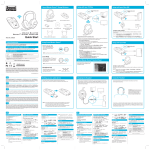
Sound Blaster Recon3D Omega Wireless
Setup with your PC/Mac
Setup with your Xbox 360
ES
Sound
Blaster
What you
needRecon3D Omega Wireless
ps3 xbox pc
*Slide the Mode switch
to PC
ps3 xbox pc
*Slide the Mode switch
to Xbox
M
U
TE
T
OU
DE
SC
MO
E
NN
CT
M
U
TE
CO
C
O
N
N
E
T
OU
DE
SC
MO
C
T
T
OU
DE
SC
MO
(a) Auriculares inalámbricos Sound BlasterTactic3D Omega
(b) Sound Blaster Recon3D
(c) Tarjeta inalámbrica Tactic Link
(d) CD de instalación
(e) Control de volumen en línea para Xbox 360
(f) Cable de micro USB a USB
(g) Cable óptico
C
O
N
N
E
Uso de Sound Blaster Recon3D
C
T
LO
W
MIC
MID
PS
3
HIGH
XB
OX
Configuración con Xbox 360
*Deslice el interruptor de modo a Xbox
Configuración de los ajustes de audio
Después de conectar el dispositivo a su consola de juegos,
tiene que configurar los ajustes de audio de la consola.
Paso 1 : Desde el menú principal acuda a Configuración
del sistema -> Configuración de la consola ->
Audio -> Salida digital, y luego seleccione
Dolby Digital 5.1.
PC
LO
W
MIC
MO
DE
usb
MID
THX TruStudio Pro
HIGH
usb
Encienda THX TruStudio Pro para disfrutar de una
experiencia de audio de cine.
/
L IN
TICA
OPAU
X IN
ECT
CONN
IN/
TICXALIN
OPAU
3D
3
PS
(a) Sound Blaster Tactic Omega
Wireless Headset
OX
XB
T
SCOU
MODE
NOTA: El Modo explorador (Scout Mode) estará desactivado
mientras THX TruStudio Pro esté activado.
3D
(b) Sound Blaster Recon
PC
Encienda el Modo explorador (Scout Mode) en los juegos
FPS (de disparo en primera persona) para mejorar de
forma instantánea los sonidos de sus oponentes, con ello
podrá darles caza con facilidad.
NOTA: Los efectos THX TruStudio Pro se desactivarán
mientras el Modo explorador (Scout Mode) esté
activado.
Ganancia de micrófono
Deslice el interruptor de ganancia del micrófono a los
valores medio o alto, si cree que su entrada de voz es
demasiado suave.
(e) Inline volume control
for Xbox 360
(d) Installation CD
Configuración del dispositivo de audio
Configure audio settings
Model No.: GH0200
Sound Blaster
Omega Wireless
QUICK
START
Quick
Start
After connecting the device to your game console, you need to configure your console’s
audio settings.
Step 1 : From the main menu, navigate to System Settings -> Console Settings -> Audio ->
Digital Output, then select Dolby Digital 5.1.
(f) Micro USB-to-USB cable X 2
Install Software (For PC and Mac only)
(g) Optical cable
ps3 xbox pc
SCOUT
MODE
MUTE
Configuración con PC o Mac
Setup with your PS3
Deslice el interruptor de modo a PC
Instalación de software (sólo para PC y Mac)
*Slide the Mode switch
to PS3
1. Cuando se le soliciten los controladores de sonido,
haga clic en el botón Cancelar.
2. Introduzca el CD de instalación en la unidad de CD o
DVD. El CD debe iniciarse automáticamente, si no es
así, siga los pasos a continuación:
i. Haga clic en Inicio -> Mi ordenador.
ii. Haga clic con el botón derecho en el icono de la
unidad de CD o DVD, a continuación, haga clic en
Abrir reproducción automática o Reproducción
automática.
3. Para finalizar la instalación, siga las instrucciones que
aparecen en pantalla.
4. Cuando se le indique, reinicie el ordenador.
5. Inicie la aplicación haciendo clic en Inicio ->
Programas o Todos los programas -> Creative ->
Sound Blaster Recon3D -> Panel de control de
Sound Blaster Recon3D.
C
O
N
N
E
C
T
For Mac® OS
1. Insert the Installation CD into your CD or DVD drive.
2. Double-click the <SB_INSTALL> icon.
3. Double-click the <INSTALL> icon.
4. To complete the installation, follow the instructions on the screen.
5. Go to System Preferences, then click the Sound icon. For both the Output and Input
tabs, select Sound Blaster Recon3D.
6. Launch the Sound Blaster Recon3D Control Panel from the
Applications\Creative\Sound Blaster Recon3D folder.
NOTE: Scout Mode will be turned off while THX TruStudio Pro is on.
Scout Mode
Turn on Scout Mode in FPS games to
instantly enhance the sounds made
by your opponents, so you can hunt
them with ease.
Use this application to configure your audio
settings such as THX TruStudio Pro and
CrystalVoice settings.
NOTE: THX TruStudio Pro effects will be turned off while Scout Mode is on.
HIGH
usb
/
L IN
TICA
OPAU
X IN
Para sistemas operativos Mac
Configure audio settings
After connecting the device to your game console, you need to configure your console’s audio
settings.
Microphone Gain
low mid high
Slide the Microphone Gain switch
to Mid or High if you find that your
voice input is too soft.
MID
Sound Blaster Recon3D Control Panel
SCOUT
MODE
SCOUT
MODE
MUTE
LO
W
MIC
Step 1 : From the main menu, navigate to Settings -> Sound Settings -> Audio Output
Settings, then select Optical.
MIC
Step 2 : From the main menu, navigate to Accessory Settings -> Audio Device Settings, then
change both Input Device and Output Device to Sound Blaster Recon3D.
PN 03GH020000000 Rev.A
Setting up your audio device
Charging the Headset
Insert the wireless card before powering up the audio device.
Do not insert or remove the wireless card while the audio device is on.
When using your headset for the first time, you should charge the headset for
at least 5 hours. Connect your headset to PC/Mac/Xbox360/PS3 and turn off the
headset while charging. The Power LED flashes red when charging, and lights
up red when fully charged.
Después de conectar el dispositivo a su consola de juegos,
tiene que configurar los ajustes de audio de la consola.
Paso 1 : Desde el menú principal vaya a Ajustes ->
Ajustes de sonido -> Ajustes de salida de audio,
y seleccione Óptica.
Paso 2 : Desde el menú principal vaya a Ajustes de
accesorios -> Ajustes de dispositivo de audio, y
luego cambie tanto el ajuste de Dispositivo de
entrada como de Dispositivo de salida a Sound
Blaster Recon3D.
Carga de los auriculares
Cuando utilice los auriculares por primera vez, tiene que
cargarlos durante al menos 5 horas. Conecte los auriculares
al PC/Mac/Xbox360/PS3 y apague los auriculares mientras
se cargan. El indicador LED de encendido parpadea con
una luz roja mientras se está efectuando la carga y esta luz
se fijará una vez esté completamente cargado.
Uso de los auriculares
Ajuste la banda de forma que los auriculares descansen
suavemente en la cabeza. No la apriete en exceso.
ATENCIÓN: ajuste el volumen de los auriculares a un
nivel cómodo. No escuche ningún tipo de
audio en sus auriculares con un volumen alto
durante mucho tiempo, ya que esto, puede
producir una pérdida auditiva.
En general, debe configurar el volumen de reproducción
en la consola al máximo y utilizar los controles de volumen
en el dispositivo de audio o los auriculares para ajustar el
nivel de volumen deseado. Sin embargo, si el sonido se
distorsiona, baje el volumen de reproducción para evitar
sobrecargar los circuitos de audio.
®
1. Introduzca el CD de instalación en la unidad de CD o
DVD.
2. Haga doble clic en el icono <INSTALAR_SB>.
3. Haga doble clic en el icono <INSTALAR>.
4. Para finalizar la instalación, siga las instrucciones que
aparecen en pantalla.
5. Vaya a Preferencias del Sistema, y luego haga clic en
Sonido. Tanto en la pestaña Salida como en la pestaña
Entrada seleccione Sound Blaster Recon3D.
6. Ejecute el Panel de control de Sound Blaster
Recon3D desde la carpeta
Aplicaciones\Creative\Sound Blaster Recon3D.
Panel de control de Sound Blaster Recon3D
Registro del producto
Al registrar su producto está asegurándose de que recibe
el servicio más adecuado y la asistencia disponible para el
mismo. Puede registrar su producto en
register.creative.com. Tenga en cuenta que los derechos
concedidos por la garantía no dependen del registro.
Servicios de atención al cliente y técnico
Obtenga información técnica y soluciones de problemas en
la Base de Conocimientos de Creative (Knowledge Base),
disponible las 24 horas en support.creative.com. Allí
también encontrará Servicios de atención al cliente y otra
información de ayuda.
Más información
Encontrará la información siguiente en el CD de instalación.
Garantía
d:\warranty\<región>\<idioma>\
warranty.chm
Conserve la factura de compra durante
todo el período de garantía.
Seguridad
d:\notices\<idioma>\safety.chm
Reglamentario
d:\fcc\<model>\doc.chm
Guía del uario
d:\manual\<idioma>\manual.pdf
(sustituya d:\ por la letra de su unidad de CD-ROM/
DVD-ROM, <región> por la región en la que se encuentra
e <idioma> por el idioma en el que está redactado el
documento).
Utilice esta aplicación para configurar los ajustes de audio
tales como los ajustes de THX TruStudio Pro y
CrystalVoice.
Guarde este documento para futura referencia.
Product Registration
Using the Headset
Adjust the headband so that the headset rests lightly on your head.
Do not tighten excessively.
Registering your product ensures you receive the most appropriate service and product support available. You
can register your product during installation or at register.creative.com
Please note that your warranty rights are not dependent on registration.
Technical & Customer Support Services
Go to support.creative.com to resolve and troubleshoot technical queries at Creative’s 24-hour self-help
Knowledge Base. You can also find Customer Support Services and other helpful information here.
Other Information
ES
You can find the following information on the Installation CD.
U
TE
U
TE
M
M
T
OU
DE
SC
MO
T
OU
DE
SC
MO
T
T
N
E
C
N
E
C
O
N
O
N
C
C
Copyright © 2011 Creative Technology Ltd. Reservados todos los derechos. Creative, el logotipo de Creative, Sound
Blaster, el logotipo de Sound Blaster, Recon3D, Tactic3D y CrystalVoice son marcas comerciales o marcas
comerciales registradas de Creative Technology Ltd. en los Estados Unidos y/o en otros países. THX y el logotipo
de THX TruStudio Pro son marcas comerciales de THX Ltd. que pueden estar registradas en algunas jurisdicciones.
Windows, Windows Vista, Xbox y Xbox 360 son marcas registradas de Microsoft Corporation. PlayStation es una
marca registrada y PS3 es una marca comercial de Sony Computer Entertainment Inc. Dolby y el símbolo de doble
D son marcas comerciales de Dolby Laboratories. Mac y Mac OS son marcas registradas de Apple Inc. El resto de
marcas comerciales o marcas comerciales registradas pertenecen a sus respectivos propietarios
El dispositivo se puede usar sin instalar ningún software.
No obstante, para disfrutar de todas sus características y
prestaciones, le recomendamos que instale los
controladores y las aplicaciones.
*Deslice el interruptor de modo a PS3
Configuración de los ajustes de audio
Para todos los OS Windows® compatibles
U
TE
Turn on THX TruStudio Pro to
enjoy a full cinematic audio
experience.
Copyright © 2011 Creative Technology Ltd. All rights reserved. Creative, the Creative logo, Sound Blaster, the Sound
Blaster logo, Recon3D, Tactic3D and CrystalVoice are trademarks or registered trademarks of Creative Technology
Ltd. in the United States and/or other countries. THX and the THX TruStudio Pro logo are trademarks of THX Ltd.
which may be registered in some jurisdictions. Windows, Windows Vista, Xbox and Xbox 360 are registered
trademarks of Microsoft Corporation. PlayStation is a registered trademark and PS3 is a trademark of Sony
Computer Entertainment Inc. Dolby and the double-D symbol are trademarks of Dolby Laboratories. Mac and Mac
OS are registered trademarks of Apple Inc. All other properties are trademarks or registered trademarks of their
respective owners.
NOTA: • Los auriculares y el trasmisor inalámbrico
están emparejados y listos para utilizar. Si
desea emparejarlos de forma manual, consulte
la Guía del usuario. El LED Conectar en el
dispositivo de audio y los auriculares se
encenderá de color azul.
• Mientras los auriculares inalámbricos estén
encendidos, el audio se reproducirá a través
de los auriculares en lugar de hacerlo por
medio de la clavija para auriculares en el
dispositivo de audio.
M
For all supported Windows® OS
1. If prompted for the audio drivers, click the Cancel button.
2. Insert the Installation CD into your CD or DVD drive. Your CD should start automatically,
if it does not, follow the steps below:
i. Click Start -> My Computer.
ii. Right-click the CD or DVD drive icon, then Open Autoplay or Autoplay.
3. To complete the installation, follow the instructions on the screen.
4. When prompted, restart the computer.
5. Launch the application by clicking Start -> Programs or All Programs -> Creative ->
Sound Blaster Recon3D -> Sound Blaster Recon3D Control Panel.
THX TruStudio Pro
EN
Inserte la tarjeta inalámbrica antes de encender el
dispositivo de audio. No inserte ni extraiga la tarjeta
inalámbrica mientras el dispositivo esté encendido.
Your device can be used without installing any software. However to enjoy the full features of
your device, we recommend you to install the drivers and applications.
Using Sound Blaster Recon3D
www.soundblaster.com
Step 2 : Press the Xbox Guide button on your controller. From the menu, navigate to
Settings -> Preferences -> Voice -> Voice Output, then select Play Through Both.
T
OU
DE
SC
MO
Recon
3D
Configuración con PS3
Modo explorador (Scout Mode)
M
O
D
E
(c) Tactic Link wireless card
Paso 2 : Pulse el botón Guía Xbox en el mando
controlador. Desde el menú acuda a
Configuración -> Preferencias -> Voz -> Salida
de voz, luego seleccione Reproducir por
ambos.
LO
W
MIC
LO
W
MIC
MID
HIGH
MID
HIGH
usb
IN/
TICXALIN
OPAU
usb
IN/
TICXALIN
OPAU
CAUTION: Adjust headset volume to
a comfortable level. Do not listen to
audio on your headset at high
volumes for prolonged periods of
time as hearing loss might result.
Warranty
d:\warranty\<region>\<language>\warranty.chm
Please keep your Proof of Purchase for the duration of the Warranty period.
Safety
d:\notices\<language>\safety.chm
Regulatory
d:\fcc\<model>\doc.chm
User’s Guide
d:\manual\<language>\manual.pdf
(replace d:\ with the drive letter of your CD-ROM/DVD-ROM drive, <region> with the region you are in, and
<language> with the language that the document is in.)
Keep this document for future reference.
WARNING:
Handling this product may expose you to chemicals known to the State of California to cause cancer
and birth defects or other reproductive harm. Wash hands after handling.
Explanatory Note
NOTE: • Your headset and wireless transmitter are paired together and are ready to
use. The Connect LED on the audio device and headset will light up blue.
If you wish to pair them manually, refer to the user’s guide.
• While the wireless headset is turned on, audio will be played back through
the headset instead of the headphone jack on the audio device.
In general, you should set the playback volume on the console to the maximum
and use the volume controls on the amplifier to adjust the loudness to your
desired level. However, if the sound distorts, lower the playback volume to avoid
overloading the audio circuits.
California Safe Drinking Water and Toxic Enforcement Act of 1986 (Proposition 65) requires special product
labeling for products containing certain chemicals known to the State of California to cause cancer, birth defects
or other reproductive harm. Creative has chosen to provide a warning based on its knowledge about the presence
of one or more listed chemicals without attempting to evaluate the level of exposure. With Creative's products, the
exposure may be below the Proposition 65 level of concern, or could even be zero. However, out of an abundance
of caution, Creative has elected to place the Proposition 65 warning on its products.