1
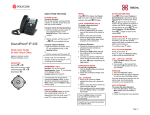
PennNet Phone: Polycom SoundPoint IP 320/321 Quick Guide Phone Basics Making Calls Note: This feature does not work on lines that appear on multiple sets. Using the handset Pick up the handset, dial the number, then press the Dial button or Dial the number, and then press the Dial button. Redialing Last Outgoing Number To call the last number dialed from your phone, use the Placed Call list. Using the hands-free speakerphone With the handset on-hook: 1. Press the Speaker Phone button or press the NewCall softkey 2. Dial the number, and then press the Dial button. Using speed dial Use the dial pad to enter the speed dial index followed by the # key Press the Dial button or pick up the handset to place a call. Tip: During a call, you can alternate between handset and hands-free speakerphone modes by pressing the speaker phone button or picking up the handset. Answering Calls When you are not in another call, you can answer the phone by: Picking up the handset or Pressing the Speakerphone button or Pressing the Line key or Pressing the Answer softkey. Ending Calls To end a call, do one of the following: Hang up the handset or Press the EndCall softkey or If using the speakerphone, press the Speakerphone key. Rejecting/Silencing a Ringing Call You can ignore an incoming call and stop it from ringing. Silencing the current call does not affect future calls (future calls will ring as usual). Press the Ignore softkey to silence the ring of an incoming call. If voice mail is configured for the line, the unanswered call will default to voice mail and will show up in your Received Calls List. ISC Networking & Telecommunications 1. 2. 3. 4. 5. Press the Menu button Select Features (1 on the dial pad) Select Call Lists (4 on the dial pad) Select Placed (2 on the dial pad) Highlight the call, and then press the Dial button. Muting a Call During a call, press the Mute key (Red button with microphone icon). The Message Waiting Indicator turns red and a microphone on the graphic display indicates that the other party (or parties) cannot hear you. Activating Do Not Disturb If voice mail is configured for the line, all calls will default to voice mail when Do Not Disturb (DND) is enabled. To turn on Do Not Disturb: 1. Press the Menu button 2. Select Features using the checkmark button, and then select Do Not Disturb. A flashing icon ―(x)‖ and the text ―Do Not Disturb‖ is displayed on the screen indicating the feature has been turned on. To disable Do Not Disturb: 1. Press the Menu button 2. Select Features, and then select Do Not Disturb again. Navigation Arrows When the phone is in use, press the appropriate navigation arrows to scroll through menu options or to select an item from the menu. Checkmark button – Use the checkmark button to select a field, a menu option, or to enter into edit mode for some options Up, down, left, right keys – Use these navigation arrow keys to scroll through lists 4