1
4.8.3 SUA, WP Files
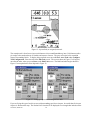
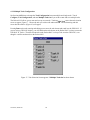
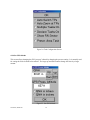
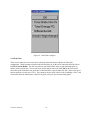
Touching SUA, WP Files allows selecting different waypoint and Special Use Airspace data files. This
screen also appears when the program is started and no waypoint data is available. See Figure 3 above in
Section 3.3.1 Waypoint and SUA Files. This feature is not often used in flight.
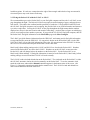
Previously loaded files appear on the left, and will be retained if they are not deleted. If you have a duplicate
set of waypoints in the GPS-NAV and in the Pocket-NAV, be sure not to load both files. If “GPS-NAV
Waypoints” and the duplicate Pocket-NAV waypoint file are both shown on the left, they will both be loaded
and appear on the Pocket-NAV as duplicates.
4.8.4 SUA Warnings
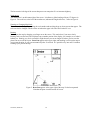
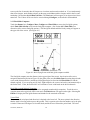
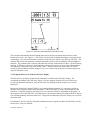
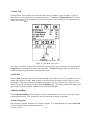
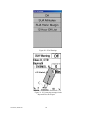
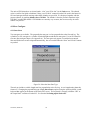
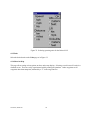
Touching SUA Warnings allows changing the altitudes and horizontal distance at which airspace alarms are
activated. The GPS will beep to warn the pilot if the glider is within the SUA warning margin below the
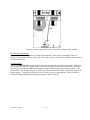
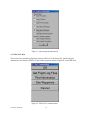
airspace floor and within the horizontal margin surrounding the airspace. The beeping can be shut off by
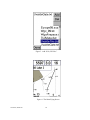
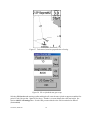
touching Off in the warning message. (See Figure 21.) The warning will re-start if you leave and re-enter the
airspace warning area. If you are circling near the edge of an SUA, the alarm can be re-activated on each
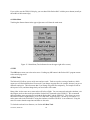
circle. Touch the 5 Min button to shut the alarm off for five minutes. Touching the SUA Altitudes button
will make the SUA Altitudes display appear.
SUA Altitude Warning Margins
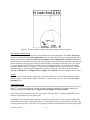
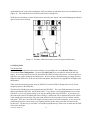
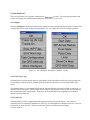
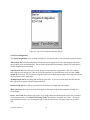
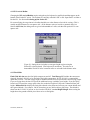
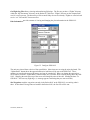
SUA Altitudes (See Figure 22) allows setting the ignore and warning altitudes for airspace floors. Airspace
units are set independently from other altitude units on the Units page; the default is feet. The airspace floor,
or base, is entered in the SUA data files. If no airspace floor, or “SFC”, is entered in the data file, 0 is
assumed. SUAs with a floor above the Ignore SUAs above: setting are excluded from the display and
warnings until the value is reset. For example, on a day when you do not expect to climb above 5,000 feet
there is no reason to display airspace with floors above 6,000 feet. If you climb higher than expected, you can
change the ignore altitude and see the higher airspace. Setting this value to 0 will turn off all airspace
depictions and warnings.
Version 4, 09/21/00
27