1
Global IP Office Technical Bulletin Number 109
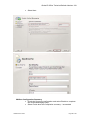
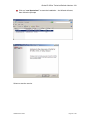
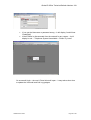
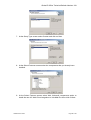
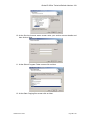
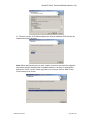
6. Enter the command winbackup <backupfile> restore where <backupfile> is the
full path name for the backup file.
7. Ignore the warning stating that "pgpsql already exists".
8. Start the IP Office ContactStore service.
4.21 one-X Portal for IP Office
one-X Portal Overview
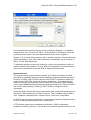
The Avaya one-X Portal for IP Office is an application that provides users control of
their telephone from a networked PC. Avaya one-X Portal for IP Office can be used
with any IP Office extension; analog, digital or any IP, wired or wireless, and is
available as part of the IP Office Power User or Teleworker User licenses only.
Avaya one-X Portal for IP Office is a server based application that the user accesses
via a web browser. Via separate gadgets within the browser window, one-X Portal
provides easy access to telephony features, call information, call control, directory
and Embedded Voicemail as well as VoiceMail Pro mailbox. The call log shows the
actual call history, independent of whether the user was logged in to one-X Portal at
the time or not.
•
Maximum Logged in Client Sessions is 100 Licensed Users per server. A
subsequent release of one-X Portal will remove this restriction.
•
Maximum 1 one-X Portal Server connected within an SCN Network
•
one-X Portal is not supported with Hot Desking or IP Office resilience mode
•
one-X Portal is licensed per User. Configure which IP Office users are
allowed to use one-X Portal in each User form.
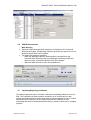
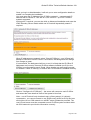
Calls Gadget
• Caller ID/Name Presentation
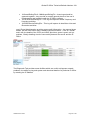
Caller ID is presented as standard (where provided) allowing users to see who's
calling before answering. The caller's phone number and name (if known to IP Office)
are clearly shown in the call status area.
• Desktop PC Telephony Controls
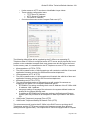
Avaya one-X Portal for IP Office has telephony buttons in the calls gadget that
activate standard telephone functions such as Answer, Drop, Hold, Retrieve, Record,
Consult and Transfer. These functions are context sensitive and appear depending
on the status of the call. Keyboard shortcuts are available for Answer, Hold, Drop and
Call functions and can be configured by the user.
Active calls can be easily parked by clicking on a park slot while displaying the active
call. There are four Call Park slots/zones, which can be shared between users and
operators, or within a department on the same IP Office system, further adding to the
ease with which the entire call handling process is streamlined with one-X Portal.
Call Log Gadget
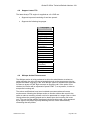
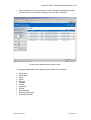
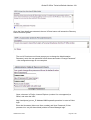
• Call History
The call log displays details of calls you have made, received and missed and it will
report the last 30 calls. Users can use the call log to make a call or add the caller to
the Personal Directory. The call log shows the actual call history, independent of
whether the user was logged in to one-X Portal at the time or not. The call log is
centralized and also available on the desktop phone. Calls are ordered in 4 tabs:
COMPAS ID 142543
Page 65 of 96