Transcript
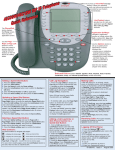
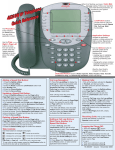
Application Tabs: Touch the appropriate tab at the bottom of any
screen to display your Speed Dial buttons, Call Log, Phone Directory,
Voice Mail or a Web (Internet/Intranet) Access screen.
Top Line Buttons:
- Prohibits access to the web, your phone server and personal
Speed Dial, Call Log and Directory information in your absence.
- Use to set up & update the screen's appearance and options like
brightness, call logging, data backup, etc. (See Options: below.)
Voice Mail Access
Phone Directory
Speed Dial
Call Log
When working on application screens (Phone, Speed Dial, Call Log, Web),
the Softkey buttons at the bottom of the display screen indicate actions
you can take. Examples are:
Save
Saves any changes made to screen data.
Edit/Delete Displays a screen to change or remove a speed dial
button label or group.
Removes a name or number from the Keyboard Entry screen.
Clear
Available (enabled) softkeys appear highlighted and three-dimensional;
this means the softkey can be used in working with the data the screen
currently displays. Unavailable (disabled) softkeys appear grayed out.
Disabled softkeys are not highlighted, nor are they three-dimensional.
If you attempt to select a disabled softkey, you might hear a warning
error beep. Disabled characteristics may also apply to any optional
Application tabs at the bottom of the display screen.
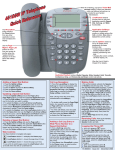
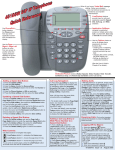
Phone Buttons: These buttons appear on the base of your phone:
Headset - Changes audio control from the handset or speaker to the
headset and vice-versa.
Mute - Stops the other party on a call from hearing you.
Speaker - Activates/deactivates the speakerphone for hands-free
dialing/talking.
Volume Up/Down - Adjusts the speaker, ringer, headset or handset
volume.
Managing Calls using Line/Feature Buttons
With the Phone screen displayed, select the Line/Feature button above a desired call-related activity such as Redial, Transfer, Conference, Drop or
Hold. When there are more call management features than can fit on one screen, select the More button to display additional Line/Feature buttons.
Speed Dial:
Call Log:
Directory:
Web Access:
Calling: Touch the Group
Viewing: Select the Call Log
Searching: Select the Directory
Accessing the Web: Select
with which the person you
want to call is associated,
then touch the Speed Dial
button for that person.
application tab. Use the Arrow
buttons on the right to move
through the log.
Adding an Entry: Select a
touch Call.
application tab. Type a full or
partial name and select Search.
(To correct an entry, press
Clear or Backspace and re-type.)
Use the Arrow buttons on the
right to scroll through the search
results list. To perform another
search, select Back.
the Web application tab. Use
the Home, Back, Forward,
Reload and Stop buttons on the
right of the screen as you would
with any web page.
Group, select an unassigned
button, type the name &
number, then select Save.
Changing an Entry: Touch
Edit/Delete, select the
associated group and button,
then make your change and
touch Save.
Deleting an Entry: Touch
Edit/Delete, select the
associated group and button,
then touch Clear twice (once
each for the number & name).
Touch Save.
Voice Mail:
Accessing: Select the Voice
Mail application tab. Verify the
Server, Mailbox and Playback #
are correct. Select the
Password field, enter your voice
mail password and touch Done
to display the Inbox.
See Chapter 6 in the User Guide
for more information.
Calling: Touch an entry, then
Adding an Entry to a
Speed Dial Button: Select the
desired entry and touch the
AddtoSD button. Edit the
Name and/or Number if needed
and touch Save. Then select
a Group.
Calling: Dial a phone number
designated as a link on a web
page by selecting that link.
Calling: Touch an entry, then
touch Call.
Removing a Call Log Entry:
Adding an Entry to a Speed
Dial Button: Use the procedure
Select the entry, then Delete.
shown under Call Log.
Options:
Accessing: Select
at the top of any screen.
Touchscreen Options: Screen idle display/timeout duration, keyboard entry screen layout, button click
feedback, screen calibration and screen cleaning.
Call Log Options: Call logging on/off, archive call log, verify archive status, verify IP server address and
access FTP (File Transfer Protocol) setup screen.
Phone Application Options: Add edit dialing, personalize ring pattern, redial option setup, setting the
Phone screen to display when you make or receive a call and call timer setting.
Directory Option: Set up a User ID & Password to protect directory access.
Speed Dial Options: Alphabetize buttons automatically and automatic backup of speed dial information.
Backup/Restore Options: Automatic backup of your options settings and Speed Dial buttons/groups,
restore data following phone failure/replacement, verify whether a backup has occurred, Server User ID/PW
setup and other FTP (File Transfer Protocol) setups.
Network Audio Quality: Troubleshoot poor audio quality problems with your System Administrator.
Stock Ticker: Set up and activate a Stock Ticker to run across the top of your screen.
16-300005
Issue 2.0
December 2003