1
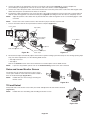
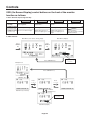
4. Connect all cables to the appropriate connector on the back of the monitor (Figure B.1). Connect Headphones
(not included) to the appropriate connector at the rear side of the monitor, if desired (Figure B.1).
5. Connect one end of the power cord to the monitor and the other end to the power outlet. Position the Video Signal Cable,
Audio cable and power cord between the holes on the Stand.
6. To attach the Cable management cover, insert the tabs of the Cable management cover into the holes on the Stand and
slide the Cable management cover downward into place (Figure B.1) making sure that the tabs are completely secure.
NOTE:
Adjust the position of the cables that are placed under the Cable management cover to avoid damaging the cable
or monitor.
NOTE:
Please refer to the Caution section of this manual for proper selection of power cord.
7. Turn on the monitor with the front power button and the computer (Figure C.1).
Power Cable
Input (VGA)
Input (Audio)
Input (DVI)
Power Button
Headphone
Cable management cover
Figure B.1
Connect to Computer
audio output
Figure C.1
8. No-touch Auto Adjust automatically adjusts the monitor to optimal settings upon initial setup for most timings (Analog input
only). For further adjustments, use the following OSD controls:
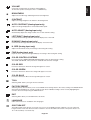
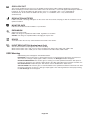
• Auto Adjust Contrast
• Auto Adjust
Refer to the Controls section of this User’s Manual for a full description of these OSD controls.
NOTE:
If you have any problem, please refer to the Troubleshooting section of this User’s Manual.
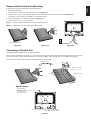
Raise and Lower Monitor Screen
The monitor may be raised or lowered. To raise or lower
screen, place hands on each side of the monitor and lift or
lower to the desired height (Figure RL.1).
NOTE:
Handle with care when raising or lowering the
monitor screen.
Figure RL.1
Tilt and Swivel
Grasp both sides of the monitor screen with your hands and adjust the tilt and swivel as desired
(Figure TS.1).
NOTE:
Handle with care when tilting and swivelling the monitor screen.
Figure TS.1
English-4