1
BARCODE FUNCTION
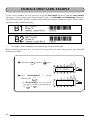
The Barcode function, which enables barcodes to be printed as part of labels, is one of this
machine’s most advanced features.
☞ This section will explain how to enter a barcode into your text. It is not intended as a
comprehensive introduction to the concept of barcoding. For more detailed information, please consult one of the many reference books available.
Since this machine is not specifically designed for special barcode label-making, some
barcode readers may not be able to read the labels.
Print barcodes with black ink on a white background.
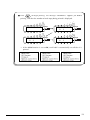
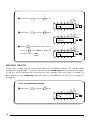
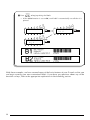
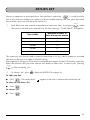
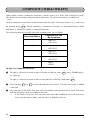
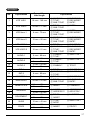
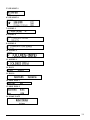
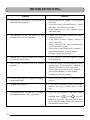
Four different parameters enable you to create custom barcodes.
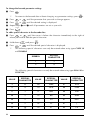
PARAMETER
SETTINGS
TYPE
CODE 39, I-2/5, EAN13, EAN8,
UPC-A, UPC-E, CODABAR, EAN128,
CODE128
WIDTH (barcode width)
LARGE, SMALL
UNDER# (characters printed below barcode)
ON, OFF
CH.DIG. (check digit)
OFF, ON
The default settings are CODE 39 TYPE, LARGE WIDTH, UNDER# set to ON, and CH.DIG.
set to OFF.
☞ It is recommended that barcodes be printed with the Tape margin function set to FULL
and the barcode WIDTH parameter set to LARGE; otherwise, the barcodes may be difficult to read.
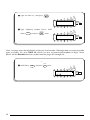
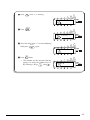
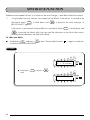
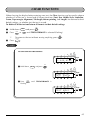
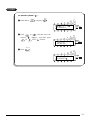
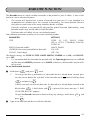
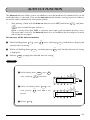
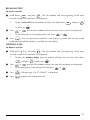
To use the Barcode function:
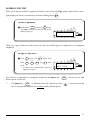
Barcode
1
Hold down
☞
Code
and press
once.
I
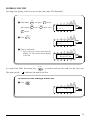
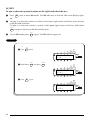
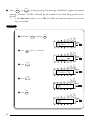
To change the data or parameters of a barcode that has already been created, position the cursor below the right half of the barcode mark ( ) before holding down
Barcode
and pressing
Code
I
.
A block can only contain one barcode. If a barcode has already been entered in the
Barcode
block when
Code
is held down and
I
is pressed, the error message “1 BAR-
CODE PER BLOCK!” appears.
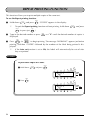
To quit the Barcode function without making any changes, hold down
Code
and
Barcode
press
2
I
.
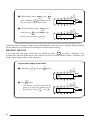
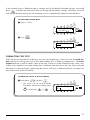
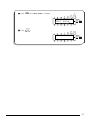
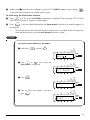
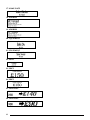
Type in the new barcode data or edit the old data.
85