1
User's Guide.book Page 60 Tuesday, May 25, 2004 11:49 AM
Using the Menu System
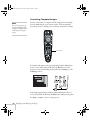
You can use the remote control or the projector’s control panel to
access the menus and change settings. Follow these steps:
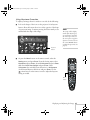
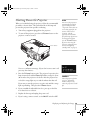
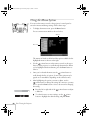
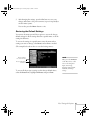
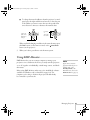
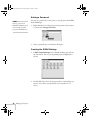
1. To display the menu screen, press the Menu button.
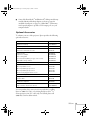
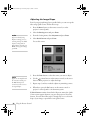
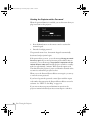
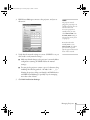
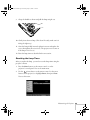
You see a menu screen similar to the one below:
Options
Menu list
The menus are listed on the left and the options available for the
highlighted menu are shown on the right.
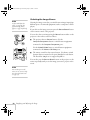
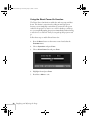
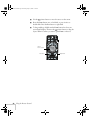
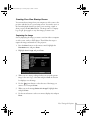
2. Use the
pointer button on the remote control (or the arrow
buttons on the projector) to scroll through the menu list. When
you’ve highlighted the desired menu, press the Enter button to
select it.
3. Once you’ve selected the menu, use the
pointer button to
scroll through the list of options. (Some of the options may be
grayed out or unavailable, depending on the selected source.)
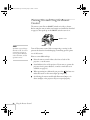
4. After highlighting the option you want to adjust, use the
pointer button to change the setting. In some cases, you may
have to press the Enter button to view a sub-screen for changing
the setting.
+
-
ON
60
OFF
Fine-Tuning the Projector
■
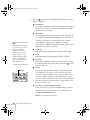
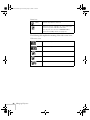
Press the left or right side of the
a slider bar.
pointer button to adjust
■
To select from two or more settings, use the
pointer
button to highlight the desired setting and press Enter.