1
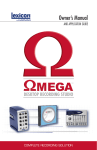
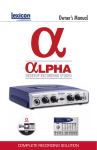
Owner’s Manual
AND APPLICATION GUIDE
COMPLETE RECORDING SOLUTION
IMPORTANT SAFETY INSTRUCTIONS
WARNING FOR YOUR PROTECTION
PLEASE READ THE FOLLOWING:
KEEP THESE INSTRUCTIONS
HEED ALL WARNINGS
The symbols shown above are internationally accepted symbols
that warn of potential hazards with electrical products. The
lightning flash with arrowpoint in an equilateral triangle means
that there are dangerous voltages present within the unit. The
exclamation point in an equilateral triangle indicates that it is
necessary for the user to refer to the owner’s manual.
These symbols warn that there are no user serviceable parts
inside the unit. Do not open the unit. Do not attempt to service
the unit yourself. Refer all servicing to qualified personnel.
Opening the chassis for any reason will void the manufacturer’s
warranty. Do not get the unit wet. If liquid is spilled on the
unit, shut it off immediately and take it to a dealer for service.
Disconnect the unit during storms to prevent damage.
SAFETY INSTRUCTIONS
NOTICE FOR CUSTOMERS IF YOUR UNIT IS EQUIPPED WITH A POWER CORD.
WARNING: THIS APPLIANCE MUST BE EARTHED.
The cores in the mains lead are coloured in accordance with the following code:
GREEN and YELLOW - Earth
BLUE - Neutral
BROWN - Live
As colours of the cores in the mains lead of this appliance may not
correspond with the coloured markings identifying the terminals in your
plug, proceed as follows:
The core which is coloured green and yellow must be connected to the
terminal in the plug marked with the letter E, or with the earth symbol,
or coloured green, or green and yellow.
• The core which is coloured blue must be connected to the terminal
marked N or coloured black.
• The core which is coloured brown must be connected to the terminal
marked L or coloured red.
FOLLOW ALL INSTRUCTIONS
DO NOT USE THIS APPARATUS NEAR WATER
CLEAN ONLY WITH A DRY CLOTH.
DO NOT BLOCK ANY OF THE VENTILATION OPENINGS. INSTALL IN
ACCORDANCE WITH THE MANUFACTURER’S INSTRUCTIONS.
DO NOT INSTALL NEAR ANY HEAT SOURCES SUCH AS RADIATORS, HEAT
REGISTERS, STOVES, OR OTHER APPARATUS (INCLUDING AMPLIFIERS)
THAT PRODUCE HEAT.
ONLY USE ATTACHMENTS/ACCESSORIES SPECIFIED BY THE
MANUFACTURER.
UNPLUG THIS APPARATUS DURING LIGHTNING STORMS OR WHEN
UNUSED FOR LONG PERIODS OF TIME.
Do not defeat the safety purpose of the polarized or grounding-type plug.
A polarized plug has two blades with one wider than the other. A grounding
type plug has two blades and a third grounding prong. The wide blade or
third prong are provided for your safety. If the provided plug does not fit
your outlet, consult an electrician for replacement of the obsolete outlet.
Protect the power cord from being walked on or pinched particularly at
plugs, convenience receptacles, and the point where they exit from the
apparatus.
Use only with the cart stand, tripod bracket, or table specified by the
manufacture, or sold with the apparatus. When a cart is used, use caution
when moving the cart/apparatus combination to avoid injury from tip-over.
•
This equipment may require the use of a different line cord, attachment
plug, or both, depending on the available power source at installation.
If the attachment plug needs to be changed, refer servicing to qualified
service personnel who should refer to the table below. The green/yellow
wire shall be connected directly to the units chassis.
Refer all servicing to to qualified service personnel. Servicing is required
when the apparatus has been damaged in any way, such as power-supply
cord or plug is damaged, liquid has been spilled or objects have fallen into
the apparatus, the apparatus has been exposed to rain or moisture, does
not operate normally, or has been dropped.
POWER ON/OFF SWITCH: For products provided with a power switch, the
power switch DOES NOT break the connection from the mains.
MAINS DISCONNECT: The plug shall remain readily operable. For rackmount or installation where plug is not accessible, an all-pole mains
switch with a contact separation of at least 3 mm in each pole shall be
incorporated into the electrical installation of the rack or building.
FOR UNITS EQUIPPED WITH EXTERNALLY ACCESSIBLE FUSE RECEPTACLE:
Replace fuse with same type and rating only.
WARNING: If the ground is defeated, certain fault conditions in the unit
or in the system to which it is connected can result in full line voltage
between chassis and earth ground. Severe injury or death can then result
if the chassis and earth ground are touched simultaneously.
MULTIPLE-INPUT VOLTAGE: This equipment may require the use of a
different line cord, attachment plug, or both, depending on the available
power source at installation. Connect this equipment only to the power
source indicated on the equipment rear panel. To reduce the risk of fire or
electric shock, refer servicing to qualified service personnel or equivalent.
Section Title
IMPORTANT SAFETY INSTRUCTIONS
ELECTROMAGNETIC
COMPATIBILITY
This unit conforms to the Product
Specifications noted on the Declaration
of Conformity. Operation is subject
to the following two conditions:
•
this device may not cause harmful
interference, and
•
this device must accept any interference
DECLARATION OF
CONFORMITY
Manufacturer’s Name:
Manufacturer’s Address:
Declares that the product:
Product name:
Note:
Lexicon Omega™
Product name may be
suffixed by the letters-EU.
Product option:
all (requires Class II power
adapter that conforms to the
requirements of EN60065,
EN60742, or equivalent.)
received, including interference that may
cause undesired operation.
Operation of this unit within significant
electromagnetic fields should be avoided.
•
use only shielded interconnecting cables.
Lexicon Professional
8760 S. Sandy Pkwy.
Sandy, UT 84070, USA
Conforms to the following Product Specifications:
Safety:
IEC 60065 (1998)
EMC:
EN 55013 (1990)
EN 55020 (1991)
Supplementary Information:
U.K. MAINS PLUG WARNING
A molded mains plug that has been cut off
The product herewith complies with the requirements
of the Low Voltage Directive 72/23/EEC and the
EMC Directive 89/336/EEC as amended by Directive
93/68/EEC.
from the cord is unsafe. Discard the mains
Vice-President
of Engineering
plug at a suitable disposal facility.
NEVER UNDER ANY
8760 S. Sandy Parkway
Sandy, Utah 84070, USA
Date: September 2003
CIRCUMSTANCES SHOULD YOU
INSERT A DAMAGED OR CUT
MAINS PLUG INTO A 13 AMP
POWER SOCKET.
Do not use the mains plug without the fuse
cover in place. Replacement fuse covers
can be obtained from your local retailer.
Replacement fuses are 13 amps and MUST
be ASTA approved to BS1362.
European Contact:
Your local Lexicon
Professional Sales
and Service Office or
Harman Music Group
8760 S. Sandy Pkwy.
Sandy, UT 84070 USA
Ph: (801) 566-8800
Fax: (801) 568-7583
Service Info/Warranty
SERVICE INFO
If you require technical support, contact Lexicon Professional Customer Service.
Be prepared to accurately describe the problem. Know the serial number of your unit,
it is on a sticker attached to the bottom of the Omega. If you have not already taken the
time to fill out your warranty registration card and send it in, please do so now.
Before you return a product to the factory for service, we recommend you refer to
the manual. Make sure you have correctly followed installation steps and operation
procedures. If you are still unable to solve a problem, contact our Customer Service
Department at (801) 568-7660 for consultation. If you need to return a product
to the factory for service, you MUST contact Customer Service to obtain a Return
Authorization Number. No returned products will be accepted at the factory without a
Return Authorization Number. Please refer to the Warranty information on the following page, which extends to the first end-user. After expiration of the warranty, a reasonable charge will be made for parts, labor, and packing if you choose to use the factory
service facility. In all cases, you are responsible for transportation charges to the factory. Lexicon Professional will pay return shipping if the unit is still under warranty.
Use the original packing material if it is available. Mark the package with the name
of the shipper and with these words in red: DELICATE INSTRUMENT, FRAGILE! Insure
the package properly. Ship prepaid, not collect. Do not ship parcel post.
WARRANTY
This warranty is valid only for the original purchaser and only in the United States.
1. The warranty registration card that accompanies this product must be mailed
within 30 days after purchase date to validate this warranty. Proof-of-purchase
is considered to be the burden of the consumer.
2. Lexicon Professional warrants this product, when bought and used solely within
the U.S., to be free from defects in materials and workmanship under normal use
and service.
3. Lexicon Professional’s liability under this warranty is limited to repairing or, at
our discretion, replacing defective materials that show evidence of defect, provided
the product is returned to Lexicon professional WITH RETURN AUTHORIZATION
from the factory, where all parts and labor will be covered up to a period of 1 year.
A Return Authorization number must be obtained from Lexicon Professional by
telephone. The company shall not be liable for any consequential damage as
a result of the product's use in any circuit or assembly.
4. Lexicon Professional reserves the right to make changes in design or make additions to or improvements upon this product without incurring any obligation to
install the same additions or improvements on products previously manufactured.
5. The foregoing is in lieu of all other warranties, expressed or implied, and Lexicon
Professional neither assumes nor authorizes any person to assume on its behalf any
obligation or liability in connection with the sale of this product. In no event shall
Lexicon Professional or its dealers be liable for special or consequential damages or
from any delay in the performance of this warranty due to causes beyond its control.
4
OMEGA™
Table of Contents
TABLE OF CONTENTS
INTRODUCTION . . . . . . . . . . . . . . . . . . . . . . . . . . . . . . . . . . . . . . . . . . . . . . . . . . . . . . . . . 6
Features . . . . . . . . . . . . . . . . . . . . . . . . . . . . . . . . . . . . . . . . . . . . . . . . . . . . . . . . . . . . . . . 6
Unpacking the Omega™ Studio. . . . . . . . . . . . . . . . . . . . . . . . . . . . . . . . . . . . . . . . . . . 7
Computer Minimum Requirements . . . . . . . . . . . . . . . . . . . . . . . . . . . . . . . . . . . . . . . . 7
The Front Panel . . . . . . . . . . . . . . . . . . . . . . . . . . . . . . . . . . . . . . . . . . . . . . . . . . . . . . . . 8
The Rear Panel . . . . . . . . . . . . . . . . . . . . . . . . . . . . . . . . . . . . . . . . . . . . . . . . . . . . . . . . 10
MAKING CONNECTIONS . . . . . . . . . . . . . . . . . . . . . . . . . . . . . . . . . . . . . . . . . . . . . . . . . . 12
Monitoring Audio . . . . . . . . . . . . . . . . . . . . . . . . . . . . . . . . . . . . . . . . . . . . . . . . . . . . . . 12
Recording Audio . . . . . . . . . . . . . . . . . . . . . . . . . . . . . . . . . . . . . . . . . . . . . . . . . . . . . . . 12
Connecting a Recorder for Mixdown . . . . . . . . . . . . . . . . . . . . . . . . . . . . . . . . . . . . . . . 13
Connections Diagram . . . . . . . . . . . . . . . . . . . . . . . . . . . . . . . . . . . . . . . . . . . . . . . . . . 14
DRIVER CONFIGURATION . . . . . . . . . . . . . . . . . . . . . . . . . . . . . . . . . . . . . . . . . . . . . . . . . 15
Windows® XP Software Setup . . . . . . . . . . . . . . . . . . . . . . . . . . . . . . . . . . . . . . . . . . . . 15
Macintosh® Software Setup . . . . . . . . . . . . . . . . . . . . . . . . . . . . . . . . . . . . . . . . . . . . . . 16
USING THE LEXICON® OMEGA™ . . . . . . . . . . . . . . . . . . . . . . . . . . . . . . . . . . . . . . . . . . . 17
Section I - Recording With the Omega . . . . . . . . . . . . . . . . . . . . . . . . . . . . . . . . . . . . . 17
Section II - Submixing on the Omega . . . . . . . . . . . . . . . . . . . . . . . . . . . . . . . . . . . . . 23
Section III - Recording MIDI . . . . . . . . . . . . . . . . . . . . . . . . . . . . . . . . . . . . . . . . . . . . . 23
Section IV - Using Software Input Monitoring . . . . . . . . . . . . . . . . . . . . . . . . . . . . . . . 24
Section V - Adjusting the Buffer Settings . . . . . . . . . . . . . . . . . . . . . . . . . . . . . . . . . . . . 25
SPECIFICATIONS . . . . . . . . . . . . . . . . . . . . . . . . . . . . . . . . . . . . . . . . . . . . . . . . . . . . . . . . 26
SIGNAL ROUTING DIAGRAM . . . . . . . . . . . . . . . . . . . . . . . . . . . . . . . . . . . . . . . . . . . . . . . 27
5
Introduction
INTRODUCTION
Congratulations on your purchase of the Lexicon Omega™ desktop recording
studio. The Lexicon Omega is a complete package of hardware and software that turns
your USB-connected computer into a professional multitrack recording workstation.
Whether you use it for high-quality stereo location recording with a laptop computer,
or for multitrack overdubbing and mixing in a home studio desktop system with MIDI
synthesizers, the Omega Studio hardware provides the professional-quality inputs and
outputs, metering, and level controls that computer sound cards or built-in audio
connections lack.
So you can make full use of the Omega Studio’s analog, MIDI, and digital I/O right
away, we’ve included Steinberg’s Cubase LE® software for PCs and Macs. Cubase LE®
offers integrated multi-track recording, editing and mixing of up to 48 audio tracks,
64 MIDI tracks, VST Instruments support, VST plug-in effects support, and an array
of additional features. Lexicon’s Pantheon™ reverb VST plug-in is a major feature of
the Omega package, providing the lush Lexicon reverbs that have been used on professional recordings for over thirty years. Alternatively, the Lexicon Omega may be used as
an interface with almost any other major audio recording software you may have, such
as Steinberg’s Nuendo®, Cubase SX®, or MOTU’s Digital Performer®.
FEATURES
THE OMEGA™ DESKTOP RECORDING STUDIO
PROVIDES THE FOLLOWING:
• 7 analog audio inputs
• 2 - XLR mic inputs with extremely low noise dbx® preamps, 50 dB gain,
20 dB Mic Pads, and +48V phantom power (switchable)
• 1/4" TRS insert jack on each mic input
• 4 - 1/4" analog RF filtered TRS active-balanced line inputs
• 1 - 1/4" ultra-Hi-Z analog instrument input
• 2 - 1/4" analog TRS servo-balanced, active line outputs
• Tru-Reference™ headphone amplifier
• S/PDIF coaxial digital input and output
• MIDI In and Out
• 24-bit A/D and D/A converters, supporting sample rates of 44.1 kHz and 48 kHz
• Zero-latency analog record monitoring with adjustable balance between
input and playback
• Stereo and Mono input source monitoring
• Power supply included
6
OMEGA™
Introduction
UNPACKING THE OMEGA™ STUDIO
The Omega™ Studio is shipped in one carton, containing the interface hardware,
Cubase LE and Lexicon Pantheon plug-in software for Windows® and Macintosh®
based systems. After unpacking, save all the packaging materials in case you ever have
to ship the unit. Thoroughly inspect the Omega Studio and packing materials for signs
of damage. Report any shipment damage to the carrier that delivered the product or
dealer from whom you purchased the product at once.
THE FOLLOWING ITEMS ARE INCLUDED:
• Omega desktop audio interface
• Installer CD-ROM containing Cubase LE Recording Software and drivers
and the Lexicon Pantheon™ Reverb Plug-in for Mac and Windows
• USB Connector Cable
• This Owner’s Manual
• Lexicon Pantheon™ Reverb Plug-in User’s Guide
• Omega Studio Software Installation Guide
• Lexicon Professional warranty registration
• NOTE: The full Cubase LE manual is located “on-line” on the software CD
COMPUTER MINIMUM REQUIREMENTS
Powerful software for audio recording requires a powerful computer with the right
operating system software, processor, memory, and hard drive space. Most currently
sold computers already meet these requirements, or can be upgraded to be compatible
with the Lexicon Omega Desktop Recording Studio. As with all such systems, adding
more RAM than the minimum will allow you to do more processing and improve
performance, and more disk space will allow you to record more tracks for a longer
time. See the Omega Software Installation Guide and the Cubase LE manual for
more information.
WINDOWS®
• Pentium® III 500 MHz or AMD K7 processor , or better
(Pentium 4/Athlon 1 GHz or faster recommended)
• Windows XP Home or XP Professional
• 256 MB RAM (512 MB recommended)
• 1 GB of available hard disk space
• 7200RPM hard disk type or better
MACINTOSH®
•
•
•
•
•
Power PC®, G4 Processor (450 MHz or faster)
Mac OS X version 10.2.8 or higher
256 MB RAM minimum (512MB recommended)
1 GB available hard disk space
7200RPM hard disk type or better
7
The Front Panel
V
For the cleanest
recording, adjust
the Gain knob so
the microphone
level reaches at
least “-6” on the
meter, but never
hits “Clip”, on the
loudest sound you’ll
be recording. If
you see the PEAK
LED on constantly,
turn the Gain knob
down until it flashes
only occasionally,
on the peaks.
Don’t turn down a
Gain control simply
to get the right mix
in your headphones
or monitors while
recording. Use the
MONITOR MIX
control to do that.
THE FRONT PANEL
The Omega’s front panel offers the following features:
MIC 1-2 GAIN
These knobs adjust the input gain levels of the Mic 1 and Mic 2 inputs.
LINE 1-4 GAIN
These knobs adjust the input gain levels of the Line 1 through Line 4 inputs.
PEAK LEDS
These LEDs will light when the input signal is within 5dB of analog clipping. If the
Peak LEDs flicker occasionally, the signal is approaching clipping levels, but does not
necessarily indicate distortion or actual clipping.
USB ASSIGN
These buttons and LED indicators select which USB audio bus (USB 1-2 (red), USB
3-4 (green), or OFF) that pair of signals is streaming up to the computer on. For
example, you can record four separate channels at once: Mic 1 and Mic 2 via USB 1-2,
and Line 1 and Line 2 via USB 3-4. On playback, each of the four sources will be on its
own, separate track and can be panned anywhere in the mix that you want.
MONITOR ASSIGN
These buttons select whether a pair of analog audio sources will be heard in stereo or
mono in the Direct Monitor Mix. In Stereo mode, the left inputs (Mic 1, Line 1, Line 3)
are routed to the left monitor and even numbered inputs are routed to the right monitor.
In Mono mode, you’ll hear any inputs in the center of the Direct Monitor Mix through
the Omega’s headphones or outputs.
8
OMEGA™
The Front Panel
When a Monitor switch is in Mono, it does not change the signal going to the computer via the USB bus in any way—they will still be separate and stereo in the computer.
MONITOR MIX CONTROL
The Omega gives you the ability to hear your analog input signals directly and immediately while recording without having to adjust levels in software and before the delay
caused by digital converters and computer recording latency. This zero-latency analog
monitoring is controlled by the Monitor Mix knob, which you can use to adjust the
blend between the Omega’s live analog inputs (called “Direct”) and any sounds coming back from the computer via USB (“Playback”). To adjust the playback mix coming back from the computer (previous tracks, effect returns etc.), use the faders on the
Mixer screen of the software. To hear only the live source input signals plugged into the
Omega, turn the Mix knob fully left to Direct. To hear only the mix from the computer,
turn the Mix knob fully right to Playback. Any signal coming in on the S/PDIF input
is converted to analog and sent to the mix control so that you can monitor this input
directly just like an analog input. The output from the Monitor Mix control is routed
directly to the Line and Headphone outputs. This ability to easily control the relative
levels of computer audio playback and latency-free live analog inputs is very useful
when overdubbing.
OUTPUT LEVEL
This knob controls the overall output level of the Omega’s Line and Headphone outputs.
METER ASSIGN
This switch selects which signals (signals assigned to USB 1-2 bus or USB 3-4 bus)
are being assigned to the Omega’s meter ladder. This LED Meter shows the signal level
into the A/D converters. When the Meter’s Clip LEDs light, analog input signals are
clipping the A/D converter. Adjust the Mic and Line gain knobs so that the -6 dB LED
flashes only occasionally.
USB LED
When the blue USB LED is on, it shows the Omega Studio is communicating with your
computer via USB and audio and MIDI signals can pass in and out of the system. If the
USB LED is blinking, the Omega is not communicating with your computer.
+48V LED
This LED indicates that 48 Volt phantom power is active on the Mic 1 and 2 inputs,
providing phantom power for condenser microphones that require it to operate. Turn
Phantom Power on or off as needed by the switch labeled +48V Phantom on the
bottom right of the rear panel.
S/PDIF ASSIGN
This button assigns the S/PDIF digital input to the USB 1-2 audio bus. When S/PDIF
is enabled, only the external digital input will be sent to the computer via the USB 1-2
bus and any analog inputs that were assigned to USB 1-2 are not sent to the computer,
although they still may be heard in the Direct Monitor Mix. Analog inputs can still be
assigned to the USB 3-4 bus while the S/PDIF Assign is enabled, allowing both digital
and analog audio to be recorded simultaneously.
9
The Front Panel
S/PDIF ASSIGN LED
This LED lights when the S/PDIF input is assigned to the USB 1-2 bus.
S/PDIF LOCK LED
The LED lights when the S/PDIF input has locked in with the Omega. If this LED is not
lit, digital signal can not be received from external devices via the S/PDIF input, and
the hookup or setting of the external device, or the computer software’s clock source,
must be changed.
HEADPHONE OUTPUT
The Headphone Output accommodates stereo headphones with a 1/4" stereo plug.
INSTRUMENT INPUT JACK
This 1/4" jack accepts unbalanced, low-level high impedance instrument sources such
as electric guitar, acoustic guitar with a pickup, and electric bass. The input gain is
adjusted using the Line 3 knob on the front panel. When an instrument is plugged in,
it disables the Line 3 audio input on the rear panel.
THE REAR PANEL
The Omega Studio’s rear panel offers the following features:
LINE IN 1-4
These 1/4" inputs can accept both balanced (3-conductor TRS plug) and unbalanced
(2-conductor) audio sources. Each input gain is adjusted individually using the Line
1-4 knobs on the front panel.
LINE OUT L/R
These outputs support balanced TRS or unbalanced TS 1/4" connections. These
outputs can be connected to a mixing board, power amplifier, powered studio monitors,
recorder, or another line level input.
10
OMEGA™
MIC 1-2 INPUTS
The Rear Panel
®
These balanced XLR inputs feature high quality dbx Silver Series™ mic preamps
designed specifically for low-impedance professional microphones. The input gain is
adjusted using the Mic 1-2 knobs on the front panel respectively, with 50 dB of gain at
the maximum setting.
-20dB PAD
The -20dB pad is a resistive attenuator that drops the level coming from the mic input
jacks. Press this switch in to prevent overload of the preamp when incoming signals
are too hot to avoid clipping, even when the front panel control is set to minimum.
Normally, this will only happen if you have plugged a line-level input into the Mic In
jack. When the -20dB switch is in, the XLR input can handle a maximum input of
+18 dBu, compared to a maximum +22 dBu at any Line In jack.
IMPORTANT:
Do not plug a line
output into the MIC
IN jacks unless the
+48 V (phantom)
switch is turned OFF
to avoid damage.
INSERT 1-2
Each mic input is equipped with a TRS insert point. Inserts provide a send and return
of the input channel’s signal directly after the mic preamp and before the A/D converter.
You can insert any line level analog processor (such as a compressor or equalizer)
to pre-process the mic signal before it is recorded, using a standard “stereo splitter”
(single TRS to two TS) cable. The tip is send and the ring is return.
S/PDIF IN AND OUT
The S/PDIF in and out ports are unbalanced phono (RCA) connectors that transmit
and receive either a 16-bit or 24-bit two-channel audio stream. S/PDIF ports may
be found on many professional and consumer CD and digital audio recorders. It is
recommended to use 75-Ohm coaxial cable for S/PDIF transfers and keep the cable
length to a maximum of 10 meters to minimize interference and data dropout. The
S/PDIF output sends only the stereo signal that is returned from the computer. Thus
it is not affected by the setting of the Monitor Mix or Output Level controls.
+48V SWITCH
IMPORTANT:
This switch should
be OFF if you are
connecting any linelevel source to the
Mic In jacks.
This enables the phantom power to the Mic 1 and Mic 2 inputs. Dynamic
microphones do not require phantom power to operate, but are not harmed by
it. Most condenser microphones do require phantom power to operate. If you are
unsure about the phantom power requirements for your microphone, consult your
microphone’s documentation or contact the manufacturer. This switch should be
OFF if you are connecting any line-level source to the Mic In jacks.
USB PORT
The USB Port is used to connect the Omega to your computer. A standard USB cable is
included. The Omega is compatible with USB 2.0 ports, but the USB 2.0 bus will switch
to the slower USB v1.1 speed to work with the Omega.
MIDI IN AND OUT
The MIDI jacks provide MIDI input and MIDI output to and from your computer.
Connect your MIDI keyboards, sound modules, and external controllers here.
POWER JACK
Use only the supplied PS0913-B power supply to power the Omega.
11
Making Connections
MAKING CONNECTIONS
The Omega Studio is both an 8 x 4 x 2 mixer and a USB audio interface that can be
used in a variety of audio setups. This section describes how to make basic connections
for the following applications:
• Monitoring Audio
• Recording Audio
• Connecting a Recorder for Mixdown
MONITORING AUDIO
Omega Line Outputs play the audio that is routed in the software (Steinberg Cubase
LE or other software) to Analog Outputs 1-2, and can provide left and right outputs
to a control room monitor amplifier, headphones, or to another stereo destination
such as a mixdown recorder.
Omega Line Outputs offer 24-bit digital-to-analog converters with a nominal output
of +4 dBu/+2 dBV (balanced or unbalanced signal) with 15 db of headroom
before clipping (0 dBFS = +19 dBu). The connectors are TRS jacks; unbalanced
TS connectors are also supported.
CONNECTING HEADPHONES:
1. Connect headphones to the Headphone jack located on the front panel
of the Omega Studio. The Headphone Output accepts a 1/4" TRS connector.
2. Adjust headphone volume via the Output Level knob.
CONNECTING TO MONITOR SPEAKERS WITH A POWER AMP
OR SELF-POWERED MONITOR SPEAKERS:
1. Using 1/4" cables, connect the Line Outputs on the rear panel of the Omega Studio
to the appropriate inputs on your mixer, power amp, or powered speakers.
2. Adjust output volume via the Output Level knob. If using both headphones and
monitor speakers, adjust the level of the external power amp or speakers using their
gain controls after you’ve gotten the desired level in your headphones.
CONNECTING TO A HOME STEREO:
1. Using 1/4" cables, connect the Line Outputs on the rear panel of the Omega Studio
to the appropriate inputs on your stereo, typically the TAPE IN or AUX IN jacks,
with a 1/4" to male phono (RCA) connector or adapter. Keep the OUTPUT LEVEL
control of the Omega low to start, raising it slowly to match the level of other units
connected to the stereo.
RECORDING AUDIO
Digital and analog audio sources can be connected directly to the Omega.
ANALOG AUDIO:
Analog audio signals are created by microphones, synthesizers, mixers, and instruments
with magnetic pickups.
Of these sources, microphones and magnetic pickup instruments output the quietest signals,
and generally require the most amplification. Keyboards, preamps, and mixers output “line
level” audio, which varies with each device between the -10 dBV and +4 dBu standards.
12
OMEGA™
Recording Audio
TO CONNECT AN ANALOG AUDIO SOURCE:
1. Plug an XLR or TRS 1/4" phone cable directly into the desired Mic/Line Input
on the Omega Studio. The Mic Inputs accept XLR connectors, the Line Inputs accept
TS or TRS connectors.
TO ACTIVATE PHANTOM POWER:
If your microphone requires phantom power, first make sure the microphone is
connected, then press the Phantom Power switch (labeled +48V). The +48V LED
on the front panel indicates the phantom power is active. If your mics don’t need
phantom power, it is best to turn it off.
USING THE ANALOG INSERTS:
The analog inserts require a 1/4" TRS to 2 x 1/4" TS adapter cable. The signal from
the tip should be routed to the input of your outboard processor and the output of your
processor should be routed to the ring.
DIGITAL AUDIO:
Digital audio represents analog waveforms using thousands of digital samples of the
analog waveforms each second. All audio on your hard drive in a Cubase LE session
is digital audio.
The Omega provides digital inputs and outputs for S/PDIF format digital audio.
CONNECTING A S/PDIF DEVICE TO THE OMEGA:
1. Use two 75 Ohm coaxial cables with male RCA connectors on both ends.
2. Connect the device’s S/PDIF output to the Omega Studio’s S/PDIF input jack,
and the device’s S/PDIF input to the Omega Studio’s S/PDIF output jack.
3. To transfer S/PDIF digital audio to the computer, press the S/PDIF ASSIGN switch on
the front panel, and set the Cubase LE software to record from USB inputs 1 and 2.
CONNECTING A RECORDER FOR MIXDOWN
After you record and mix your sessions in either Cubase LE® or other recording
software, you may want to mix them down to a DAT, audio cassette, or other stereo
2-track recording device.
CONNECTING AN ANALOG DECK:
Connect your recorder (cassette deck or other analog device) to the Line Outputs
on the back of the Omega. The Left and Right Line Outputs should be routed to the left
and right inputs, respectively, on your recorder. These outputs are TRS jacks. You may
need adapter cables if your mixdown deck has RCA jack inputs.
To hear the mix through control room speakers, connect the outputs of the analog
deck to the inputs of the amplifier. Adjust the control room level using the output
level of the analog deck or the input level of the control room amplifier.
CONNECTING A DIGITAL DECK:
If you have a DAT, CD recorder, or other device that accepts S/PDIF connections,
connect it to the S/PDIF In and S/PDIF Out RCA jacks on the back of the Omega.
13
Connections Diagram
CONNECTIONS DIAGRAM
V
WINDOWS® SOFTWARE SETUP
You must consult the Software Installation Guide packaged with the software
CD-ROM inside the Omega Studio box to ensure the successful installation of the
recording software and USB drivers.
If you haven’t already installed the Cubase LE and Lexicon Pantheon plug-in software,
please do so before continuing on to the next section. Also, consider the following
information as it pertains to your computer’s operating system prior to installing
the USB drivers.
WINDOWS XP
You must install the USB drivers after you’ve made the connection between your
computer’s USB port and the USB port of the Omega.
14
OMEGA™
Using Cubase LE with the Lexicon Omega Studio
USING CUBASE LE WITH THE
LEXICON OMEGA STUDIO
WINDOWS® XP SOFTWARE SETUP
1. Start Cubase LE. The first time you use
Cubase LE with the Lexicon Omega Studio
you may be asked to run the Multimedia
test as shown below. Select NO.
2. Cubase LE will display the following warning
that configuration has not been tested.
Click OK.
3. Once you are into Cubase,
go to DEVICES>DEVICE SETUP.
4. Under DEVICES, click on VST MULTITRACK and select LEXICON USB ASIO
if it is not already selected. Click on SWITCH to switch the driver and click OK.
You are now ready to begin recording using your Omega Studio and Cubase LE.
15
Macintosh Software Setup
MACINTOSH® SOFTWARE SETUP
You must consult the Software Installation Guide packaged with the software CD-ROM
inside the Omega box to ensure the successful installation of the recording software
and USB setup.
If you haven’t already installed the Cubase LE and Lexicon Pantheon plug-in software,
please do so before continuing on to the next section.
MAC OS
A USB device must initialize itself with the host computer to operate correctly. The
Omega Studio comprises several devices (audio and MIDI) and each of those must be
initialized. Some Apple® Mac computers will not recognize all of these devices if the
Omega Studio is powered on (and connected to the USB port) before the computer is
turned on. The simplest way to avoid problems is to either turn on the Omega Studio
or connect it to the USB port after the computer is booted. However, there is a way to
force a reinitialization after the computer is running.
1. Make sure you close any applications which are using the Omega Studio.
2. Press the Mic 1-2 USB Assign button and the Line 3-4 USB Assign button at the
same time and then release them simultaneously. The blue USB light will flash
and after three seconds the Omega Studio will be properly initialized.
16
OMEGA™
Recording With The Omega - Section 1
USING THE LEXICON OMEGA™ STUDIO
SECTION I – RECORDING WITH THE OMEGA
Now that we’ve covered the operation of the Omega hardware, let’s see how to use the
Omega Studio in some typical recording situations. The diagram below shows how the
Omega Studio is connected for this particular setup.
A. RECORDING A MICROPHONE INPUT
1. Plug your microphone cable into the Mic 1 XLR jack on the
back of the Omega. If the mic needs phantom power, push the
+48 V switch (located just above the POWER input) in.
2. Now we need to setup the Omega to record from the Mic 1 input. On the front of the
Omega locate the USB ASSIGN button between the Mic 1 and Mic 2 Gain knobs.
Press the USB Assign button until the 1-2 led is lit red. This means we are now streaming audio to the computer via the USB 1-2 input drivers from the Microphone Jacks.
Next, press in the MONITOR button between Mic 1 and Mic 2 so it is in the MONO
position. Since we are recording only one microphone right now we will want to be
able to hear it on both sides of our headphones.
17
Recording A Microphone Input - Section 1
3. Now we will setup our software to
record. Open Cubase, go to FILE and select
NEW PROJECT, then select DEFAULT.
Select a location to store the project and
click on OK. Now we need to set the input
of the track so we can record from the
1-2 USB assign. Click on TRACK 1
which is labeled AUDIO 01. Click on
the SHOW INSPECTOR
button.
You will now see the Track Inspector
window to the left. Click on the IN:
box and select IN 1 for the track input
source. (IN 1 relates to Mic 1 and IN
2 relates to Mic 2 now that we are
using the 1-2 USB assign for the Mic
Inputs). Next, click on the RECORD
ENABLE
button so that it is red.
Click on the INPUT MONITORING
button so that it is not lit.
4. Now that the software is ready to record let’s
check our level from the microphone. If you’ve
connected the Omega to some monitors and
they are nearby, turn them down or off to
avoid feedback. On the front of the Omega
make sure the METER ASSIGN button is in
the 1-2 position (button is out). Now speak
into the microphone while gradually turning
up the Mic 1 knob (gain) until you see the
peak light next to Mic 1 flash occasionally.
Now check the meter on the front of the Omega to make sure you are not clipping.
If you want to hear the mic in headphones, turn up the Omega’s Output Level
control and turn the Monitor Mix control left (towards the Direct side).
5. Now let’s start recording. Click on the RECORD
BUTTON
on Cubase’s Transport control. Speak or play an instrument into the
Microphone. When you are finished recording
press the STOP BUTTON
. Press REWIND
and press the PLAY BACK
button to listen to the track you have just
recorded. Turn the Omega Output Level knob to adjust the listening volume, and
make sure the Monitor Mix control is somewhere in the middle between “Direct”
and “Playback”.
18
OMEGA™
Recording A Microphone Input - Section 1
6. Now let’s overdub a second track. Click on
track 2 labeled AUDIO 02. Under the Track
Inspector select IN 1 for track 2’s input. Click
on the RECORD ENABLE
button so that
it is red. Click on the INPUT MONITORING
button so that it is not lit. Click on Track
1’s RECORD ENABLE
button so that it
turns off.
7. Now we will set our monitor levels so we
get a comfortable monitor mix level. On the
front of the Omega locate the MONITOR MIX
Knob. While playing back the previous recording listen to the input of the microphone. To
make the Microphone louder than the recording, turn the MONITOR MIX knob towards the
DIRECT side. To make the recorded track louder
turn the MONITOR MIX knob towards the
PLAYBACK side.
NOTE: This does not change the recorded volume, only what you hear while you are
recording. You can also adjust the playback level and pan position of the original track
in your monitor by adjusting the contols for Channel 1 on Cubase’s Mixer window.
8. Now click on RECORD
and record the second track.
B. RECORDING A GUITAR INTO THE INSTRUMENT JACK
Now let’s record a new basic track starting with a guitar
1. Plug your guitar into the instrument jack on the front of the
Omega Studio.
NOTE: this jack is intended for passive guitar pickups, not line
inputs such as the output of a keyboard or a direct out from a
guitar amplifier. For those, use the Line In jacks on the back
of the Omega Studio.
2. The instrument jack uses Line 3, so press the USB
3 and 4 until the red 1-2 USB Assign LED is lit.
ASSIGN
button between Line
Press the MONITOR button between line 3 and 4 so that it is in the MONO position.
19
Recording Guitar Into The Instrument Jack - Section I
3. Open Cubase, go to FILE and select NEW
PROJECT, DEFAULT, and a project location.
Now, let’s set the input of the track so we
can record from the 1-2 USB assign. Click
on track 1 which is labeled AUDIO 01.
Click on the SHOW INSPECTOR
button. You will now see the Track Inspector
window to the left. Click on the IN: box
and select IN 1 for the track input source.
Next, click on the RECORD ENABLE
button so that it is red. Click on the INPUT
MONITORING
button so that it is
not lit.
4. Next, we need to adjust the input gain
of the instrument input on the front of the Omega
make sure the METER ASSIGN button is in the
1-2 position (button is out). Now strum the guitar
while gradually turning up the LINE 3 Gain until
you are seeing its Peak light come on occasionally. Now check the meter on the front of the Omega
to make sure you are not clipping.
5. Now let’s start recording. Click on the RECORD
BUTTON
on the Transport control. Play some
chords or notes on the guitar. When you are finished
recording press STOP
and Rewind .
Now press the
recorded.
PLAYBACK
button to listen back to the track you have just
The above is just one possible routing. With the Omega Studio and Cubase, remember
that you can record from any input to any track (or even to multiple tracks at
once). Line 3 of the Omega can travel to Cubase via USB bus 1 or USB bus 3, and be
recorded onto Cubase tracks 1, 2, 3, 4, 5…any track when IN 1 or IN 3 (depending
on which USB bus Line 3 is assigned to) is selected as the track input source.
C. RECORDING MULTIPLE CHANNELS AT ONE TIME
In this example we will record two microphones, a guitar and a keyboard
into the Omega all at one time.
20
OMEGA™
Recording Multiple Channels At One Time - Section I
1. Plug one microphone into each of the two microphone jacks on the back of the
Omega. Plug the line output of the keyboard into the Line In 4 jack on the back of the
Omega. Plug the guitar into the Instrument jack on the front of the Omega.
2. Now we need to assign the USB streams to the inputs. Press the USB ASSIGN between
Mic 1 and Mic 2 until the red 1-2 LED is lit. Next, press the USB ASSIGN between Line
3 and Line 4 until the green 3-4 LED is lit.
3. Open Cubase, go to FILE and start a new default project . Now let’s set the inputs of the
tracks in Cubase so we can record from the four different inputs of the Omega, each
onto its own separate track. Click on track 1, labeled AUDIO 01. Click on the IN:
box and select IN 1 as the track input source. Next, click the RECORD ENABLE
button so that it is red. Click on the INPUT MONITORING
button so that it
is not lit. This track will record microphone 1. Click on track 2 which is labeled
AUDIO 02. Click on the IN: box and select IN 2 as the track input source. Next,
click on the RECORD ENABLE
button so that it is red. Click on the INPUT
MONITORING
button so that it is not lit. This track will record microphone
2. Click on track 3 which is labeled AUDIO 03. Click on the IN: box and select
IN 3 as the track input source. Next, click on the RECORD ENABLE
button
so that it is red. Click on the INPUT MONITORING
button so that it is not
lit. This track will now record the guitar. Click on track 4 which is labeled AUDIO
04. Click on the IN: box and select IN 4 as the track input source. Next, click on
the RECORD ENABLE
button so that it is red. Click on the INPUT MONITORING
button so that it is not lit. This track will now record Line 4 (keyboard).
4. On the front of the Omega make sure the METER ASSIGN
button is in the 1-2 position (button is out). Now speak into
the microphone while gradually turning up the Mic 1 gain
until you are seeing the peak light come on occasionally. Now
check the meter on the front of the Omega to make sure you
are not clipping. Repeat this procedure for microphone 2 using
the Mic 2 gain knob. Now let’s set the level of the keyboard and
the guitar. On the front of the Omega make sure the METER ASSIGN button is in the
3-4 position (Button is in). Now play some loud notes on the keyboard and bring
the level up on line 4 until you are near clipping. Strum some chords of the guitar
and bring up the line 3 gain until you are just below clipping.
21
Recording Multiple Channels At One Time - Section I
5. Turn Omega’s Monitor Mix control all the way to Direct, since you’re not overdubbing. Adjust headphone level with the Output Level control. Mic 1 and the guitar
will be in the left headphone, and Mic 2 and the keyboard will be in the right. If you
would rather hear everything in the center, press the Monitor switches (beneath the
USB Assign switches) in to the Mono position. But resist the temptation to turn down
levels on the front of the Omega to get a headphone mix – Levels have been properly
adjusted for the best signal-to-noise ratio on the tracks.
6. Now let’s start recording. Click on the RECORD
BUTTON
on Cubase’s Transport Control. Speak
or play an instrument into the microphone. When you
are finished recording press the STOP BUTTON
.
7. Turn the Omega’s Monitor Mix control clockwise to the Playback position. Now press
Cubase’s PLAYBACK
button to listen back to the tracks you have just recorded.
Adjust the overall listening volume with the Output level knob, and the playback
levels and pan positions of individual tracks with Cubase’s Mixer window.
D. RECORDING FROM S/PDIF
One of the key features of the Lexicon Omega Studio is its ability to monitor S/PDIF
in real time with no latency. This allows you to record directly from a device with the
S/PDIF digital output and listen while you are recording. S/PDIF is a digital signal
that carries a stereo signal on a single cable for left and right.
In this example we will show you how to record from a DAT player connected to the
Omega’s S/PDIF In directly into the software. Simply connect a 75 Ohm coaxial RCA
cable from the DAT player’s S/PDIF output to the Omega Studio’s S/PDIF input.
22
OMEGA™
Recording From S/PDIF - Section I
1. Plug the S/PDIF output of your device into the S/PDIF
input of the Lexicon Omega.
2. Press the S/PDIF assign on the front of the Omega. You
will now see the S/PDIF LOCK LED light on the front of
the Omega.
3. Open Cubase and start a new project. Click on track one
labeled AUDIO 01. Click the Stereo/Mono button on the
track so that it is set to stereo
. Select the input on the
track and set it to IN 1+ IN 2. Click on RECORD ENABLE
. You are now ready to record using the S/PDIF input.
SECTION II - SUBMIXING ON THE OMEGA
The Lexicon Omega Studio has a total of 9 inputs (2 mic, 4 line, 1 instrument and
2 digital) and 6 channels of USB audio (4 in and 2 out). This allows you to record 4
separate simultaneous tracks at one time. In some cases you may want to use more than
4 inputs. To do this you will need to mix some of the inputs together on one USB bus.
This is called submixing since the audio is mixed before it is recorded.
Here is how this technique works on the Omega. When
two sets of inputs are assigned to the same USB bus
assign, the 2 inputs on the right mix together and the
2 inputs on the Left Mix together.
So if the USB Assigns for the Line inputs are all set to
USB 1-2 (red LEDs on), Line 1 and Line 3 would get
recorded to the first track, and Line 2 and Line 4 would
get recorded to the second track. Inputs that are not assigned to USB 1-2 assign would be
recorded separately – for example, Mic 1 and Mic 2 could be assigned to USB 3-4.
SECTION III - RECORDING MIDI
The Lexicon Omega Studio also functions as a MIDI USB interface. This allows you
to record MIDI data from a keyboard’s MIDI output into a MIDI track of Cubase,
and to play that MIDI data back from the computer into a keyboard, sound module
or effects processor.
1. Here is an example of using a MIDI keyboard.
To record MIDI data into the computer, connect
the MIDI output of the keyboard to the MIDI input
of the Lexicon Omega. Connect the MIDI output of
the Omega to the MIDI input of the keyboard.
23
Recording MIDI Tracks - Section V
2. You will need to run the line output of the keyboard to one (mono) or two (stereo)
line inputs on the back of the Omega to hear your keyboard.
3. Open Cubase and start a new default project.
Click on MIDI track 1 which is labeled
MIDI 01.
Click the IN: box for MIDI track 1 and select
LEXICON USB MIDI.
Click the OUT: box and select LEXICON USB
MIDI for the MIDI outputs. Click the RECORD
ENABLE
button on MIDI track 1.
Click on the RECORD
button on the
transport and play your keyboard. You are
now recording MIDI data from the keyboard. If you don’t see data in the track, check
the settings of the keyboard to make sure it’s set to transmit on the same MIDI channel that Cubase is set to receive on. In some cases, you may want to set the keyboard
to “LOCAL OFF” and set Cubase to “Echo” mode. For more information, consult the
Cubase manual and your keyboard’s manual.
SECTION IV - USING SOFTWARE INPUT MONITORING
In previous examples we have turned off Cubase’s input monitoring software switches
when we have recorded tracks. We have used the monitor mix knob on the front of the
Omega to directly monitor an input without latency. Software monitoring allows you to
listen to software based effects in real time and to adjust the monitor mix independently
of the recording levels, but also introduces some latency (delay) into the input signal. The
amount of latency depends on the amount of buffers assigned in the ASIO control panel.
1. When using Cubase’s input software monitoring with the Omega you will want
to set the MONITOR MIX knob all the way to the Playback side.
2. Click on the INPUT MONITORING
button on the track you are
recording to. You will now be able
to hear your input. Now you can
try assigning an effect on the input.
In this example we will assign a
Pantheon reverb.
3. Click on the TRACK
and PANTHEON.
EDIT
button. Click on an
INSERT
and select
REVERB
Choose LARGE HALL from the drop down menu at the top of the Pantheon Window.
Because this is an insert effect, move the MIX slider to 50% (see the Pantheon
24
OMEGA™
Adjusting The Buffer Settings - Section V
manual for more details). Change the level to about -52dB. Now you will record with
the Lexicon Pantheon Reverb on your track.
SECTION V - ADJUSTING THE BUFFER SETTINGS
The buffers were automatically set at safe setting for your computer when you installed
the software. If you are using input monitoring, you may wish to adjust the amount of
buffers on you computer. Lowering the buffers will lower the amount of latency using
input monitoring. Setting the buffers too low will result in crackling and possibly audio
drop out. The faster the computer (Hard Disk, CPU) the lower you will be able to adjust
the buffer setting without negatively impacting the audio. For more information, consult
the Cubase manual.
A. ADJUSTING THE BUFFERS ON PC
Open Cubase and go to DEVICES/DEVICE
SETUP. Click on VST MULTITRACK. Click
on the control panel button. You will
now see the ASIO control panel. The top
slider is the buffer size this number gets
multiplied by the bottom slider which
is Number of Buffers. When you are
finished adjusting the buffer size click
the OK button and return to your project
to test the results.
B. ADJUSTING THE BUFFERS ON MAC
Open Cubase and go to DEVICES/DEVICE
SETUP. Click on VST MULTITRACK. Click
on AUDIO BUFFER SIZE and Select the
number of Samples. When you are finished click OK.
25
Specifications
SPECIFICATIONS
Microphone Inputs:
Input Impedance:
Phantom Power:
GAIN:
EIN:
Maximum Input Level:
Frequency Response:
THD+N:
(2) Female XLR Pin 2 Hot
600 Ohms balanced
+48 Volt
+50 dB
-120 dB A-weighted @ 50dB gain (150 Ohm source impedance)
+18 dBu
+0, -0.2 dB 20 Hz - 20 kHz, ref. 1 kHz
<.005%, 20 Hz - 20 kHz
Insert Inputs:
Send Level (tip):
Maximum Return Level (ring):
(2) 1/4" TRS
+19 dBu maximum
+19 dBu maximum
Line Inputs:
Input Impedance:
Maximum Input Level:
Frequency Response:
THD+N:
(4) 1/4" TRS balanced or unbalanced
20 kOhm balanced, 10 kOhm unbalanced
+22 dBu
+0, -0.2 dB 20 Hz - 20 kHz, ref. 1kHz
<.009% A/D, 20 Hz - 20 kHz,
Instrument Input:
Input Impedance:
Maximum Input Level:
Frequency Response:
THD+N:
Crosstalk:
(1) 1/4" mono jack
1 MOhm unbalanced
+19 dBu
+0, -0.25 dB 20 Hz - 20 kHz, ref. 1 kHz
<.0125% A/D
<-74dB any input or output to any recording channel, 20 Hz-20 kHz
<-95dB at 1 kHz typical
Line Outputs:
Level:
Impedance:
Headphone Output:
(2) 1/4" TRS balanced or unbalanced
+19 dBu maximum (+4 dBu nominal input = -15 dbFS)
110 Ohms
(1) 1/4" stereo jack
100 mW per channel at 50 Ohms
5 pin DIN connectors for MIDI in and MIDI out
Coaxial RCA (S/PDIF format)
Coaxial RCA (S/PDIF format) always transmits
the audio data from the USB stream
MIDI Interface:
Digital Audio Input:
Digital Audio Output:
D/A and A/D Conversion
Sample Rate:
Dynamic Range:
44.1 kHz or 48 kHz (determined by computer application)
A/D (24 Bit)
D/A (24 Bit)
A/D/A (24 Bit)
Analog Path:
104 dB typical, A-weighted, 20 Hz - 20 kHz
109 dB typical, A-weighted, 20 Hz - 20 kHz
103 dB typical, A-weighted, 20 Hz - 20 kHz
118 dB typical, A-weighted, 20 Hz - 20 kHz
USB Type B Socket:
Power Requirements:
Version 1.1, Version 1.1 hubs are not supported
PS0913-B adapter supplied.
delivers 9V AC at 1300 milliamps, Class 2 transformer,
draws 18W at 120 V
4.625”W x 7.25”H x 7.75” D (118mm x 184mm x 197mm)
2.65 lbs.
Dimensions:
Weight:
Lexicon engineers are constantly working to improve the quality of our products.
Specifications are, therefore subject to change without notice.
26
OMEGA™
Omega Signal Routing Diagram
27
Omega Desktop Recording Studio™
8760 South Sandy Parkway | Sandy, Utah 84070 U.S.A.
Phone: (801)-568-7660 | Fax: (801)-568-7662
Copyright 2004 Lexicon Professional®
Questions or comments?
Email us at: [email protected]
or visit our World Wide Web home page at: www.lexiconpro.com
Part Number: 18-0233-D