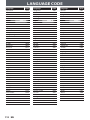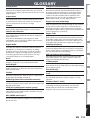
1
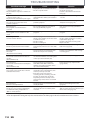
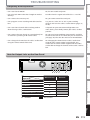
TROUBLESHOOTING
DVD • VCR
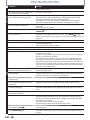
Symptom
Playback picture is distorted.
The channel cannot be changed from
the channel you are recording.
Nothing was recorded even though
you set the timer setting correctly.
• There was a power failure during recording.
• The unit’s internal clock stopped due to a power failure that lasted for
more than 30 seconds. Reset the clock (pages 30-31).
• The program contains copy protection signals that restricts copying.
• The timer setting overlapped with another setting that has priority.
Timer recording is not complete or did • The timer setting overlapped with another setting that has priority
not start from the beginning.
(page 45).
• Disc space was not enough.
Timer recording is impossible.
appears on the front panel display of this unit. If not, press
• Make sure
[TIMER SET].
There is no picture.
Picture noise appears.
There is no sound.
Sound is noisy.
No DTS sound is output.
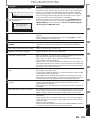
The disc does not play back.
DVD
Remedy
• Keep the device which may cause electrical disturbances, such as a
cellular phone, away.
• Set the TV’s input to “TV.”
Discs recorded on this unit cannot be
played back on other DVD players.
The disc does not start playback from
the beginning.
The unit starts playing back the disc
automatically.
Some functions such as stop, search,
or slow-motion playback cannot be
performed.
The language for the sound track
cannot be changed.
The subtitle language cannot be
changed or turned off.
The angles cannot be changed.
Recording does not stop immediately
after you press [STOP C].
The disc tray does not open when you
press [OPEN/CLOSE A].
108 EN
• If the main menu appears on the TV screen, press [BACK ] to exit.
• Check if the progressive scan mode is set correctly according to your TV
(page 99).
• Clean the disc with a cleaning cloth.
• If you are using DIGITAL AUDIO OUTPUT (COAXIAL) jack, check the setting
in “Disc Audio” (page 94).
• Clean the disc with a cleaning cloth.
• Clean the disc with a cleaning cloth.
• This unit is not compatible with DTS sound.
• No disc is inserted.
• A blank disc is inserted.
• The disc is upside down. Insert the disc with the labeled side facing up.
• The disc is not correctly inserted.
• The unit cannot play back certain discs (such as a CD-ROM) (page 59).
• The region code on the DVD-video does not match the unit (page 59).
• Moisture has condensed inside the unit. Remove the disc and leave the
unit turned on for about 2 hours until the moisture evaporates (page 5).
• If the disc was recorded on another recorder, the unit cannot play back
the disc if it was not finalized.
• If you are using DVD-RW/-R, please ensure you finalized the disc after
recording (pages 56-57).
• Resume playback was activated (page 67). Press [STOP C] twice.
• You have inserted a disc whose title menu or DVD menu automatically
appears on the TV screen when it is first inserted.
• The DVD-video features an auto playback function.
• Depending on the disc, you may not be able to do some of the
operations. Refer to the instruction manual supplied with the disc.
• The title does not have the multilingual audio tracks.
• The DVD-video prohibits the changing of the language for the sound
track.
• Multilingual subtitle are not recorded on the DVD-video.
• Multi-angles are not recorded on the DVD-video being played back.
• The angle-change operation is whenever possible as long as the disc
contains a multi-angle portion. Actual change will be performed when
the portion has come up.
• The DVD-video prohibits changing angles.
• Try changing the angle using the DVD-video’s menu.
• It may take a few seconds for the unit to input disc data before
recording stops.
• It may take a few seconds for the disc tray to open after you have
recorded or edited a disc. This is because the unit is adding disc data to
the disc.