1
46
•
IP-REACH USER MANUAL
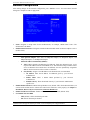
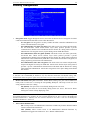
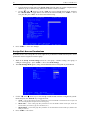
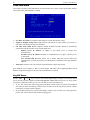
PC Share Mode: Determines global concurrent remote access. Enables up to eight remote users to
simultaneously log on to one IP-Reach unit and concurrently view and control a Target Server through
IP-Reach. Control is based on first active/keyboard mouse input, so multiple remote users attempting
keyboard input or mouse movement at exactly the same moment may experience uneven control.
- Private Mode (default): No PC Share. Each IP-Reach path can be accessed exclusively by
only one user at a time.
- PC Share Mode: IP-Reach can be accessed by more than one user (administrator or nonadministrator) at a time. Control is based on first active keyboard/mouse input, so multiple
remote users attempting keyboard input or mouse movement at exactly the same moment may
experience uneven control.
- PC Share Admins Only: IP-Reach can be accessed by more than one user (administrative
users only) at a time. Control is based on first active keyboard/mouse input, so multiple
remote users attempting keyboard input or mouse movement at exactly the same moment may
experience uneven control.
Note: PC Share Mode is a global setting. For individual user access settings see Keyboard and Mouse
Control and Concurrent Access Mode on the User Account Settings screen. Each user profile can be set
individually to enable/disable keyboard and mouse control, and concurrent access.
•
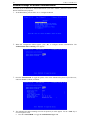
Logout idle users: Offers an option for IP-Reach to automatically disconnect remote users after
certain selected time intervals of inactivity have passed.
- Never (default): Idle remote users will never be disconnected.
- After 5, 15, 30, 60, or 120 minutes: Idle remote users will be automatically disconnected
from IP-Reach after the selected time period has passed with no active input from the Remote
PC.
•
Log out of KVM on disconnect: Sets automatic log out from the connected KVM’s OSD.
- NO (default): No special commands will be given to effect to the OSD of the connected
KVM switch upon user remote disconnection from IP-Reach. When a remote user disconnects
from IP-Reach the OSD of the connected KVM switch will remain in the state last seen by the
user.
- YES: When a remote user disconnects from IP-Reach, then IP-Reach will automatically send
a log out command (<F9>) to the connected KVM switch.
Note: For concurrent connections, the Log out command, if set, will be sent when the last connected user
logs off from IP-Reach.
Note: For the “ log out of KVM” option to function properly, IP-Reach must be configured to match the
base KVM switch’s hot key (see Chapter 3: Raritan Remote Client, Remote Device Administration).
•
Restrict remote IP address: Determines which remote IP address locations will be granted access to
IP-Reach.
- NO (default): Remote access to IP-Reach is unrestricted.
- YES: IP-Reach will grant remote access to up to four designated IP addresses or address
levels. Administrators can set IP-Reach to accept requests only from the company’s intranet
and/or from just a few outside IP addresses. The IP Mask fields determine what remote IP
addresses IP-Reach will grant remote access to.
♦
A specific IP Mask instructs IP-Reach to grant remote access only to this specific remote
IP address. For example, a mask of 10.0.0.1 instructs IP-Reach to grant remote access
from the remote IP address location 10.0.0.1 only.
♦
The value 255 acts as a wildcard in any location of the IP mask address. For example, a
mask of 10.0.0.255 instructs IP-Reach to grant remote access from any remote IP address
location within the range 10.0.0.0 to 10.0.0.255. Similarly, a mask of 192.255.255.255
instructs IP-Reach to grant remote access from any remote IP address location beginning
with 192.
Note: Once Restrict remote IP address has been enabled, an entry must be made in at least one of the IP
Mask fields, since 0.0.0.0 is an invalid IP address.