1
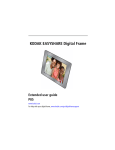
KODAK EASYSHARE Digital Frame
Extended user guide
P725/P825
www.kodak.com
For help with your digital frame, www.kodak.com/go/digitalframesupport
Eastman Kodak Company
Rochester, New York 14650
© Eastman Kodak Company, 2009
All screen images are simulated.
Kodak and EasyShare are trademarks of Eastman Kodak Company.
P/N 4H6588_en
Product features
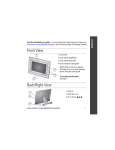
Top—buttons and controls
Delete from frame
Copy to frame
Play speed/transition
Slow w/Wipe
Medium w/Pan Zoom
Fast w/Fade
www.kodak.com/go/support
Play order
Shuffle
Navigation
Next picture
OK/Play/Pause
Previous picture
By Date
i
Side—power and connectors
Power
USB connector
Memory card slot
SD/SDHC/MMC/MS/XD
Memory card slot
MS/MS Pro Duo
Stand
DC-in*
* See Attaching the power cable, page 1 and Attaching the stand, page 2.
ii
www.kodak.com/go/support
Table of contents
1
1 Getting started ......................................................................................1
Attaching the power cable ............................................................................ 1
Attaching the stand....................................................................................... 2
Turning your frame on and off ....................................................................... 2
Inserting a memory card................................................................................ 3
Connecting a USB device............................................................................... 3
2 Viewing pictures ....................................................................................4
Viewing pictures from internal memory.......................................................... 4
Viewing pictures from a memory card ............................................................ 4
Navigating through your pictures................................................................... 5
Changing play speed, transitions, and order .................................................. 6
3 Doing more with your frame .................................................................7
Deleting pictures from the frame ................................................................... 7
Copying pictures to internal memory.............................................................. 8
Upgrading your firmware (recommended)...................................................... 9
Maintaining your frame............................................................................... 10
4 Troubleshooting and support ..............................................................11
Learning more about your frame.................................................................. 11
Picture frame problems ............................................................................... 11
Identifying graphic messages....................................................................... 13
Identifying error messages........................................................................... 14
5 Appendix .............................................................................................15
Digital frame specifications.......................................................................... 15
Important safety instructions ....................................................................... 16
Additional care and maintenance ................................................................ 17
Limited warranty ......................................................................................... 17
Regulatory compliance and advisory ............................................................ 19
www.kodak.com/go/support
iii
1
Getting started
Welcome to your KODAK EASYSHARE Digital Frame. Viewing your pictures couldn’t be
simpler!
Attaching the power cable
CAUTION:
Do not use this power cable with other devices, including digital
cameras.
Your power cable may look
different from the one pictured.
Use the plug that accommodates
your type of power outlet.
1
www.kodak.com/go/support
Getting started
Attaching the stand
2
1
1 Snap the stand onto the frame.
2 Route the power cord through the
cutout in the stand.
Turning your frame on and off
Power button - press and hold (for about
2 seconds), then release
NOTE: Your frame may contain pre-loaded sample pictures, which play only when there are no other
pictures loaded (from a memory card, USB device, or internal memory). Sample pictures may not be
deleted.
www.kodak.com/go/support
2
Getting started
Inserting a memory card
To insert a card, push it firmly into the slot until it clicks and stops.
To remove a card, pull it out of the slot.
Top slot*:
SECURE DIGITAL/SECURE DIGITAL High Capacity
(SD/SDHC)
MMC (MULTIMEDIA Card)
XD
MS (MEMORY STICK)
Bottom slot:
MS/MS Pro Duo (MEMORY STICK)
*IMPORTANT: Do not insert an MS Pro
or MS Pro Duo card in the top slot. It may
be difficult to remove.
Connecting a USB device
Supported USB devices include a flash drive,
card reader, hard drive*, etc.
USB devices and cables are sold separately.
* External hard drives must be self-powered
and formatted as FAT32.
3
www.kodak.com/go/support
2
Viewing pictures
Pictures play from the frame’s internal memory when no card or USB device is
inserted.
Pictures play from a memory card or USB device when one is inserted in the frame.
NOTE: Your frame may contain pre-loaded sample pictures, which play only when there are no other
pictures loaded (from a memory card, USB device, or internal memory). Sample pictures may not be
deleted.
Viewing pictures from internal memory
Turn on the frame.
The pictures in your frame’s internal memory play automatically.
NOTE: Make sure no memory card or USB device is inserted in the frame.
To copy pictures into the frame’s internal memory, see page 8 .
■
Viewing pictures from a memory card
■
Turn on the frame. Insert a memory card, USB flash drive, or other USB device (see
page 3).
Your pictures start playing automatically.
www.kodak.com/go/support
4
Viewing pictures
Navigating through your pictures
Press the arrow buttons to navigate
through your pictures.
Previous picture
Next picture
Play/Pause
Navigation and play buttons
To move more quickly through your pictures, press and hold an arrow button.
Previous picture—Go to the previous picture.
Play/Pause—Start or pause play.
Next picture—Go to the next picture.
5
www.kodak.com/go/support
Viewing pictures
Changing play speed, transitions, and order
Move the sliders to change the setting.
Play speed/transition
Play order
Play speed and transition
Change how long each picture stays on the screen and the type of transition between
pictures.
Slow—pictures change every 60 seconds, with wipe transition.
Medium (default)—pictures change every 10 seconds, with pan and zoom transition.
Fast—pictures change every 5 seconds, with fade transition.
Play order
Change the order in which your pictures play.
Shuffle (default)—pictures play in random order.
By date—pictures play by date, from oldest to newest.
www.kodak.com/go/support
6
3
Doing more with your frame
Deleting pictures from the frame
You can delete pictures from your frame’s internal memory, but not from a memory
card or USB device.
1 Remove a memory card or USB device from the
frame, if inserted.
2 While pictures are playing from internal memory,
press the Delete
button.
3 Select the pictures to delete:
■
To delete the currently displayed picture:
Press the Next
arrow button once to
highlight Delete single
Delete all
Delete single
Exit delete
■
.
To delete all of the pictures in the current
picture source:
Press the Next arrow button twice to
highlight Delete all
.
4 Press OK to confirm the deletion.
7
www.kodak.com/go/support
Doing more with your frame
Copying pictures to internal memory
Copy pictures from a memory card or USB device into your frame’s internal memory.
Copying to a memory card or USB device is not supported.
CAUTION:
Removing a card or disconnecting a device while copying may
damage your card, pictures, or device.
1 Insert a memory card or USB device (flash drive,
card reader, hard drive). See page 3.
The pictures start playing.
2 Press the Copy
button.
The copy screen shows where you are copying from.
(Example - from SD card to internal memory
)
3 Select the pictures to copy:
■
To copy the currently displayed picture:
Make sure Copy single
is highlighted. If
not, press the Next arrow button to highlight
it.
Copy all
Copy single
Exit Copy
■
Copying
from here
To copy all of the pictures on the card or USB
device:
Press the Next
Copy all
.
arrow button to highlight
4 Press OK.
NOTE: Copies are automatically resized to a lower resolution
(smaller size). Full resolution is unnecessary for viewing and
quickly fills up the frame’s memory.
www.kodak.com/go/support
8
Doing more with your frame
Upgrading your firmware (recommended)
Firmware is the software that runs on your frame. Download and install the latest
version from the Web to keep your frame up to date.
Check your frame’s current firmware version
■
Turn your frame on. Press the Power and the Next buttons at the same time and
hold for 5 seconds. Note the firmware version listed on the About screen.
Download the latest firmware
1 On your computer, go to www.kodak.com/go/digitalframedownloads.
2 Enter your frame model and note the firmware version that’s available for
download. If it’s newer than the version on your frame, continue with these
download and upgrade directions.
3 Follow the screen directions to download the frame firmware to your computer.
4 When the firmware is downloaded, copy the IMG file to the root directory (top
level, not in a folder or subfolder) of a memory card or USB flash drive.
Upgrade your frame
1 Remove the memory card or USB flash drive from your computer, then insert it into
the frame.
The Install Firmware screen appears on your frame. This screen only appears when the
firmware upgrade file (IMG) is present on the card or device.
2 Highlight the newer firmware version, then press OK
to begin the upgrade.
IMPORTANT: Do not turn off the frame or remove the memory card or USB flash drive
during the upgrade!
When the upgrade is complete, your frame automatically restarts. If it doesn’t, turn the
frame off, then back on.
9
www.kodak.com/go/support
Doing more with your frame
Maintaining your frame
IMPORTANT: Always disconnect the power before cleaning. Do not use water, cleaning
solutions, or other adhesives on the frame or any of its parts.
Gently wipe the frame and screen with a clean, dry, lint-free cloth. For fingerprints on
the frame, apply light pressure.
www.kodak.com/go/support
10
4
Troubleshooting and support
For step-by-step product support, visit www.kodak.com/go/digitalframesupport,
select your frame model, and select Step-by-Step Solutions & Repair.
Learning more about your frame
www.kodak.com/go/digitalframes
Learn more about your frame
www.kodak.com/go/digitalframesupport Interactive tutorials
Frequently asked questions
Downloads
Product registration
Picture frame problems
If...
Try one or more of the following
Frame does not
turn on.
■ Make sure the power cable that was included with your frame is
connected securely (see page 1).
■ Unplug the power cable for 5 seconds, then reconnect the cable.
Press and hold the power button (for about 2 seconds), then
release.
Frame freezes up or
■ Unplug the power cable for 5 seconds, then reconnect the cable.
Press and hold the power button (for about 2 seconds), then
doesn’t work properly.
release.
■ Reset the frame. Press the Play and Power buttons (see page i) at
the same time, and hold for 5 seconds. (Resetting your frame does
not erase your saved files.)
11
www.kodak.com/go/support
Troubleshooting and support
If...
Try one or more of the following
Nothing happens when ■ Insert a certified SD/SDHC/MMC/XD Card, with images, into the
upper designated card slot, then push to seat it (see page 3).
a memory card or USB
device is connected.
■ Insert a certified MS/MS Pro Duo Card, with images, into the lower
designated card slot only, then push to seat it (see page 3).
NOTE: Do not insert an MS Pro or MS Pro Duo card in the top slot. It may be difficult to
remove.
■ Make sure the USB device is connected securely (see page 3).
■ Make sure the file format of your pictures is supported. (See
page 15).
NOTE: Pictures may take a longer time to display when the files are large or when
using a large capacity memory card or other connected device.
www.kodak.com/go/support
12
Troubleshooting and support
Identifying graphic messages
Graphics appear on the screen to let you know
what’s happening with your pictures and your
frame.
Graphic
Description
Internal memory—the current picture source is the frame’s internal memory.
Memory card—the current picture source is an inserted memory card.
USB device—the current picture source is a USB flash drive or other USB
device.
Pause—picture play is paused.
Copy—appears when you press the Copy button (see page 8). Default
selection is Copy single picture.
Delete—appears when you press the Delete button (see page 7). Default
selection is Exit delete.
Copy complete
Delete complete
Deleting from a card or USB device is prohibited. You may only delete pictures
from the frame’s internal memory.
13
www.kodak.com/go/support
Troubleshooting and support
Identifying error messages
Error icon and meaning
Try one or more of the following
The card/device is empty.
■ Insert a different card or device with pictures (see
The card/device is
unreadable or corrupt.
page 3).
File is corrupted or it’s an ■ See page 15 for supported file formats.
unsupported file format.
Internal memory is full,
unable to copy.
■ Delete pictures from internal memory (see
page 7).
Copy error—no memory ■ Insert a memory card or USB device and press the
Copy button again.
card or USB device is
inserted.
Copy error.
■ Recopy the picture to a different memory card or
USB device.
■ Turn off the frame, then turn it back on. Insert the
card or device in the frame.
■ Try the copy again. If the problem persists,
contact customer support help, at
www.kodak.com/go/digitalframesupport.
Delete error.
■ Turn off the frame, then turn it back on.
■ Try the delete again. If the problem persists,
contact customer support help, at
www.kodak.com/go/digitalframesupport.
Unknown error.
■ Turn off the frame, then turn it back on. If the
problem persists, contact customer support help,
at www.kodak.com/go/digitalframesupport.
www.kodak.com/go/support
14
5
Appendix
Digital frame specifications
For more specifications, visit www.kodak.com/go/digitalframesupport.
KODAK EASYSHARE P725/P825 Digital Frames
Color display
P725
17.8 cm (7 in.) diagonal digital LCD, 800 x 600 pixels, 4:3 aspect ratio,
14.2 x 10.6 cm (5.6 x 4.2 in.) active area
P825
20.3 cm (8 in.) diagonal digital LCD, 800 x 600 pixels, 4:3 aspect ratio,
16.2 x 12.2 cm (6.4 x 4.8 in.) active area
Internal storage capacity
P725, P825
512 MB
Power supply
P725
P825
Manufacturer, Model #: Malata MPA-05015, EIAJ class 2 DC plug
Input: 100-240V AC 50/60 Hz. Output: 5V DC 1.5 Amp
Communication with USB devices
USB 2.0 High Speed Type A
Other features
Picture formats
JPEG, EXIF 2.2
Memory cards
see page 3
Top card slot: SD (SECURE DIGITAL); MMC (MULTIMEDIA Card); XD; MS
(MEMORY STICK)
Bottom card slot: MS (MEMORY STICK)/MS Pro Duo
Temperature
Operating: 32 to 104° F (0 to 40° C)
Storage: -25 to 160° F (-32 to 71° C)
15
www.kodak.com/go/support
Appendix
KODAK EASYSHARE P725/P825 Digital Frames
Size
P725: 17.3 x 14.2 x 6.4 cm (6.8 x 5.6 x 2.5 in.)
P825: 20.3 x 16.5 x 6.6 cm (8 x 6.5 x 2.6 in.)
Weight
P725: 441 gm (1.0 lb.) includes frame, stand, and AC adapter
P825: 599 gm (1.3 lb.) includes frame, stand, and AC adapter
Important safety instructions
CAUTION:
Do not disassemble this product; there are no user-serviceable
parts inside. Refer servicing to qualified service personnel.
KODAK AC Adapters and Battery Chargers are intended for indoor
use only. The use of controls, adjustments, or procedures other
than those specified herein may result in exposure to shock
and/or electrical or mechanical hazards. If the LCD breaks, do not
touch the glass or liquid. Contact Kodak customer support.
■
The use of an accessory that is not recommended by Kodak may cause fire, electric
shock, or injury. For approved accessories, visit www.kodak/go/accessories.
■
■
Use only the AC adapter that was packaged with your frame. Use of other AC
adapters may damage the frame and void your warranties.
Do not place frame near open flame sources such as lighted candles or heaters.
■
Do not expose this product to liquid, moisture, or extreme temperatures.
www.kodak.com/go/support
16
Appendix
Additional care and maintenance
■
To clean the frame or screen, use a soft, lint-free cloth dampened with lens
cleaning solution or a water-based cleaning solution. Use light pressure.
■
Do not allow chemicals, such as suntan lotion, to contact painted surfaces.
■
Service agreements are available in some countries. Contact a dealer of Kodak
products for more information.
■
For digital frame disposal or recycling information, contact your local authorities. In
the US, visit the Electronics Industry Alliance at www.eiae.org or visit
www.kodak.com/go/digitalframesupport.
Limited warranty
Kodak warrants Kodak consumer electronic products and accessories (“Products”),
excluding batteries, to be free from malfunctions and defects in both materials and
workmanship for one year from the date of purchase. Retain the original dated sales
receipt. Proof of the date of purchase will be required with any request for warranty
repair.
Limited warranty coverage
Warranty service is only available from within the country where the Products were
originally purchased. You may be required to ship Products, at your expense, to the
authorized service facility for the country where the Products were purchased. Kodak
will repair or replace Products if they fail to function properly during the warranty
period, subject to any conditions and/or limitations stated herein. Warranty service
will include all labor as well as any necessary adjustments and/or replacement parts. If
Kodak is unable to repair or replace a Product, Kodak will, at its option, refund the
purchase price paid for the Product provided the Product has been returned to Kodak
along with proof of the purchase price paid. Repair, replacement, or refund of the
purchase price are the sole remedies under the warranty. If replacement parts are
used in making repairs, those parts may be remanufactured, or may contain
remanufactured materials. If it is necessary to replace the entire Product, it may be
17
www.kodak.com/go/support
Appendix
replaced with a remanufactured Product. Remanufactured Products, parts and
materials are warranted for the remaining warranty term of the original Product, or 90
days after the date of repair or replacement, whichever is longer.
Limitations
This warranty does not cover circumstances beyond Kodak's control. This warranty
does not apply when failure is due to shipping damage, accident, alteration,
modification, unauthorized service, misuse, abuse, use with incompatible accessories
or attachments (such as third party ink or ink tanks), failure to follow Kodak's
operation, maintenance or repacking instructions, failure to use items supplied by
Kodak (such as adapters and cables), or claims made after the duration of this
warranty. Kodak makes no other express or implied warranty for this product, and
disclaims the implied warranties of merchantability and fitness for a particular
purpose. In the event that the exclusion of any implied warranty is ineffective under
the law, the duration of the implied warranty will be one year from the purchase date
or such longer period as required by law. The option of repair, replacement, or refund
is Kodak's only obligation. Kodak will not be responsible for any special,
consequential or incidental damages resulting from the sale, purchase, or use of this
product regardless of the cause. Liability for any special, consequential or incidental
damages (including but not limited to loss of revenue or profit, downtime costs, loss
of the use of the equipment, cost of substitute equipment, facilities or services, or
claims of your customers for such damages resulting from the purchase use or failure
of the Product), regardless of cause or for breach of any written or implied warranty is
expressly disclaimed.
Your rights
Some states or jurisdictions do not allow exclusion or limitation of incidental or
consequential damages, so the above limitation or exclusion may not apply to you.
Some states or jurisdictions do not allow limitations on how long an implied warranty
lasts, so the above limitation may not apply to you. This warranty gives you specific
rights, and you may have other rights which vary from state to state or by jurisdiction.
www.kodak.com/go/support
18
Appendix
Outside the United States and Canada
In countries other than the United States and Canada, the terms and conditions of
this warranty may be different. Unless a specific Kodak warranty is communicated to
the purchaser in writing by a Kodak company, no warranty or liability exists beyond
any minimum requirements imposed by law, even though defect, damage, or loss may
be by negligence or other act.
Regulatory compliance and advisory
FCC compliance and advisory
This equipment has been tested and found to comply with the limits for a Class B
digital device, pursuant to Part 15 of the FCC Rules. These limits are designed to
provide reasonable protection against harmful interference in a residential
installation. The equipment generates, uses, and can radiate radio frequency energy
and, if not installed or used in accordance with the instructions, may cause harmful
interference to radio communications. However, there is no guarantee that
interference will not occur in a particular installation. If this equipment does cause
harmful interference to radio or television reception, which can be determined by
turning the equipment off and on, the user is encouraged to try to correct the
interference by one or more of the following measures: 1) reorient or relocate the
receiving antenna; 2) increase the separation between the equipment and the
receiver; 3) connect the equipment to an outlet on a circuit different from that to
which the receiver is connected; 4) consult the dealer or an experienced radio/TV
technician for additional suggestions. Any changes or modifications not expressly
approved by the party responsible for compliance could void the user’s authority to
operate the equipment. Where shielded interface cables have been provided with the
product or specified additional components or accessories elsewhere defined to be
used with the installation of the product, they must be used in order to ensure
compliance with FCC regulation.
19
www.kodak.com/go/support
Appendix
Canadian DOC statement
DOC Class B Compliance—This Class B digital apparatus complies with Canadian
ICES-003.
Observation des normes-Classe B—Cet appareil numérique de la classe B est
conforme à la norme NMB-003 du Canada.
CE
Hereby, Eastman Kodak Company declares that this Kodak Product is in compliance
with the essential requirements and other relevant provisions of Directive 1999/5/EC.
Licensing
Supply of this product does not convey a license nor imply any right to distribute
content created with this product in revenue-generating broadcast systems
(terrestrial, satellite, cable and/or other distribution channels), streaming applications
(via Internet, intranets and/or other networks), other content distribution systems
(pay-audio or audio-on-demand applications and the like) or on physical media
(compact discs, digital versatile discs, semiconductor chips, hard drives, memory cards
and the like). An independent license for such use is required. For details, please visit
http://mp3licensing.com.
www.kodak.com/go/support
20
Appendix
Australian C-Tick
N137
Waste Electrical and Electronic Equipment labeling
In Europe: For human/environmental protection, it is your responsibility to dispose of
this equipment at a collection facility established for this purpose (separate from
municipal waste). For more information, contact your retailer, collection facility, or
appropriate local authorities; or visit www.kodak.com/go/recycle.
Product weight with adapter and stand: P725, 441 gm. P825, 599 gm
Russian GOST-R
Eastman Kodak Company
Rochester, New York 14650
VCCI Class B ITE
Korean Class B ITE
21
www.kodak.com/go/support
Appendix
China RoHS
www.kodak.com/go/support
22
1
Index
A
AC adapter
attaching, 1
safety information, 16
specifications, 15
appendix, 15
B
By date play order, 6
C
cable
power, connecting, 1
USB, connecting, 3
card, memory
inserting, 3
slot, ii
supported types, 15
viewing pictures from, 4
cleaning frame, 10, 17
copying to internal memory, 8
D
delete pictures, 7
disposal, recycling, 17
download firmware, 9
duration, changing, 6
E
error icons, 14
23
F
file formats, supported, 15
firmware, upgrading, 9
flash drive
connecting, 3
viewing pictures from, 4
frame, picture
resetting, 11
specifications, 15
troubleshooting, 11
turn on/off, 2
freeze or lock screen, reset, 11
G
graphic messages, 13
H
help
frame, 11
support URLs, 11
troubleshooting and support, 11
I
icons, screen, 13
inserting
memory cards, 3
USB device, 3
internal memory
capacity, 15
copying into, 8
playing from, 4
www.kodak.com/go/support
Index
L
locked screen, reset, 11
M
memory card. See card, memory
messages on screen, 13, 14
N
navigating through pictures, 5
next play, 5
P
pictures
copying to internal memory, 8
deleting, 7
navigating through, 5
playback speed, 6
sample, pre-loaded, 4
viewing, 4
play by date, 6
play/pause button, 5
playing pictures, 4
power
button, 2
connecting, 1
power supply, specifications, 15
previous play, 5
screen
cleaning, 10, 17
error icons, 14
settings, changing, 6
shuffle play, 6
specifications, frame, 15
speed, changing play, 6
stand, attaching, 2
storage capacity, internal memory, 15
T
thumb drive. See flash drive.
transitions, changing, 6
troubleshooting
error messages, 14
frame, 11
turn on frame, 2
U
upgrade firmware, 9
USB
device, connecting, 3
type, 15
W
warranty, 17
Web sites, help, 11
R
recycling, disposal, 17
regulatory compliance, 19
reset frame, 11
S
safety information, 16
www.kodak.com/go/support
24