1
3
System Setting
System Setting 25
Settings
[DISPLAY] Menu
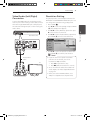
TV Aspect Ratio
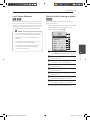
Adjust the Setup Settings
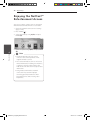
You can change the settings of the unit in the
[Setup] menu.
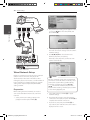
1. Press HOME (n).
Select a TV aspect ratio option according to your TV
type.
[4:3 Letter Box]
Select when a standard 4:3 TV is connected.
Displays theatrical images with masking bars
above and below the picture.
[4:3 Pan Scan]
[16:9 Original]
Select when a 16:9 wide TV is connected. The
4:3 picture is displayed with an original 4:3
aspect ratio, with black bars appearing at the
left and right sides.
[16:9 Full]
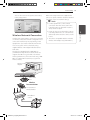
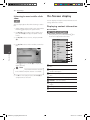
3. Use w/s to select the first setup option, and
press d to move to the second level.
3
System Setting
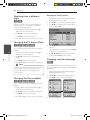
2. Use a/d to select the [Setup] and press ENTER
(b). The [Setup] menu appears.
Select when a standard 4:3 TV is connected.
Displays pictures cropped to fill your TV screen.
Both sides of the picture are cut off.
Select when a 16:9 wide TV is connected. The
4:3 picture is adjusted horizontally (in a linear
proportion) to fill the entire screen.
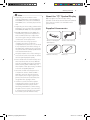
,,Note
You cannot select [4:3 Letter Box] and [4:3 Pan Scan] option when the resolution is
set to higher than 720p.
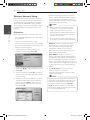
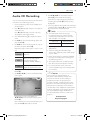
4. Use w/s to select a second setup option, and
press ENTER (b) to move to the third level.
5. Use w/s to select a desired setting, and press
ENTER (b) to confirm your selection.
BD651D-N_US_MP_BALCK.indd 25
2011-01-21 �� 4:58:19