1
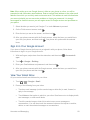
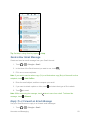
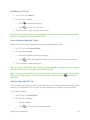
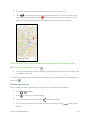
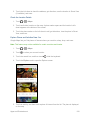
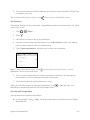
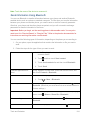
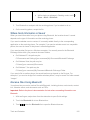
WAP Push Messages WAP push messages contain a Web link. Often, the link will be to download a file that you have requested from a service provider. When you receive a WAP push message, a notification icon is displayed in the status bar. 1. Open the Notifications panel, and then touch the push message notification. 2. Touch Visit website. Important: Open only links from sources that you trust. Note: Your WAP push messages are stored in Messages. To view them, open the Messages app and touch > Push messages. Note that you can only see this option if you’ve previously received WAP push messages. Delete Messages and Conversations Tidy up your messages list by deleting old messages and conversations. 1. Touch > . 2. On the Messages screen, do any of the following: Delete a message. Open the conversation thread with a contact, touch the message, and then touch Delete message. To delete multiple messages within a conversation, touch > Delete messages > Delete by selection, and then select the messages to delete. Delete a conversation. Touch and hold a contact (or phone number), and then touch Delete. To delete multiple conversations, on the Messages screen, touch > Delete threads, and then select the conversations to delete. Tip: In the Messages settings, touch General > Delete old messages to auto delete old messages. Back Up and Restore Your Text Messages Back up important text messages to your phone’s storage or to your email account. Back Up Text Messages 1. Touch > . 2. On the Messages screen, touch > Back up/Restore SMS > Back up. 3. Touch Back up SMS, enter a name for your backup file, and then touch OK. Accounts and Messaging 86