1
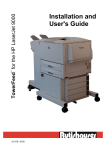
TowerFeed for the HP LaserJet 5000
TM
IU 646 / 9826
Installation and
User's Guide
TABLE OF CONTENTS
USER'S MANUAL
TowerFeedTM 444 for Hewlett-Packard LaserJet 5000 Printers
IU 646 / 9826
TABLE OF CONTENTS
1
PREFACE
3
UNPACKING
4
BOX CONTENTS
6
INSTALLATION
Hardware Installation
Printer Panel Settings
Software Installation
7
9
9
OPERATING
Loading Paper
Reloading Paper
Out of Paper
Paper Jam
11
12
12
12
PAPER QUALITY GUIDELINES
14
APPENDIX A - Printer Specific Notes
15
APPENDIX B - Tips & Hints
16
APPENDIX C - Standard Applications
20
APPENDIX D - Macintosh Environment
21
APPENDIX E - PCL Paper Selection Commands
23
APPENDIX F - Troubleshooting
24
APPENDIX G - Printer Selftest Pages
Configuration Page
Menu Map
Event Log Page
26
27
28
29
APPENDIX H - TowerFeed Selftest
30
APPENDIX I - Cleaning and Maintenance
31
APPENDIX J - TowerFeed Specifications
32
1
TM
TowerFeed for the HP LaserJet 5000
IU 646 / 9826
2
TM
TowerFeed for the HP LaserJet 5000
PREFACE
Congratulations! You selected TowerFeed, a superior sheet feeder specifically designed by Rutishauser Data AG
in collaboration with Hewlett-Packard, USA, to extend the paper handling capabilities of the HP LaserJet 5000.
The TowerFeed Option offers new possibilities. You can
•
•
•
select from up to 10 different paper types directly from your PC.
print extra copies instead of going to the copier to make copies. You get the better copies and you
Color code copies of documents on color paper help to clearly identify a copy. The color already defines the
addressee and you will save the marking of the copies.
realize an attractive alternative to the multi-part forms printed on conventional impact printers. You
will get better copies, raise the flexibility and you can save cost for expensive preprints and chemical papers.
We encourage you to read this manual carefully to ensure correct installation and reliable operation.
While installing TowerFeed, or whenever an unclear situation arises, please also consult the user's manuals of your
HP LaserJet 5000, your computer system, your application software and your network software.
The name TowerFeed is generic to the TowerFeed family of automatic sheet feeders and is used throughout this
manual. TowerFeed has this model number scheme:
TowerFeed 444/xx.63.0y
Version
01 = International (DIN A4 paper trays)
04 = US (110V, US Letter paper trays)
05 = Swiss (220V, DIN A4 paper trays)
Printer Model
63 = HP LaserJet 5000
Configuration
44 = desktop model, 3 x 500 sheets
77 = floor model, 7 x 500 sheets
For example:
TF 444/77.63.01 is an international version with 7 DIN A4 paper trays.
A plate showing type, designation and serial number is located besides of the power inlet of TowerFeed. Please
refer to this designation and the serial number whenever you call your service organization.
Rutishauser Data AG, Switzerland, reserves the right to make changes to its products or services without
prior notice and without incurring any obligations to incorporate such changes in units or publications
shipped.
Rutishauser shall in no event be liable for incidental or consequential damages arising from the
use of its equipment.
TowerFeed™ is a registered trademark of Rutishauser Data AG.
Windows™ is a registered trademark of Microsoft Corp.
TowerFeed Support Software for Windows is a copyrighted product of Rutishauser.
Other products and brand names mentioned are trademarks or registered trademarks of their respective companies.
IU 646 / 9826
3
TM
TowerFeed for the HP LaserJet 5000
UNPACKING
Note:
Prior to delivery, your TowerFeed was thoroughly tested and carefully packaged.
Please check your unit for transportation damage and/or missing parts immediately upon receipt.
It is advisable to get a second person to help you unpack the unit.
Warning:
TowerFeed may weigh up to 41 kilograms (90 pounds) depending on configuration.
To prevent back strain or injury, bend your knees when lifting the unit, and get help if you need
To unpack the TowerFeed unit, proceed as follows:
•
Cut the packing strips and remove the top of the shipping container (Fig. 1).
•
Remove the four blue shock absorbers from the unit corners.
•
Desktop unit: Carefully lift the TowerFeed from the lower container.
Floor model: Lay the unit on its side and carefully pull off the lower part of the shipping container (Fig. 2).
•
Remove the accessories box. It contains the rollers, the power and data cable, one diskette and this User's
Manual (Fig. 7).
•
Floor model: Insert the rollers from the accessories box with some force onto the shafts on the TowerFeed
bottom plate until they snap into position with an audible click (Fig. 3).
•
Stand up the TowerFeed unit (Fig. 4).
•
Remove the plastic from TowerFeed.
Warning:
For reshipping TowerFeed, you must use the original packing to avoid shipping damage of the unit.
Re-packing (Fig. 5)
It is recommended that you keep the packaging material and inserts for proper protection of the unit and its parts in
case of reshipment.
To repack TowerFeed, follow the above steps in reverse. Be sure that all accessories including manuals and
diskettes are packed in the box. Remove the trays and insert the transportation inserts as shown in Fig. 8 (It is
important to secure the trays to avoid possible shipping damage). Place items according to Fig. 5. Ensure
TowerFeed is correctly seated and cushioned. Insert the four blue shock absorbers and close the container.
IU 646 / 9826
4
TM
TowerFeed for the HP LaserJet 5000
UNPACKING
Fig. 1
Fig. 2
Fig. 3
Cut the packing
strips and lift away the
top of the shipping container.
Lay unit on side
and carefully pull out
TowerFeed from the bottom
part of the shipping container.
Insert rollers
(floor models only)
Fig. 4
IU 646 / 9826
Stand up TowerFeed
and remove wrapping
Fig. 5
5
Re-packing
TM
TowerFeed for the HP LaserJet 5000
BOX CONTENTS
Note:
Prior to delivery, your TowerFeed was thoroughly tested and carefully packaged.
Please check your unit for transportation damage and/or missing parts immediately upon receipt.
Box Contents
(1) TowerFeed unit with
drawers
(2) Accessories box
Fig. 6
Box Contents
Fig. 7
Accessories Box Contents
Accessories Box Contents
(1) TowerFeed User's Manual
(this manual)
(2) TowerFeed Installations
Software (Diskette)
(3) Data Cable
(4) Power Cable
(5) Rollers (Floor models only)
(6) Positioning Pin
IU 646 / 9826
6
TM
TowerFeed for the HP LaserJet 5000
INSTALLATION
Warning:
TowerFeed may weigh up to 41 kilograms (90 pounds) depending on configuration. To prevent back strain
or injury, enlist the help of someone and bend your knees when lifting the unit.
Warning:
POWER OFF your printer and TowerFeed and disconnect all power and interface cables before you
proceed with the installation.
Hardware Installation
Remove Transportation Inserts
•
Pull out, lift upwards and remove the trays from TowerFeed so
as to remove the transportation inserts (Fig. 8). There are two
at each side (keep the inserts for reshipment).
•
Re-insert and close the trays.
Fig. 8
Removing Transportation Inserts
Note:
Located on the right side of each tray you will find coding pins for the paper size. They are set by the factory
and must not be changed.
Inserting the front Positioning Pin
•
Slide the positioning pin from the accessories box into the
cut-out of the TowerFeed cover plate until it snaps into
position with an audible click. Make sure that the pin
looks upwards (Fig. 9).
Note:
To remove the positioning pin, push a pin (e.g. screw
driver) through the hole on top of the cover plate. This
will release the retaining spring and you can remove
the positioning pin.
IU 646 / 9826
7
Fig. 9
Inserting the front
Positioning Pin
TM
TowerFeed for the HP LaserJet 5000
INSTALLATION
Position and Connect Printer
Warning:
The printer may weigh up to 34 kilograms (50 pounds). Enlist the
help of a second person to lift the unit. To prevent back strain or
injury, bend your knees when lifting the unit.
•
Place the TowerFeed unit at the location you wish.
If your TowerFeed is a desktop model, be sure the table or cabinet
is level and sturdy enough to carry the load.
If your TowerFeed is a floor model, be sure to place it on a flat
location. Floor model TowerFeeds especially must be level!
Note:
If TowerFeed is not level, paper jams and/or left margin deviation
may occur. This is indicated if the left corner of the paper
is 'dog eared' or the left edge of the paper is shredded, or the
left margin is shifted and the print-out skewed.
•
Carefully lift the laser printer onto TowerFeed. Place its positioning
holes on the positioning pegs of the TowerFeed top (Fig. 10).
•
Connect TowerFeed and printer with the C-Link cable (Fig. 11) one end to the printer port (ACCESSORY) and the other end to the
left TowerFeed connector (••). The right TowerFeed connector (•)
allows to connect to further paper handling options.
Fig. 10
Positioning the HP LaserJet 5000
Fig. 11
Connecting the Cables and
Location of the Power Switch
Note:
Secure the connectors with the screws to ensure proper
connection of the systems.
•
Connect the power cables to printer and TowerFeed (Fig. 11).
Note:
When you power on the system, power on FIRST TowerFeed and
then the printer.
Caution:
When rolling TowerFeed and printer to another place, watch out
when crossing doorsteps to not have the unit tipping over or
TowerFeed drawers sliding open.
IU 646 / 9826
8
TM
TowerFeed for the HP LaserJet 5000
INSTALLATION
Printer Panel Settings
POWERSAVE = OFF
The PowerSave function of the printer is not supported when TowerFeed is installed. As the printer by default has
its PowerSave function turned on, this PowerSave function must be turned off via the printer panel settings.
For that purpose select with the menu key the CONFIGURATION MENU, there the POWERSAVE function and set
it to POWERSAVE=OFF.
With the printer's PowerSave mode activated, the printer panel will display INITIALIZING after warming up from its
sleep mode and stay there. In that case the printer has to be turned off and on again (and will loose the actual print
job). By turning the PowerSave mode off, such situations will be avoided.
Papertype Assigments
By default, each paper tray has assigned the paper type PLAIN. In case of a paper out in a selected tray, the
printer automatically will pull paper from another tray.
Assigning a different paper type to each tray inhibits the automatic switching to another tray if the selected tray runs
out of paper.
To assign a paper type to an input tray, select with the menu key the PAPER HANDLING MENU and there the
specific input tray. Then assign to each tray another one of the 11 predefined paper types.
If you have several trays with the same paper, assign to each of these trays the same paper type. This will increase
your input capacity for this paper type, as the printer will automatically switch to the next tray with the same paper
type in case the selected tray runs out of paper.
For further information please also refer to APPENDIX B – Tips & Hints.
Note:
PLAIN is the default paper type. In case a print job arrives without paper selection, the printer will pull
paper from the first tray containing PLAIN paper (e.g. printer test pages).
Software Installation
Installation of Printer Driver
The diskette delivered with your TowerFeed system contains the HP LaserJet 5000 PCL6 driver software
supporting the TowerFeed option for Windows 3.11 and Windows 95.
For availability of the most recent printer drivers and drivers for other operating systems, please consult our WEB
page at http://www.rutishauser.ch/TI/SDLHP.htm.
Note:
After installing the new printer driver, exit and restart your Windows System.
IU 646 / 9826
9
TM
TowerFeed for the HP LaserJet 5000
INSTALLATION
Configuring the TowerFeed Option
To configure your HP LaserJet 5000 with the TowerFeed option, go to the Control Panel,
select Printers and there the HP LaserJet 5000.
Click on Setup... in Windows 3.11, or on Properties, and in the respective window the Configure tab.
Fig. 12
Fig. 12a Optional Paper Sources
Configure Tab
In this window click in the pull-down bar for the Optional Paper Sources: to select your TowerFeed model (Fig.
12a). The artwork on the right will show the selected printer with the TowerFeed model installed (Fig. 12).
When clicking on the Paper tab you will see in the Source is: all available paper sources of your printer including
the TowerFeed paper trays (Fig. 13).
Fig. 13
Fig. 14
Paper Tab
Page Setup (Word 7)
In the application programs you select the paper sources in the Paper Setup function (File - Page Setup), where all
available paper sources show up in the respective Paper Sources: pull-down bar(s) (Fig. 14).
Note:
For further information on Tray and Media Type definition please also refer to APPENDIX B - Tips & Hints of
this manual.
IU 646 / 9826
10
TM
TowerFeed for the HP LaserJet 5000
OPERATING
Operation
Loading Paper
•
Pull open the tray you wish to load until it reaches the stop
or remove it completely for more convenient loading.
•
Obtain a fresh ream of paper. Best results will be obtained
using regular copier or laser printer paper (see "Paper
Quality Guidelines").
Hold the ream on the long edge and bend it in and out.
Repeat on the short edge. Square it off properly (Fig. 15).
•
Fig. 15
Fanning the Paper
Fig. 16
Filling in Paper
Fig. 17
Correct Paper Loading
Load letterhead paper face down, with the letterhead
towards the right side.
Note:
Duplex printing requires different loading of preprinted paper
(please also refer to the instructions in the printer manual).
An additional TowerFeed tray will allow to have the same
(preprinted) paper in two different trays and available online
for regular and duplex printing.
•
Insert approx. one third of the ream in the tray and ensure
that all paper is lined up with the rear stop. Repeat two more
times for the rest of the ream (Fig. 16).
•
Push down the stack, such that all sheets are under the
separation corners (Fig. 17).
•
The right paper guide can be adjusted by pushing the
separation corner tab to the left to ensure proper guiding of
the paper.
•
Push down on the paper stack a few times. The paper
must move up and down freely.
Paper Sample
Note:
For your convenience, you may insert a sample piece
(about 1 inch/28 mm) of the loaded paper type into the
extrusion as a reference when reloading the tray (Fig. 18).
•
Close the tray. Repeat the procedure for all trays to be
loaded.
Fig. 18
IU 646 / 9826
11
Marking the Tray
TM
TowerFeed for the HP LaserJet 5000
OPERATING
Reloading Paper
While feeding occurs from a higher tray, lower ones may be reloaded without interrupting feeding and printing. To
reload paper please refer to 'Loading Paper'.
The printer panel message
(n = drawer number)
TRAY n LOAD
Media Type & Size
indicates that the printer does not see the requested paper. In this case please refer to the following section 'Out of
Paper'.
Out of Paper
If a TowerFeed tray runs out of paper, the printer will automatically switch to another tray with the same paper size
and type (depending on the printer settings). If that paper is not available from another tray, the red Attention LED
on the printer panel will start blinking and the printer message appears
TRAY n LOAD
Media Type & Size
•
Refill the tray with the correct paper and close the tray.
Paper Jam
Note:
It is best to first try to clear jams and continue printing without turning the units off.
In case of a paper jam, the printer panel Attention LED will start blinking and the printer display will show a
respective message with the following meaning:
13.1 PAPER JAM
13.11 PAPER JAM
13.20 PAPER JAM
•
paper jam in printer
paper jam in TowerFeed
paper jam in TowerFeed and printer
In case of a printer paper jam, you will see the following alternating messages:
13.1 PAPER JAM
OPEN INPUT TRAYS
THEN OPEN AND
CLOSE TOP COVER
Remove the paper jam and all other pages in the paper path and close all the cover(s). Printing will continue. For
more details on clearing printer paper jams please refer to your printer manual (Chapter Maintenance and Trouble
Shooting, Section Paper Jams).
IU 646 / 9826
12
TM
TowerFeed for the HP LaserJet 5000
OPERATING
•
In case of a TowerFeed paper error, the following alternating messages will be displayed:
13.11 PAPER JAM
IN INPUT DEVICE
CHECK TRAY n
and TowerFeed will beep with either one of the following sequences (depending on type of error):
or
(TowerFeed Paper Jam)
(TowerFeed Motor Block)
Open the TowerFeed trays, starting with the lowest one. TowerFeed beeping will stop when the tray which
fed the last sheet is opened. Remove the jammed paper from the TowerFeed paper path. Close all
TowerFeed trays. Printing will continue automatically.
•
In case of a paper jam in printer and TowerFeed, the following alternating messages will appear
13.20 PAPER JAM
OPEN INPUT TRAYS
THEN OPEN AND
CLOSE TOP COVER
and TowerFeed will beep with either one of the following sequences (depending on type of error):
or
(TowerFeed Paper Jam)
(TowerFeed Motor Block)
Open the TowerFeed trays, starting with the lowest one. TowerFeed beeping will stop when the tray which
fed the last sheet is opened. Remove the jammed paper from the TowerFeed paper path. Close all
TowerFeed trays.
Open the printer cover(s) and remove the paper jam and all other pages in the paper path. When you close
all the cover(s), printing will continue.
In case the printer could not automatically eject the remaining paper inside the printer, open the printer cover(s)
and clear the paper path. Close the printer cover(s) to have the printer resume the print job.
IU 646 / 9826
13
TM
TowerFeed for the HP LaserJet 5000
PAPER QUALITY GUIDELINES
General
These paper quality guidelines are general recommendations. Paper beyond these specifications may work as
well, however it should be tested before use. Paper is a material that reacts intensively to adverse temperature and
humidity conditions. The observance of proper conditions as defined below is therefore essential for trouble-free
operation of TowerFeed. Please also refer to the corresponding guidelines in the printer manual.
Paper Quality and Surface
Bond type papers and papers with slight rag content are recommended. For papers with high rag content, as well
as very light and air mail papers, feeding tests must be conducted to check for satisfactory performance before
regular use. Paper with embossed or heavy printing should be tested in TowerFeed before use, as well. Papers
with glossy or structured surface are not recommended. Individual sheets in a stack must not be damaged, warped
more than 3 mm (0. 12") at an angle of max. 20° or creased, since all these may reduce the feeding performance.
Paper Weight
60 - 95 g / m2 (16 - 24 lb.). Other paper weights must be tested before use.
Tolerance
Paper must be cut to the appropriate size dimension within a tolerance of +/- 1.0 mm (+/- 0.04"). The paper stack
must be cut square to within a tolerance of 90° +/- 0.1°.
Recommended Storage Environment
Temperature:
18°C - 24°C (64°F - 75°F)
Relative humidity:
40% - 60%
IU 646 / 9826
14
TM
TowerFeed for the HP LaserJet 5000
APPENDIX A - Printer Specific Notes
Printer Firmware Revision
The Firmware of your HP LaserJet 5000 printer must be Rev. 3.65 or newer to correctly support the TowerFeed
option. To check the revision level of your printer, select on the printer panel in the INFORMATION MENU the item
PRINT CONFIGURATION to print the Configuration Page. You will see on the first page, in the first section, Printer
Information a line item
Firmware Datecode:
971111 MOBY3.65
(3.65 is the Firmware Rev.)
In case your printer does not have the required Firmware Rev., please call your HP Dealer or Rutishauser Data AG
in Switzerland directly.
Printer Driver Revision
The HP LaserJet Printer Driver version delivered with your unit will work.
For the most recent driver revisions available, please consult our WEB page at
http://www.rutishauser.ch/TI/SDLHP.htm.
HP LaserJet 5000 Duplexer Option
The printer's duplexing capabilities remain fully supported, with the TowerFeed paper handling option installed.
HP LaserJet 5000 Optional 250-Sheet and 500-Sheet Tray
The optional 250-sheet tray is supported with the TowerFeed option installed. You can install up to two 250-sheet
trays on the printer and also use TowerFeed at the same time.
The 500-sheet tray is not supported together with the TowerFeed.
POWERSAVE Function (Printer Setting)
The POWERSAVE function is not supported with TowerFeed installed and must be set to OFF.
(Printer panel: CONFIGURATION MENU; POWERSAVE = OFF)
ProRes Function (PCL6 Printer Driver Setting)
FastRes is the default printer driver setting. It can be changed to ProRes though. At this time, the ProRes Mode is
NOT supported with TowerFeed installed.
HP JetAdmin
The HP JetAdmin network printer administration software does not fully support the TowerFeed paper handling
option, particularly not the remote paper type assignment to the paper trays. (This assignement has to be done via
the printer panel, as described in Papertype Assignments on page 9 of this manual.)
IU 646 / 9826
15
TM
TowerFeed for the HP LaserJet 5000
APPENDIX B - Tips & Hints
Power ON Sequence
Power On TowerFeed first!
When powering on the printer, it will scan its option bus for available options. In case TowerFeed would not be
ready at that point in time, the printer would not activate its support and not add this option to its configuration.
Printing on the wrong Paper
Why doesn't it print from the tray I selected?
If a selected Tray # does not contain the paper size assigned for the print job, the printer might look for other trays
containing the demanded paper size, and if this is available (and with the same Media Type as Tray #) will pull
paper from there.
The 3 Rules For Correct Paper Selection
1.
Assign a different Paper Type to every Tray # by using the printers control panel.
You may assign the same Paper Type to two or more tray numbers only if these trays all contain the
same Paper Type.
2.
Make sure that you select the correct Paper Size for the selected Tray #.
The selected Paper Size in the application software must be the same as what the size of the selected
Tray #.
3.
Select paper within your application by Paper Type or by Tray #.
If a tray containing the selected Paper Type runs out, the printer will pull paper from other trays only if
they have the same Paper Size and Type.
Paper Control and Selection
Selection Criteria
The HP LaserJet 5000 offers various possibilities to select paper by offering three selection criteria:
•
Paper Size
•
Paper Source (Tray number)
•
Paper Type (Media type)
The selection criteria differ in their priorities and can be changed using the JetAdmin utility software.
Paper Types
The Paper (Media) Type is a selection criteria which can be used to name trays and to distinguish between
different paper types within a given paper size. The HP LaserJet 5000 offers 11 predefined Media Types.
The Media Types are: Plain, Preprinted, Letterhead, Transparency, Prepunched, Labels, Bond, Recycled, Color,
Card Stock, and Rough.
Default Paper Type
Without a specific paper type assigned to a Tray, Plain becomes the default paper type. To assign a paper type to
a Tray number using the printer control panel, please refer to the respective section below.
Changing Paper Type from the Control Panel
1.
Press MENU until PAPER HANDLING MENU appears
2.
Press ITEM to scroll through the trays and their paper types
3.
Press VALUE+ to scroll through the paper type options
4.
Press SELECT* to choose the type of paper you loaded in the tray.
IU 646 / 9826
16
TM
TowerFeed for the HP LaserJet 5000
APPENDIX B - Tips & Hints
Creating PAPER SEQUENCES for a Word Document
It is widely known that in Page Setup you have the possibility to enter different paper sources for First Page and
Other Pages. If there are other pages in the document, which have to be printed on another paper, this can be
defined in the same Page Setup window. In this window there is a pull-down bar Apply to: which is used for that
purpose. The default setting is Whole Document but there are also the options This point forward and Selected
text, which can be selected (Fig. 19 and 19a).
Fig. 19
Page Setup – This point forward
Fig. 19a Page Setup – Selected text
The option Apply to: allows to force a change of the paper source or from a specific page onwards and thus to
define paper sequences for a whole document.
Printing a DOCUMENT WITH COPIES (Multi-Part-Form)
When printing a document you get either an original copy (copies = 1), or, if you set copies = n, you will get n times
the same printout. Usually you want the original document to distinguish from its copies. An elegant method for that
purpose is to print the copies on different (color) paper. This can be done by sending the print job several times to
the printer but with different page settings. Using a Macro makes this an easy task.
On the next page you will find an example of a macro used for a Word document. The macro starts with 'Sub
Makro' and ends with 'End Sub'. It consists of several sections (one per copy) which contain the paper definitions
for each copy (FirstPageTray = xx; OtherPagesTray = yy).
You can use the Macro Recording function of Word (Extra-Macro-Record) to produce the first section by performing
the steps for Page Setup and Print. Then, in Macro Edit mode, you copy/paste this section to have one for each
copy to print (one section per copy). Finally you edit the entries in FirstPageTray = xx; OtherPagesTray = yy to the
desired paper sources.
This will produce a macro, which prints the document in multiple copies and with the respective page settings.
Such a macro can be incorporated into a Menu item or added as icon into the Toolbar.
Hint:
When creating and adding a Macro to the Toolbar for automatic printing of the final document with its
copies, it might be useful to also create and add a second macro for draft printing on cheap paper.
IU 646 / 9826
17
TM
TowerFeed for the HP LaserJet 5000
APPENDIX B - Tips & Hints
The following table shows as example the internal denominations of the paper sources of a HP LaserJet 5000 with
TowerFeed.
HP LaserJet 5000
Paper Type
Tray
Denomination
P1
P2
TF 1
TF 2
TF 3
TF 4
TF 5
TF 6
TF 7
wdPrinterUpperBin
wdPrinterLowerBin
wdPrinterLargeCapacityBin
wdPrinterPaperCassette
257
258
259
260
261
e.g. Letterhead
e.g. Plain
e.g. Bond
e.g. Color
P = Printer Tray
TF = TowerFeed Tray
Example:
The following Word Macro will produce an original document (on company paper) incl. 2 copies (plain and color).
Page
First Page
Other Pages
Original (Copy 1)
1st Copy (Copy 2)
2nd Copy (Copy 3)
Letterhead
Bond
Plain
Plain
Color
Color
Macro Start
Sub Macro1 ()
Macro1 Makro
Macro recorded 30.05.98 by ...
With ActiveDocument.PageSetup
.LineNumbering.Active = False
.Orientation = wdOrientPortrait
.TopMargin = CentimeterToPoints (2.5)
.BottomMargin = CentimeterToPoints (2)
.LeftMargin = CentimeterToPoints (3)
.RightMargin = CentimeterToPoints (1.5)
.Gutter = CentimeterToPoints (0)
.HeaderDistance = CentimeterToPoints (1.25)
.FooterDistance = CentimeterToPoints (1.25)
.PageWidth = CentimeterToPoints (21)
.PageHeight = CentimeterToPoints (29.7)
.FirstPageTray = wdPrinterLowerBin
.OtherPagesTray = wdPrinterPaperCassette
.SectionStart = wdSectionNewPage
.OddAndEvenPagesHeaderFooter = False
.DifferentFirstPageHeaderFooter = False
.VerticalAlignment = wdAlignVerticalTop
.SuppressEndnotes = False
.MirrorMargins = False
End With
ActiveDocument.Print.Out
IU 646 / 9826
18
TM
TowerFeed for the HP LaserJet 5000
APPENDIX B - Tips & Hints
With ActiveDocument.PageSetup
.LineNumbering.Active = False
.Orientation = wdOrientPortrait
.TopMargin = CentimeterToPoints (2.5)
.BottomMargin = CentimeterToPoints (2)
.LeftMargin = CentimeterToPoints (3)
.RightMargin = CentimeterToPoints (1.5)
.Gutter = CentimeterToPoints (0)
.HeaderDistance = CentimeterToPoints (1.25)
.FooterDistance = CentimeterToPoints (1.25)
.PageWidth = CentimeterToPoints (21)
.PageHeight = CentimeterToPoints (29.7)
.FirstPageTray = wdPrinterLargeCapacityBin
.OtherPagesTray = wdPrinterLargeCapacityBin
.SectionStart = wdSectionNewPage
.OddAndEvenPagesHeaderFooter = False
.DifferentFirstPageHeaderFooter = False
.VerticalAlignment = wdAlignVerticalTop
.SuppressEndnotes = False
.MirrorMargins = False
End With
ActiveDocument.Print.Out
With ActiveDocument.PageSetup
.LineNumbering.Active = False
.Orientation = wdOrientPortrait
.TopMargin = CentimeterToPoints (2.5)
.BottomMargin = CentimeterToPoints (2)
.LeftMargin = CentimeterToPoints (3)
.RightMargin = CentimeterToPoints (1.5)
.Gutter = CentimeterToPoints (0)
.HeaderDistance = CentimeterToPoints (1.25)
.FooterDistance = CentimeterToPoints (1.25)
.PageWidth = CentimeterToPoints (21)
.PageHeight = CentimeterToPoints (29.7)
.FirstPageTray = 257
.OtherPagesTray = 257
.SectionStart = wdSectionNewPage
.OddAndEvenPagesHeaderFooter = False
.DifferentFirstPageHeaderFooter = False
.VerticalAlignment = wdAlignVerticalTop
.SuppressEndnotes = False
.MirrorMargins = False
End With
ActiveDocument.Print.Out
End Sub
Macro End
IU 646 / 9826
19
TM
TowerFeed for the HP LaserJet 5000
APPENDIX C - Standard Applications
Where to select Paper Size and Paper Type
You select the TowerFeed option paper sources from your standard application software the same way as the
regular printers paper sources.
Please also refer to Appendix B (Tips & Hints - The 3 Rules For Correct Paper Selection) for recommendations on
which paper selection criteria to use.
Below you will find the information on where to set the paper selection parameters in the most common standard
applications.
MS-WORD:
File - Page Setup -
Paper Size:
Paper Source:
EXCEL:
File - Print - Printer - Setup -
Paper Size:
Paper Source:
File - Page Setup - Page - Options:
Paper Size:
Paper Source:
File - Print - Setup
Paper Size:
Paper Source:
WRITE:
IU 646 / 9826
20
TM
TowerFeed for the HP LaserJet 5000
APPENDIX D - Macintosh Environment
You can download the most recent PPDs for the MAC from our web site: http://www.rutishauser.ch/TI/SDLHP.htm.
The following describes the steps to install the HP LaserJet 5000 PPD on your Macintosh:
1.
Open Chooser
Fig. 20
Chooser Window
In the left window: select the HP LaserJet Printer driver
In the right window: activate you HP LaserJet 5000
Click on the Setup... button.
2.
Select your Printer PPD
Fig. 21
Setup Window
Note:
HP50:
HP5T:
HP54:
TF4:
TF7:
HP LaserJet 5000
HP LaserJet 5000 + 250-sheet option
HP LaserJet 5000 + two 250-sheet options
4-Tray TowerFeed
7-Tray TowerFeed
Fig. 22
Folder with Printer Description
Open the folder where you put the HP LaserJet 5000 PPD with the TowerFeed Support (this usually is put in
the Printer Descriptions folder in the Systems Extensions) and select it.
You will get back in the Setup window, where you now have to configure your printer.
IU 646 / 9826
21
TM
TowerFeed for the HP LaserJet 5000
APPENDIX D - Macintosh Environment
3.
Configure your Printer
Press the Configure button:
Fig. 23
Setup Window
Fig. 24
Selection of installable Options
You will receive the following window:
Set the Option 'TowerFeed 4-Tray' or 'TowerFeed 7-Tray' to Installed and confirm with OK .
Get back with OK and OK and close the Chooser. Your active printer is now the HP LaserJet 5000 with
the TowerFeed option.
4.
Operation
With the installation made as described above, your HP LaserJet 5000 printer will show in the Paper
Sources pull-down bars the printer's trays, i.e. the printer's own Trays (trays 1-2 or 3) plus the additional
TowerFeed trays.
Fig. 25
IU 646 / 9826
Print Window
22
TM
TowerFeed for the HP LaserJet 5000
APPENDIX E - PCL Paper Selection Commands
Frequently used PCL commands for Paper Selection:
Command
Function
# Refers to
ESC & l # H
Selects Paper
Source
optional Tray*
0
2
3
7
4
1
5
8
20 (TF Tray 1)
21 (TF Tray 2)
22 (TF Tray 3)
23 (TF Tray 4)
24 (TF Tray 5)
25 (TF Tray 6)
26 (TF Tray 7)
HP LaserJet 5000
optional HP paper trays*:
without
Tray 1
Tray 2
NA
NA
Tray 3
Tray 4
Tray 5
Tray 6
Tray 7
Tray 8
Tray 9
1x250 sheets* 2x250 sheets*
print/eject page
Man. Feed - Paper
Man. Feed - Envelope
Auto Select
Tray 1
Tray 2
Tray 3
NA
Tray 4
Tray 5
Tray 6
Tray 7
Tray 8
Tray 9
Tray 10
Tray 1
Tray 2
Tray 3
Tray 4
Tray 5
Tray 6
Tray 7
Tray 8
Tray 9
Tray 10
Tray 11
*optional HP paper trays: The optional HP 250-sheet tray(s) can be
used together with TowerFeed, but the optional HP 500-sheet tray
is not supported.
ESC & l # A
Sets Paper Size
ESC & n # Wd
mediatype
Selects Media
Type
2 = Letter
3 = Legal
26 = A4
27 = A3
6 = Ledger (11x17 in)
for other sizes please refer to your printer manual
#
mediatype
Panel Display**
6
11
11
13
11
7
5
9
6
11
6
Plain
Preprinted
Letterhead
Transparency
Prepunched
Labels
Bond
Recycled
Color
Card Stock
Rough
PLAIN
PREPRINTED
LETTERHEAD
TRNSPRNCY
PREPUNCHED
LABELS
BOND
RECYCLED
COLOR
CARDSTOCK
ROUGH
**indication for reference purposes only
IU 646 / 9826
23
TM
TowerFeed for the HP LaserJet 5000
APPENDIX F - Troubleshooting
Diagnosing an Error Situation
When calling for support, please have the Printer test pages at hand (Configuration Page, Menu Map and
Event Log Page as per APPENDIX G).
Pos
LED
Printer Display
1
OFF
TRAY n OPEN
TF Beeping
Description
Action / Remarks
Tray n open
Close Tray
Empty Tray without
pending print request
Reload Tray n
Requested paper not
available
Load Tray 1 with the correct size
alternating with
READY
2
OFF
TRAY n EMPTY
alternating with
READY
3
ON
TRAY 1 LOAD
Media Type & Size
See printer manual to change Media Size and Type
through the printer control panel.
4
ON
Paper requested from
empty Tray n
TRAY n LOAD
Media Type & Size
Refill Tray n
Switches automatically to next Tray with same Size
& Type and pulls paper from there (depending on
settings).
5
6
7
8
ON
ON
ON
Paper jam in Printer
13.1 PAPER JAM
OPEN INPUT TRAYS
alternating with
THEN OPEN AND
CLOSE TOP COVER
Clear paper jam and all other sheets from the
paper path. Open/close printer cover(s)
Also refer to section 'OPERATING - 'Paper Jam' in
this manual and to your printer manual for further
details.
13.20 PAPER JAM
OPEN INPUT DEVICE
alternating with
THEN OPEN AND
CLOSE TOP COVER
Beep Type 2
or
Paper jam in Printer and
TowerFeed
Clear paper jam in printer and TF. Close TF Tray(s)
and printer cover(s).
Beep Type 3
Paper jam in TowerFeed,
and TowerFeed Motor
blocked
Remove all sheets from TF and printer paper path.
Close TF Tray(s) and printer cover(s).
In case error stays, call Service.
13.11 PAPER JAM
IN INPUT DEVICE
alternating with
CHECK TRAY n
Beep Type 2
or
Paper jam in TowerFeed
Clear paper jam in TF. Close TF Tray(s).
Beep Type 3
TowerFeed Motor blocked Open TF Tray(s). Remove all sheets from the TF
paper path. Close TF Tray(s).
In case error stays, call Service.
INITIALIZING
IU 646 / 9826
Printer display does not
switch to READY
Turn the printer off and on again and switch off the
POWERSAVE function (cf. page 9 of this manual).
24
TowerFeed for the HP LaserJet 5000
TM
APPENDIX F - Troubleshooting
TowerFeed Beep Types
Type 0
(1x short)
TowerFeed Reset Beep (e.g. after Power ON)
Type 1
(short – short)
Paper in TowerFeed paper path after a printer Reset
Type 2
(long – long)
Paper Jam in TowerFeed
Type 3
(short – long)
TowerFeed Motor blocked
Type 4
(6x short)
Opening a TowerFeed tray during a feed cycle
Other Error Conditions
Pos
Description
Action / Remarks
9
TowerFeed Trays not showing up in Paper Sources of the
Printer Dialog
Check for correct printer driver (cf. page 10 of this manual) and
proper setting of TF option in ‘Confugure’.
IU 646 / 9826
25
TM
TowerFeed for the HP LaserJet 5000
APPENDIX G – Printer Selftest Pages
The following three functions allow you to print out information about your printing system configuration. These
pages can be selected via printer panel (Item: INFORMATION MENU).
Note:
The information for the configuration page are recorded at power-up time. There is no update of the changes
after power-up.
Configuration Page (Sample page on page 27)
This page will be printed via printer panel (INFORMATION MENU - PRINT CONFIGURATION).
Of particular interest are the indications under Paper Trays and Options where you can see:
Paper Trays and Options
- PH Controller (Revision) PHC
- Device 1:
Rutishauser TOWERFEED 444 option with configuration,
Firmware Revision of Option PCB/Logic PCB,
installed trays [size code*] and tray capacity
*[size codes]: A4=1 , US Letter=2 , US Legal=3
Menu Map (Sample page on page 28)
The Menu Map page can be selected via printer panel (INFORMATION MENU - PRINT MENU MAP).
This page is showing the different paper sources and its allocated Media Types.
PAPER HANDLING MENU
showing paper sources (trays) with the allocated Media Types, e.g.
Tray 4 TYPE = LETTERHEAD
Event Log Page (Sample page on page 29)
Via printer panel (INFORMATION MENU - PRINT EVENT LOG) you can print the Event Log Page showing the last
50 system errors including an error code for identification. Very helpful for diagnosing purposes!
TowerFeed error codes:
13.b.3n
13.b.2n
TowerFeed Paper Jam
TowerFeed Motor blocked
n = TowerFeed tray number (not printer tray)
Note:
Whenever calling for service, please make sure to have these information pages at hand.
IU 646 / 9826
26
TM
TowerFeed for the HP LaserJet 5000
APPENDIX G – Printer Selftest Pages
Please refer to page 26 for more information on this page.
IU 646 / 9826
27
TM
TowerFeed for the HP LaserJet 5000
APPENDIX G – Printer Selftest Pages
Please refer to page 26 for
more information on this page.
IU 646 / 9826
28
TM
TowerFeed for the HP LaserJet 5000
APPENDIX G – Printer Selftest Pages
Please refer to page 26 for more information on this page.
IU 646 / 9826
29
TM
TowerFeed for the HP LaserJet 5000
APPENDIX H - TowerFeed Selftest
TowerFeed Selftest Feature
The TowerFeed selftest feature allows to test the TowerFeed unit independently from any printer and computer.
With this test you can check for correct paper feeding (horizontal position, skew, jam behavior).
Note:
To perform a TowerFeed selftest, remove the printer's paper cassette.
Follow the following steps:
•
Power-off TowerFeed.
•
Open all TowerFeed Trays (approx. 5 cm is sufficient).
•
Power-on TowerFeed.
•
Wait until you hear a short beep followed by the clicking of the solenoid activation in every module, and
finally the spinning of the motor (approx. 5 sec).
•
Close the top-most TowerFeed tray. After a few seconds a sheet will be fed from this drawer. You now can
mark the position of the left border of the sheet on the TowerFeed top cover (reference for horizontal paper
position).
•
Pull out the sheet from its waiting position. TowerFeed will automatically feed a next sheet. You now can
compare the position of the left border of the next sheet. If it moves up straight in the same position, this is
ok. (In case the left position would be different, or moving from left to right (or vice-versa), this might indicate
a problem in either the tray, the unit (module) or the paper loading.)
•
To test the next lower tray, close that tray before removing the sheet from its waiting position. Now
TowerFeed will feed the sheet from that next lower tray. (TowerFeed will always feed the next sheet from its
lowest closed tray.)
•
To revert to normal operation, power-off and on TowerFeed again with at least on tray closed. TowerFeed
will respond with a short 'Reset' beep that it is ready again.
In case error conditions are showing up which are depending on a specific TowerFeed tray, you can swap trays to
find out whether a problem exists with the tray itself or whether a specific module is the cause.
IU 646 / 9826
30
TM
TowerFeed for the HP LaserJet 5000
APPENDIX I - Cleaning and Maintenance
TowerFeed does not require preventive maintenance. Cleaning of housing and removal of paper dust from within
the TowerFeed drawers might now and then be indicated.
Clean the outside of TowerFeed with a lightly water-dampened cloth. Do not use detergents to avoid damage of
the surfaces.
To clean the paper drawers from paper dust, completely remove the drawers from TowerFeed, remove the paper
and use a vacuum cleaner with a soft brush.
Warning:
To avoid damage to the paper-out sensor arms do not reach into the openings for the paper drawers.
IU 646 / 9826
31
TM
TowerFeed for the HP LaserJet 5000
APPENDIX J – TowerFeed Specifications
Dimensions and Weights:
Desktop Model
Floor Model
Model Designation
TF 444/44.63
TF 444/77.63
Paper Specifications:
Width
480 mm
480 mm
Depth
541 mm
541 mm
Standard trays:
Europe:
USA:
Optional trays:
Europe:
USA:
Tray capacity:
Weight
24.0 kg
36.0 kg
60 - 95 g/m2 (16 - 24 lb.)
Note:
Paper Trays:
Height
383 mm
714 mm
Also consult the paper specifications
for your printer.
A4 Landscape (European Size)
1
US Letter Landscape (8 /2" x 11")
A3 Portrait
1
US Legal Portrait (8 /2" x 14")
US Ledger Portrait (11" x 17")
Small paper sizes
(A4, Letter, Legal)
Up to 500 sheets or a stack of 50 mm, whichever,
depending on paper weight, is reached first.
Large paper sizes
(A3, Ledger)
Up to 250 sheets or a stack of 26 mm, whichever,
depending on paper weight, is reached first.
Positioning accuracy:
For bond type paper typically better than
vertical:
+/- 2.0 mm (0.08")
horizontal:
+/- 2.0 mm (0.08")
skew:
2.5 mm (0.10")
Temperature:
Operating:
Storage:
10°C to 32°C (50°F to 90°F)
-25°C to 50°C (-13°F to 122°F)
Relative humidity (non-condensing):
Operating:
Storage:
30% to 80%
5% to 95%
Note:
Observe recommended storage
conditions for paper
(see 'Paper Quality Guidelines').
Power Requirements:
220 - 240 V~ +/-10%, 50 Hz, 100 mA
or
100 - 120 V~ +/-10%, 60 Hz, 200 mA
Fuse Type:
220 - 240 V:
100 - 120 V:
IU 646 / 9826
32
150 mA slow (5x20mm)
300 mA slow (5x20mm)
TM
TowerFeed for the HP LaserJet 5000
Rutishauser Data AG, Switzerland, reserves the right to make changes to its products or
services without prior notice and without incurring any obligations to incorporate such
changes in units or publications shipped.
Rutishauser shall in no event be liable for incidental or consequential damages arising
from the use of its equipment.
Further Options for HP LaserJets:
Manufactured by
Rutishauser Data AG
Kronenstrasse 9
CH-8712 Stäfa/Switzerland
TowerFeed 444 for
the HP LaserJet 4000
TowerFeed 444 for the
HP LaserJet 8000 / Mopier 240
Tel:
Fax
e-mail
Internet:
+41/ 1 928 18 28
+41/ 1 928 18 29
[email protected]
http://www.rutishauser.ch